Single Room View
Released in the summer of 2022, the new Single Room View (SRV) of LearningSpace Enterprise, also called NextGen Room View, features a much cleaner, easier-to-use user interface on both the Recording and Video Review pages, increasing efficiency and enhancing the user experience.
If your layout differs in Single Room View, you probably have the Legacy version. For the user guide of Legacy pages, please go here.
Important Note for Enterprise Lite Users
This feature is for use with in-campus audiovisual (AV) inputs. Hence, it is not available in LearningSpace Enterprise Lite, which is used only for web-conferencing-based virtual simulation encounters. To unlock this feature, please upgrade to the LearningSpace Enterprise solution.
A re-organized SRV layout
The user interface of the Single Room View got reorganized for more efficiency in the following way:
Basic layout
Video player on the left-hand side
Annotations and Data Entry tab on the right side
The Simulator Control and Layout tab is available
Recording setup (earlier Record control) available at the top
Intercom and Video control section at the bottom
Send to Screen option and Simulator Panel at the bottom
Bottom- and side panels can be minimized with the toggle panel width/height option

Single Room View Functionalities
A re-organized SRV layout
Intercom via Simulator
Playback
Mute/Unmute Functionality
Toggle Panel Width and Height
Learn more on the following pages:
Recording setup
In the new Recording setup pop-up, Activity, Case, and Participants (groups and individual users) can be selected for the recording from the respective dropdowns:
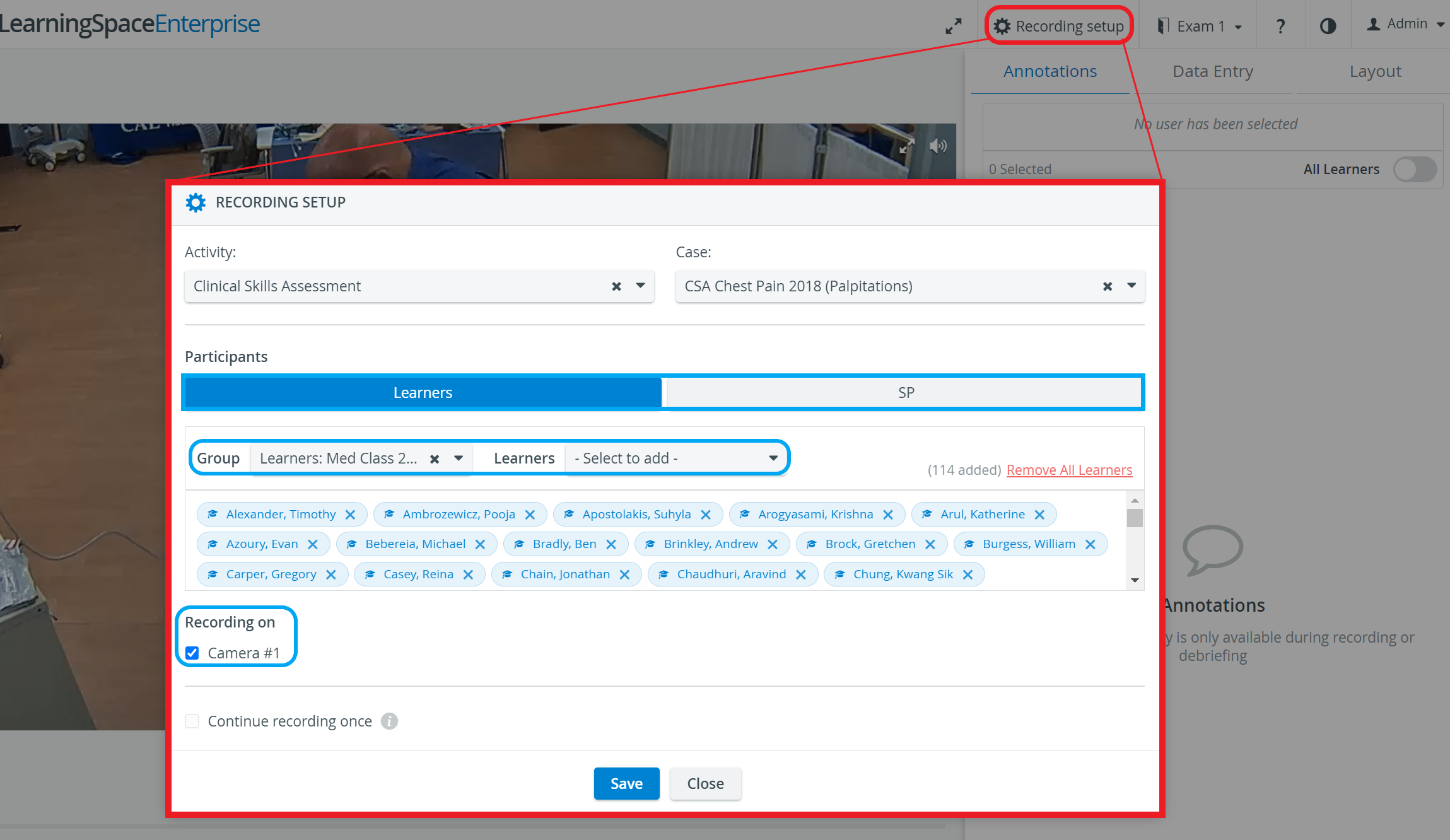
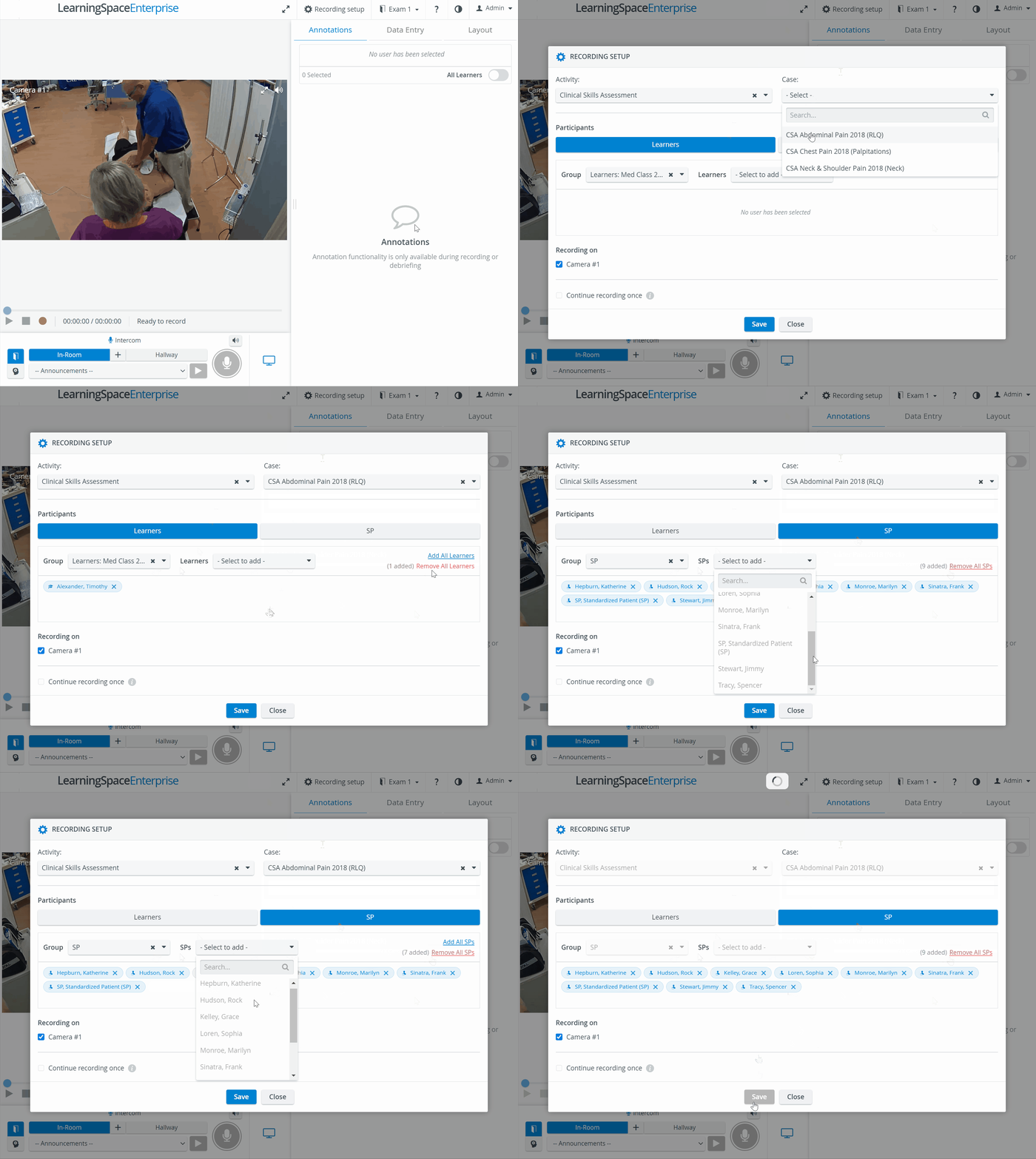
The Case selector becomes active only after the Activity is selected.
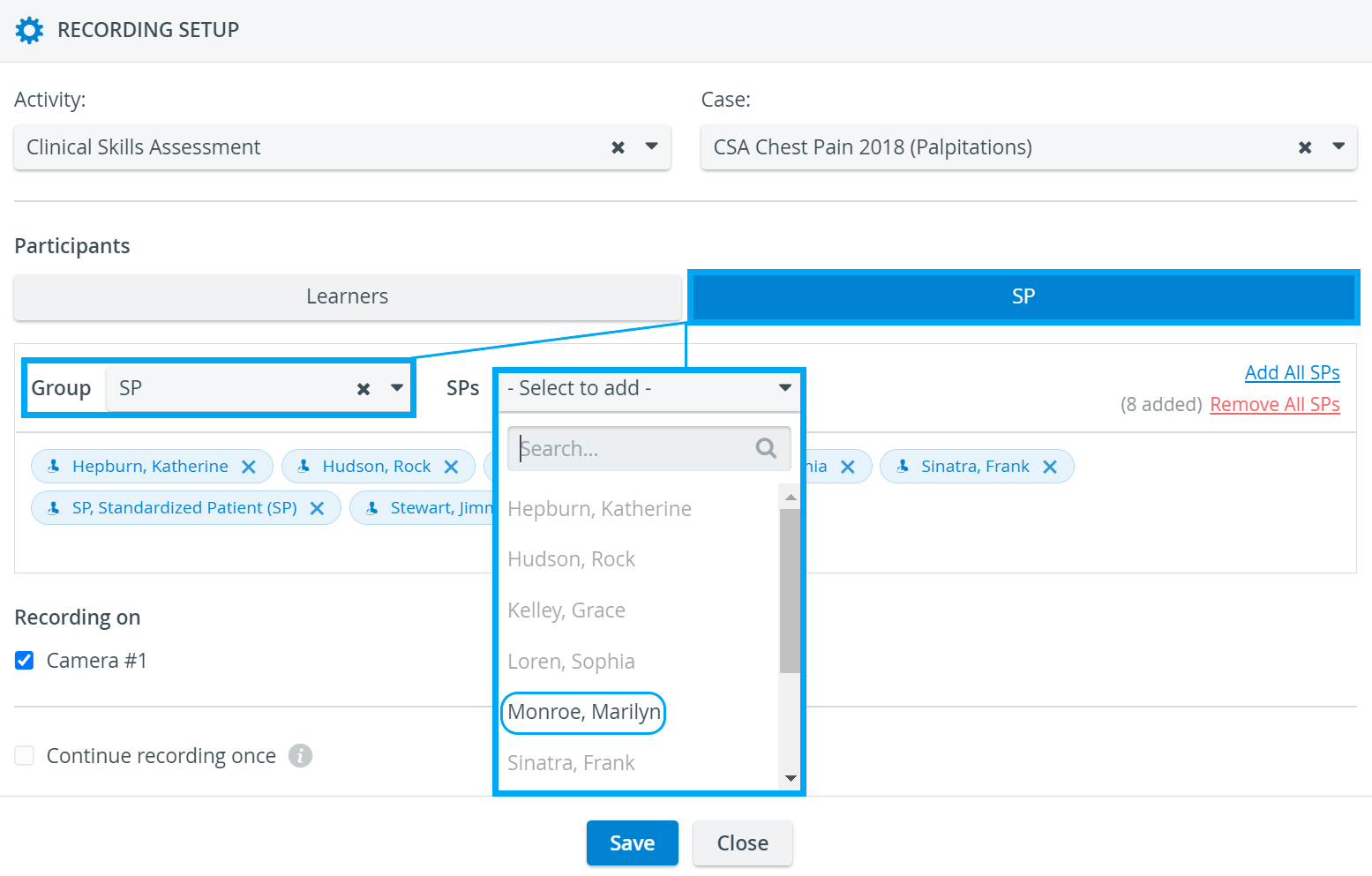
The learners- and SPs dropdowns will become active once the respective Groups have been selected.
Learner and SP groups can be added to a recording without an Activity or Case selected.
Selected participants appear 'disabled' (greyed out) in the Learners/SPs dropdowns.

Participants who have not been selected are active in the dropdown and thus can be selected.
Under 'Recording on', the selected cameras are room-specific, not user-specific.
Room selection during Live recording
You can change between rooms with the help of the Room selector dropdown, even during live recording:

Different Ways of Recording Setup
Recording can be started with
no Activity and/or Case selection.

Recording setup loaded from the last saved state,
Recording setup loaded from RNSA,
by loading the setup from Advanced Scheduling.
If the recording was automatically started by a scheduled event, data in the Recording setup is displayed based on the scheduled settings (related to the current timeslot), and the following message is displayed: "Recordings have been started by Scheduling with the following settings". These settings cannot be modified during the recording.
IMPORTANT
If multiple users are active in the same room in the Recording module, e.g., one user starts recording while another user is performing FON data entry, the system will warn the latter users and offer them two options.
See details here.

Recording Information widget during Live Recording
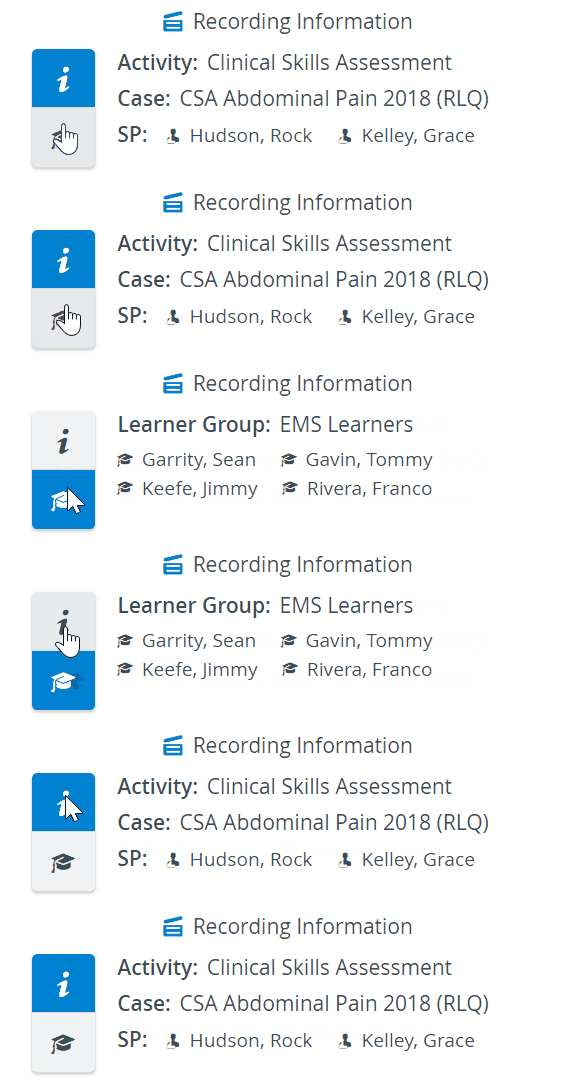
A Recording Information Widget can be found at the bottom panel of the live SRV, displaying the following information related to the recording:
Activity
Case
SP
Learners
The information is displayed based on the Recording setup settings or the Scheduling.

Activity, Case, and SPs assigned to the recording are displayed by default under the info icon. The assigned Learners' names can be viewed by changing to the graduation hat icon:

Intercom via Simulator
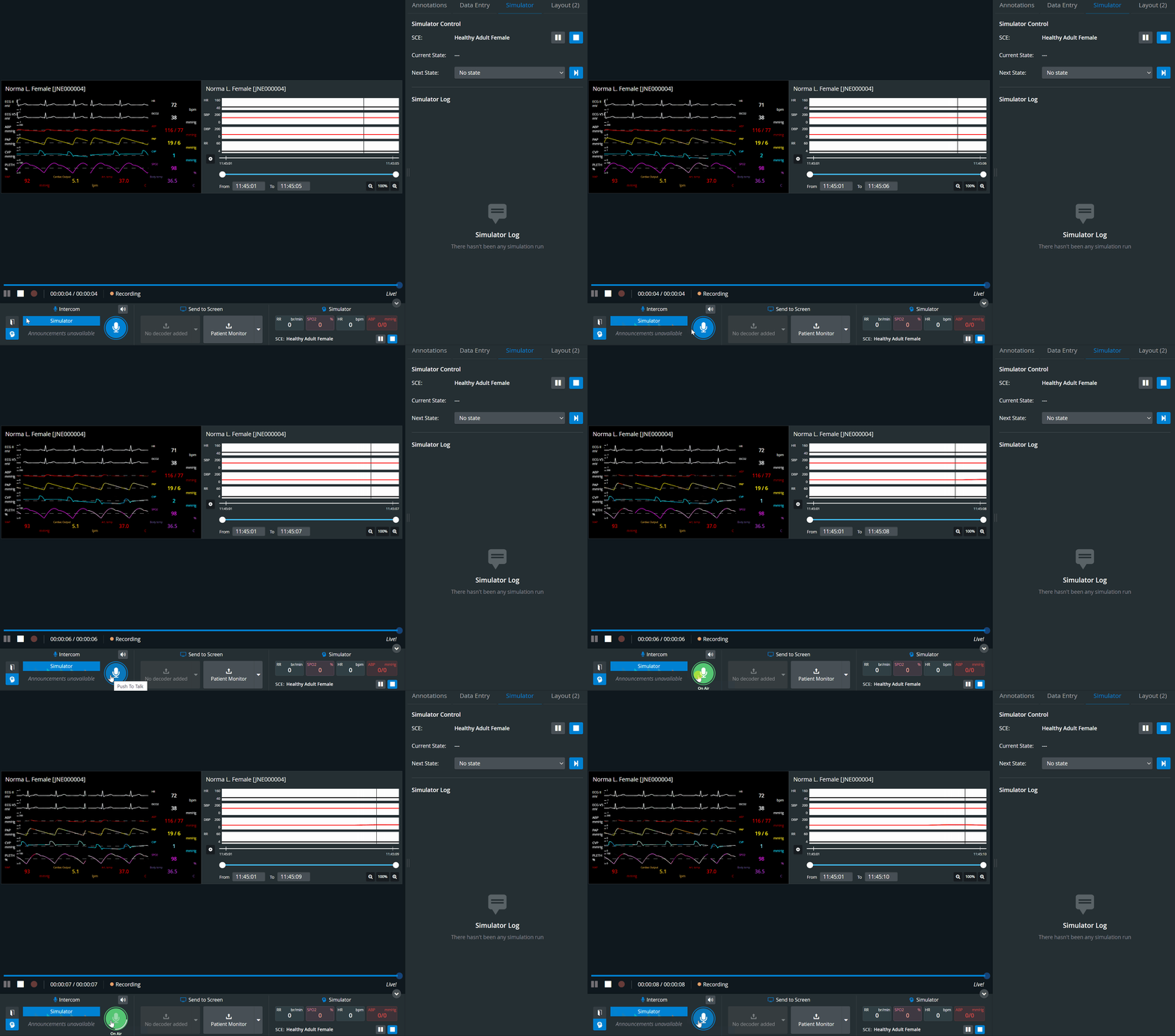
In LearningSpace Single Room View, the Intercom can also be used via Simulators. Within LearningSpace Enterprise, announcements can be sent to the simulator's head ("Voice of Patient"),
by selecting the Simulator button


Playback
During live recordings, the following enhancements can make video review easier:
The live stream can be paused with the pause button, and the recording can be played back by dragging the video slider to the desired point.
Both current and live timestamps are displayed side by side in the video record panel.
Live view can be switched back to by pushing the Go Live button.

After 30 seconds since the start of recording, the video can be paused and the slider dragged. Before that time, the pause button greyed out, and the slider could not be moved.

Mute/Unmute functionality during Live Recording
The mute/unmute functionality of the NextGen Room view operates as follows:
General rule: the system only unmutes a camera when the user clicks on the unmute button OR if the user enters the Single Room View (live or review).
3-state click functionality for mute/unmute:
First click: unmutes the specified camera stream, and other unmuted streams remain unmuted, too.
The icon on all unmuted streams changes to one indicating that multiple streams are unmuted.Second click: mutes all other cameras (including the unmuted ones), and only the selected camera stream remains unmuted.
Third click: mutes the selected camera stream as well.

Toggle Panel Width and Height
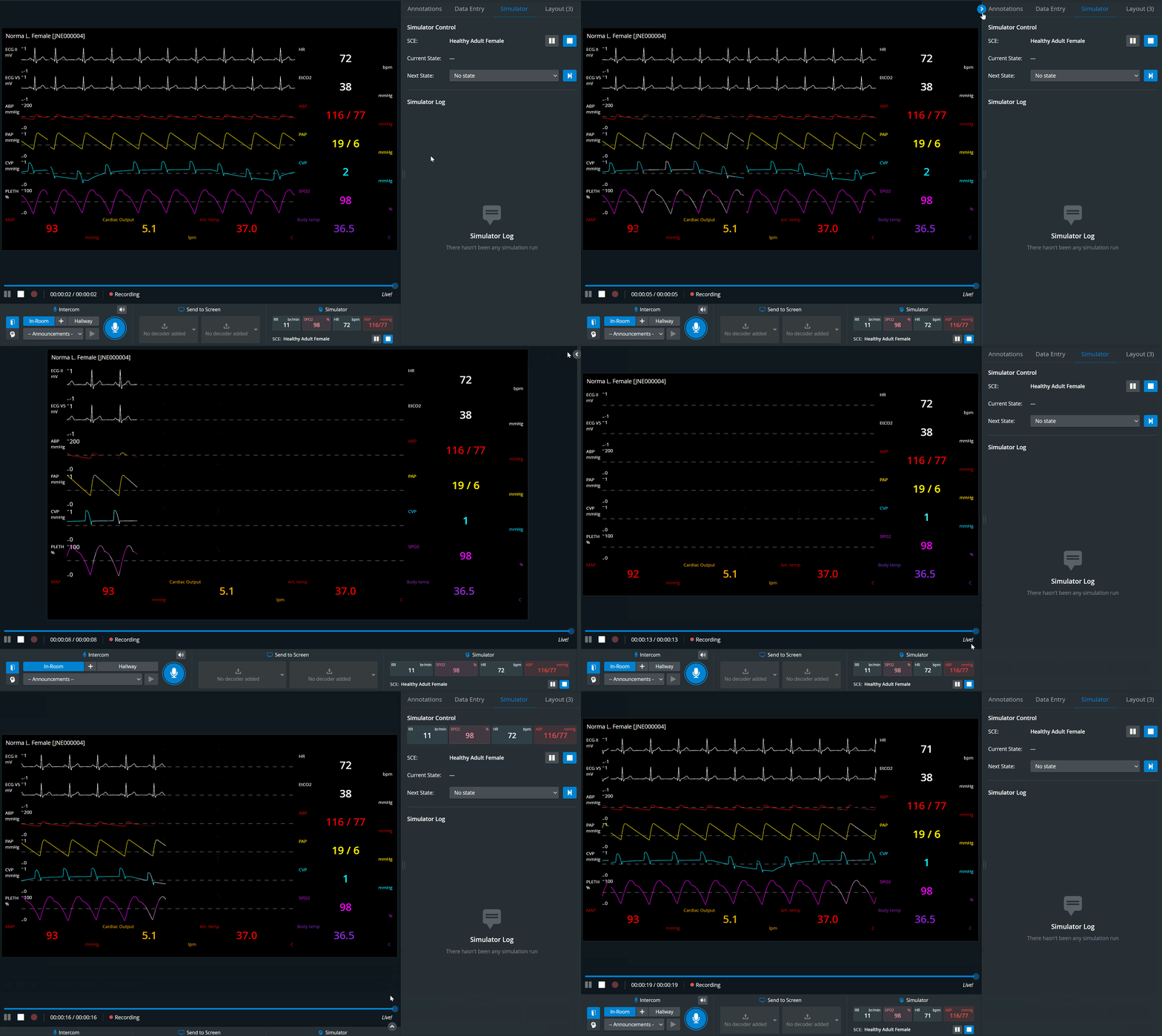
With this functionality, the bottom and side panels can be minimized to maximize the displayed camera or media view.
The toggle appears when hovering over the bottom or side panel, or along the panel border. When activated (i.e., when the camera view is maximized), the toggle arrows are displayed constantly.
Vertical Double Layout
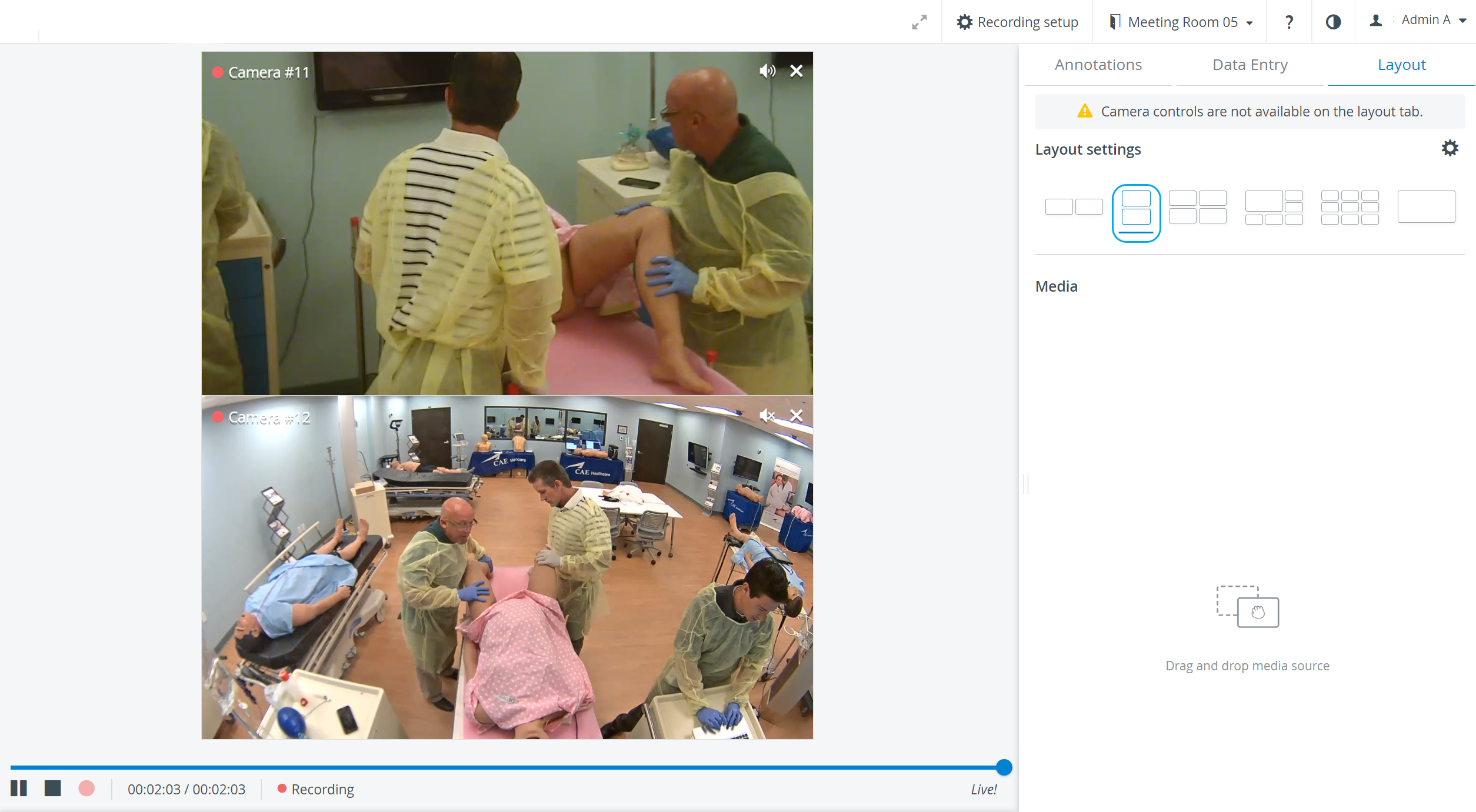
In some cases, two camera views must be displayed on top of each other (i.e., in a single column) during recording.
In the latest version of LearningSpace, the utilization of the space available in the Single Room View panels can be maximized, and the panels on the right side (Annotations tab, Data Entry tab) or additional windows can be displayed in a larger size with the Vertical double layout feature:

Privacy Mode Visual Indicator
When Privacy Mode is enabled, the Privacy Mode indicator appears in the camera stream window, indicating that the room is in Privacy Mode.

Privacy Mode - Single room view
Privacy mode is currently not supported for mobile cameras. See Mobile Recording Feature
For more information, visit our Recording - How to pages and watch the Recording Module Training Video.