Simulator Control tab - Simulator Panel
Simulator Control tab
If your layout is different in your Single Room View, you probably have the Legacy version. For the user guide of Legacy pages, please go here.
When a simulator is connected and assigned to a LearningSpace room, the Recording module's SRV displays the Simulator Control tab. Simulation data can be monitored and controlled from here, such as: SCE, Current State, and Next State -by selecting it from the respective drop-down and clicking the following button:


Installing and connecting a simulator can be done within the System module.

Healthcare simulators associated with a room display their respective Waveform and Simulator Log in the Single Room View, and these are recorded along with the camera feed when REC is started.

The Waveform and Simulator Log display figures in synchrony with the video feed.
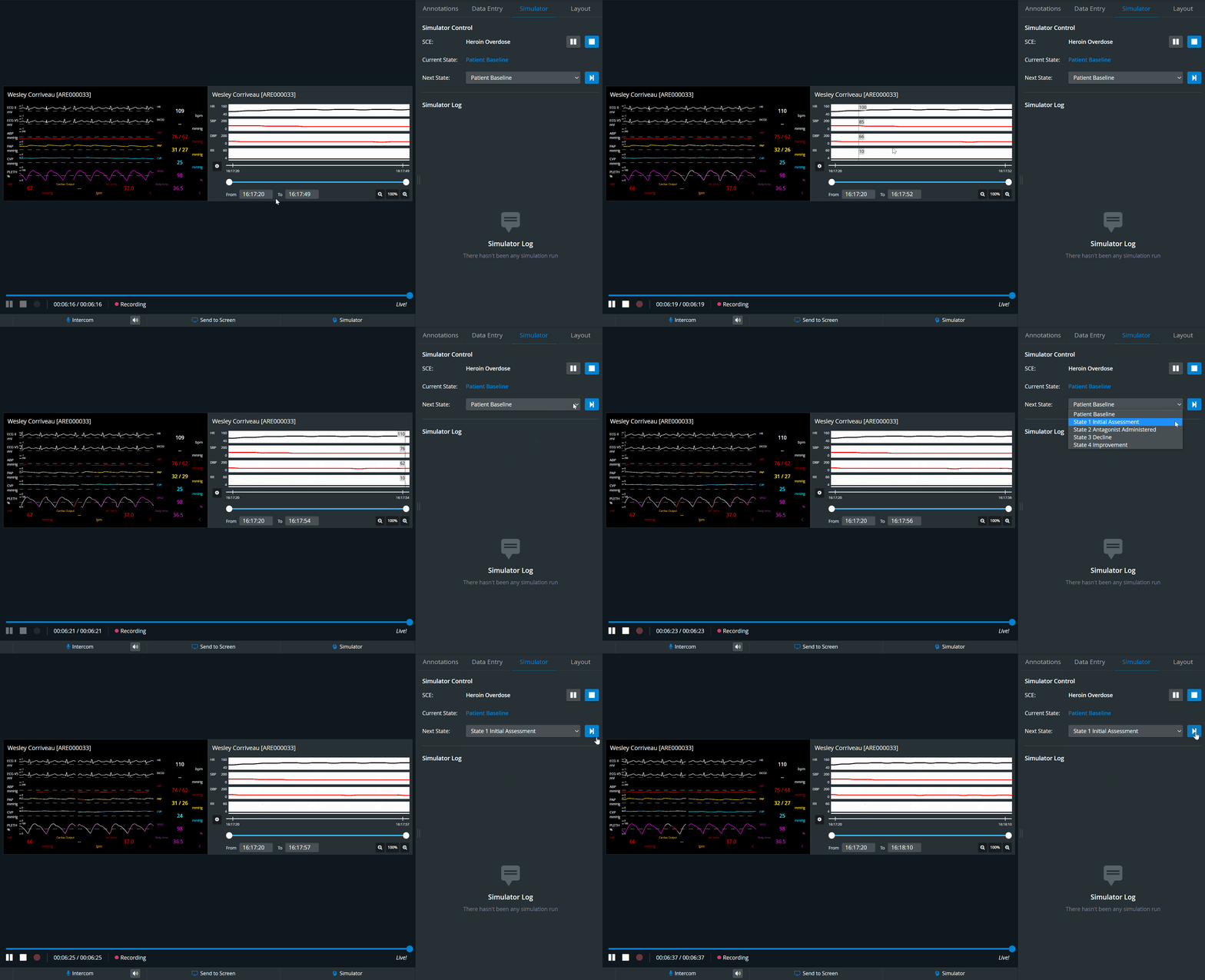
Physio apps (Waveform, Trendchart, CTG) are not recorded if the simulation is started while a recording is running. Thus, if we wish to record physio/sim data, the simulation must be started before the recording starts.
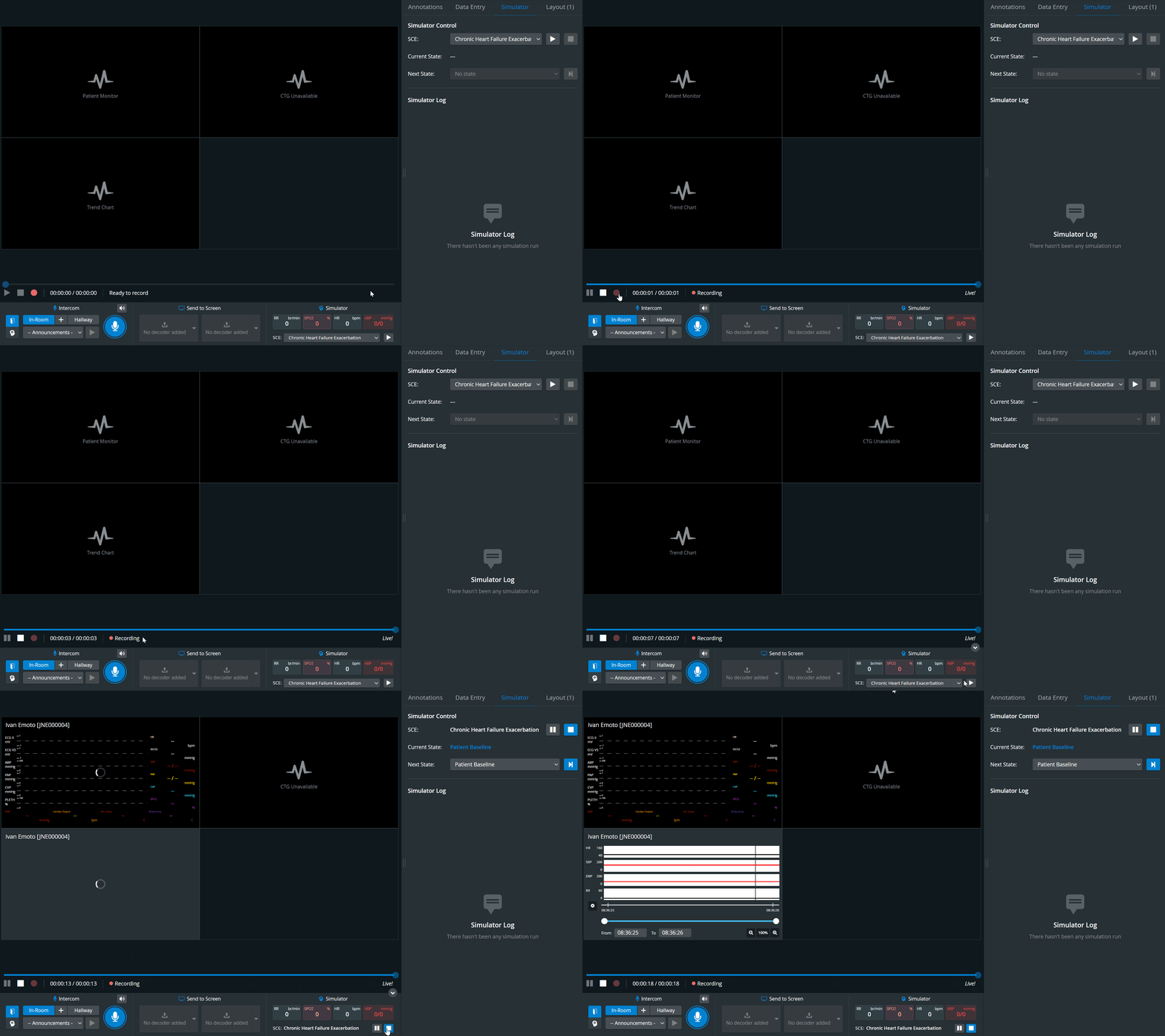
If the "Record automatically upon simulator connection" option is activated on the Rooms Tab, recording will immediately start when the simulation is started on the Simulator.
Simulator panel
The Simulator panel (widget) is in the Recording panel. When a simulator is connected and assigned to a room, the Recording module's SRV will display the Simulator panel in the bottom panel.
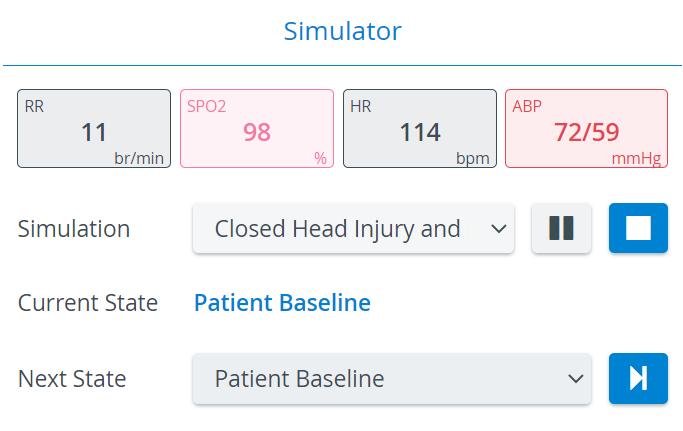

The Simulator panel provides information about
the main physiological data,
The simulation scenario running on the manikin includes the Simulation (SCE) Title, the actual ('Current') State, and the upcoming ('Next') State.
The Simulation scenario can be
played
paused
stopped
changed (by selecting another scenario from the drop-down).
The Next State drop-down menu allows for moving to a selected State.

Simulator Control and the Simulator panel are unavailable for third-party simulators.
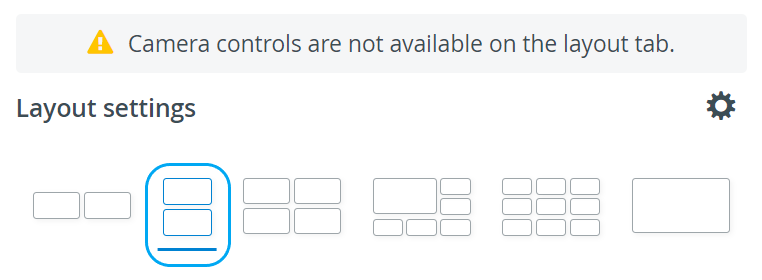
In the latest versions of LearningSpace, the available space in the Single Room View panels can be maximized, and the panels on the right side (or additional windows) can be displayed at a larger size using the Vertical double layout feature.

For more information, visit our Recording - How to pages and watch the Recording Module Training Video.