Share tab of Edit Case
Individual users or groups can be added to either the Can Read Only or the Can Read and Write panel in the Share tab to specify their access level for the specific Case.
Members or groups can be added to either panel by typing their names in the Add... field.
By default, the user creating the Case is added to the Can Read and Write panel, while "Everyone" is added to the Can Read Only panel.
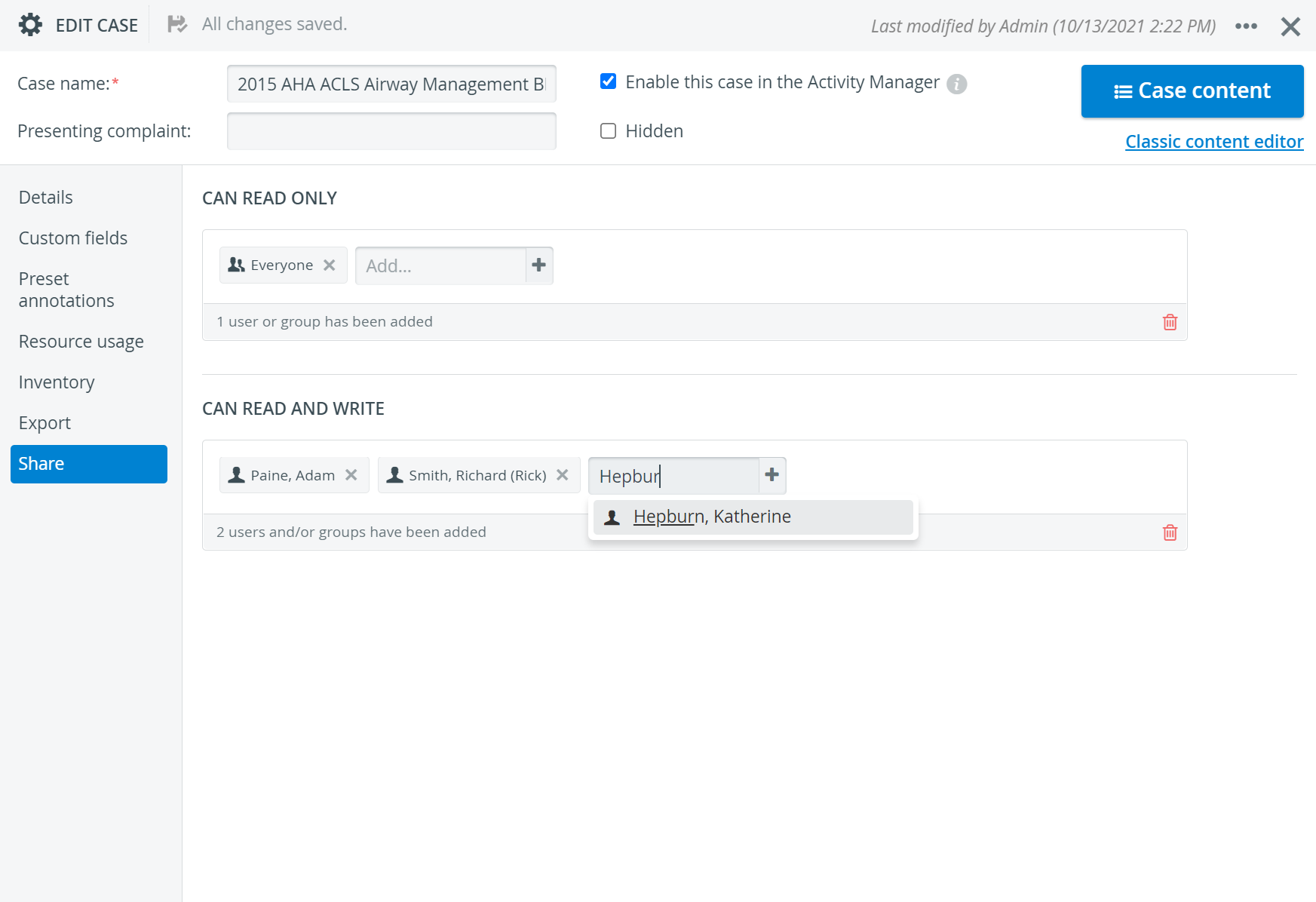
Sharing in the Edit Case pop-up is only relevant in case of users who have Case Author or Case Author (full control) privileges (thus can access the Cases module).
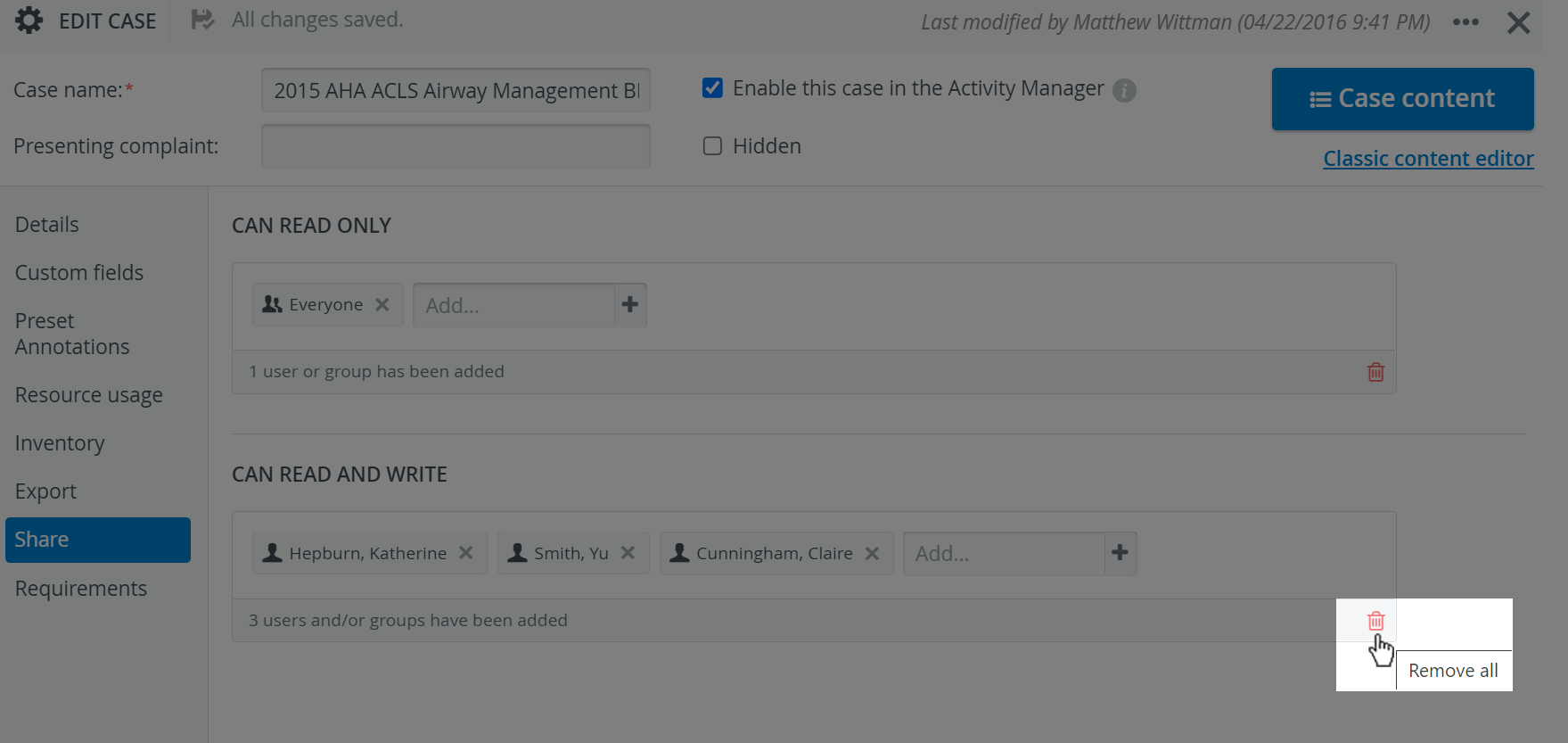
To remove a member, click the remove icon in its field.


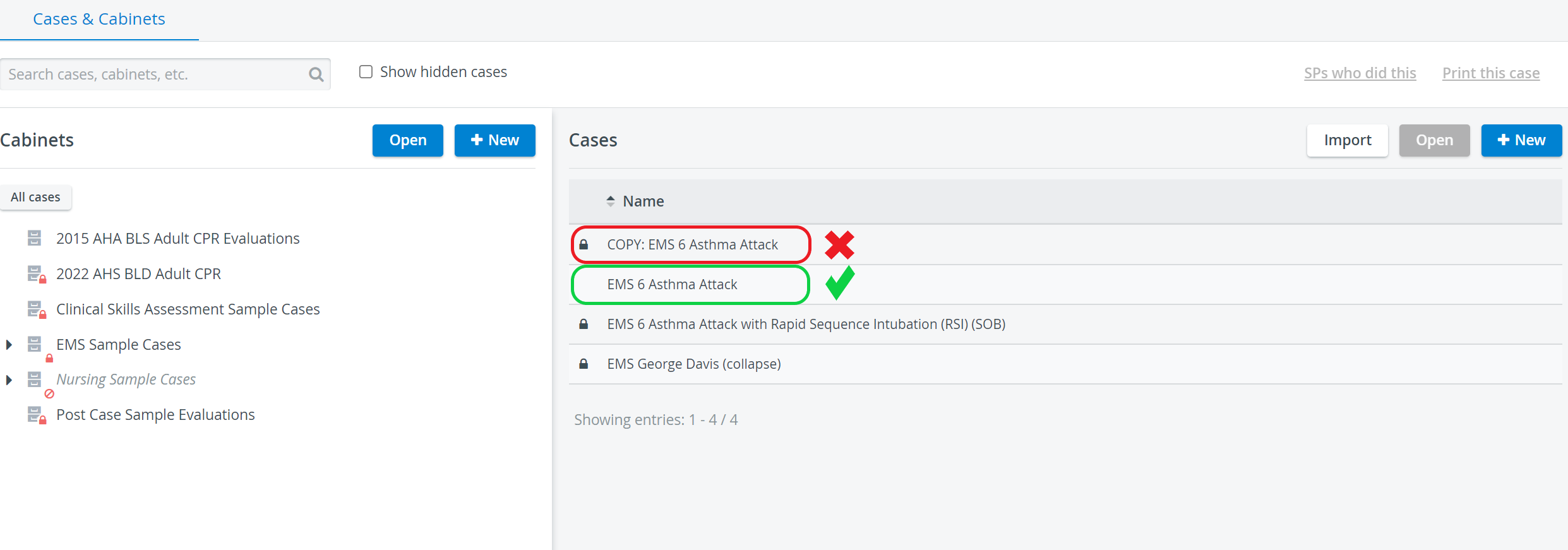
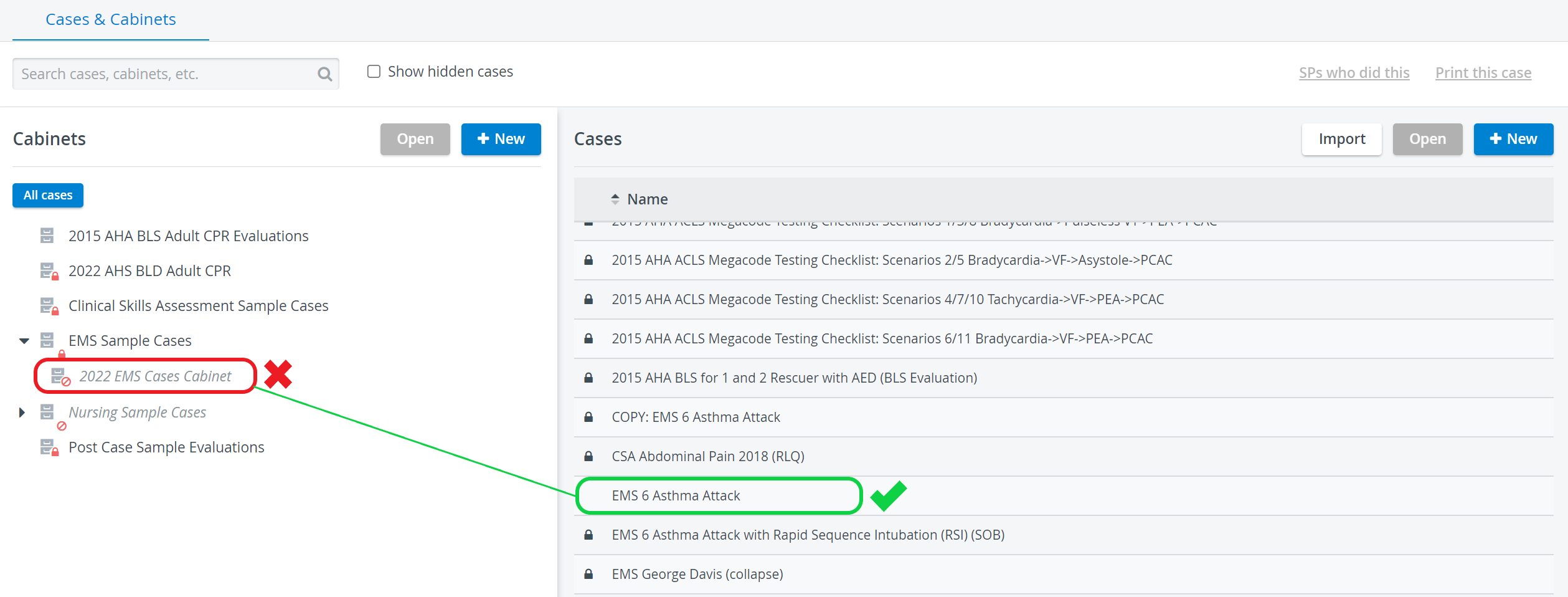
If a user has read-only access to a Case, it is indicated with a padlock icon before the Case name in the Cases panel on the Cases & Cabinets screen.

If a user has no access, the Case is not listed.
Providing read-and-write access to a Case Cabinet does not automatically grant access to the Cases included in it (see How to Create a New Case Cabinet).
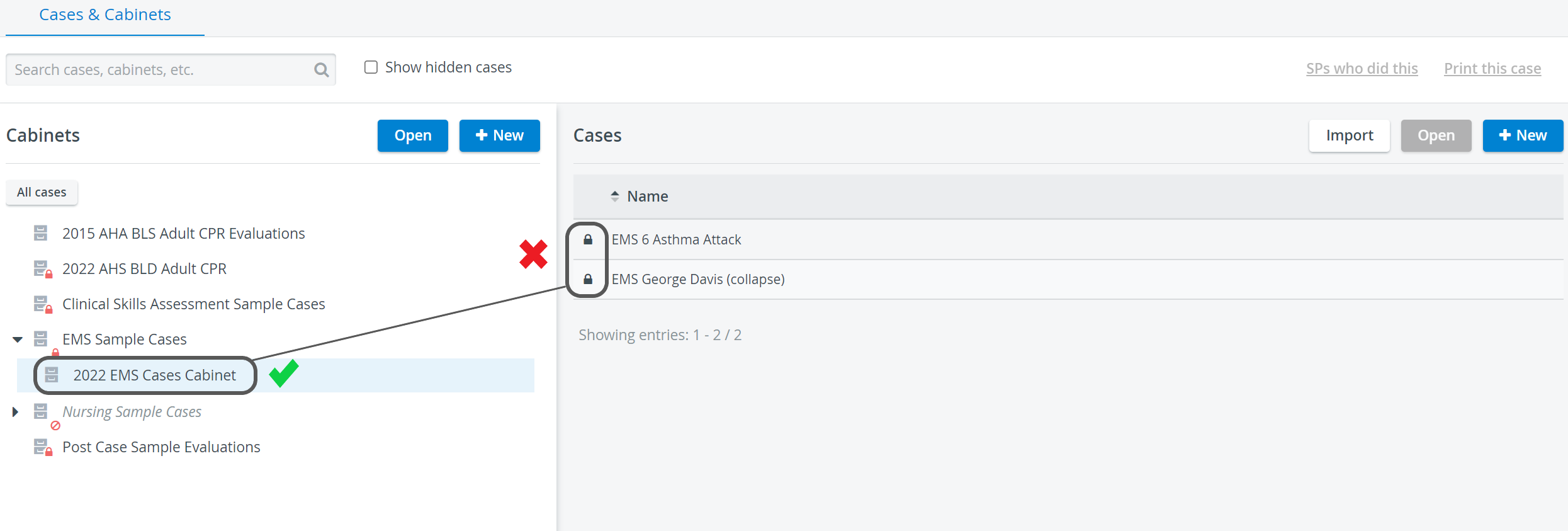
Once read and write access has been granted to a Case on the case level, the user can access it even if they have no access to the Cabinet containing it.
For further information, visit our Case Manager and Cases - How to pages or watch our Case Manager Training Videos.