Send to Screen
If your layout is different in your Single Room View, you probably have the Legacy version. For the user guide of Legacy pages, please go here.
Send to Screen option
Media content can be sent to a display (Patient monitor) if a Simulator (Maestro-based) has been selected in the Send to Patient monitor source dropdown under Room settings for the respective Room.

With a decoder, the media can be sent to a display in the room.
Although this section is always visible, it is only useful when using Maestro simulators in the room.
See Maestro User Guides here.
The Send to Screen function is available only for LearningSpace Simulators, not for third-party simulators.
Picture files can be sent to the Patient monitor of the JUNO simulator or other simulators by clicking the corresponding button.
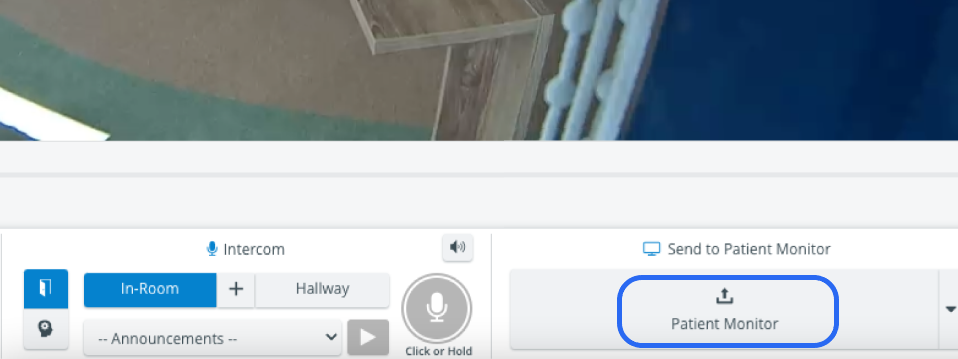
The Send to Screen option requires the following technical setup to be completed:
A simulator connected and assigned to the room (within the System Manager)
Media content uploaded (via Maestro)

Content can only be uploaded via Maestro: if a simulator is connected to the system, content uploaded via Maestro will be available for sending.
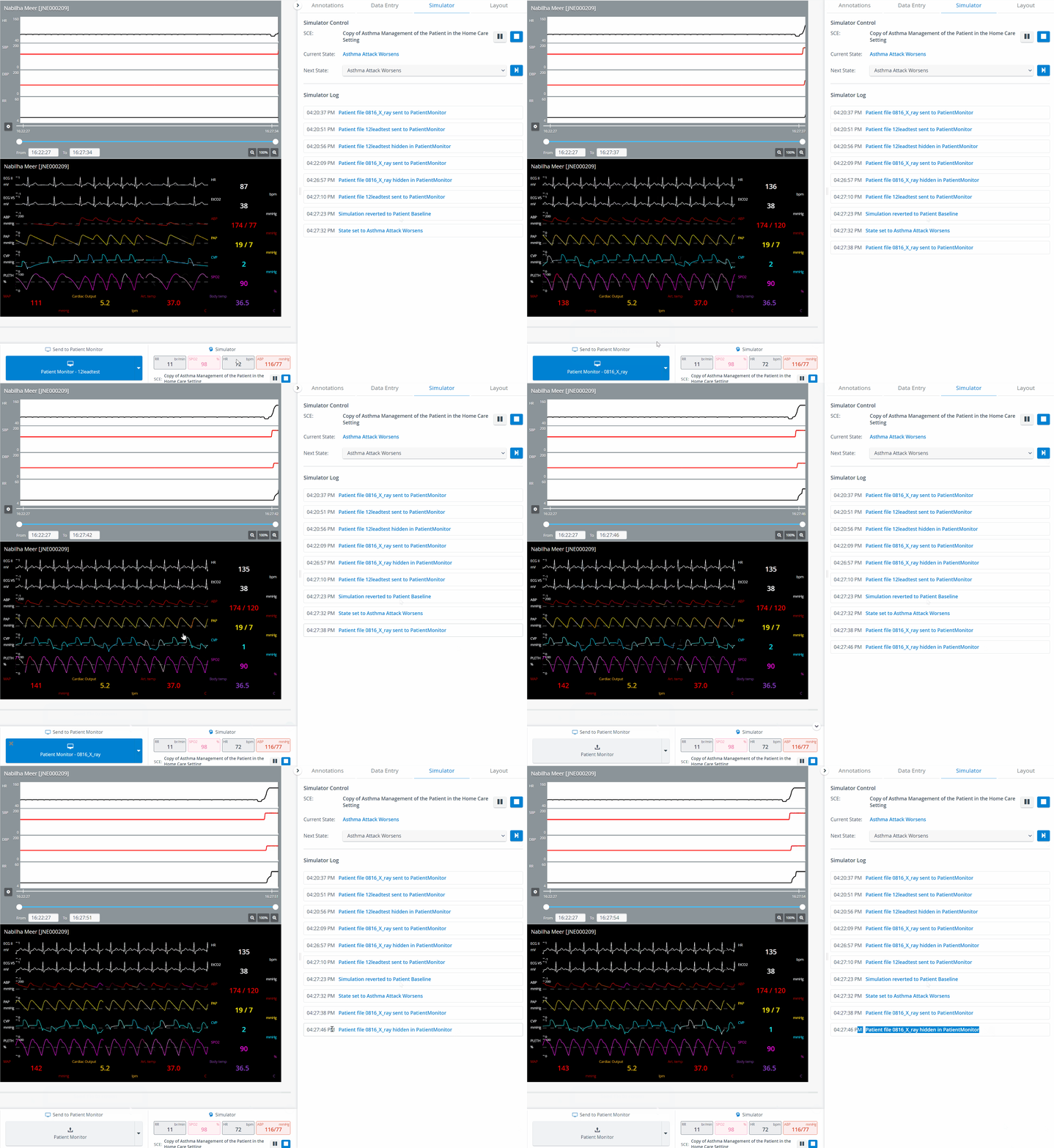
Send to Screen - Patient Monitor (with Simulator Log)
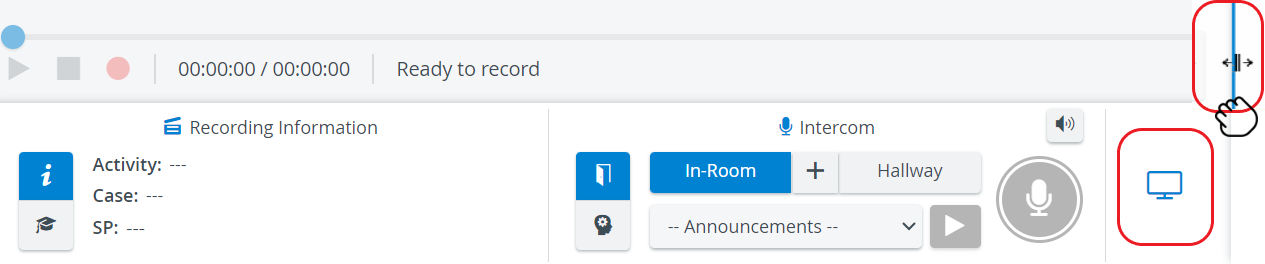
The Send to Screen (Patient Monitor) widget can be minimized to utilize space on the screen better:
Send to Screen on LearningSpace types of equipment
Widget | Server-Based LearningSpace | OneBox | Standalone UP | Satellite UP (formerly called GO Unit) |
|---|---|---|---|---|
Send to Screen (Maestro Patient Monitor) |
✅ | ✅ |
✅ | ✅ |
For more information, visit our Recording - How to pages and watch the Recording Module Training Video.