Sections
Sections accommodate the item(s) added to a checklist. An item is a set of a certain question and - depending on the item type - the possible answers for that question. As items cannot be added independently to a checklist, only within a section, it follows that a checklist always contains at least one section.
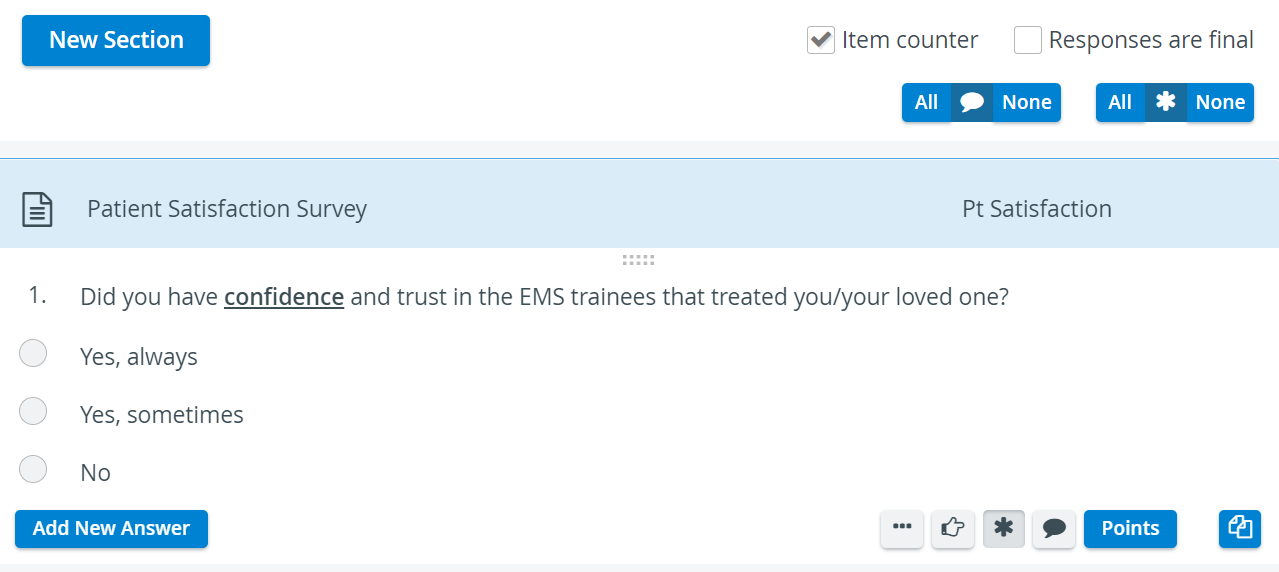
A section may contain one or more items that target the same skill competence. Thus, sections are used to categorize/group questions and serve as a means for arranging questions according to different skill areas.
In turn, performance can be analyzed based on different sections, thereby allowing for the observation of performance along skill areas.
When on the tab of the desired part (checklist), without any section added, clicking an item in the New Item panel will automatically create a section that can contain the added item.
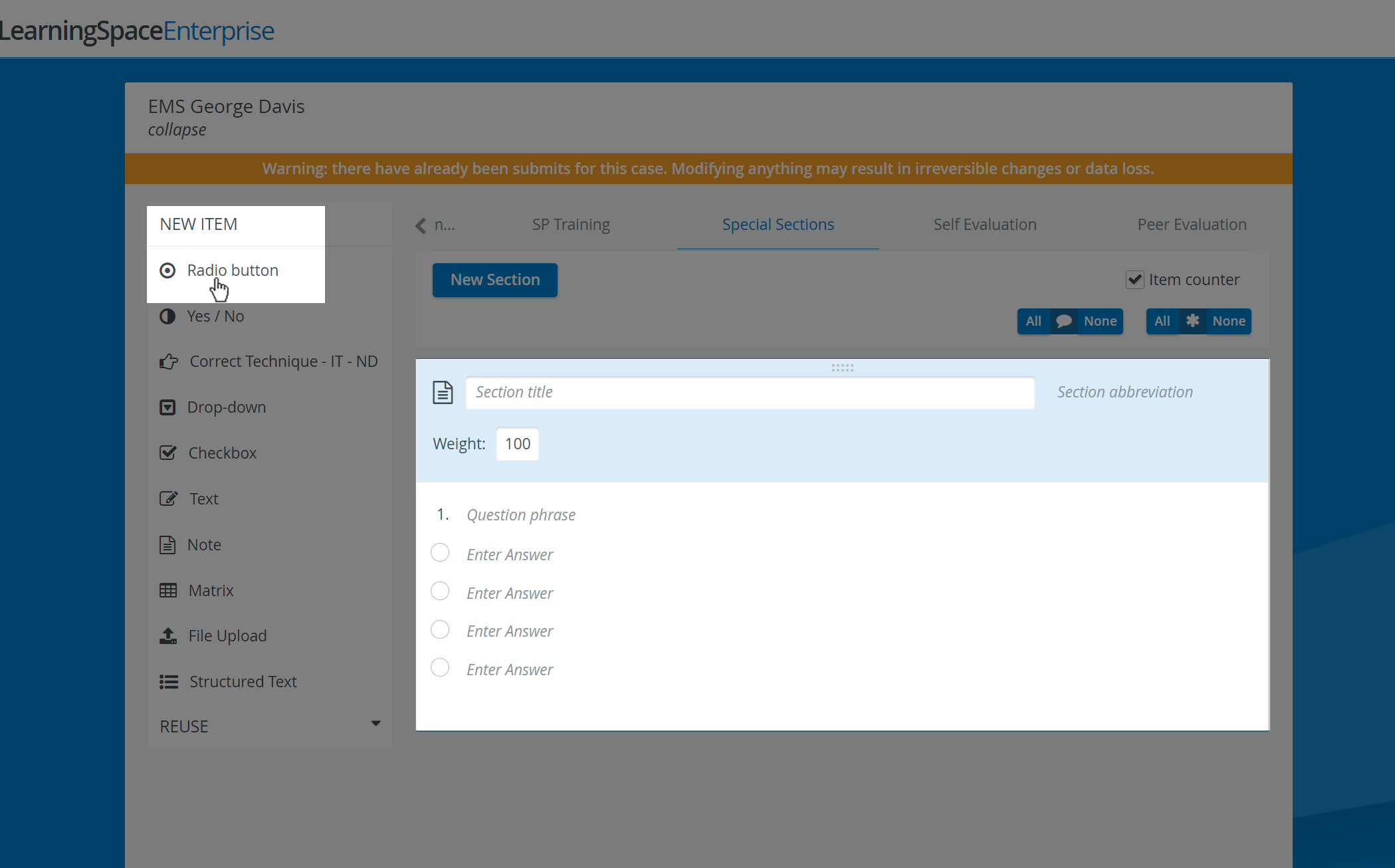
Item types are discussed in detail here.
Data to be specified for a Section
Section title: title describing the type of items arranged within the Section or referring to the skill area the items included aim to evaluate;
Section abbreviation: a code corresponding to a common skill area intended to be observed across different cases.

Section abbreviations are required to generate a Skill Development Report. The abbreviations correspond to different skill areas, and the report itself is constructed according to scores achieved within Sections having the same Section abbreviation.
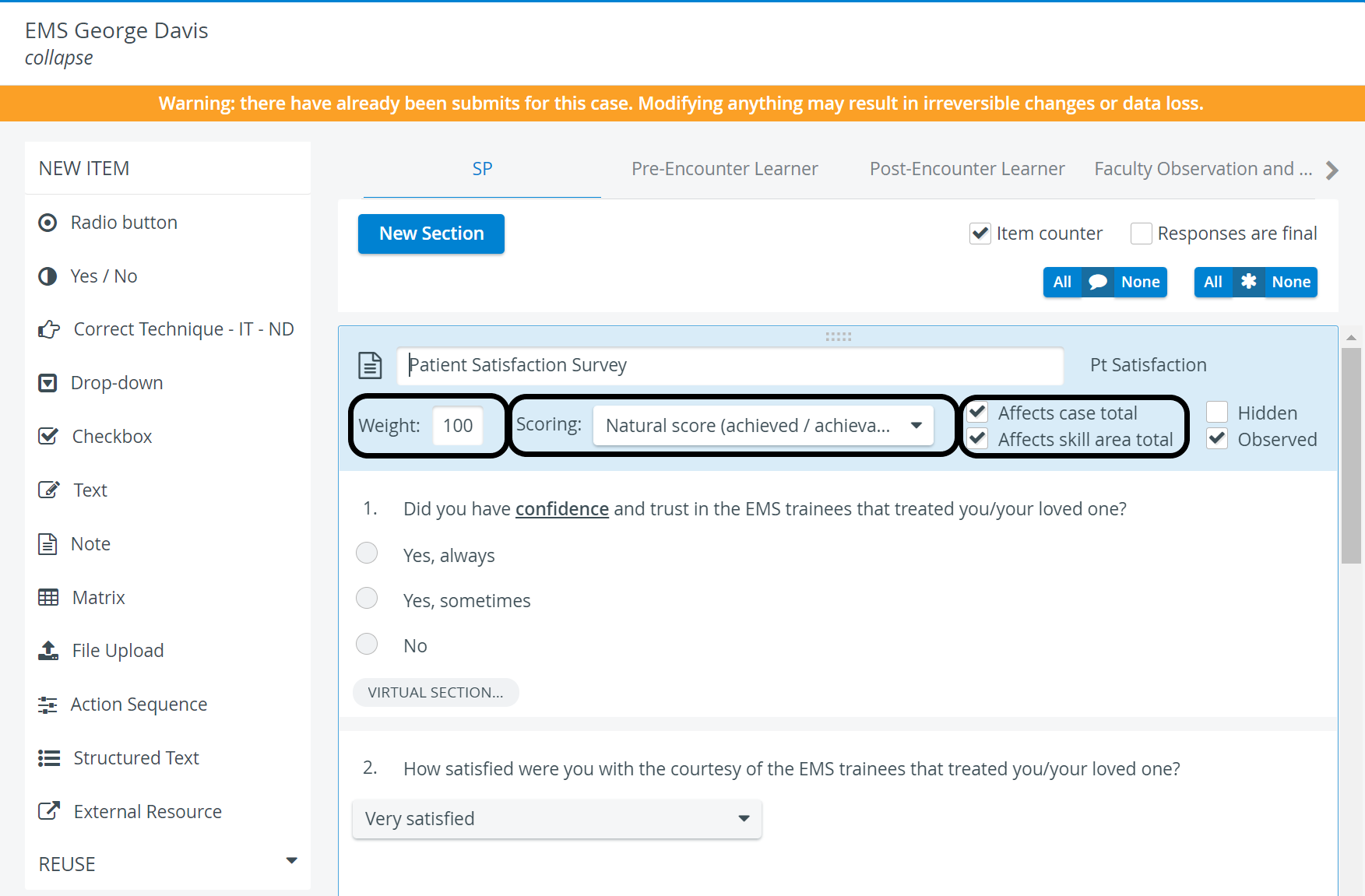
Weight: value determining the weight of the Section that it counts into the score calculation.
The learners' Case total score is calculated according to the weights provided for each Section. Therefore, Section weight provides a means of differentiating between skill areas, if necessary.
Scoring: setting determining the type of scoring (Percents, Natural score, or Mean score)
Further options - activated by ticking their checkbox:
Affects case total - if NOT checked, the Section will NOT be counted in the Case Total Score but will be displayed in all relevant reports
Affects skill area total - mainly relevant in the Preliminary Results/ Skill Report and the Skill Development Report
Hidden - when checked, the scores achieved by the responses for the items of the Section will not count in the Case Total Score, and the Section will not be displayed in the Reports.
Hiding an item does not affect Data Entry: the items included will be displayed and can be answered by the user filling out the checklist.
By default, Sections are not hidden. → See also: Hiding in LearningSpace

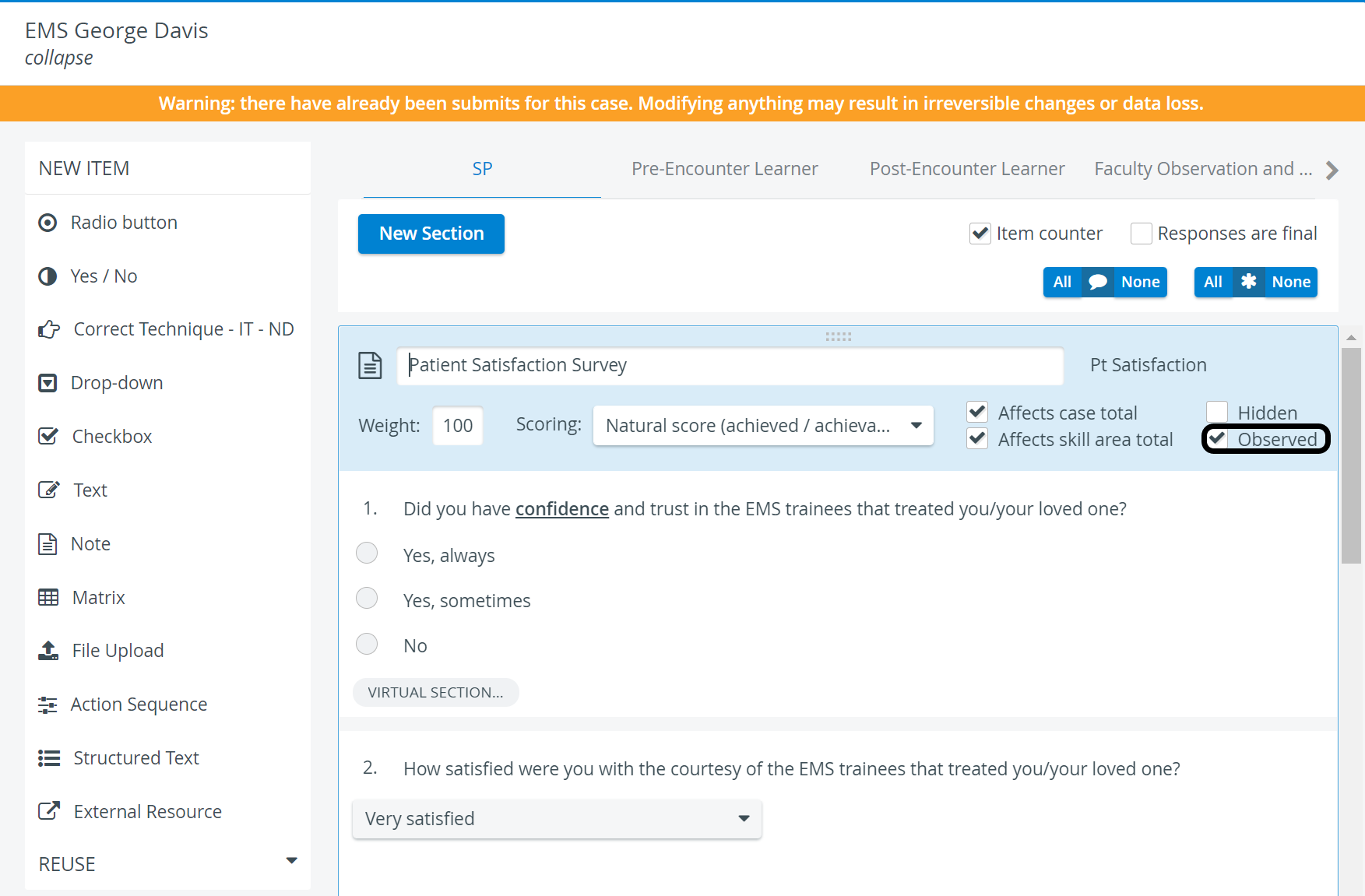
Observed - SP checklists (only) can be marked to be observed - see SP Performance Assessment.
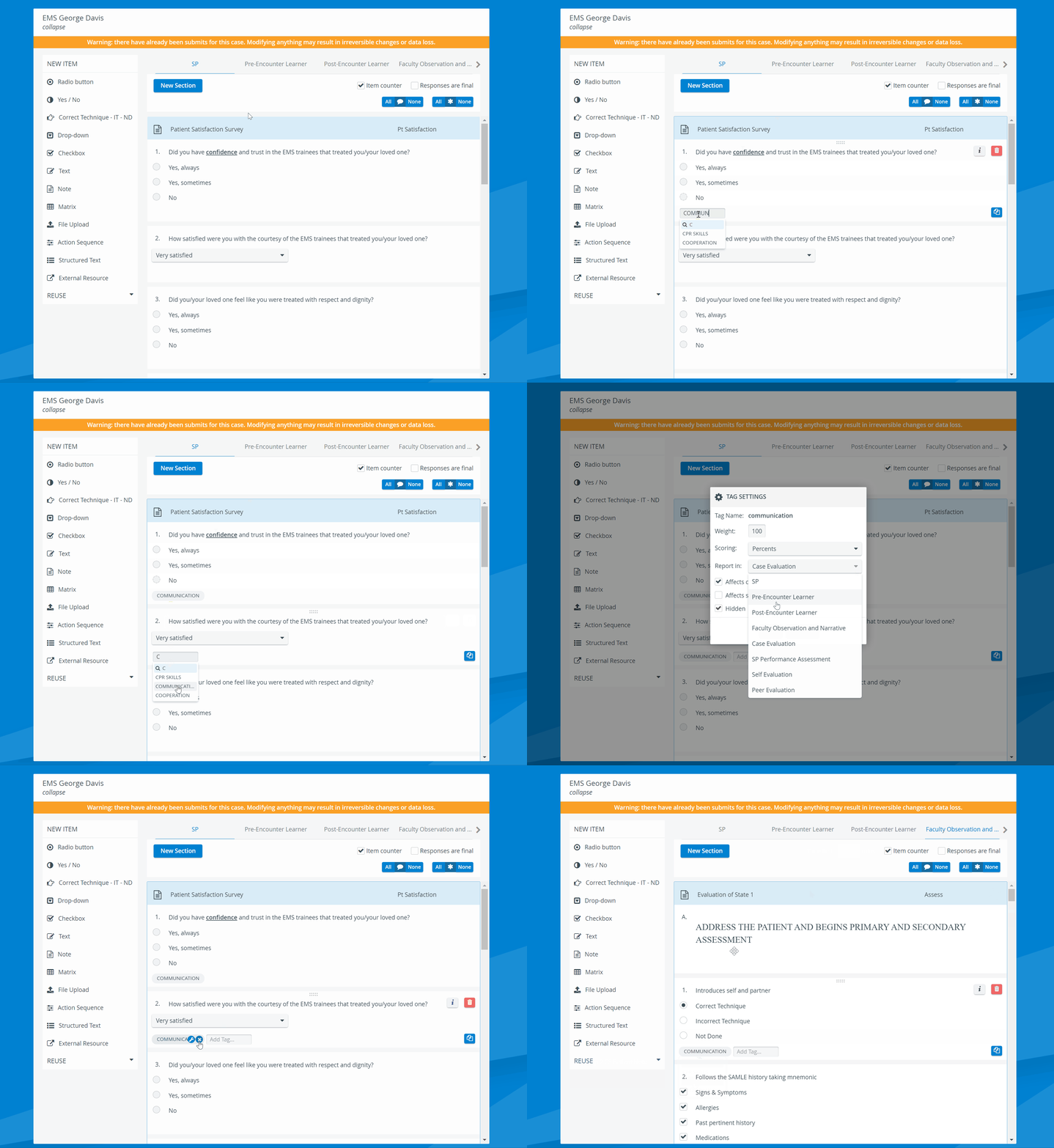
Virtual sections - Tagging
Items can be assigned specific tags that can be linked to create a Virtual Section unit. With the help of this feature, you can regroup certain items of the Case into a separate Section and review the results for this Section in certain reports.
Like common Sections, a Virtual section is also a group of items that are already present in the Case. Thus, respondents do not have to 're-answer' the questions in a Virtual section since these responses have already been saved.
A tagged item (or virtual section) does not affect data entry, but it does affect reporting: its scores will be visible in specific reports.
Tagged questions can be included in different sections or even parts, but then observed as one Section at score calculation (e.g., one Section can be the FON, the other the SP part).
With this setup, the scores for items appearing in both the SP/FON part and the Virtual Section will count with double weight in the reports.
If you wish the scores to count only once - for example, in the Virtual Section - set the Section in the SP and FON part to not affect the case total and skill area. Make sure that the checkboxes 'Affects case total' and 'Affects skill area (cross-case section total)' are not selected.Learn more at How to Create Virtual Sections - Tagging.
For further information, visit our Case Manager and Cases - How to pages or watch our Case Manager Training Videos.