Scores tab - Customized reports
In the Scores tab, data tables can be configured with custom rows and columns. You can add score categories inside the Scores tab once you have collected data about simulated patient encounters from learners and faculty. The custom-designed report can then be further filtered to show a specific data range.
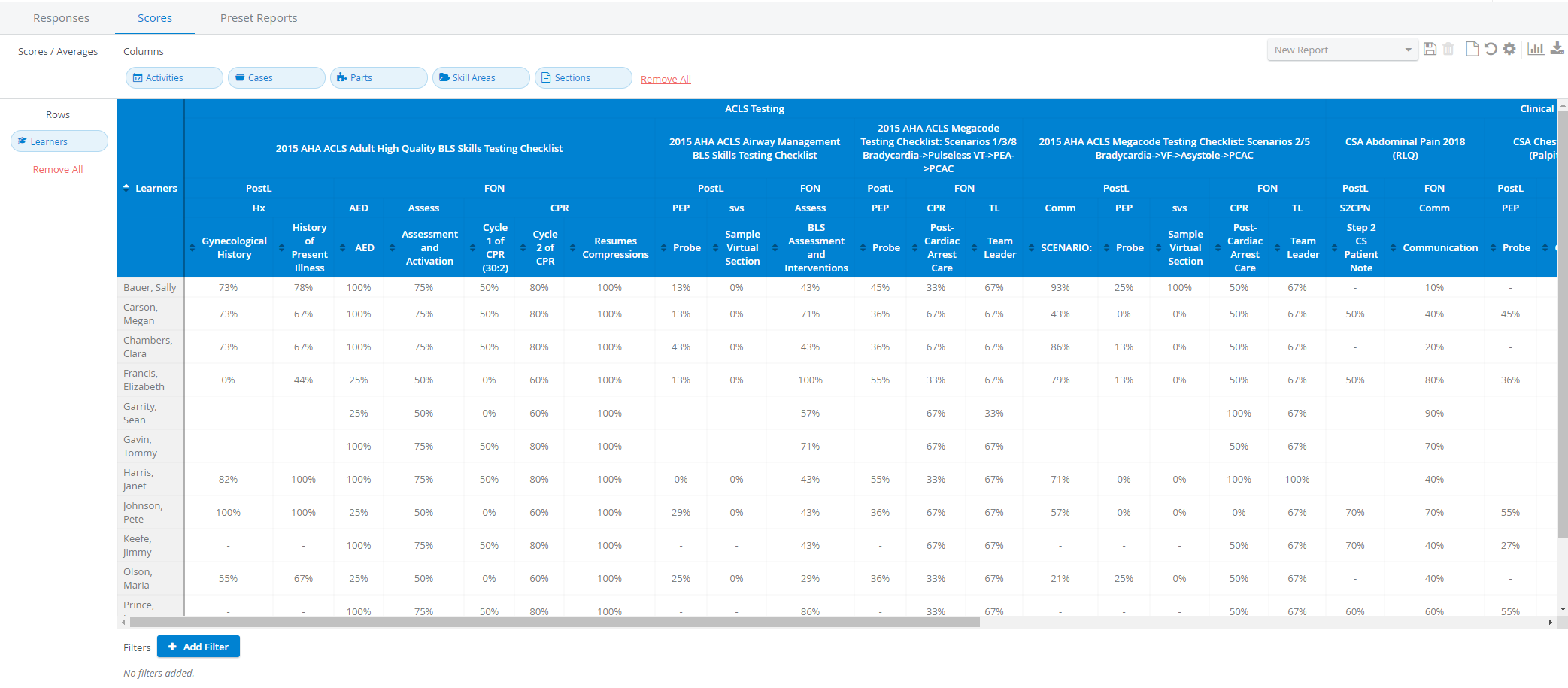
The Scores tab calculates percentages or natural scores for specific data fields. You can check:
the activity average of a Learner
the average score of a Case
the average of a Section
Learner scores by Skill areas, etc.
See details at How to Create a Custom-Designed Report.
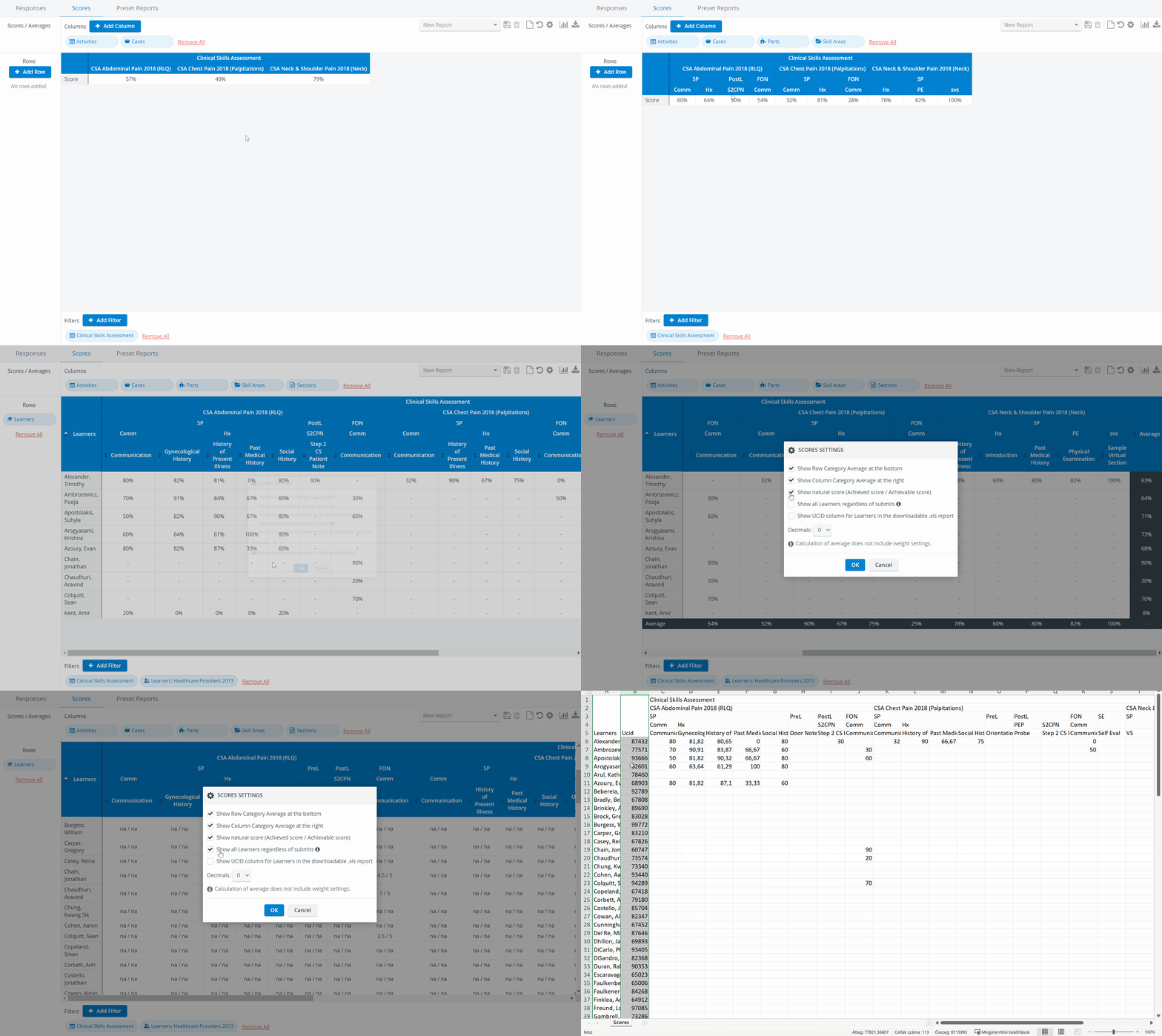
The Groups filter lists only the participant group (Learner group) assigned to the Activity; it does not include Learner or Evaluee subgroups.
Scores Settings Pop-up
While customizing the report, steps can be undone, or the process can be started over with

the Undo button in the Score Settings pop-up -
opened by clicking the cogwheel

Row and column average | |
Show natural score (Achieved/Achievable scores) | Natural score display |
Show all Learners regardless of submits | |
Show UCID column for Learners in the downloadable .xls report | |
Decimals |
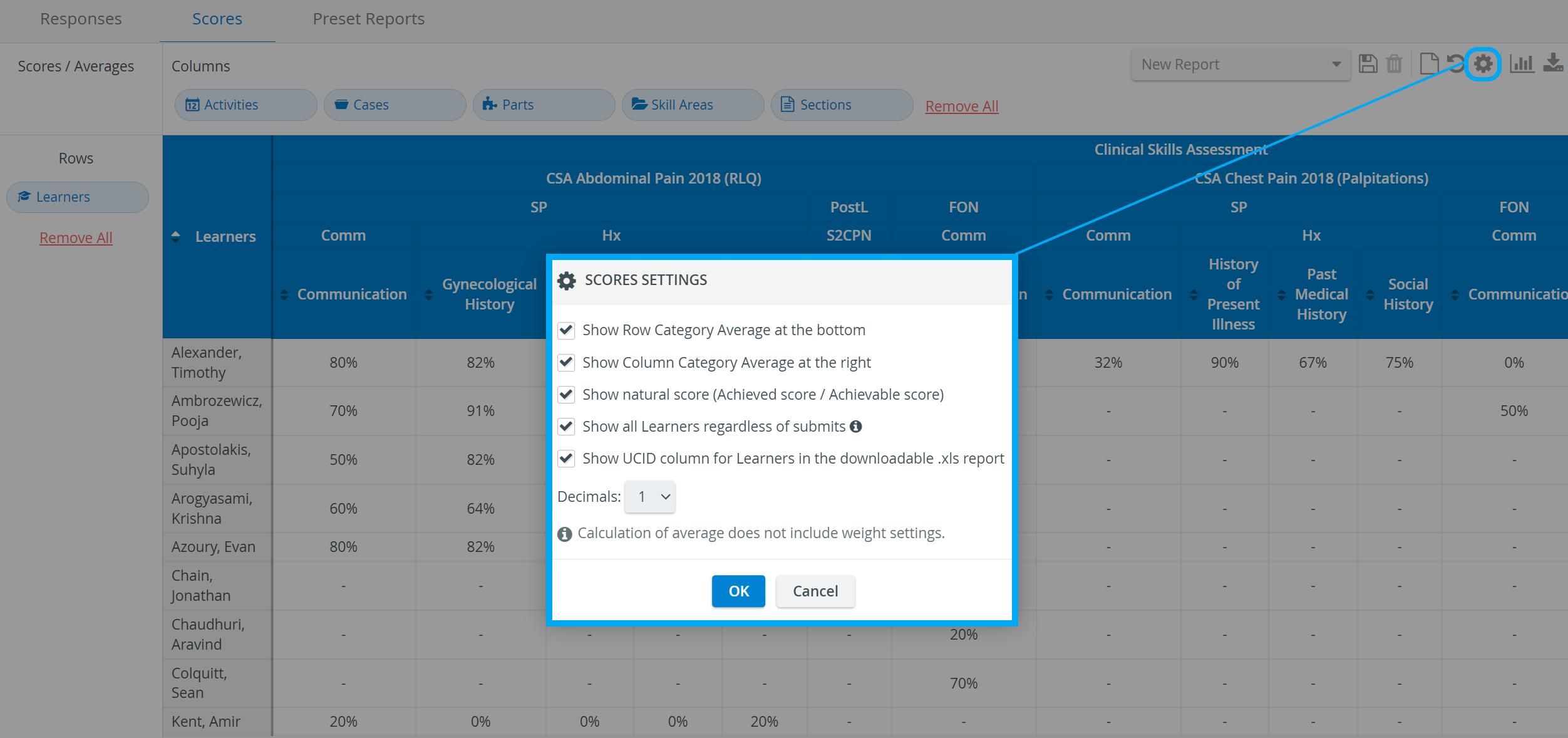
To use either feature, create your customized report, then click the cogwheel icon in the top-right corner of the tab. In the Scores Settings pop-up, the two options can be activated as follows:
Decimal place: click the drop-down at Decimals and select the required value
Natural scores: tick the checkbox next to Show natural score (Achieved score / Achievable score)
To confirm, click OK at the bottom of the pop-up.
Since the decimals represent percentage scores, they are not displayed when the natural score option is selected.
UCID column Display in Excel
By activating the ”Show UCID column for Learners in the downloadable .xls report” checkbox, the UCID column is displayed next to the Learners column in the downloaded .xls.
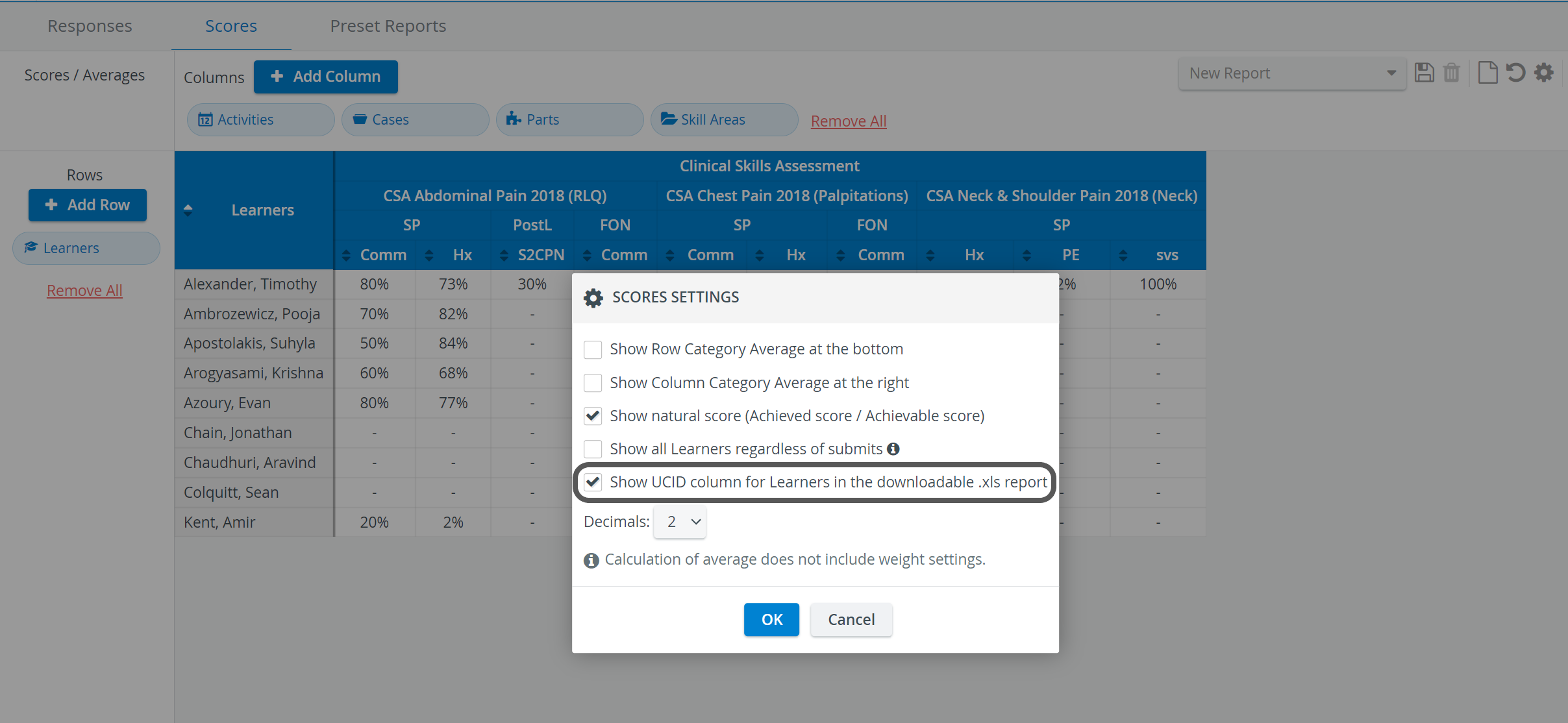
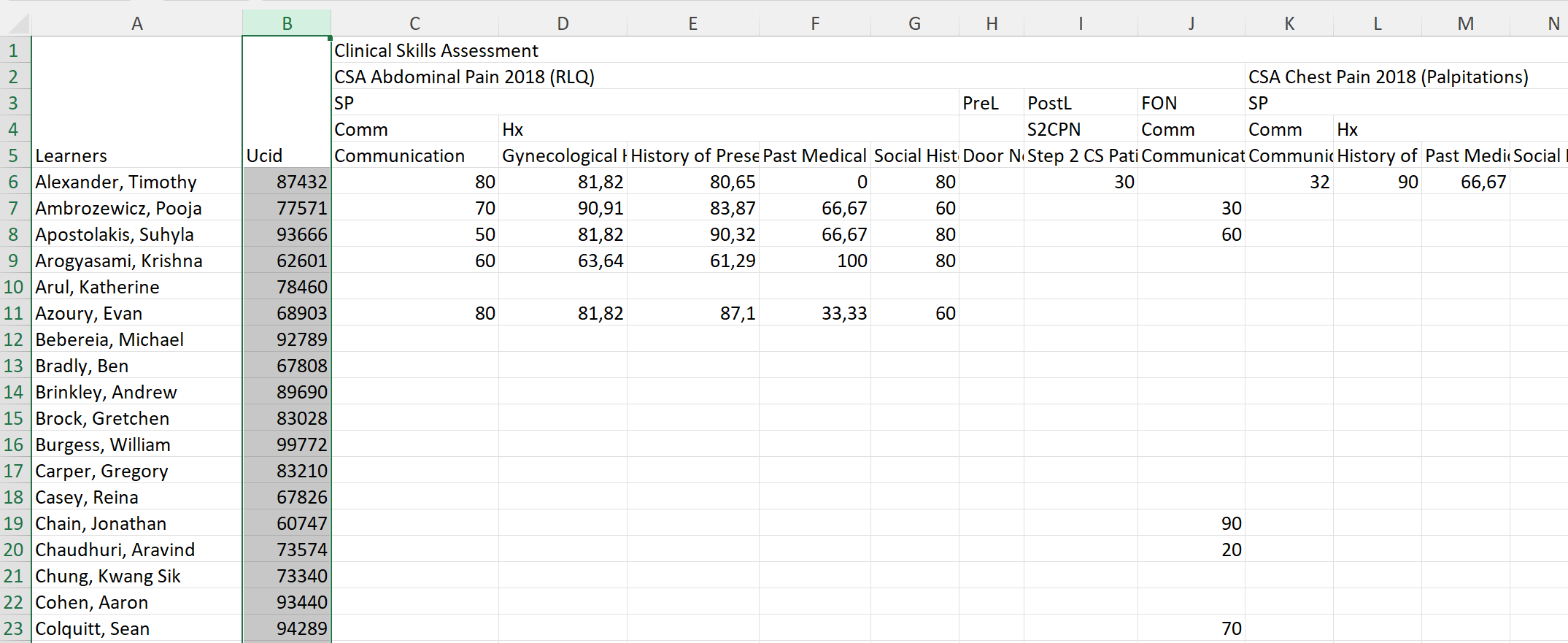
The UCIDs are also displayed in the downloadable report next to the Learners' names.
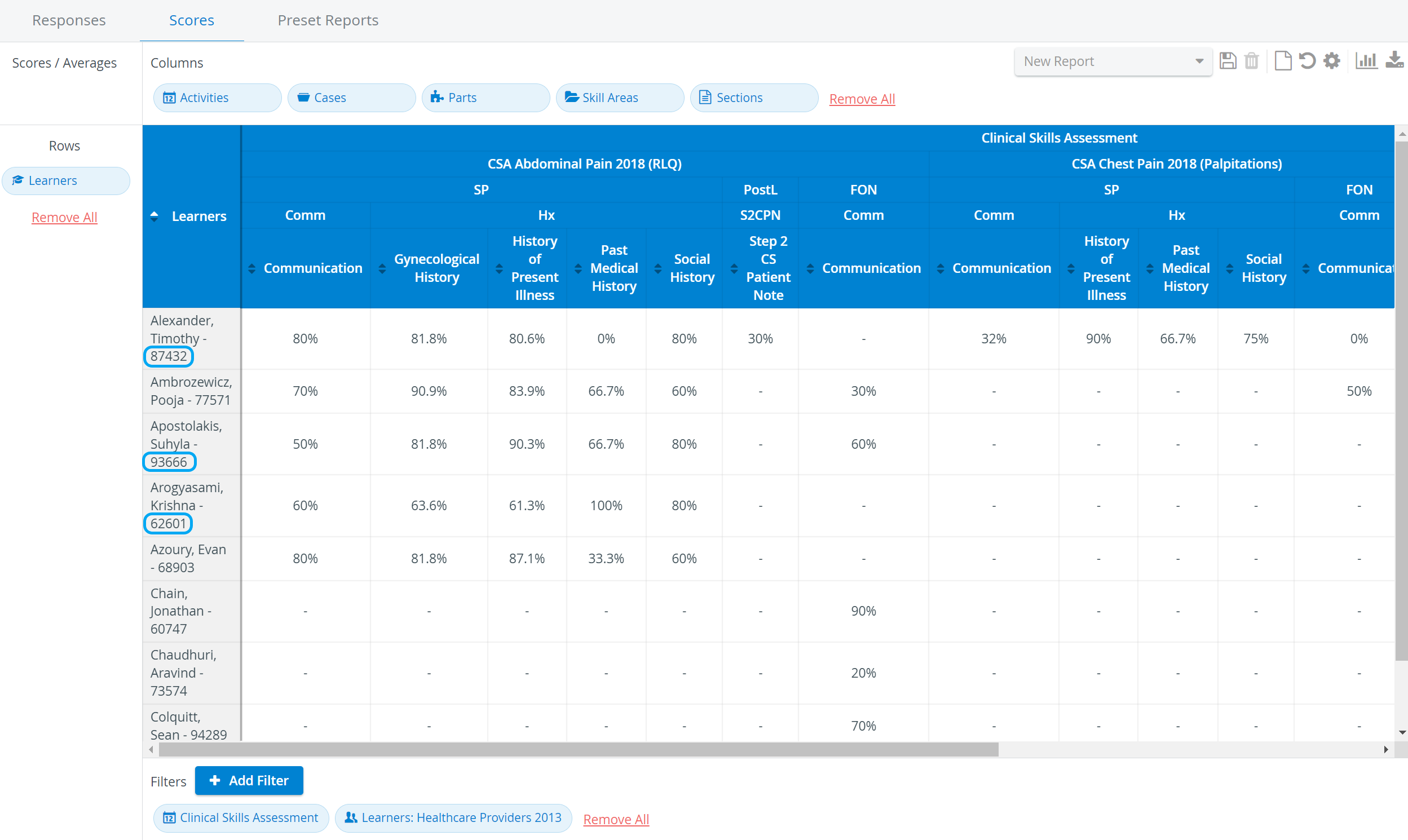
If this setting is turned on, the UCID column is displayed, and a Learners column is present in the Scores table. It is only visible when Learners are displayed as “columns,” not rows.
Save to Excel
Once finished, the customized reports can be saved and downloaded in Excel format.

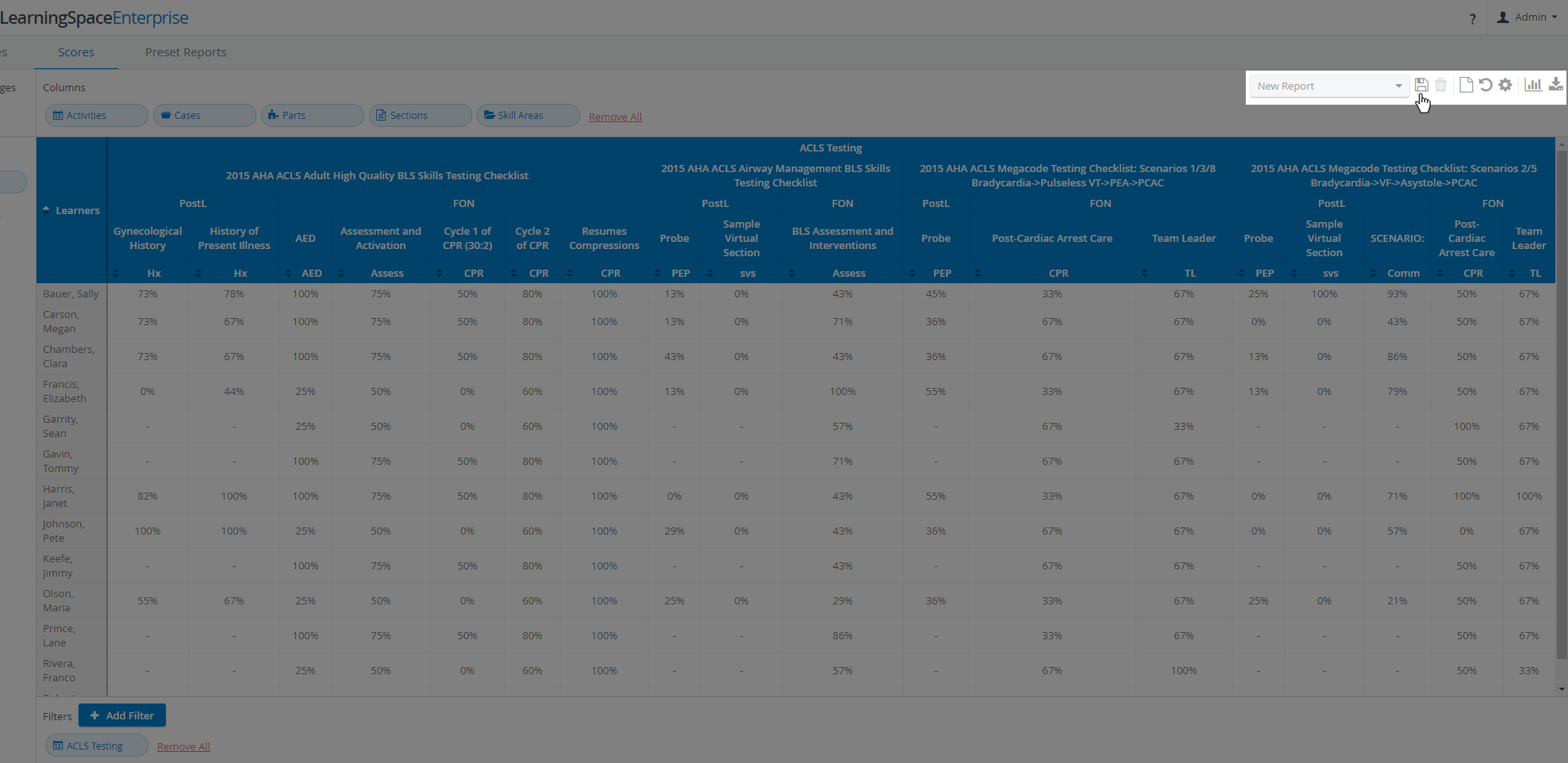
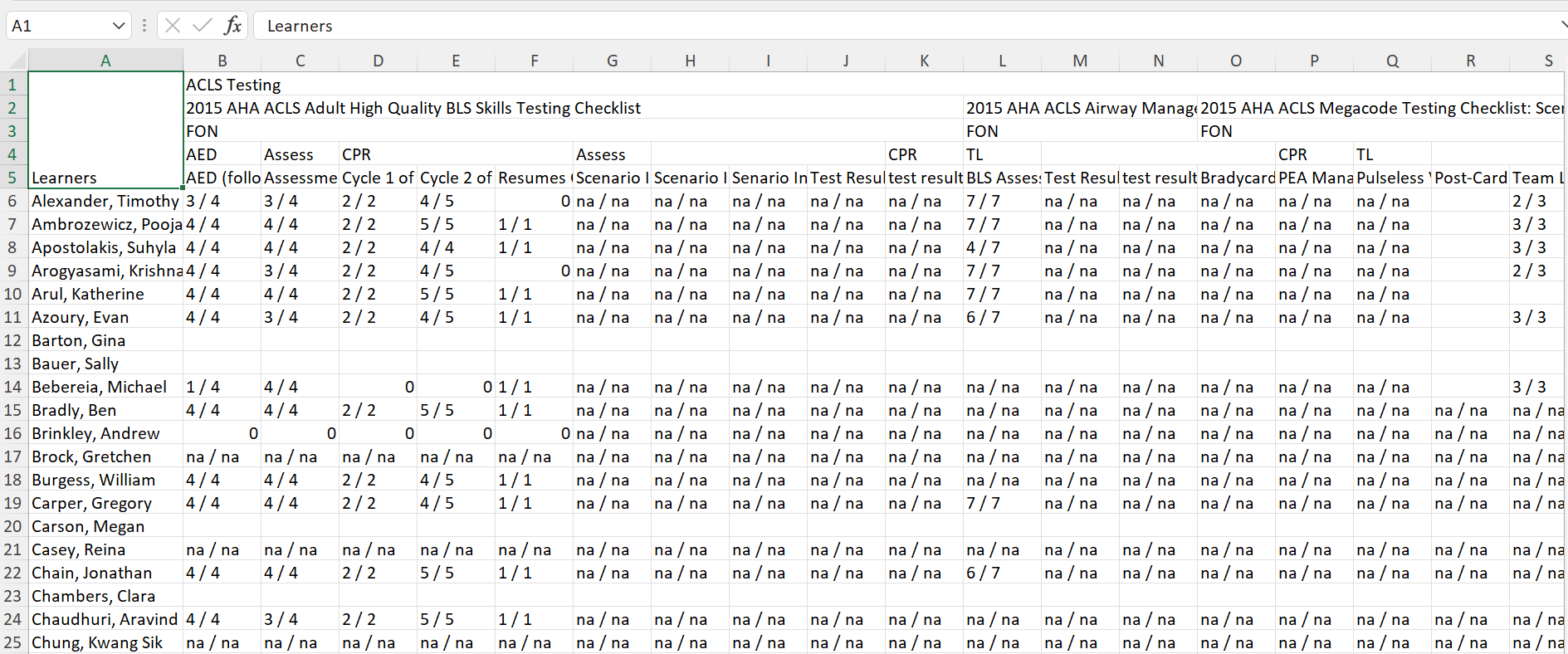
See more details at How to Save a Custom-Designed Report Format and How to Download a Report in Excel.
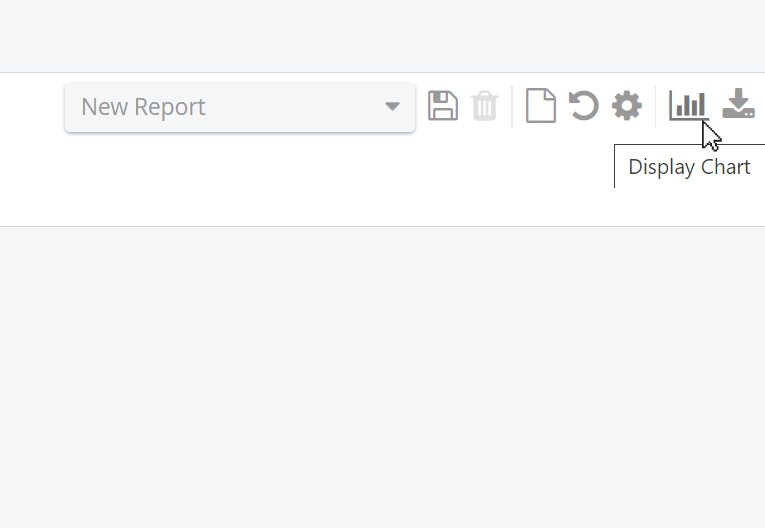
Display Chart
The reports created can be displayed as charts via the Display Chart icon.
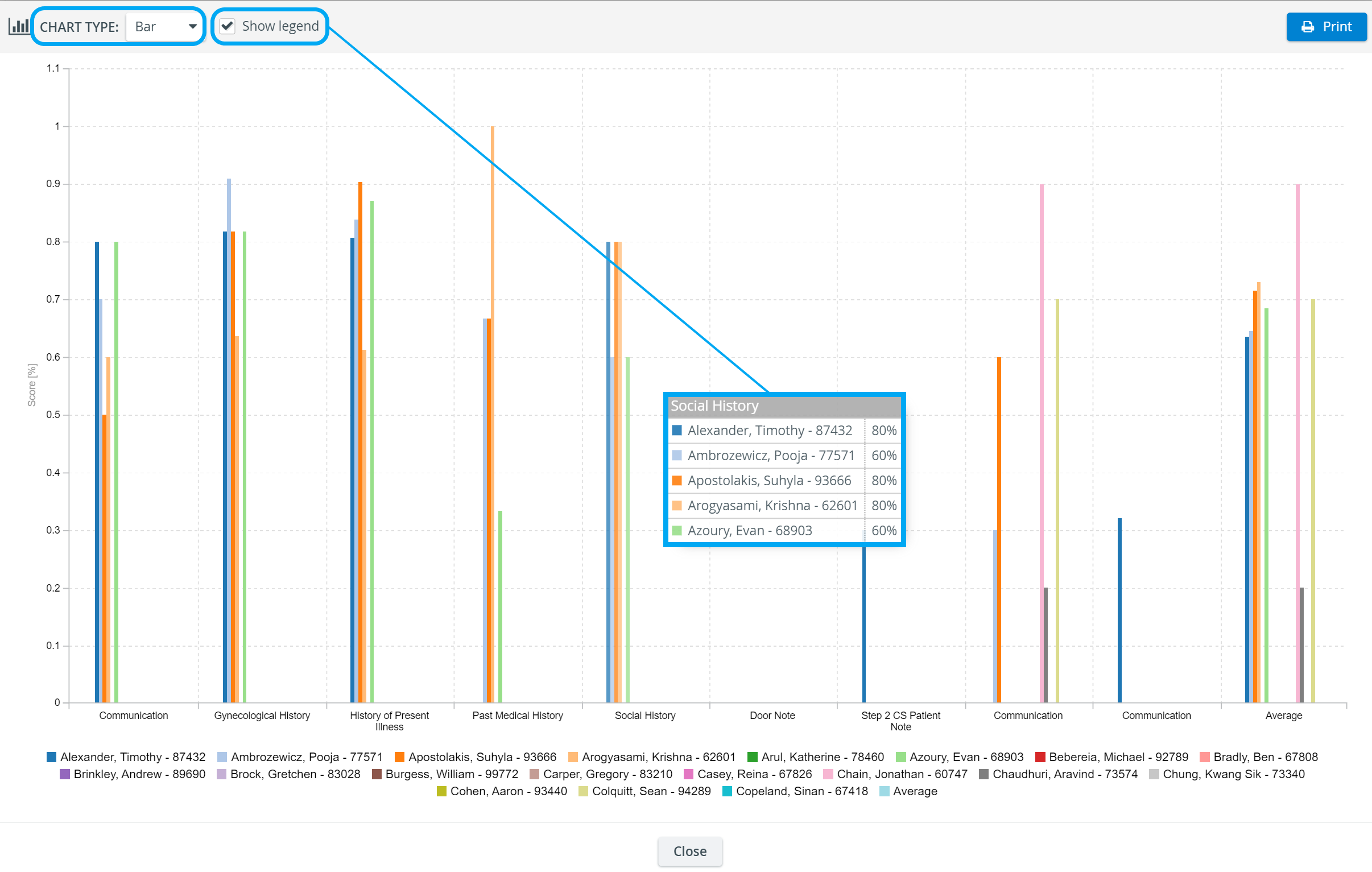
See the details in How to View and Print Chart for a Report.
For further information, see the Reports - How to pages and the Reports Module Training Videos.