Resource Register Tab
Activity Filtering Mode
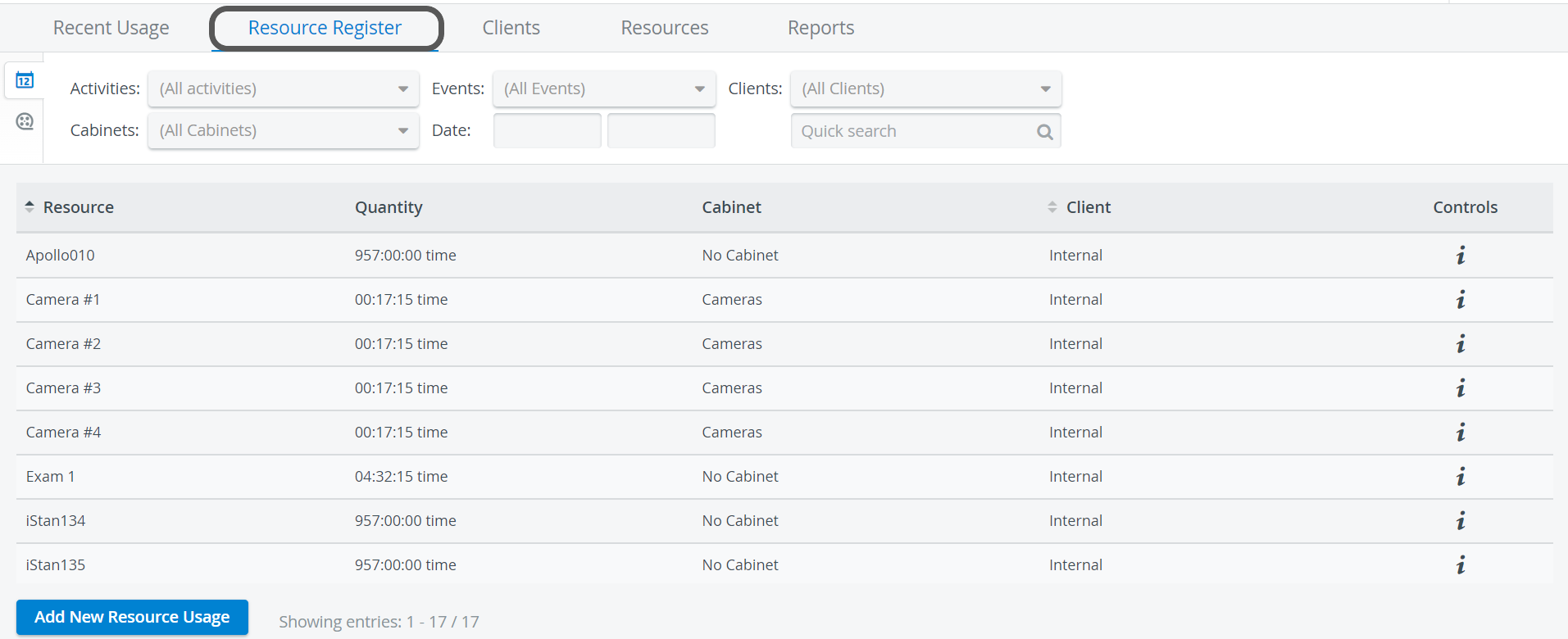
List every resource usage entry registered in the system.
Important
The system automatically registers usage when System Resources are used. For example, when a recording is launched in a room, the use of the room and the equipment within it (cameras, workstations, simulators), as well as the work time of SPs, is recorded.
However, resource usage entries can be edited, so there might be manually adjusted entries and entries that have been deleted.
Apply filters to view the resource usage of a specific Activity, event, or client.
List the usage entries of a specific time period by setting the start and end dates.
Search for resources by name in the Quick search bar.
Video Filtering Mode
View the resource usage related to particular video recordings.
Non-Scheduled Activities
This function might come in handy when reviewing the resource usage of Running Non-Scheduled Activities (RNSA). Since no events are created for RNSA, you cannot filter down to smaller units within the Activity—except when applying date filters, which might also produce one too many usage data results. By selecting video recordings, you can review resource usage for smaller, well-defined units of the Activity.
The Get video list link displays every video currently available in the Video Review module. The Quick search bar allows you to search for video recordings or their annotations.

If you select several recordings, filter by Clients or resource type using the Cabinets drop-down.
You can select a usage entry and adjust some of its details in both Activity and Video Filtering Mode.
For more information, visit our Resource Register Tab and Resources - How to pages.