Requirements tab
The Requirements tab of the Case Manager module's Case Editor allows you to set up the case's specifications.
Case requirements are customizable specifications that SPs need or should meet to be selected for a specified patient scenario.
IMPORTANT: Only use numerical values in the weight and height fields, and always calculate the values in metric units of measurement: kg for weight and cm for height.

Later, during the Recruitment phase, SP coordinators can easily apply Case requirements as filtering criteria when looking for the best SP candidates registered in the system.

WARNING: SPA filter uses the metric system. Therefore, weight and height must always be entered in kg and cm, respectively, in the Recruit SP pop-up.
Learn more about filtering this data in the Standardized Patient Administration module: How to Filter by Case Requirements.
Requirement Categories
Personal Details
Physiological characteristics
Age: specify an interval by entering birth years using the drop-downs.
Every SP born between the two dates will be included in the search results.Weight and height: specify an interval by using the drop-downs.
The search results will include every SP who falls into the specified intervals.Sex: select one or more checkboxes.
Every SP who matched the selected sex will be included in the search results.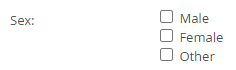
Race: select one or more checkboxes.
The search results will include every SP who matches either of the selected races.
Personal information
Family status (Children): select one or more checkboxes.
Every SP who matches either one of the selected family statuses will be included in the search results.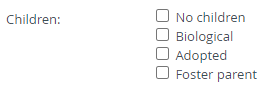
Special examinations
You can select one or more physical examinations that SPs must undergo while portraying the scenario. When filtering for SPs, only those who have consented in their profiles will appear in the results and be eligible to undergo the selected examination.

Certifications: select one or more certifications needed for the scenario.You can select one or more certifications required of SPs to perform the scenario. When filtering for SPs, only those who have listed the examinations on their profiles will appear in the results.

Physical & Medical History
Set up real-life Medical Conditions that may affect the portrayal of the scenario, given that the SP has the medical condition.
Search for existing medical conditions using the quick search bar: start typing in the Add condition field to list search results.
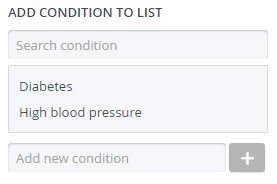
Only medical conditions entered into the global medical condition list can be pulled up.
The comprehensive list of medical conditions added to the system is displayed on the right side of the Physical & Medical History tab inside every SP's user profile in Users:

For further information, visit our Case Manager and Cases - How to pages or watch our Case Manager Training Videos.