Reports Module
Report Manager Module
The Report Manager is the module where performance evaluations and responses to the different checklists can be accessed. It provides sophisticated filtering possibilities and enables users with relevant privileges to display learner scores and export data.
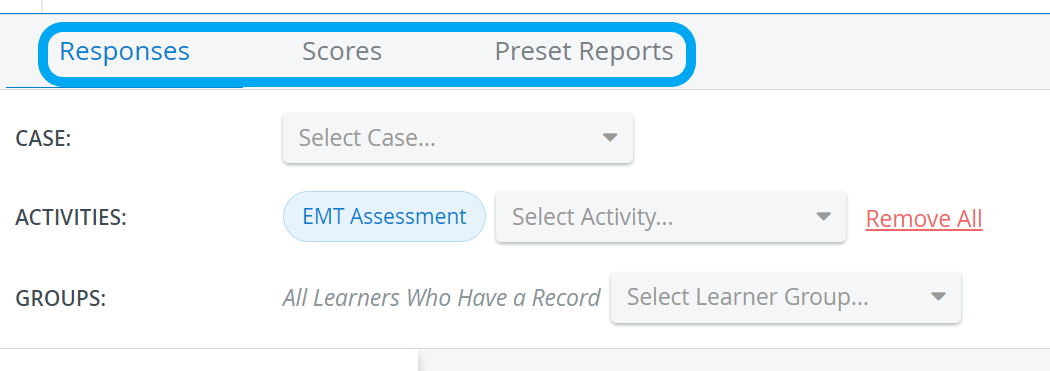
The three tabs provide surfaces for reviewing checklists filled out by learners, scores, and statistics calculated by the system, and it is also possible to view different kinds of reports:
Privileges
Necessary privilege to access the module:
Report Reviewer
Users with Report Reviewer privilege can:
review reports shared with them to the extent determined in the Report Reviewer access settings
access filled out checklists in detail for Activities they participate in (i.e. where they are participants of the assigned Faculty group)
download Score reports for Activities they participate in
review and download video recordings (if the Activity's report access settings allow it).
Report Reviewer (full control)
The Report Reviewer full control privilege allows the user to:
control conditions of report access (through 'Go to Activity Manager' of the Report Availability tab within Activity Reporting Setup), for Activities shared with them on a read and write level, while being participants of the assigned Faculty group as well;
access and manage Activity Reporting Setup: Report Formatting, Privacy, Scoring, SP Performance Assessment and Educational Prescription Template Authoring;
manage Performance Category Setup;
review reports for Activities they participate in (regardless of report access settings);
review and download video recordings of Activities they participate in (regardless of report access settings);
review filled out checklists in detail for Activities they participate in;
design Score reports for any Activity;
download Score reports for any Activity.
If an Activity is shared with this type of user in read-only mode, the Report access settings will still be visible to them on the Reports tab of the Edit Activity pop-up, but only in read-only mode.
Anonymous Report Reviewer
This privilege provides the user with access to:
Review reports shared with the operating user to the extent determined in the Report reviewer access settings
Access Preset Reports - except for those in Test Activity Management - with learners identified by number
Raw Data Export
The LearningSpace system enables you to download learner records in a "coded" format. This file contains the raw data for every individual's record. You can export the raw results data from the Reports & Results tab in the Classic View.
In the raw data file, each line is one record, consisting of multiple columns delimited by tabs.
The first column contains the name of the learners, ordered alphabetically;
The second one contains the name of the SP who completed the SP section for the learner.
After this, each column contains the value of the selected answer for an item. In the header of each column, you see a code identifying each item of the Case or Cases. This code consists of the short identifier of the Case (set in the Case Manager), the abbreviation of the section, and the item number.
The raw data file contains the value of the selected answer, not its number. Consequently, if multiple answers have the same value, you will not be able to identify which one was selected; as in this case, it would not affect the student's score: the values are the same, so the score will be the same. See How to Interpret Raw Data Export data.
See also: Raw Data Import Tool,
How to Access Raw Score Export and
How to Use the Codebook - available in the Classic view of LearningSpace.
When an Activity is copied, all of its specifications, including
participants,
Case assignment,
Share settings
and reporting setup (Learner and Report Reviewer access) are duplicated as well.
Consequently, reports of a copied Activity will be accessible to the same group of participants to the same extent as in the original Activity.
Export Reports to Excel
In the latest versions of LearningSpace, certain Preset reports can be exported into an Excel (xls) file for more convenient management and easier utilization of the exported data in applications like Microsoft Excel or Google Sheets.
Reports that can be exported into Excel:
For more information, see 2023 August New Features - Release Notes.
Scoring Engine
The Scoring Engine ensures that any changes made within LearningSpace that can affect previously generated scores (modifications to checklists or submissions, access control, etc.) take effect accordingly (i.e., scores are re-generated).
During this update process, the following warning is displayed:

TIP: Use the ‘Refresh’ button to check whether an up-to-date report is already available.
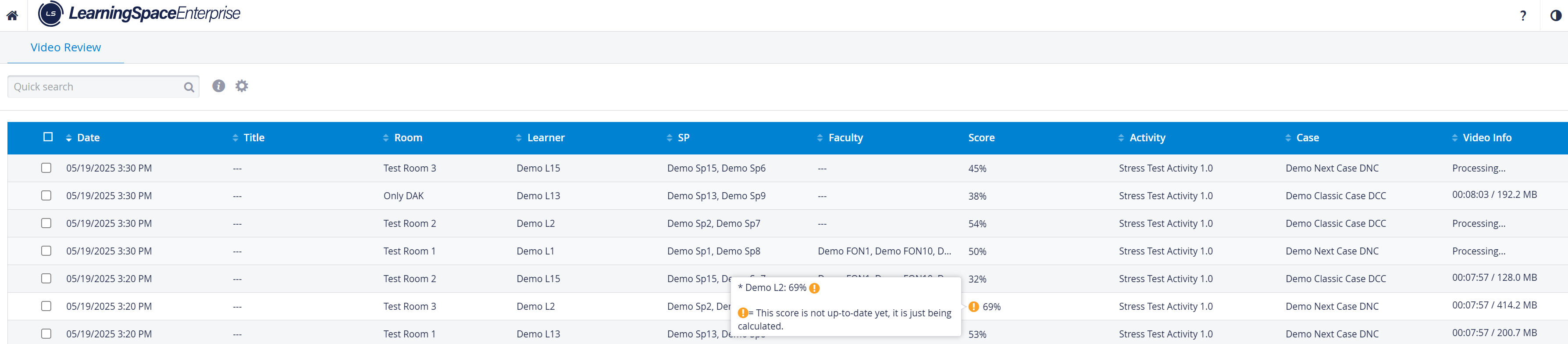
A similar warning is displayed in Video Review while the final scores are calculated:
For further information, see the Reports - How to pages and the Reports Module Training Videos.