Report Formatting
In the Activity Reporting Setup function, the Report Formatting panel provides options for specifying the following information:
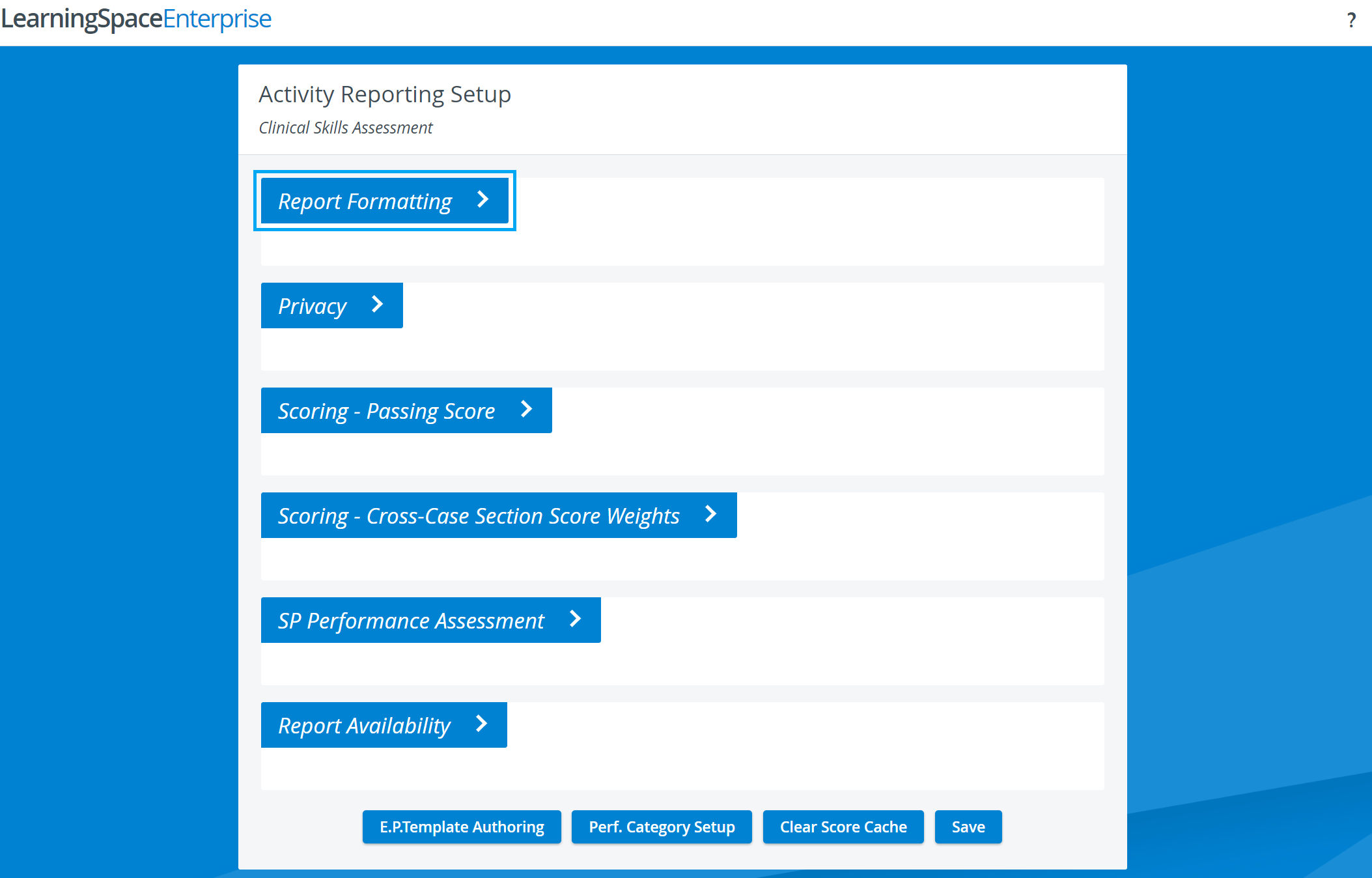
IMPORTANT: After any modification to settings, it must be saved by clicking the Save button at the bottom of the page. As the panel expands, the button may only be visible after scrolling down.
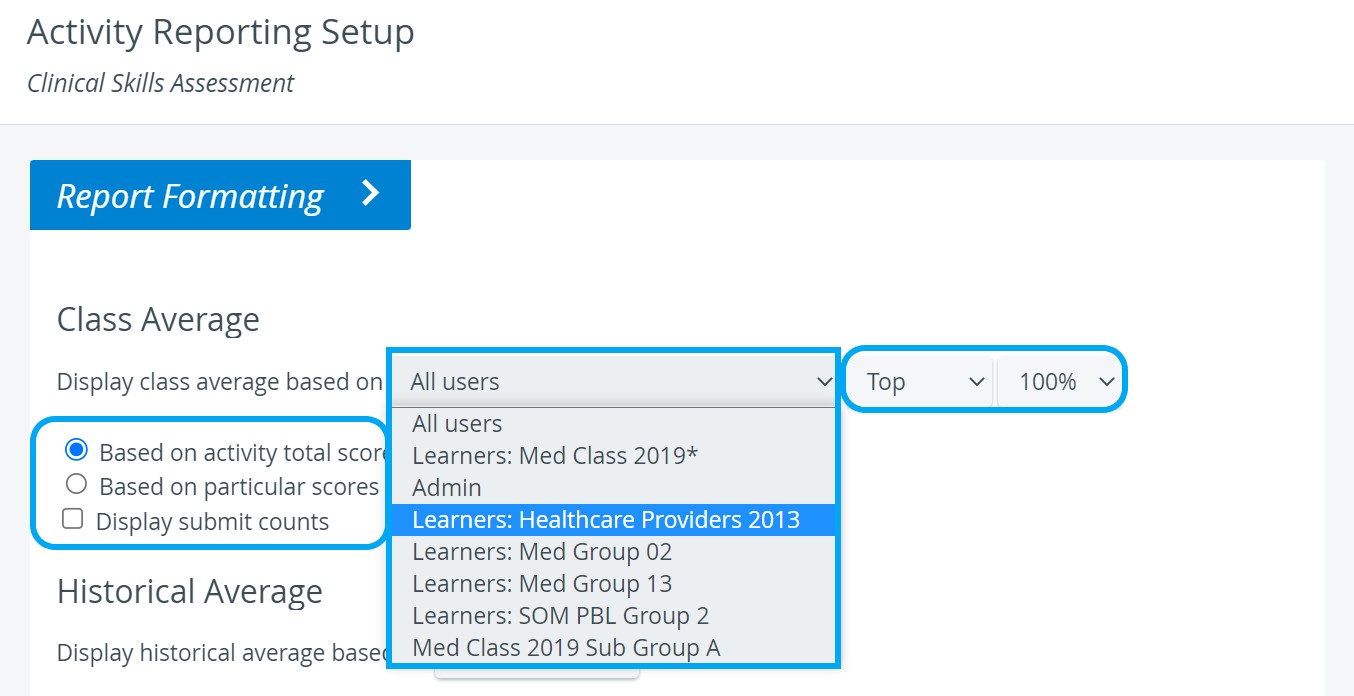
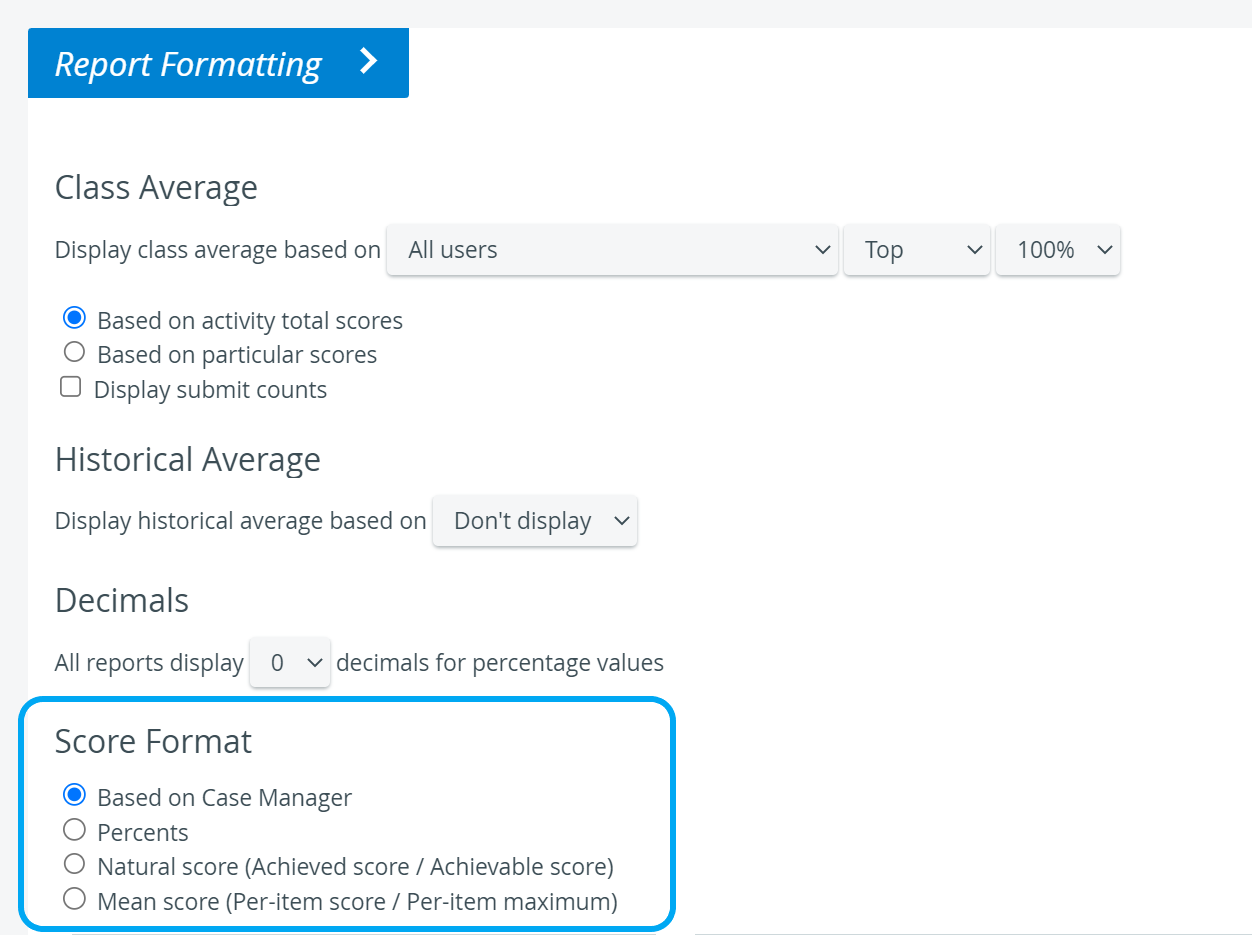
Class Average
Provides settings for how class averages (Class Cross-Case Section Average, Class Case Average, or Class Total Average) should be calculated with the following tools:
a drop-down for group filtering and a range of results in percentage,
radio buttons for selecting the basis of calculation,
a checkbox for the submit counts display setting.
Historical Average
Historical average: the average across multiple Activities → The drop-down menu allows you to select the Activity cabinet across which the average should be calculated.
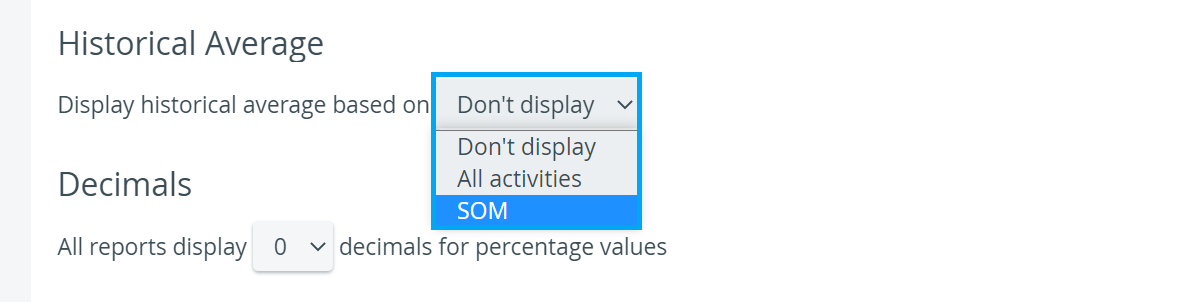
IMPORTANT: Only those cabinets that contain the actual Activity are listed in the drop-down.
A specific Activity can be placed in additional cabinets via the relevant drop-down on the Basics tab of the Edit Activity pop-up.
Decimals
The drop-down menu allows you to set the number of decimal places to display in the reports.
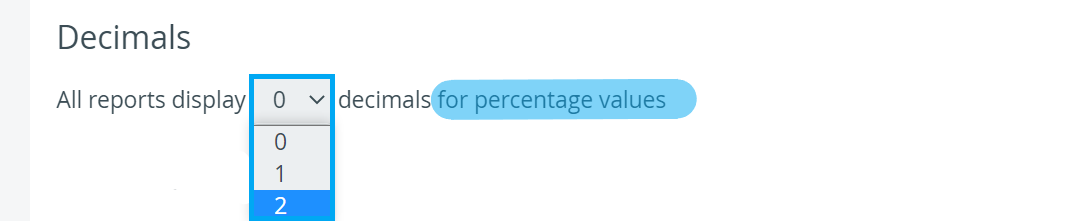
On the Scores tab, decimals can also be set to be displayed via the Scores Settings pop-up.
Score Format
Under Score Format, the score display format can be set for different reports of the Activity in question. Scores can be displayed
based on Case Manager settings,
in Percents,
in Natural score (achieved score / achievable score),
Mean score (per-item score / per-item maximum).
Grade Report settings
There are radio buttons for selecting and specifying certain scores, diagrams, or notes to display or hide in the Grade Report.
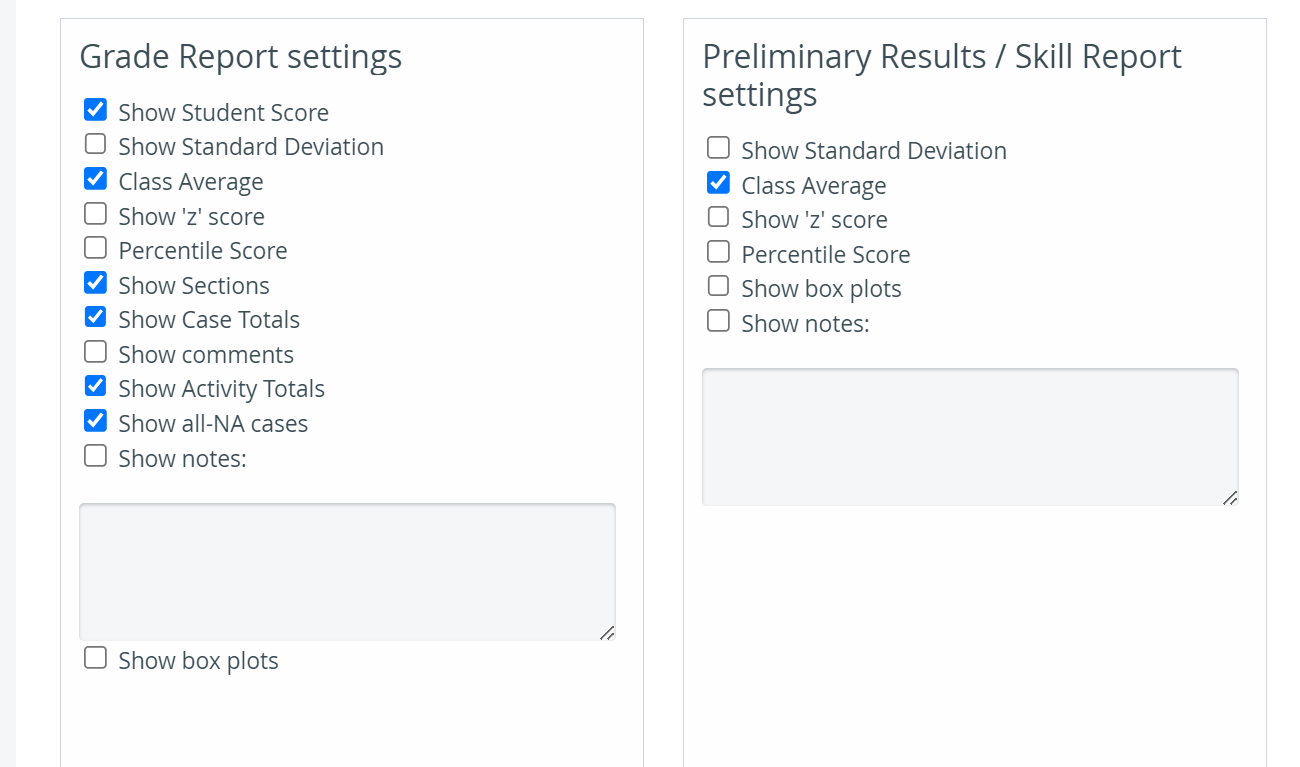
Preliminary Results/ Skill Report settings
Radio buttons are used to specify how certain scores, diagrams, or notes should be displayed in the Preliminary Results Report - Skill Report (see image above).
Individual Checklist settings
Radio buttons are used to specify how data should be displayed in the Individual Checklist.
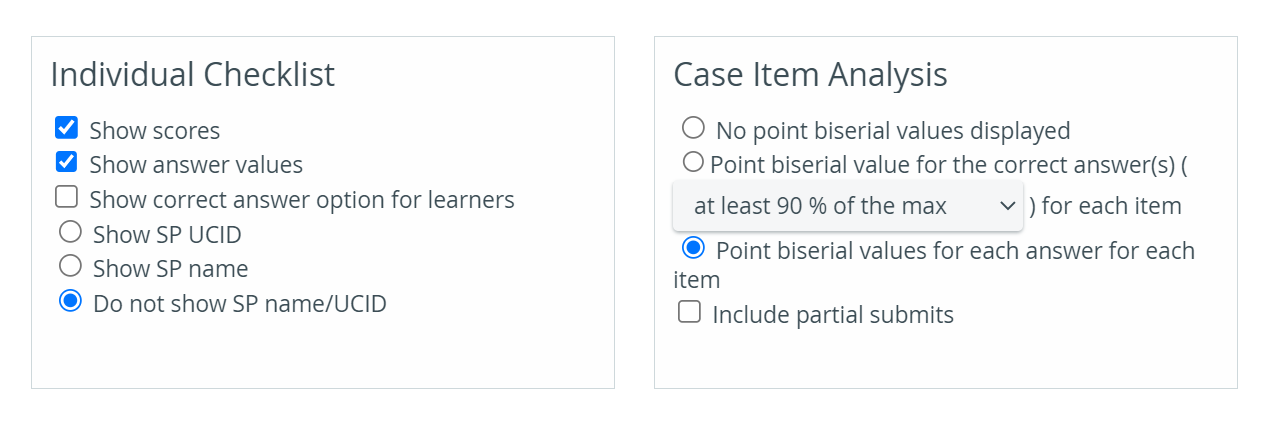
Case Item Analysis settings
Radio buttons are used to specify how information should be displayed in the Case Item Analysis (see image above).
For more information, see the Reports Module, Reports - How to pages, and the Reports Module Training Videos.