Reconciliation
The Reconciliation process of the Inventory module is performed in case some of your Inventory items of any item type go missing or reach the end of their useful lifespan. You can reconcile the total quantity of these types of items.
Reconciliations can only be performed by users with Administrator or Inventory Manager (full control) privileges. The Transaction Assignee option does not need to be enabled for these users.
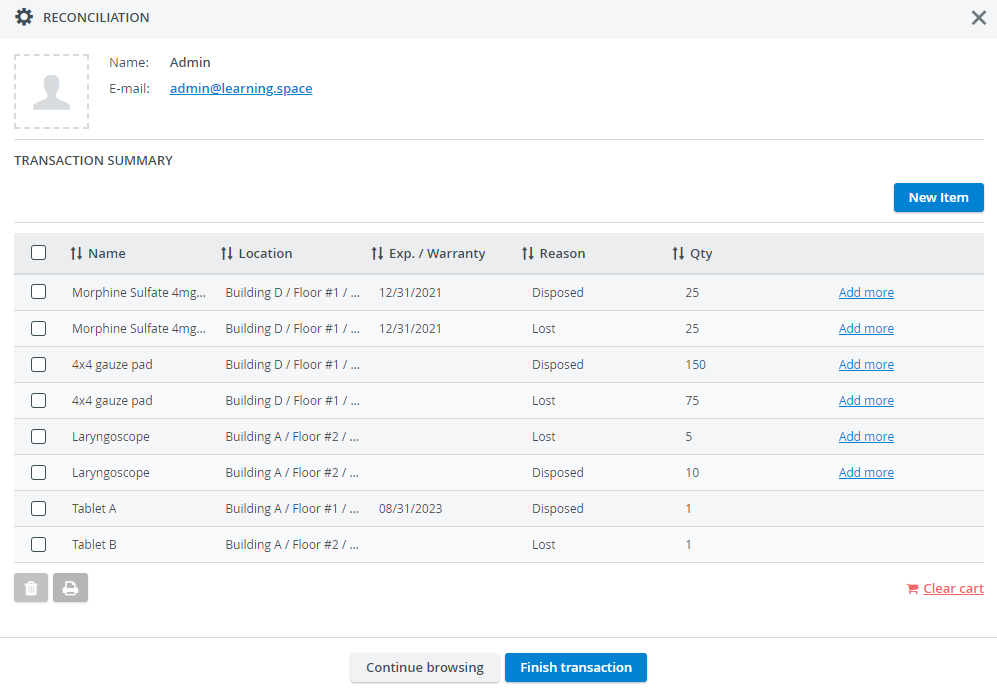
The name of the user performing the Reconciliation is displayed in the Transaction Summary window, and the Assignee/Select Loanee option is not available there.

This page walks you through the Reconciliation workflow for each item category.
To reconcile an item, click the Reconcile button in the Transaction list's upper right corner.
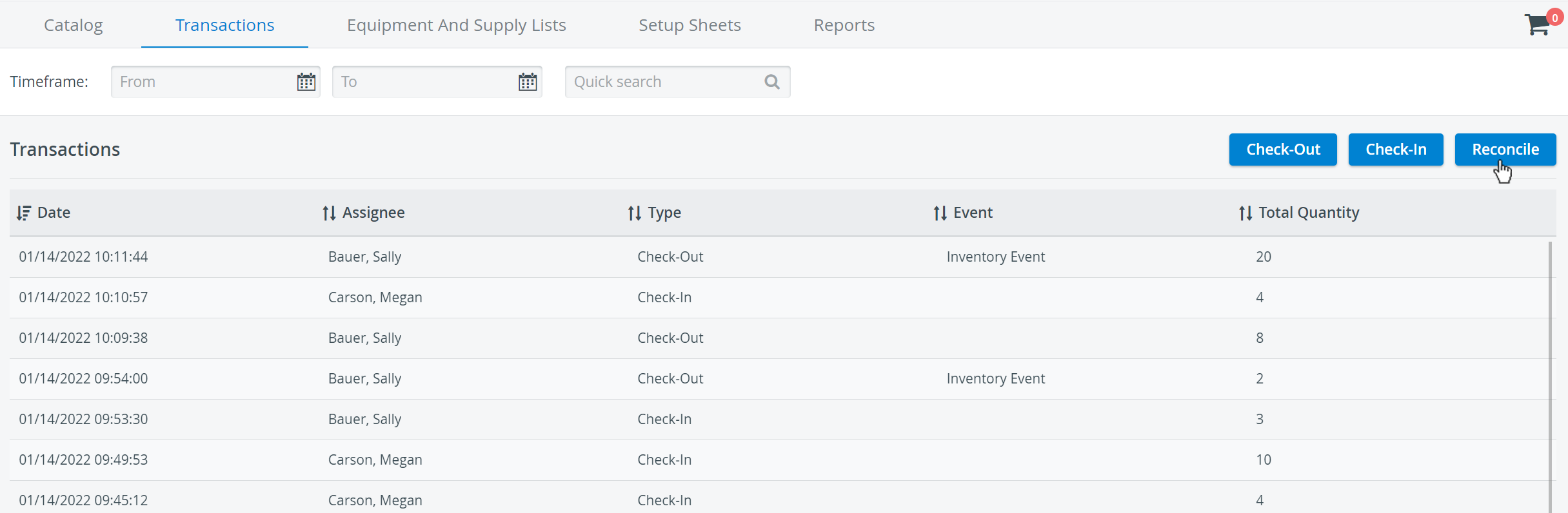
Reconciliations (but Check-In and Check-Out Transactions likewise) can be initiated by using the Cart icon in the upper right corner of the Inventory module:
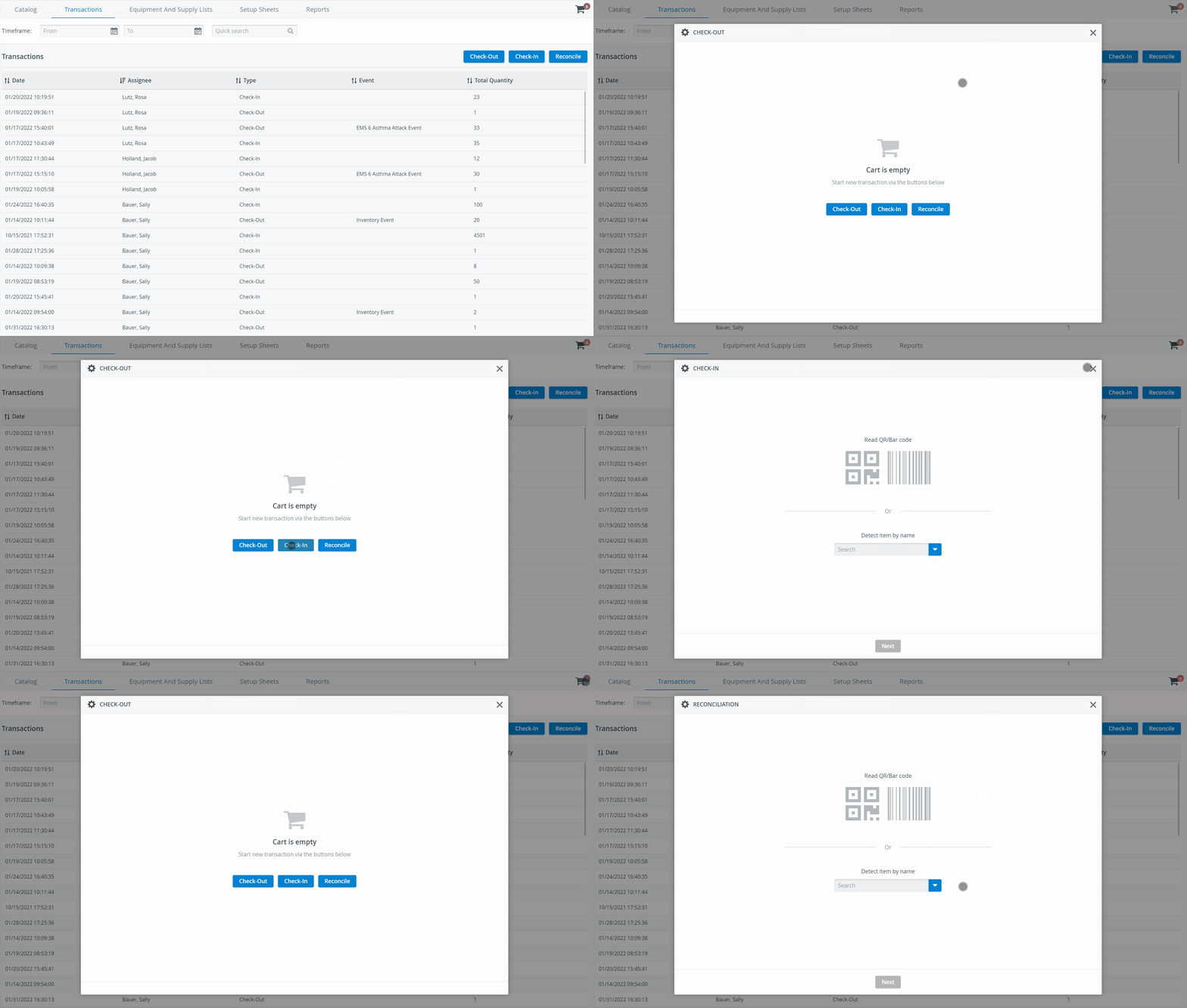
Detect your item as the first step of any transaction workflow. See also the How to Detect Items in Your Inventory page.
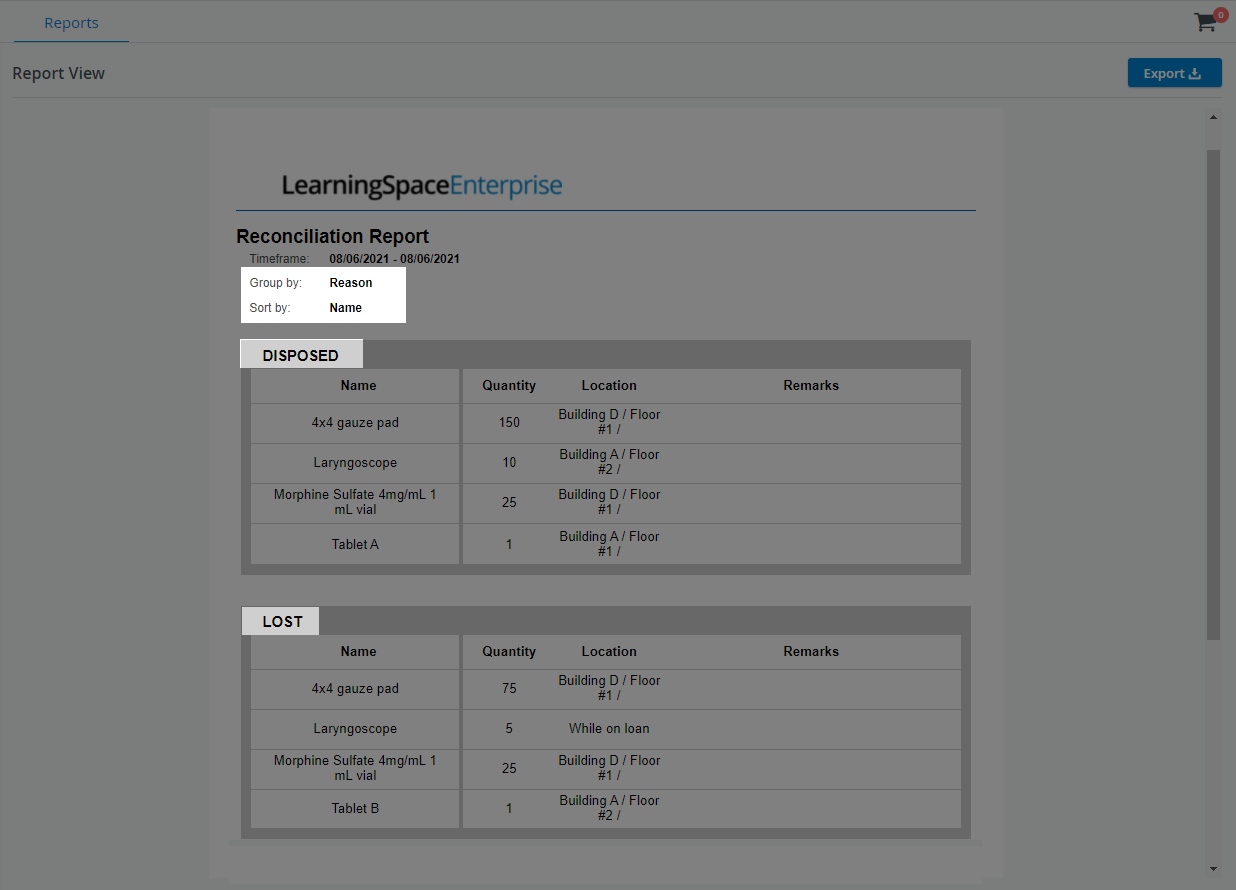
The reasons for reconciliation will appear alongside the item in the Reconciliation report. Also, the selected location will appear as the last known location of your reconciled item in the Reconciliation Report.

Step-by-step guides for the Reconciliation of each item type
Consumables with Expiration Reconciliation
Select one of the available locations.
Enter the item quantity.
Select the reason for reconciliation: Lost or Disposed.
Continue with Add to Cart to create a new cart or add your items to an existing cart.
Finish Transaction.
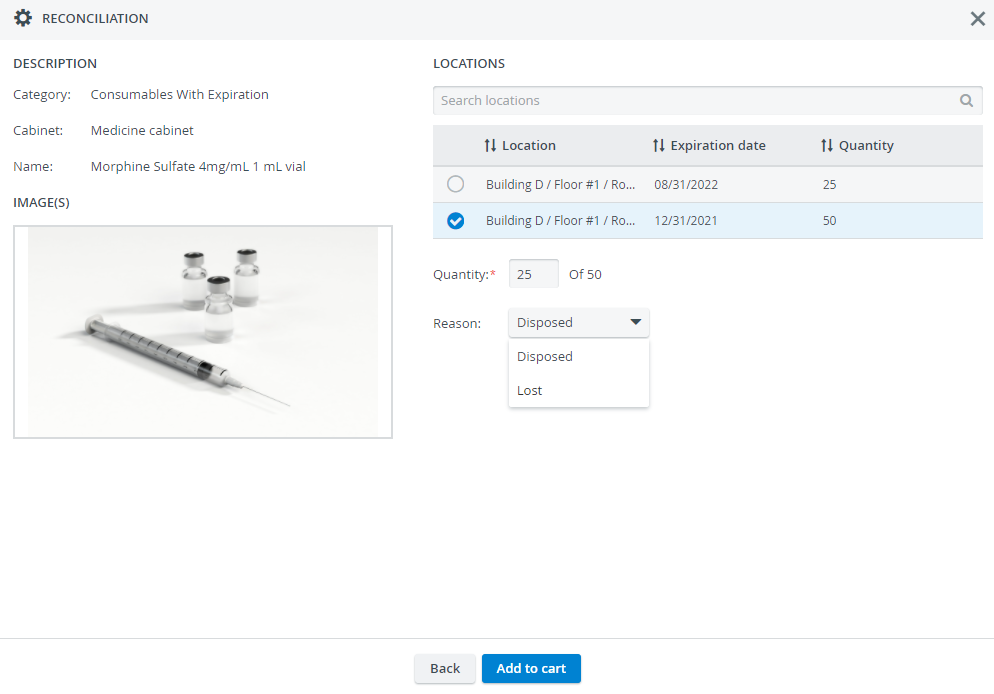
The Back button returns you to the item detection step if no cart is in progress. If you add an item to an existing cart, you will be taken to the Transaction Summary page. See the How to Finalize Your Transaction in the Cart page.
If the quantity decreases to '0' for this item type, the item will still remain available in the Catalog.
Consumables without Expiration Reconciliation
Select one of the available locations.
Enter the item quantity.
Select the reason for reconciliation: Lost or Disposed.
Continue with Add to Cart to create a new cart or add your items to an existing cart.
Finish Transaction.

The Back button returns you to the item detection step if no cart is in progress yet. If you add the item to an existing cart, you will be taken to the Transaction Summary page. See the How to Finalize Your Transaction in the Cart page.
If the quantity decreases to '0' for this item type, the item will still remain available in the Catalog.
Non-Consumables Reconciliation
The Reconciliation transaction can be applied to non-consumable items if you would like to decrease the total quantity of your items to reflect the actual amount of equipment currently in your institution's possession.
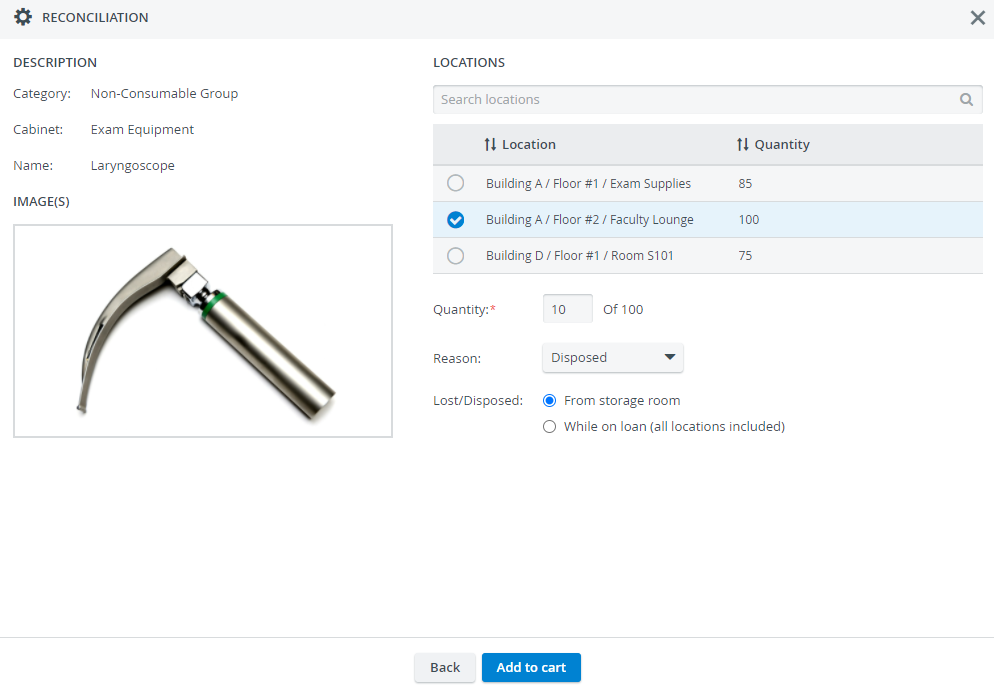
You can reconcile items that were located - or should have been located - in your storage room:
From Storage Room
Scrap equipment from your inventory directly from a storage location.
Select the From storage room option.
Select one of the available locations.
Enter the item quantity.
Select the reason for reconciliation: Lost or Disposed.
Continue with Add to Cart to create a new cart or add your items to an existing cart.
Finish Transaction.
While On Loan
Reconcile equipment that is currently out on loan.
Select the While on loan (all locations included) option.

Select any available locations to display the total number of items on loan.
Enter the item quantity.
Select the reason for reconciliation: Lost or Disposed.
Continue with Add to Cart to create a new cart or add your items to an existing cart.
Finish Transaction.

The Back button returns you to the item detection step if no cart is in progress. If you add an item to an existing cart, you will be taken to the Transaction Summary page. See the How to Finalize Your Transaction in the Cart page.
If the quantity decreases to '0' for this item type, the item will still remain available in the Catalog.
In the case of Non-Consumables reconciled while on loan, the selected location will NOT appear in the Reconciliation report.
Asset Reconciliation
The Reconciliation transaction can be applied to Assets if you want to dispose of a certain asset that has reached the end of its useful lifespan.
Note
By reconciling an asset, the item is deleted from the Catalog (its quantity decreases to '0').
From Storage Room
Assets can also be reconciled while on loan or from their storage location.
All asset details are loaded after the item is detected.
Select the reason for reconciliation:

While On Loan
When reconciling an asset out on loan, its last known location will be included in the transaction details.
Select the reason for reconciliation:

You will be warned about the asset being removed from existing Equipment & Supply Lists or Setup Sheets before continuing:
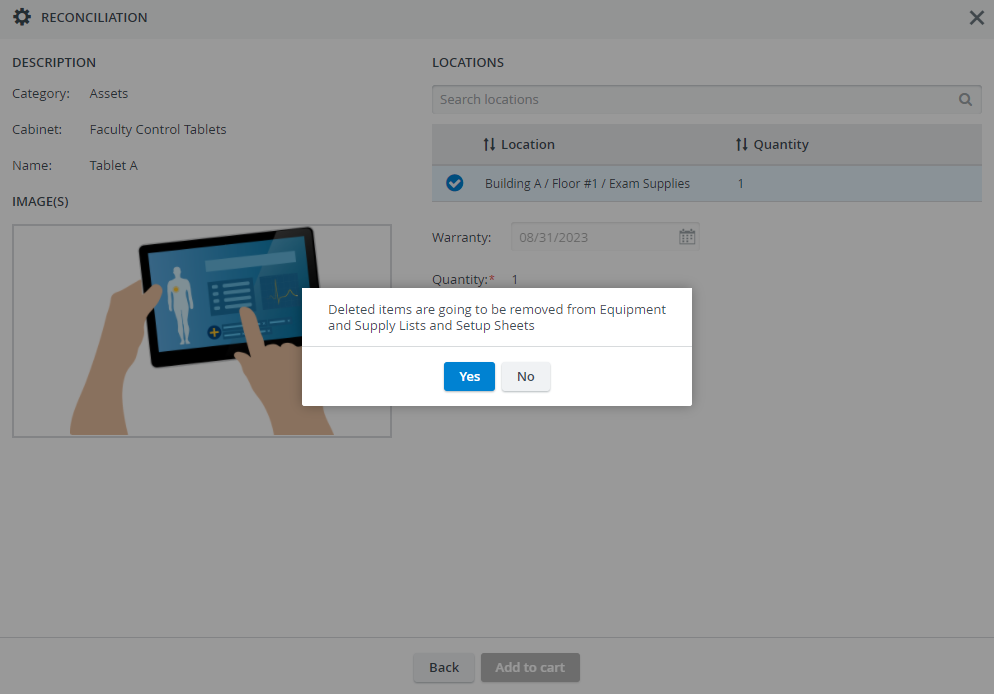
3. Continue with Add to Cart to create a new cart or add your items to an existing cart.
The Back button returns you to the item detection step if no cart is in progress yet. If you add the item to an existing cart, you will be taken to the Transaction Summary page. See the How to Finalize Your Transaction in the Cart page
4. Finish the Transaction.
Learn more about the Inventory Manager on our Inventory - How to pages, and watch the Inventory Manager Training Videos.