Recommended Virtual Event Settings
This page will walk you through the most significant changes to the LearningSpace Enterprise system to accommodate distance learning.
Here, you can go through the steps of creating a virtual event;
Also, you will find additional essential settings you can apply to optimize the virtual OSCE workflow.
Create users with combined Activity Manager + SRP or + SRP (full control) privileges. With this combination, the user can edit the Activity that was shared with them for reading and writing, and will also have access to Advanced Scheduling.
Important Changes
1. Renewed Pre-Selection Pages
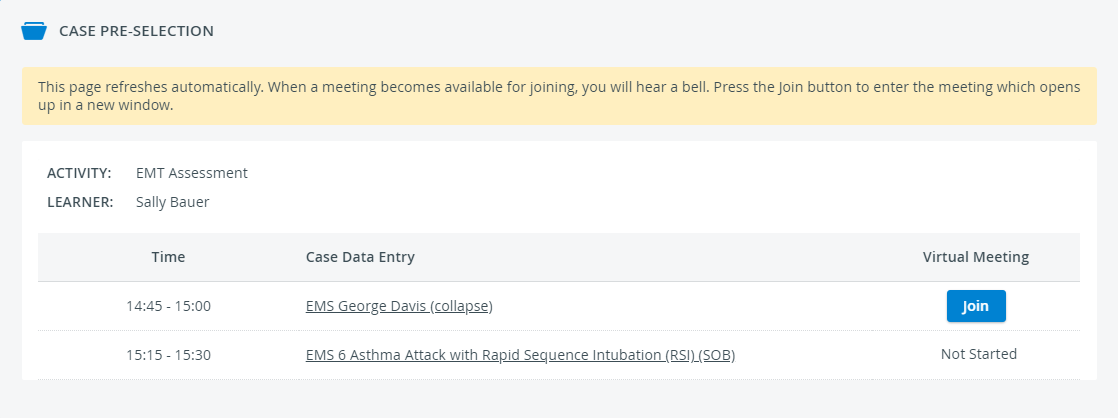
The Case Pre-Selection (for learners) and Learner Pre-Selection (for SPs) pages contain new options:
Duration of Pre-Selection Page Display
Pre-selection pages are available only to SPs and learners from the start to the finish of their assigned event.
Otherwise, learners can only access data entry through the basic case selection page, where they have to select a case from a drop-down manually:
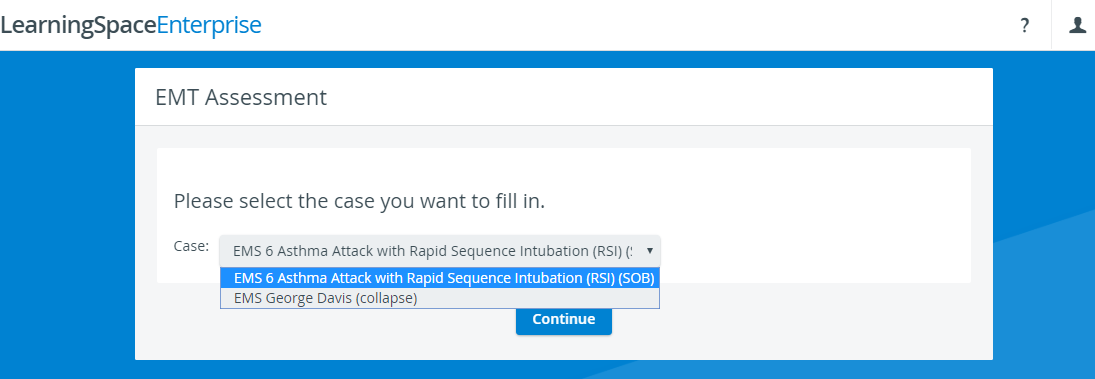
Basic case selection page without virtual event details
This might result in accidentally filling out the wrong checklist.
Also, SPs will not be able to access the renewed Learner Pre-Selection page before or after the event.
Important Limitation: Computers configured as LearningSpace In-Room/SP or Hallway stations cannot display the Zoom learner preselection/prefill workflow. For Zoom-integrated events, either:
Use a device that is not configured as a station, or
Temporarily remove the station configuration, or
Switch the Wi-Fi network to switch the laptop off the static IP address it is assigned under stations.
Start/Stop meeting options for SPs to start hosting or end the virtual encounter from LearningSpace.

Important - End a Meeting Properly
SPs must end the meeting using the End Meeting for All option in Zoom and the Stop option in LearningSpace to allow learners to access their post-encounter checklist.
Otherwise, video processing will not start, and learners will be presented with the following message when trying to access their post-encounter checklist: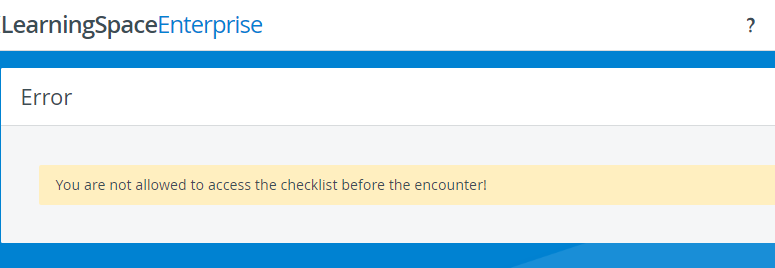
Join option for learners to each virtual case listed by the timeslots they were assigned to.
2. Virtual Rooms Instead of Authorized Workstations
a. Virtual Rooms Cannot be Used as Authorized Workstations
Virtual rooms cannot be used as authorized workstations in a distance learning environment because every Activity participant logs in to LearningSpace on their personal devices.
Consequently, there are specific Options in the activity editor that must be avoided:
Do not restrict data entry to specific computers based on their IP address or hostname endings.
Make sure the "Data entry only allowed from..." setting is unchecked.
Do not allow data entry from manually authorized workstations.
Make sure the "Data entry only allowed from manually authorized workstations" setting is unchecked.
b. About the Devices Meetings Are Accessed From
⚠️ An important restriction applies to the devices used by participants attending a virtual LearningSpace event: devices accessed from virtual meetings cannot be added to LearningSpace as a station.
The selected meeting provider will not open on devices that are added as stations in LearningSpace. This means that SPs will not be able to start meetings, and learners and observers will not be able to join a meeting in progress.
Check the Stations tab in your LearningSpace system for every added device. If devices are added that will be used by SPs or learners to connect to virtual events, remove them with the Delete button.
Identify the devices by their names or IP addresses displayed in the Stations tab.
c. No Automatic User-Forwarding
Upon login, SPs and learners are not automatically forwarded to the
Case Pre-Selection page (for learners) and
Learner Pre-Selection page (for SPs).
This limits the automated data entry presentation to these users.
Solution
During the event, SPs and learners must go to their Dashboards and click SP Data Entry or Data Entry next to the activity they are participating in—as explained in the standardized patient and medical student guides—to access their Pre-Selection pages.
3. Video Processing
Virtual event recordings are first saved to Zoom and then temporarily stored in the cloud of your Zoom owner account. Once recording files are saved to the cloud, LearningSpace begins processing the videos and downloads duplicates of the recordings via a secure HTTPS channel to the Video Review module.
Important
Virtual encounter recordings are unavailable in Video Review until video processing is finished.
LearningSpace only downloads the video from the Zoom cloud once it becomes available for download on Zoom's side. During this time, LearningSpace generates a video entry for the Zoom meeting on the Video Review page (triggered immediately after the meeting starts).
Until the video is fully downloaded from the Zoom cloud for review in LS, the status of the video entry is “Downloading”. An info tooltip next to the status of such videos contains a rough estimate of when the videos will be available for review:

Info Tooltip about Downloading Cloud Recordings
“Cloud recordings generally take about 2 times the duration recorded to process, but occasionally may take up to 24 hours due to higher processing loads. For example, an hour-long meeting with only 30 minutes recorded would typically take 30-60 minutes to process.“
When the recordings arrive in the Video Review module, the original video recording files are moved to the Trash folder in your Zoom account:

This is the default setup for the Zoom virtual room integration, which ensures you always have enough cloud storage for your virtual encounter recordings.
Disable Automatic Transfer of Zoom Cloud Recordings to the Trash Folder
Would you like your cloud recordings to remain in the Recording Management folder after they are imported into the Video Review module? We can disable the automatic transfer of Zoom cloud recordings to Trash upon your request. Contact LearningSpace Customer Service for more information.
Downloading virtual event recordings from Zoom's cloud to LearningSpace might take some time. Still, if you notice that the recordings have not arrived in the Video Review module within 6 hours, you can manually retrieve the meeting recordings and upload them to LearningSpace.
How to Recover Recordings from the Trash Folder in Zoom
Log in to your Zoom owner account.
Open Account Management under ADMIN on the left.
Select Recording Management.
Here, you can access the cloud recordings of every user registered in your owner account.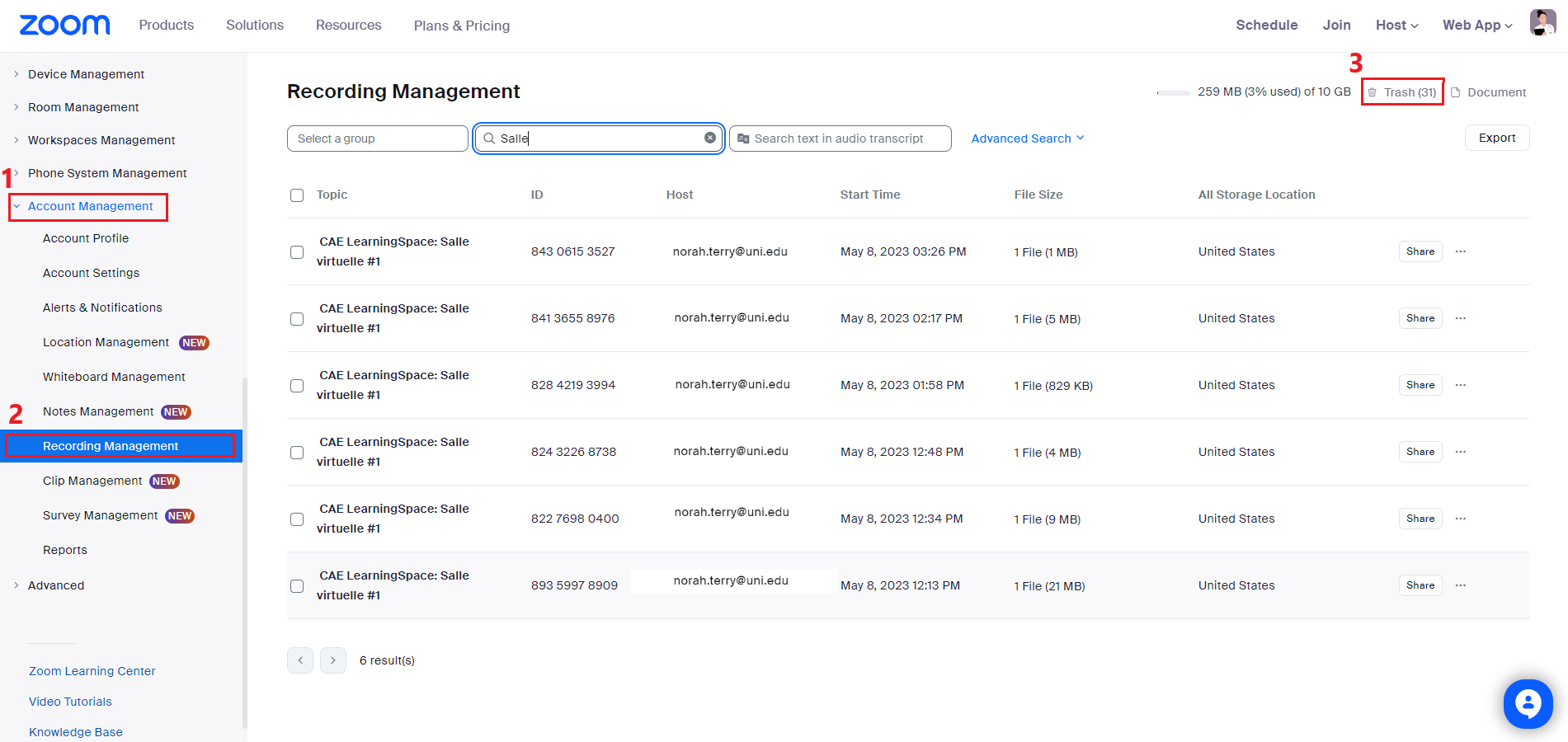
You can log in directly to the Zoom user account for a virtual room to retrieve the recording of the virtual event.
If you log directly into an account, go to Recordings: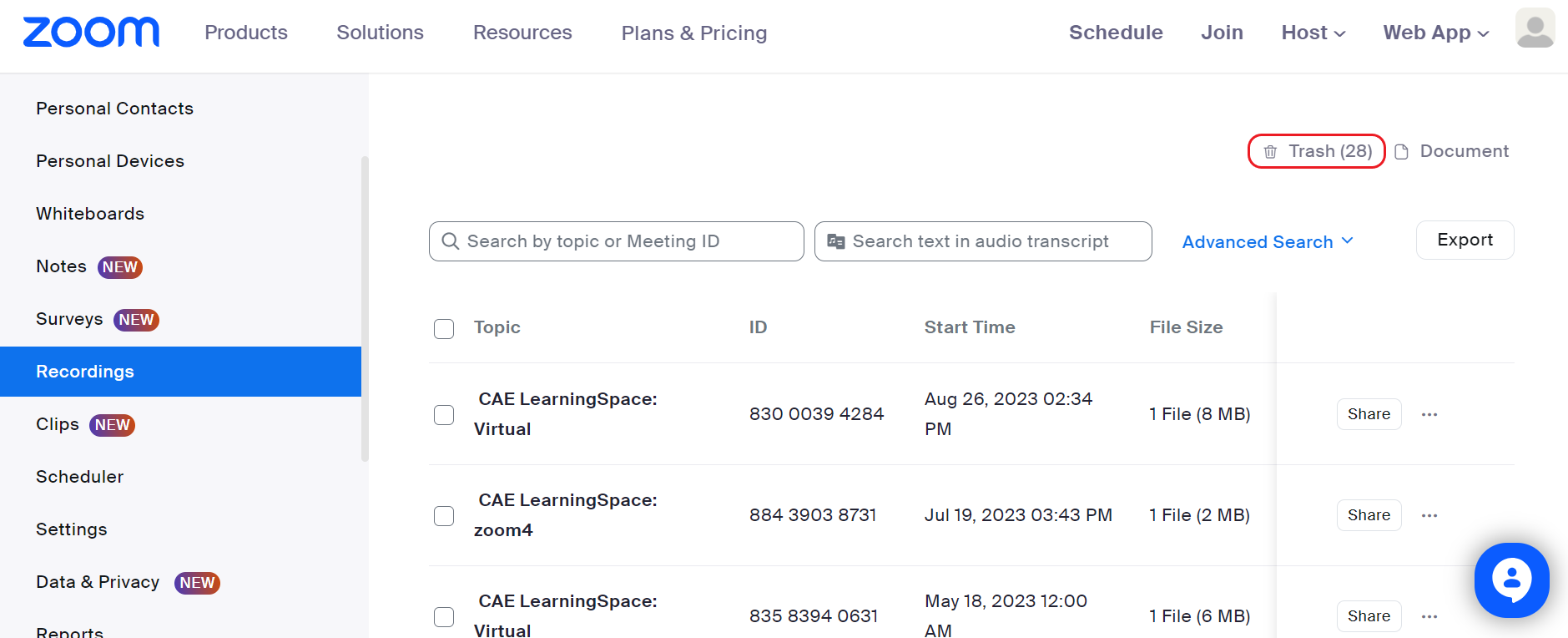
You can choose either option. From this point on, the steps of recovering your recordings from the trash are the same with either approach.
The screenshots included in this section show the recovery process inside an owner account.Go to the Trash folder: use the link on the right.
Select your recording from the list in the Trash folder.
The start time of each recording shows the moment when the SP in charge launched the virtual meeting from their learner pre-selection page. The recording immediately begins once the SP starts hosting the meeting.

Click Recover to move your recording back to your main recording page.
Confirm that you would like to recover the selected recording:

Otherwise, the recording remains in the Trash folder, and you will not be able to download it or its attachments—such as chat history or the separate audio file—from Zoom.
Click on the My Recordings link at the top of your page to return from the Trash folder.
Find your recovered video recording.
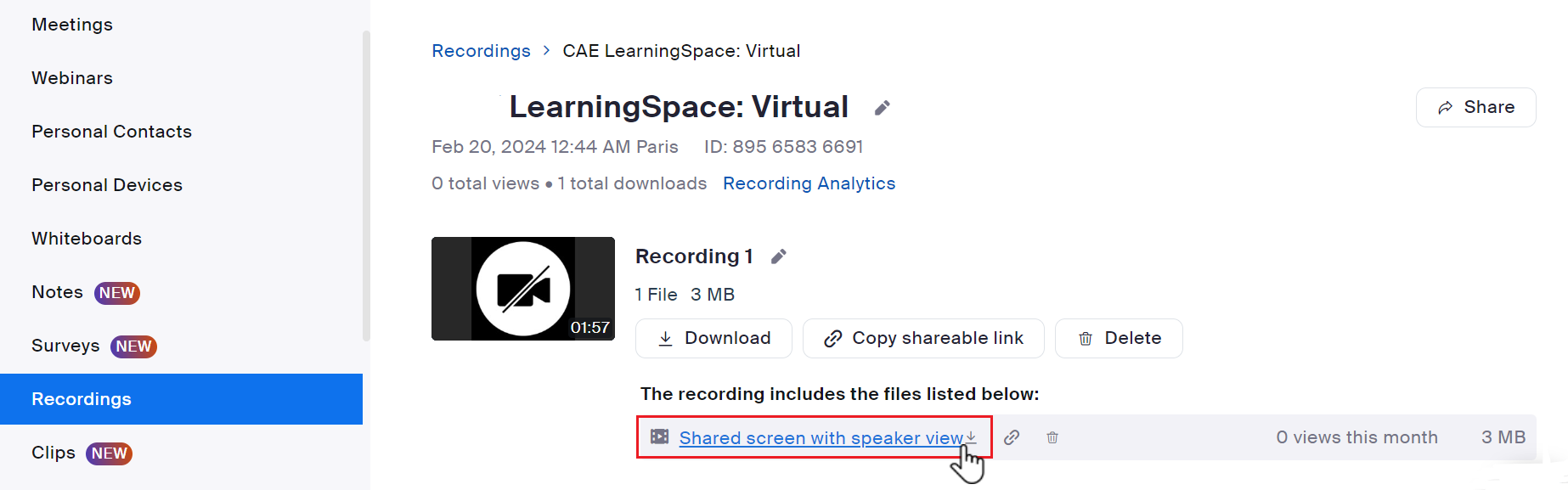
Click the Topic of the meeting recording to display all files for the recording.
11. Hover over a file to download it or to access further options.
Here, you can also find and download other types of files related to the meeting: audio-only recordings, screen-share files, or chat history (if available).
12. After downloading the video, you can upload it to the Video Review module.
Virtual encounter recordings display the host and participant—SP and learner—side by side.
Annotations
LearningSpace adds annotations to the recordings to indicate when the learner has joined the virtual encounter.
Recommended Activity Settings
1. Pre-Selection Page Display
a. Virtual Event Access through Your Activities
When selecting cases for virtual events, make sure that the cases you add to an activity contain each of the following checklists:
SP checklist
Pre-Encounter checklist and
Post-Encounter checklist
Otherwise, SPs and learners might be unable to access their pre-fill pages on the Your Activities pane, or their pre-fill pages might not list every meeting they should attend.

b. Time Limitations of Pre-Selection Page Access
Pre-selection pages are available only during an event.
Otherwise, SPs and learners can only access data entry from their basic data entry selection pages, where they must manually select a learner or a case from a drop-down.
Warning
If no scheduling time threshold is set, some learners will have less time than others to fill in their checklists on their Case Pre-Selection pages: namely, learners scheduled for the first or last time slots of an event.
Also, without a scheduling time threshold, SPs will not access their Learner Selection Page to complete data entry after their last virtual encounter.
Solution
Set a scheduling time threshold to allow SPs and learners to access their Pre-Selection pages before and after an event for additional time.
This setting will allow the learners assigned to the first and last timeslot(s) to access their pre- and post-encounter checklists from the Case Pre-Selection page to avoid data entry mistakes.
SPs can also conveniently finish their data entry from their Learner Pre-Selection page.
⚠️ The scheduling time threshold applies to every event created in your LearningSpace system.
Example
You have a virtual event scheduled from 10 a.m. that ends at 2 p.m.:
In the current state of the event, virtual meeting Pre-Selection pages are only available from 10 a.m. to 2 p.m.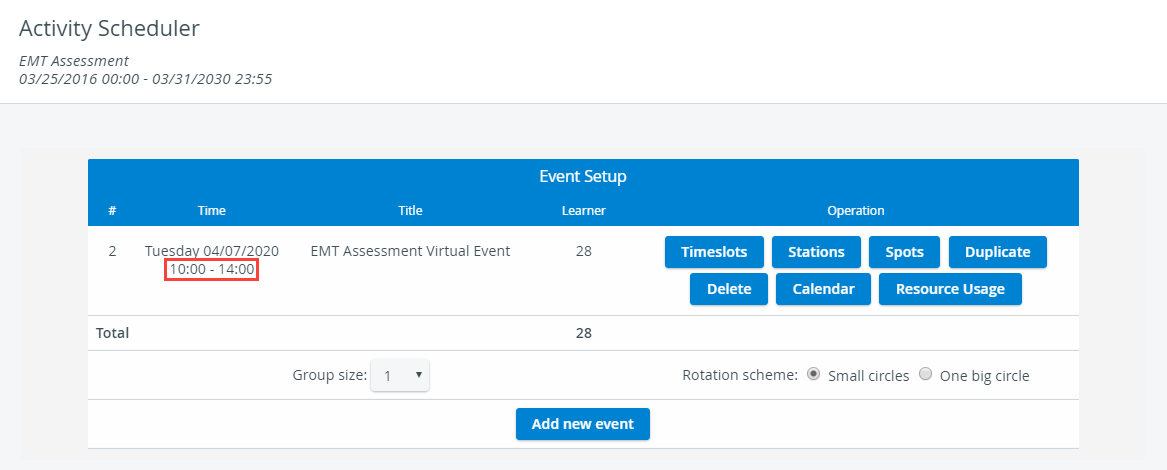
Go to System.
On the General tab, scroll down to the Scheduling time threshold.
Set your scheduling time threshold to 15 minutes.
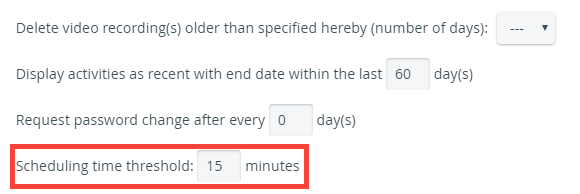
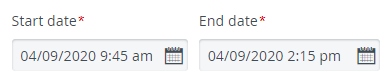
Now, Pre-Selection pages are available from 9:45 a.m. until 2:15 p.m.
When SPs and learners click on SP/Data Entry on their Dashboards between these dates, they will be directed to their previously mentioned Pre-Selection pages at 1. Renewed Pre-Selection Pages.
Note that your event's start and end dates remain the same (10 a.m. - 2 p.m.).
2. Limit the Availability of Learner Data Entry
Even if you ensure that learners have plenty of time to access their Case Pre-Selection pages during the event, they can still enter data throughout the activity.
If they access Data Entry outside the event and the scheduling time threshold, they will land on the basic case selection page without the event context they are assigned to.
Solution
Align the activity's entire duration with the event's duration extended by the scheduling threshold:
This way, data entry will only be available through the Pre-Selection pages.
Schedule your virtual event (e.g., 10 a.m. - 2 p.m)
Set a scheduling time threshold on the General tab in the System:
Pre-Selection pages will be available from 9:45 a.m. until 2:15 p.m.Go to the Dashboard, select and open the activity you are editing.
On the Basics tab, adjust the time of the entire activity to the event's duration extended by the scheduling time threshold:
3. Disable Post-Encounter Checklist Access Before the Virtual Encounter
After setting up the time restrictions for the Pre-Selection pages, prevent learners from opening their post-encounter checklist before their virtual encounter.
Solution
Select "Allow Post-Encounter access only after student encounter" in the activity's Options tab.
When the option is selected, learners can only access their post-encounter checklist if one of the following conditions is met:
The learner’s virtual encounter with the SP has ended with the red Stop button by the SP on the Learner Selection page
The video recording does not have to be fully processed for learners to access their post-encounter checklist.
OR
The SP checklist of the Case assigned to the virtual event has been submitted by an SP
OR
The FON checklist of the Case assigned to the virtual event has been submitted by a FON Data Entry user
Without selecting this option, learners can access their post-encounter checklist at any time on their Pre-Selection page, e.g., without attending their scheduled virtual encounter.
Virtual Event Setup
Create a new event with Advanced Scheduling.
Important
Virtual encounters can only be set up in Advanced Scheduling.
Optional: Change the group size.
From now on, you can set a group size greater than 1 for your scheduled virtual events, allowing multiple learners to participate in the same virtual meeting.
Number of Spots
Increasing the group size allows more learners to be assigned to the same timeslot. This also means the number of spots allocated to an event will be multiplied by the selected group size.
The number of maximum spots for an event is displayed in the Learner column.Access your activity in Advanced Scheduling, and in the footer of the Event Setup pane, click the Group size drop-down to change the maximum number of learners per timeslot for your events:

How Group Size Setup Works
Changing the group size affects every event of the Activity.
If the group size increases relative to the previous setup, the learner assignments for other events with finalized appointments need not be reorganized; those assignments remain intact.
If you decrease the current group size, make sure to revise the learner assignments for other upcoming events. When the group size decreases, some learners who were scheduled while the larger group size was in effect may lose their guaranteed spot.
Learners without a valid spot appear in violet fields at timeslots inside Generate Assignments:

Set up timeslots and ensure valid round setups.
Number of Timeslots
To allow your learners to join the virtual meeting of each case required of them, the number of timeslots within a round should be equal to (or a multiple of) the number of virtual cases.
This will ensure the correct rotation of learners: within one round, each learner can participate in all virtual encounters they need to complete.Add one virtual room to each case at Stations.
You can conduct the same case in several different virtual rooms, just as running the same case on more than one station.
⚠️ Likewise, you cannot assign the same virtual room to multiple cases in physical rooms.
⚠️ Do not add physical rooms to your virtual event, or add virtual and physical rooms simultaneously. Only virtual rooms work in this setting.
Important
Virtual rooms do not function as authorized workstations, so automatic user forwarding to pre-selection pages is not available.
Learners can still access their checklists, but they must manually select their case from a drop-down menu, which may lead to data entry errors.Refer to the Recommended Activity Settings mentioned above to direct your learners to the Case Pre-Selection page.
Assign learners and
You can assign more than one SP to the same virtual room.
Use the plus sign at SP assignments in Scheduling to add SPs:

Multiple SP Assignment
Every assigned SP will have the same Learner Pre-Selection page displayed, and everyone can potentially control meetings:
start a virtual meeting if no one else has started one yet,
join a running session,
stop a session if no one else has done so.
However, virtual rooms allow only one meeting at a time. Only one SP can start a meeting; others cannot start meetings simultaneously.
Once one of the SPs starts a virtual meeting with a learner, all other learner appointments will be disabled:

Warning
Ensure that the SP portraying the scenario controls the virtual encounter.
Do not apply a timeslot structure template to your event.
SPs are responsible for initiating and ending virtual encounters.
Notify Learners about Their Exact Timeslot Schedule
After assigning learners to timeslots, send the exact virtual encounter dates to your learners via notification emails.
Scroll down to Notification emails on the Activity Scheduler page:

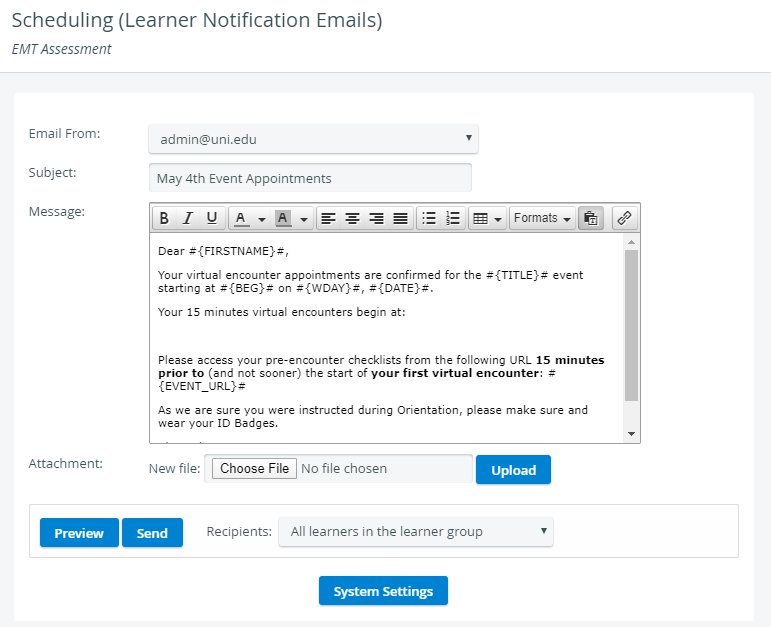
You will be redirected to the Scheduling (Learner assignments) page, where you can edit the notification email you will send to the learners.Select a “From address” from the Email From drop-down.
To set up further “From addresses”, go to the Emails tab in System Manager.
Enter the subject of your email in the Subject field.
Edit the message body of your email in the Message field.
While editing your message, apply the new Learner timeslot merge tag.
To apply the new merge tag, you first need to create the Learner notification email template in Emails:Click on the System Settings button at the bottom of the page to access the Emails tab in System.
Select "Learner notification email" from the Email templates drop-down:
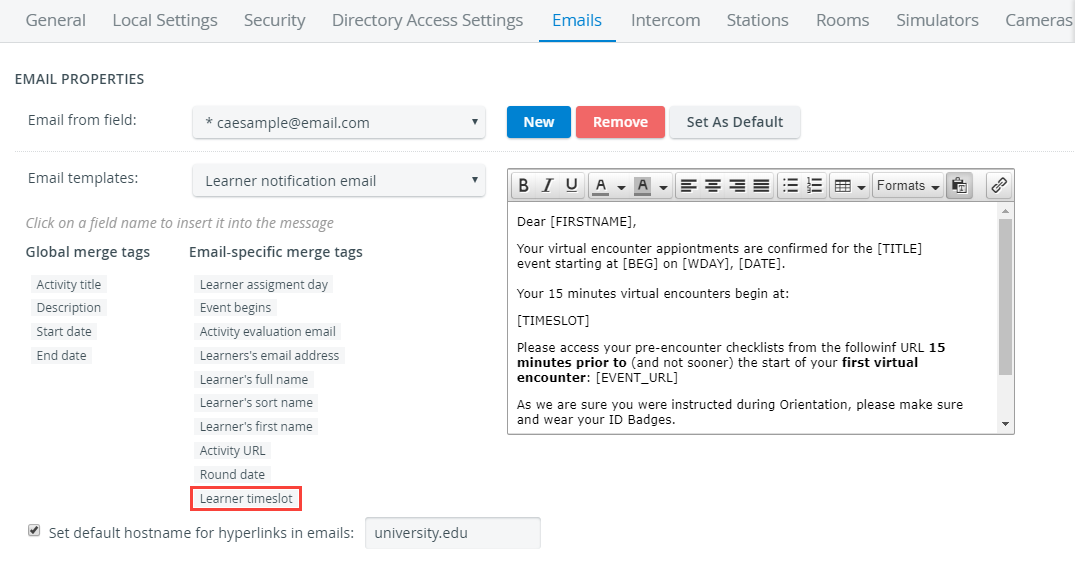
While editing the template, click the Learner timeslot tag to add it to your message.
Return from the Emails tab to your event notification email setup using the back arrow.
The timeslot (#{TIMESLOT}#) tag will be added to your message:
Click on Preview to see how each recipient will display your email.
The Email Preview page displays your message by each user.
The timeslot merge tab will list every timeslot a learner has been assigned to: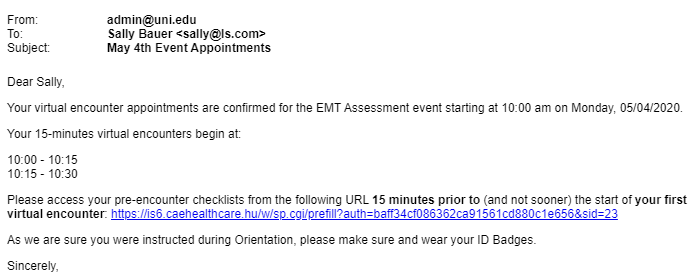
Return to editing with the back arrow.Select a recipient group from the Recipients drop-down.
Click Send.
After you send the date request emails, the system logs the sending date and time.
Learn more on our Distance Learning with LearningSpace pages.