Raw Data Import Tool
The Raw Data Import Tool exports and imports the complete data set of a running activity, including learner, SP, and FON responses for its case(s). It is useful for managing data entry for a large number of users at a time.
The Raw Data Import Tool is available only for users with Administrator privileges.
This feature can be managed on the Import / Export Responses page, which is accessed by clicking the Raw Data Import Tool link in the Data Entry Tools panel in Classic view.
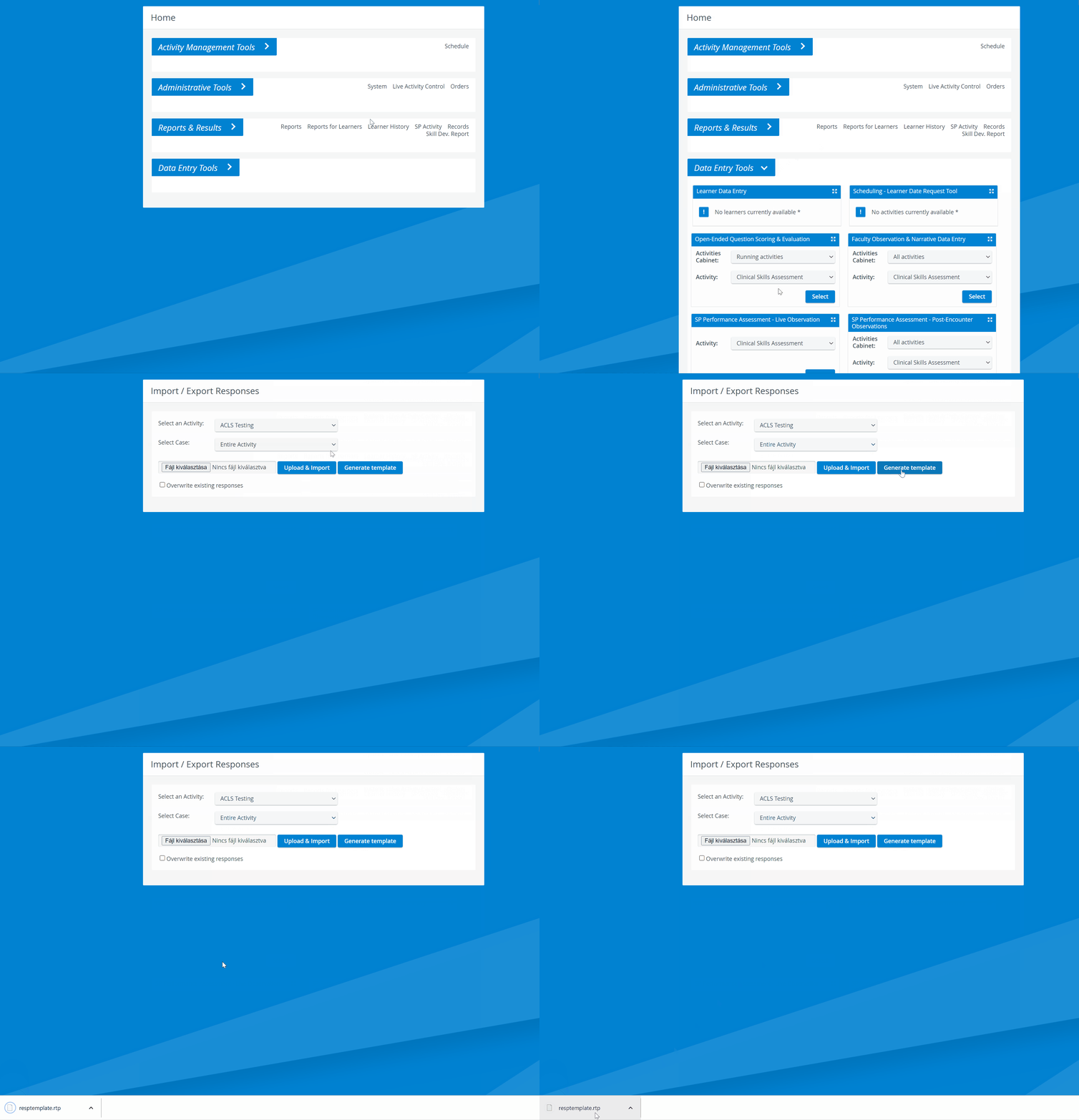
The import itself is a two-step process:
A template file (a table with empty cells for the response data in .rtp format) has to be downloaded.
The file can be imported into the database upon filling out the template with the responses.
How to open the RTP file
Open a new Excel page.
Go to File > Open > Browse.
Change to "All files" and find your .rtp file (probably under Downloads).
Select and open it.
On the next window, press "Next" and once again "Next".
Hit "Finish".
The Excel file will populate with the related data.

See also How to Access Data Export. Learn more on the Reports Module and Reports - How to pages, and watch our Reports Module Training Videos.