Radio Button

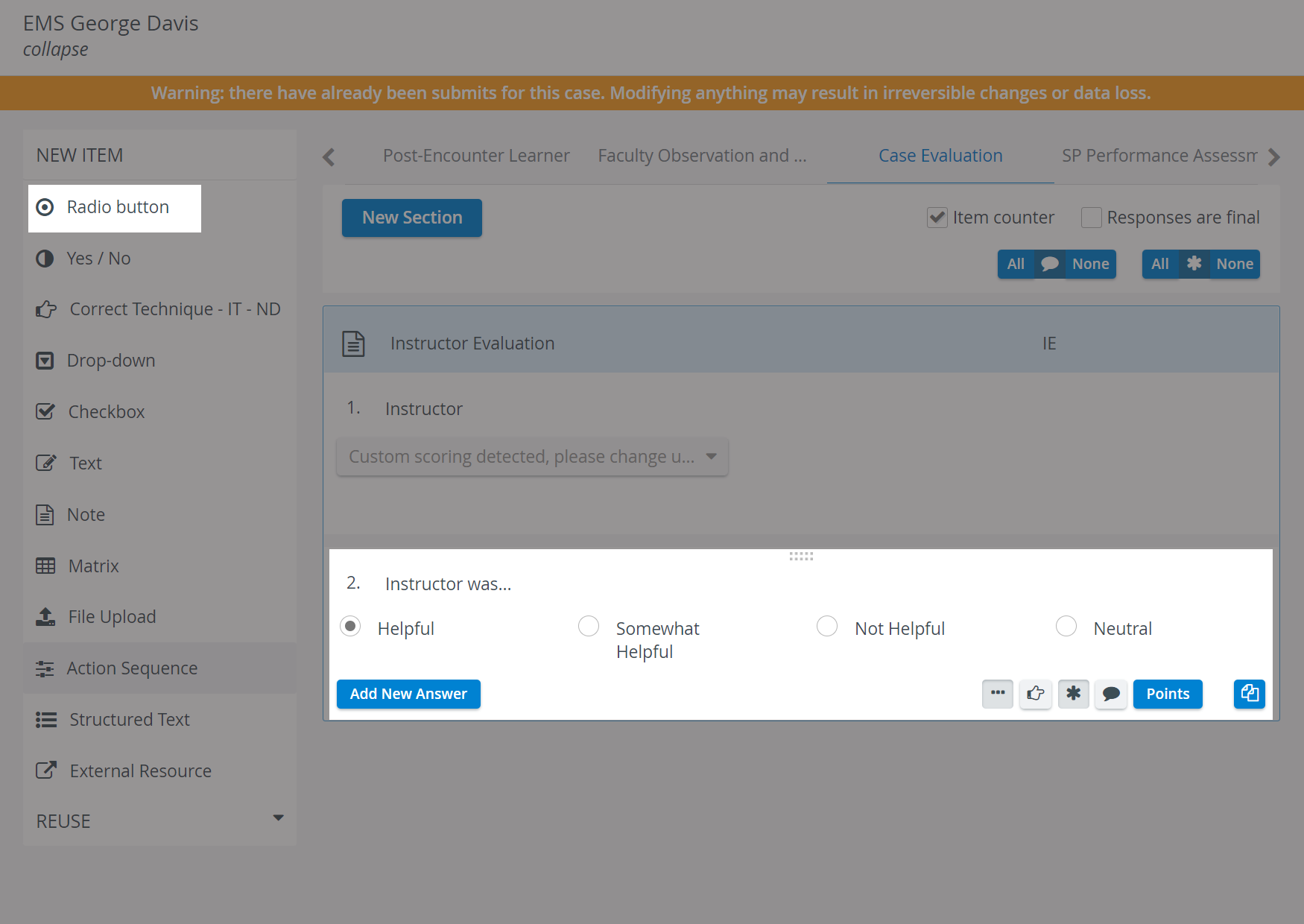
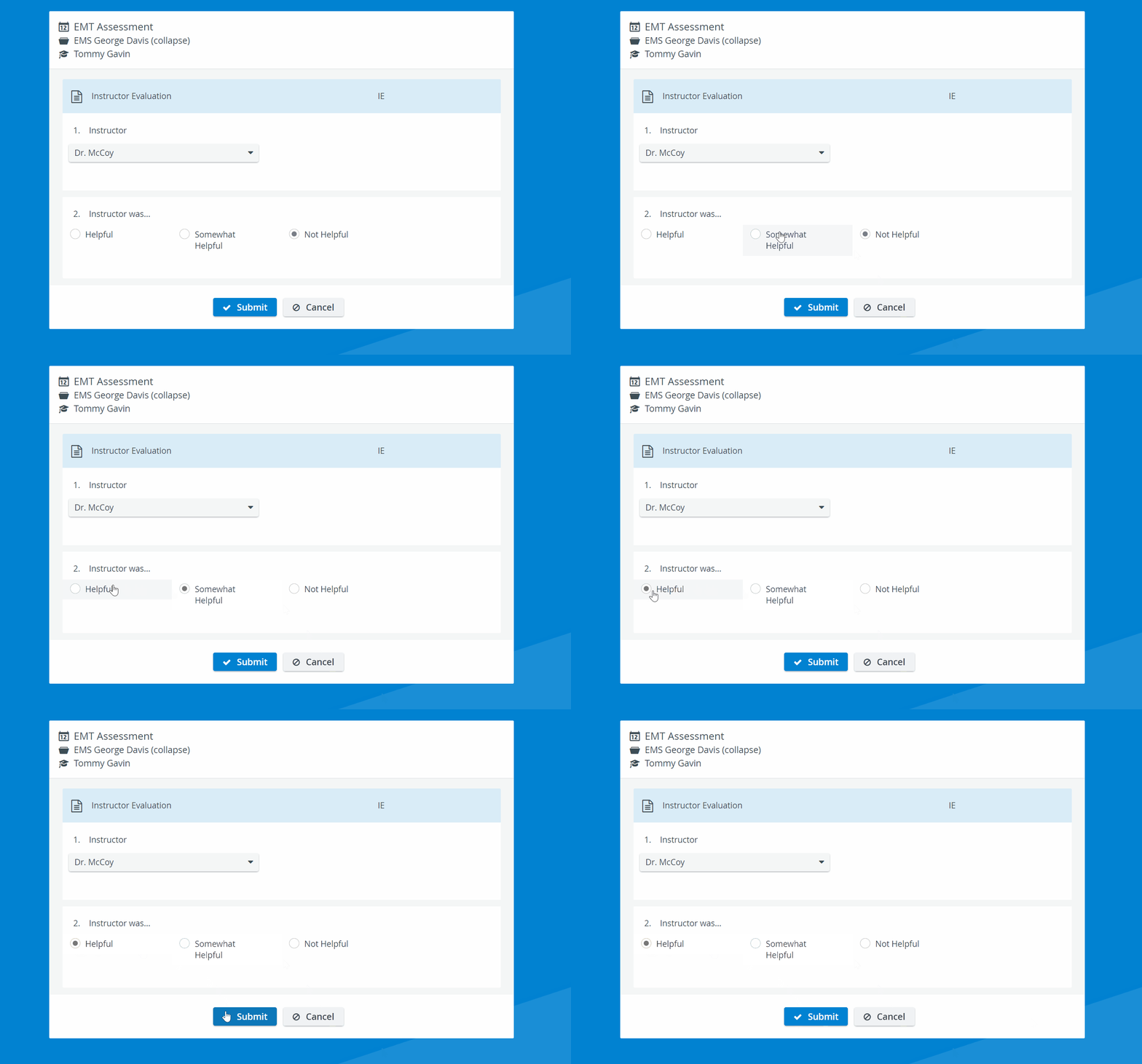
During data entry, respondents see all possible answers below the question and must select one. When modified, the selection switches to the recent choice, but undoing the selection is not possible. Respondents receive the score assigned to the answer they selected.
Enter the question in the field next to the number of the item, then type in the answer choices in the Enter Answer fields.
For optimal display, it is not recommended to offer too many answer options. For single-select questions with multiple choices, the Drop-down item type is recommended.
Add more fields by clicking the Add New Answer button, or delete any extra fields by clicking the icon appearing when hovering over the row to be deleted.

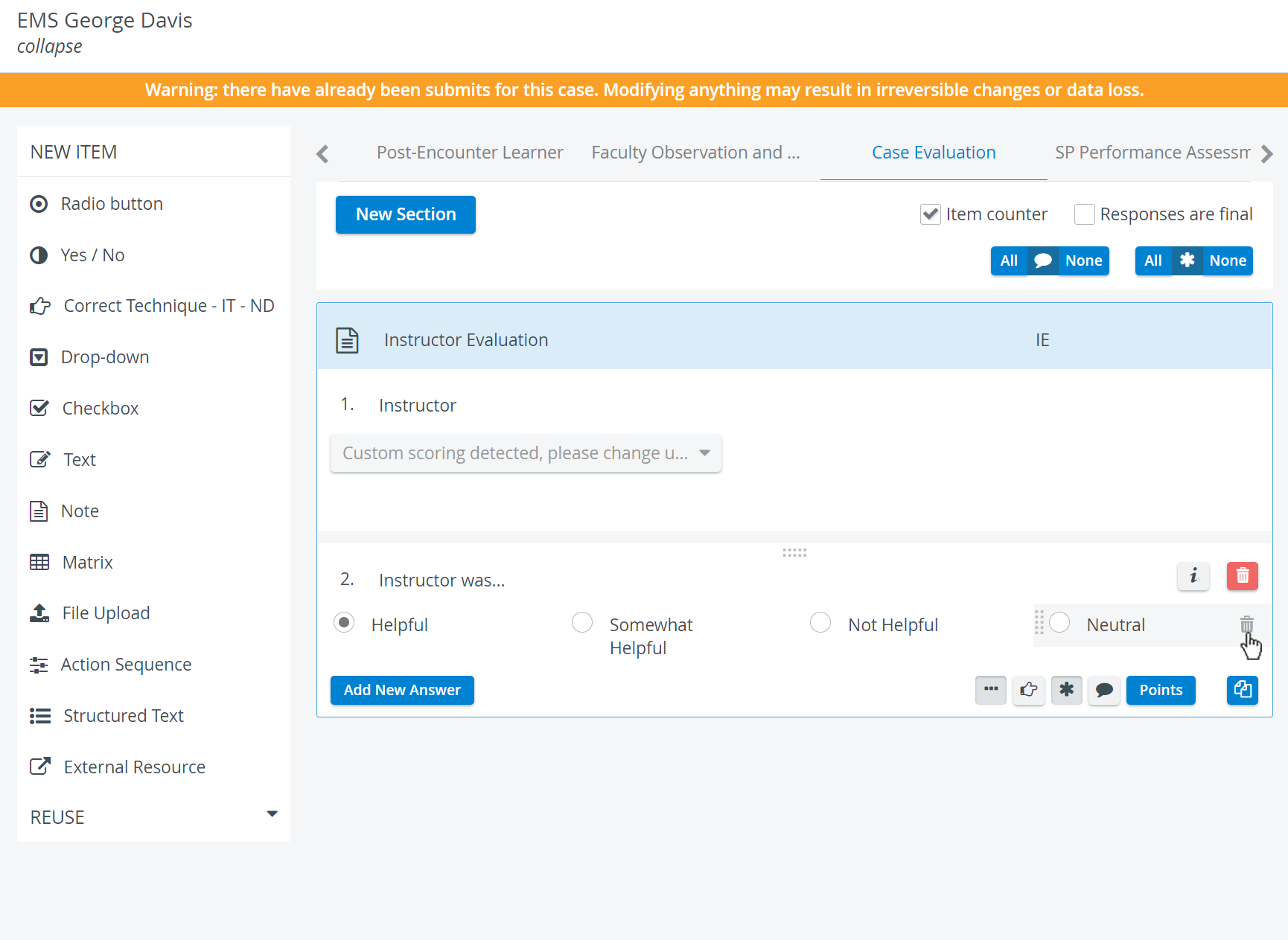
Use the buttons in the item panel for further options:


 Asterisk: Answer required - if activated, a user cannot submit the checklist until that item is answered. That is, they cannot leave it blank.

As with any added item, a copied one can be freely modified. Add more fields by clicking the Add New Answer button, or delete any extra fields by clicking the icon appearing when hovering over the row to be deleted.
Scoring
Clicking the Points button displays the score value fields next to the added answers.
For each response, the value can be entered in the field, or either of the additional options can be activated:


For the Radio button item type, the entire item is considered a bonus, since only one answer can be selected; multiple solutions are not plausible.
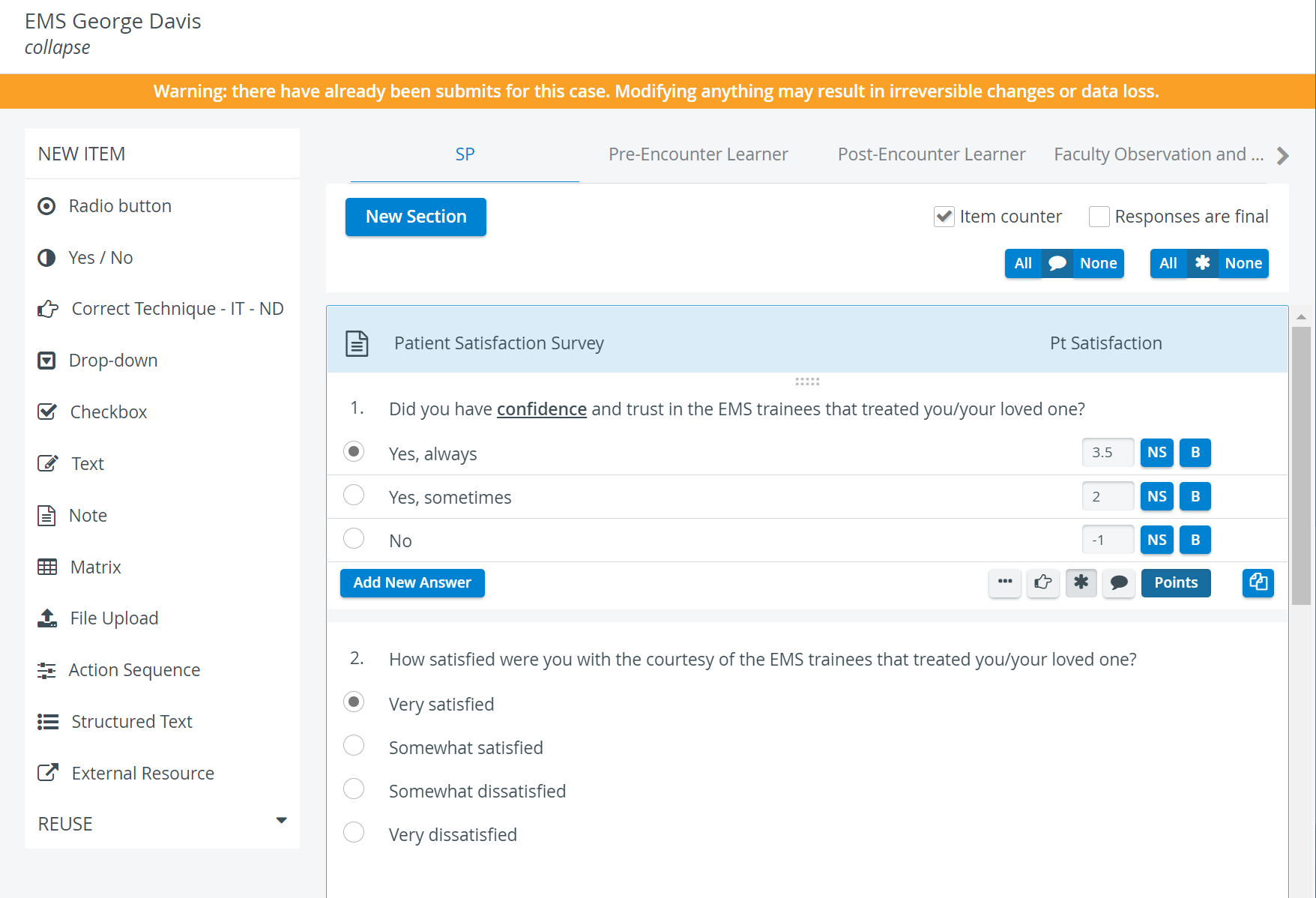
Decimals and minus points can also be used to determine score values via the Points button. However, when assigning the same score to different answer options (e.g., for the checkbox item type) or assigning only negative values, the system cannot determine the correct answer (e.g., to highlight it on the checklist in Reports).
For further information, visit our Case Manager and Cases - How to pages or watch our Case Manager Training Videos.