Privileges & User Access Details
This page explains how the scope of certain privileges changes in light of the Inventory module.
Inventory Manager: Basic & Full Control Versions
Users with Inventory Manager (full control) privileges can
Access the Inventory module on the Dashboard
access every tab in the Inventory module
Create new items, cabinets, and locations in the Catalog tab
manage and assign Transactions
Prepare Equipment and Supply Lists for cases
Check out the contents of the Setup Sheets for events and print them
generate and export Reports to document supply and equipment usage
assemble the list of disposed or lost items (Reconciliation)
Compare the current status of the Inventory with the equipment and supply needs of particular events.
The Inventory Manager (full control) is also a default role that you can find in the Roles tab:
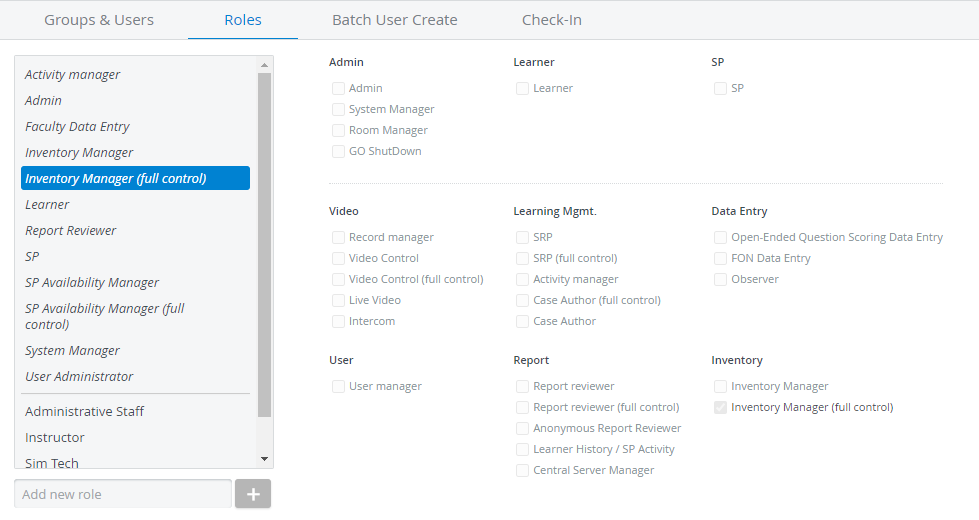
To perform easy check-in or easy transfer, Inventory Manager (full control) users must have the Transaction Assignee privilege activated in their user profile. Without it, the Edit and Add new item options will be inactive.
The basic Inventory Manager privilege grants only the permissions necessary for simulation lab technologists or assistants within the Inventory module.
With the Inventory Manager privilege, users can
access the Cart and transactions through the Catalog and Transactions tab,
perform check-ins and check-outs (with the Transaction assignees option enabled)
access every other part of the Inventory module in read-only mode.
Users with the basic Inventory Manager privilege can NOT create new items and do NOT receive low-stock notifications.
Case Author: Basic & Full Control Versions
Users with Case Author or Case Author (full control) privileges can access only the case cabinets and specific cases shared with them for reading and writing.
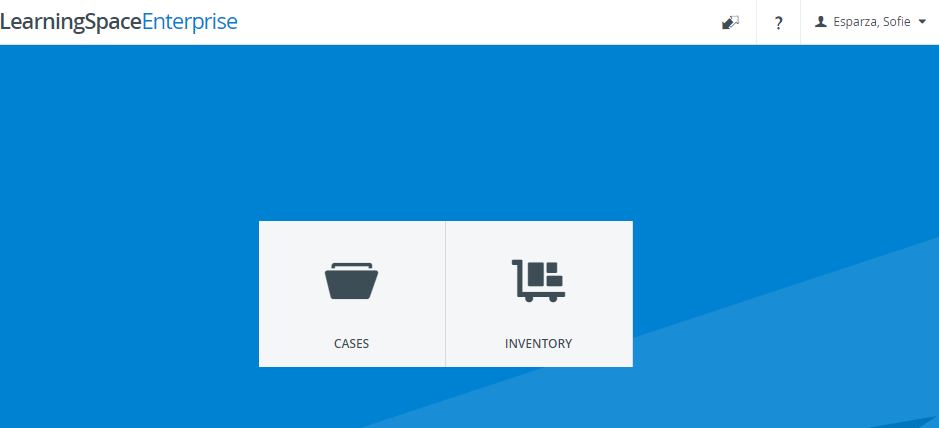
Along with Cases, the Inventory module will be featured on the Dashboard.
The Edit Case pop-up is complemented by an Inventory tab, where Case Authors can add any existing Equipment and Supply List items.

The Catalog, Equipment, and Supply Lists tabs in the Inventory module are available for Case Authors.
Case Authors can create new Equipment and Supply Lists in the Inventory module.
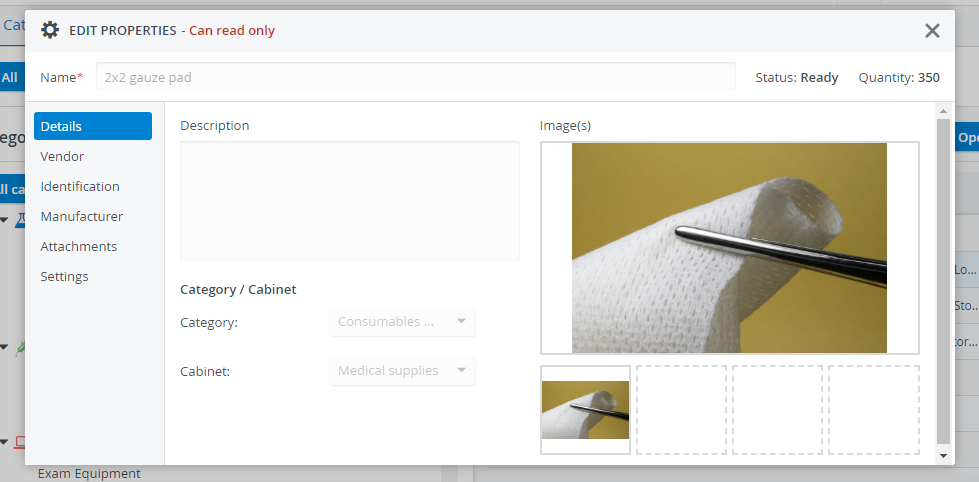
Case Authors can view Catalog items and print their QR codes, but cannot edit item properties.
SRP (Scheduling and Resource Planner): Basic & Full Control Versions
SRP users can finalize the equipment and supply needs for the events they created in the Calendar and assemble the Setup Sheet for the event.
The Equipment and Supply List auto-populates with items once a case is selected for the event—whether manually or via Advanced Scheduling.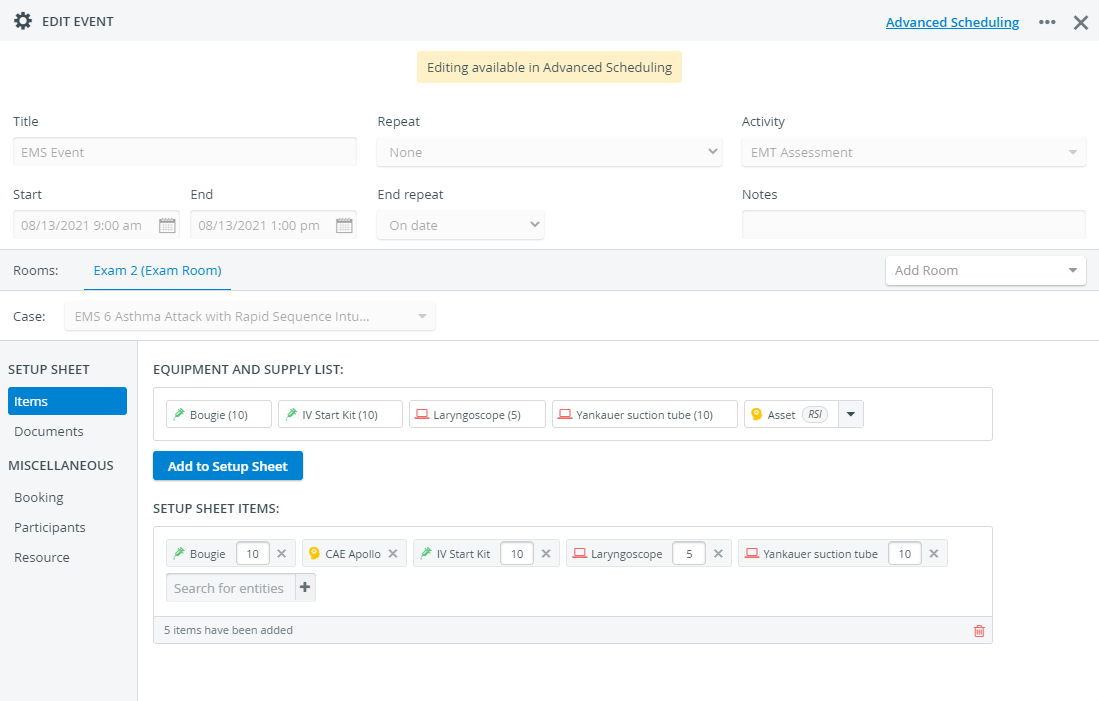
First, the SRP user must select an activity from the corresponding drop-down to add a case to the event.
Users with basic SRP privileges can access only events from activities they are granted read and write access to, or events not added to any activity.
SRP (full control) users can access the events of any activity and can add any running activity to a Calendar event.
Transaction Assignee
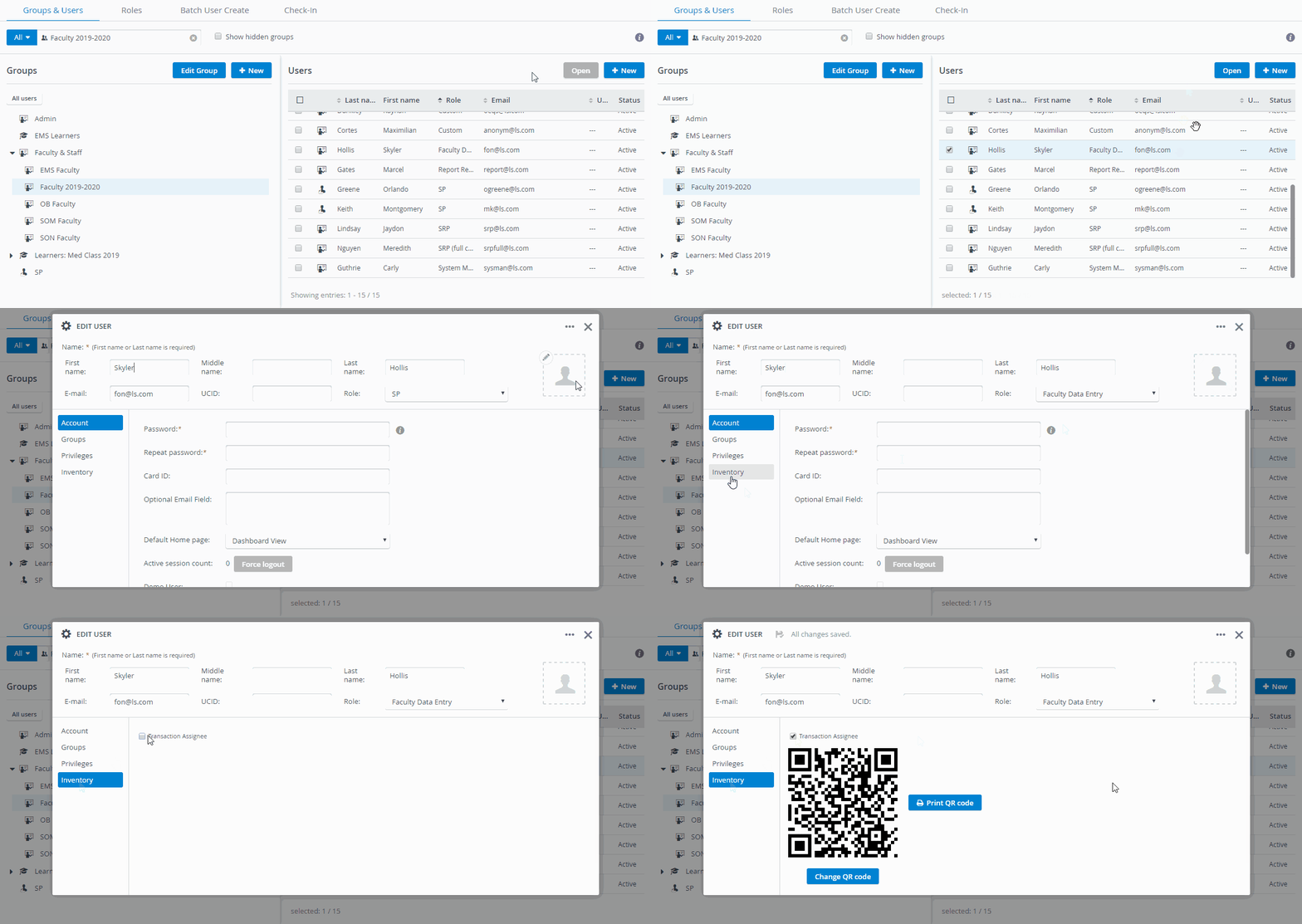
A checkbox is available in the Inventory tab of the Edit User pop-up for each user. With this checkbox, you can designate any active user as a Transaction Assignee, who can then be assigned to handle a check-in or check-out transaction.
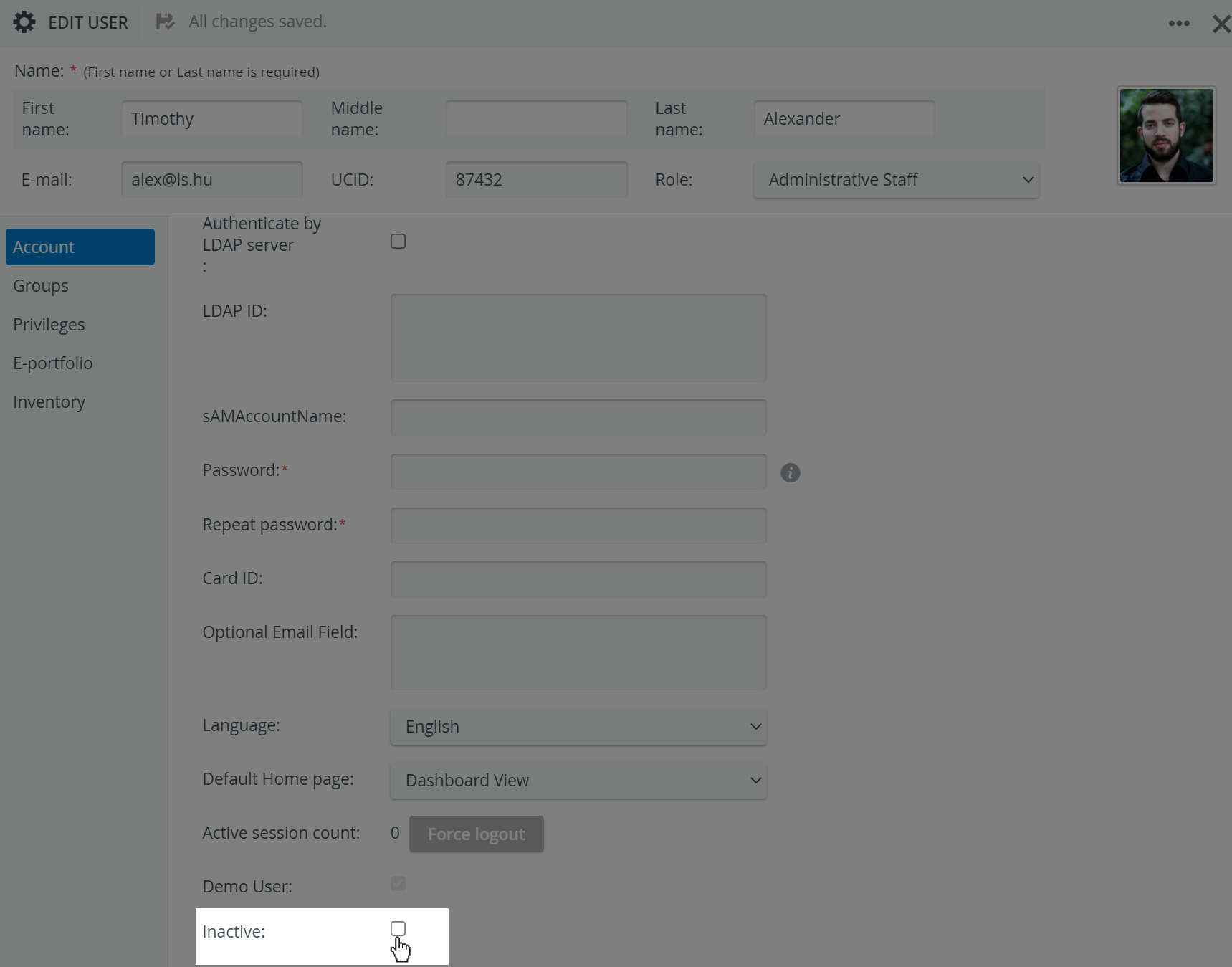
Ensure that the Inactive checkbox is unchecked in the user's Account tab.
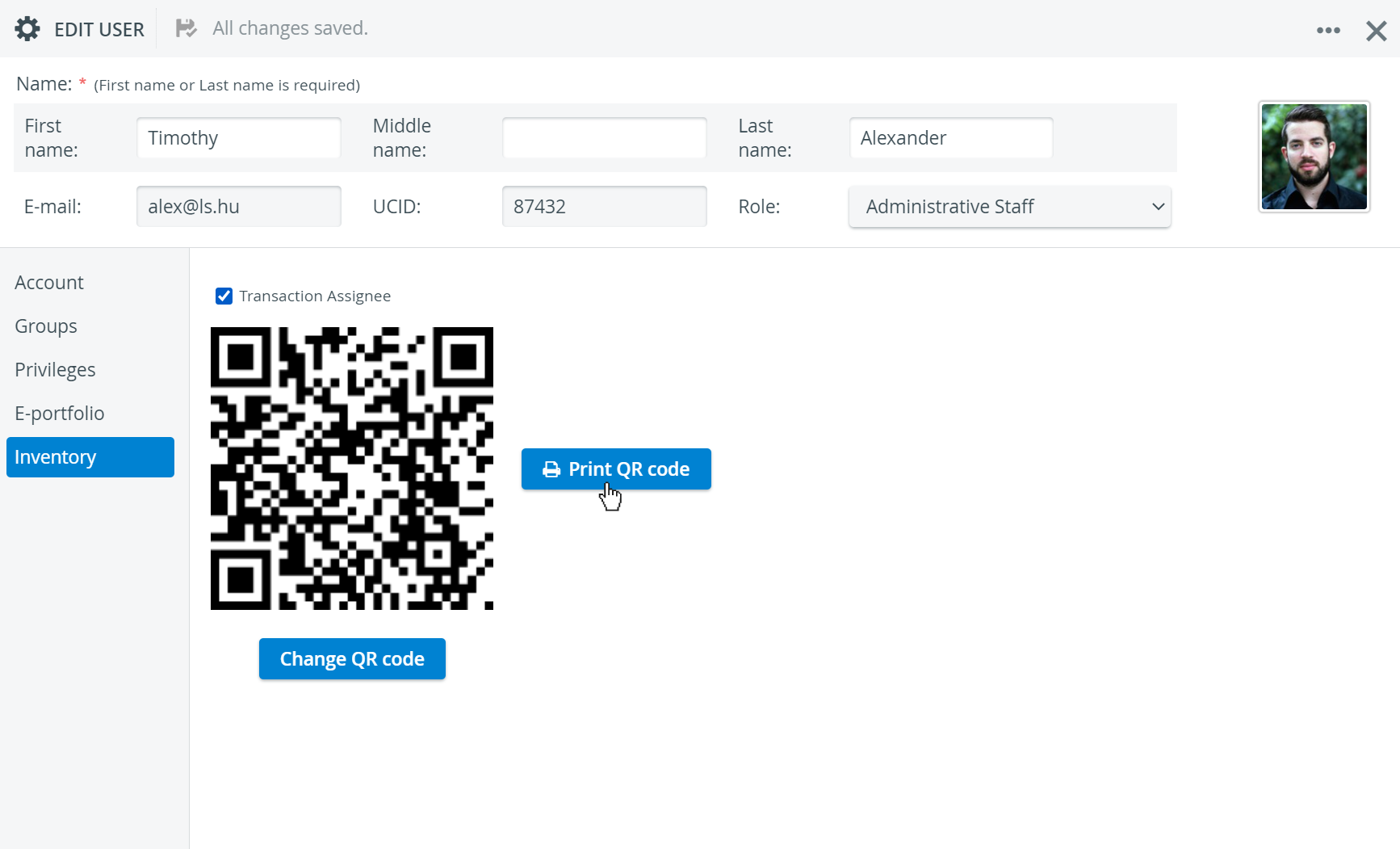
Once you assign a user as a Transaction Assignee, the system automatically generates a QR code for that user.
QR Code
Print the system-generated QR code so users can easily identify themselves when picking up or bringing back equipment.
Withdrawing the Transaction Assignee Property
If you uncheck the Transaction Assignee option, the system permanently deletes the user's QR code.
The user will receive a brand-new QR code if you switch this option back on. Print the new QR code to replace the old one on the user's ID.
Automatic Transaction assignee privilege assignment for new Learners
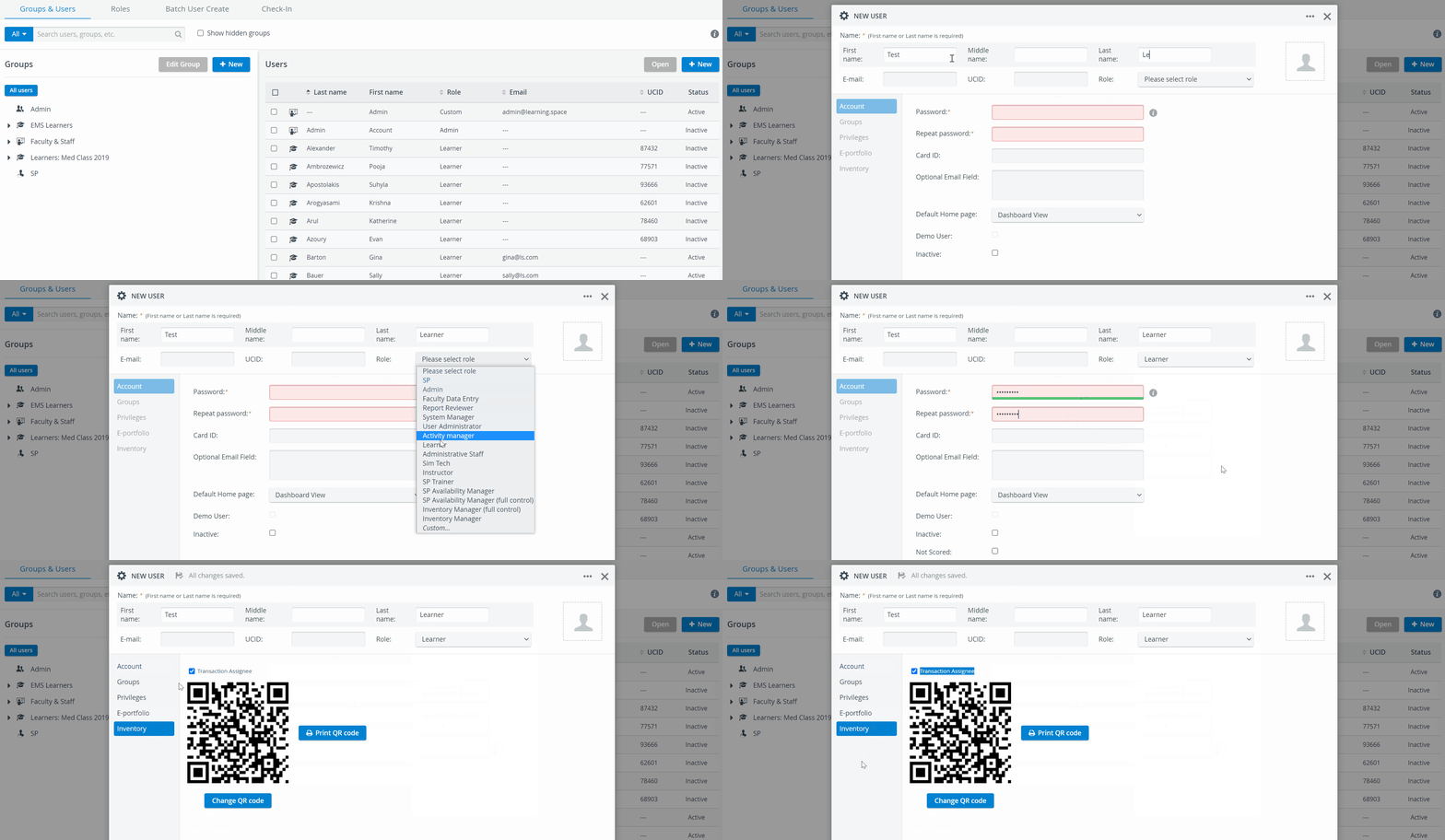
In the User Manager, when utilizing the Add new user option, the Transaction assignee checkbox gets checked by default for Learner privilege users (if the Inventory manager is enabled within the LearningSpace system)
This way, Learners can be marked as Transaction assignees during Transaction processes in the Inventory.
Learn more about the Inventory Manager on our Inventory - How to pages, and watch the Inventory Manager Training Videos.