Privacy Mode for Standardized Patients (SPs)
As an SP - or FON Data Entry privilege - user, you can block the camera feeds in your room by turning on Privacy Mode.
When Privacy Mode is ON, no one can see through the camera feeds into your room, so you can change clothes or participate in sensitive scenarios in complete privacy. The cameras will be blocked until you turn Privacy Mode OFF.
Manage Your Privacy in the Exam Room
Turn Privacy Mode ON or OFF by clicking the Privacy Mode icon located in the top right corner of the screen, below the name of the user:
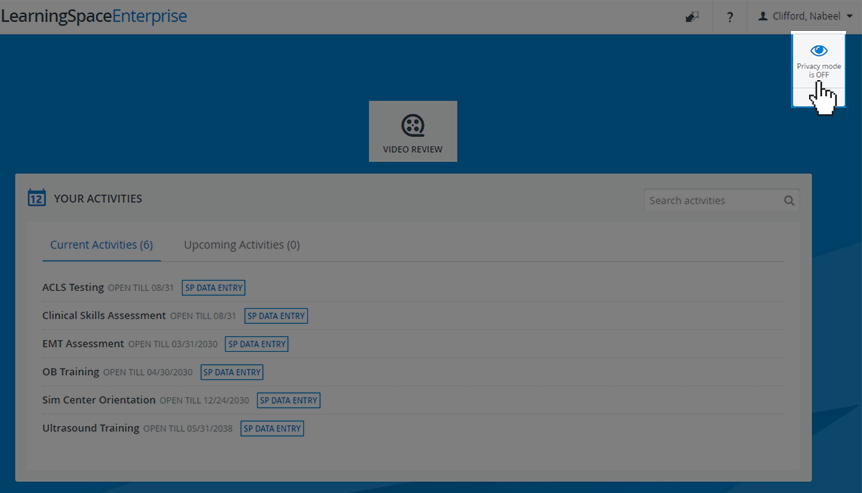
IMPORTANT: If you require privacy but do not see the Privacy Mode icon (SP toolbar), notify your instructor or system administrator.
When you enable Privacy Mode, the camera feeds of the room are disabled:
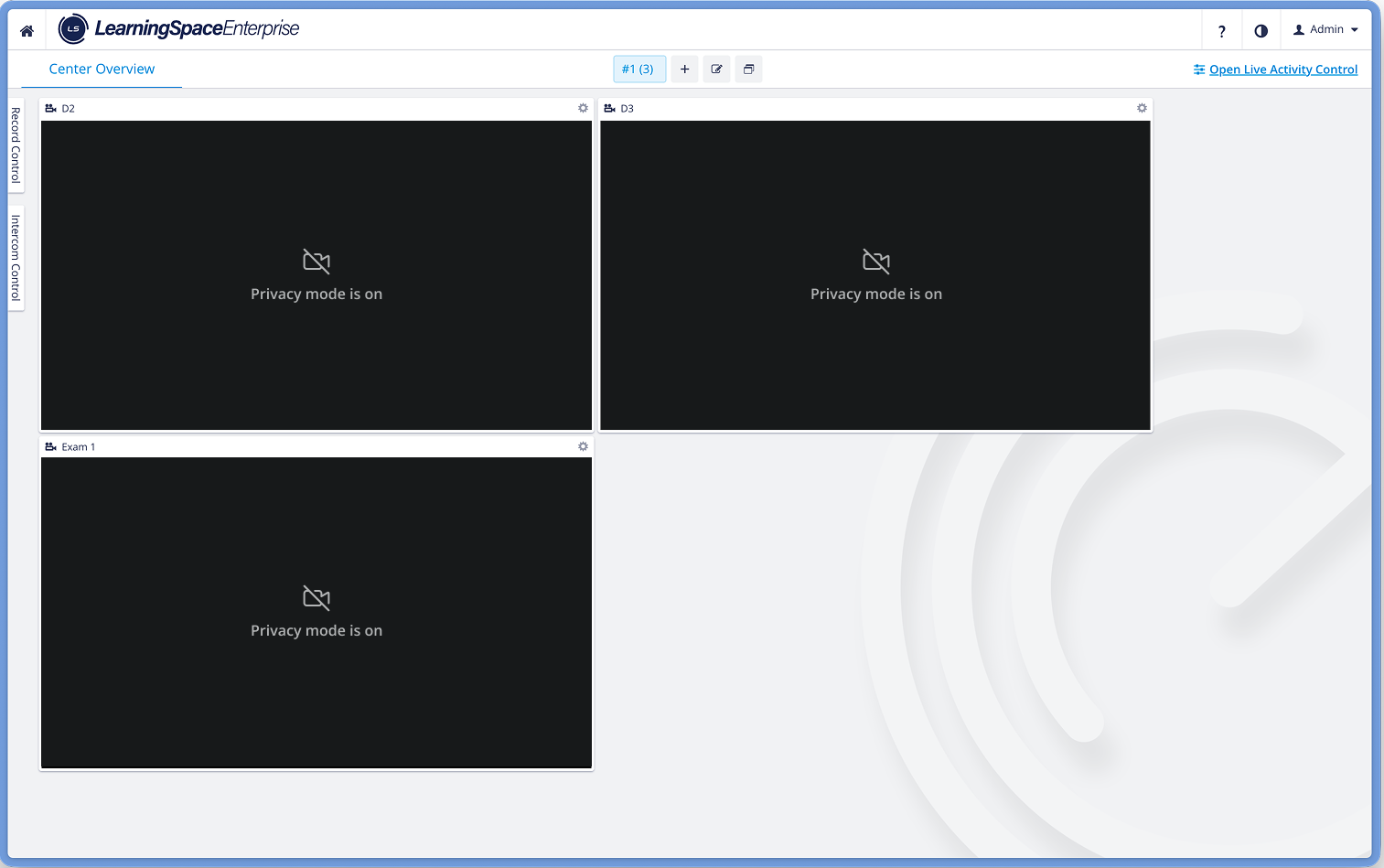
Center Overview - Privacy Mode Enabled
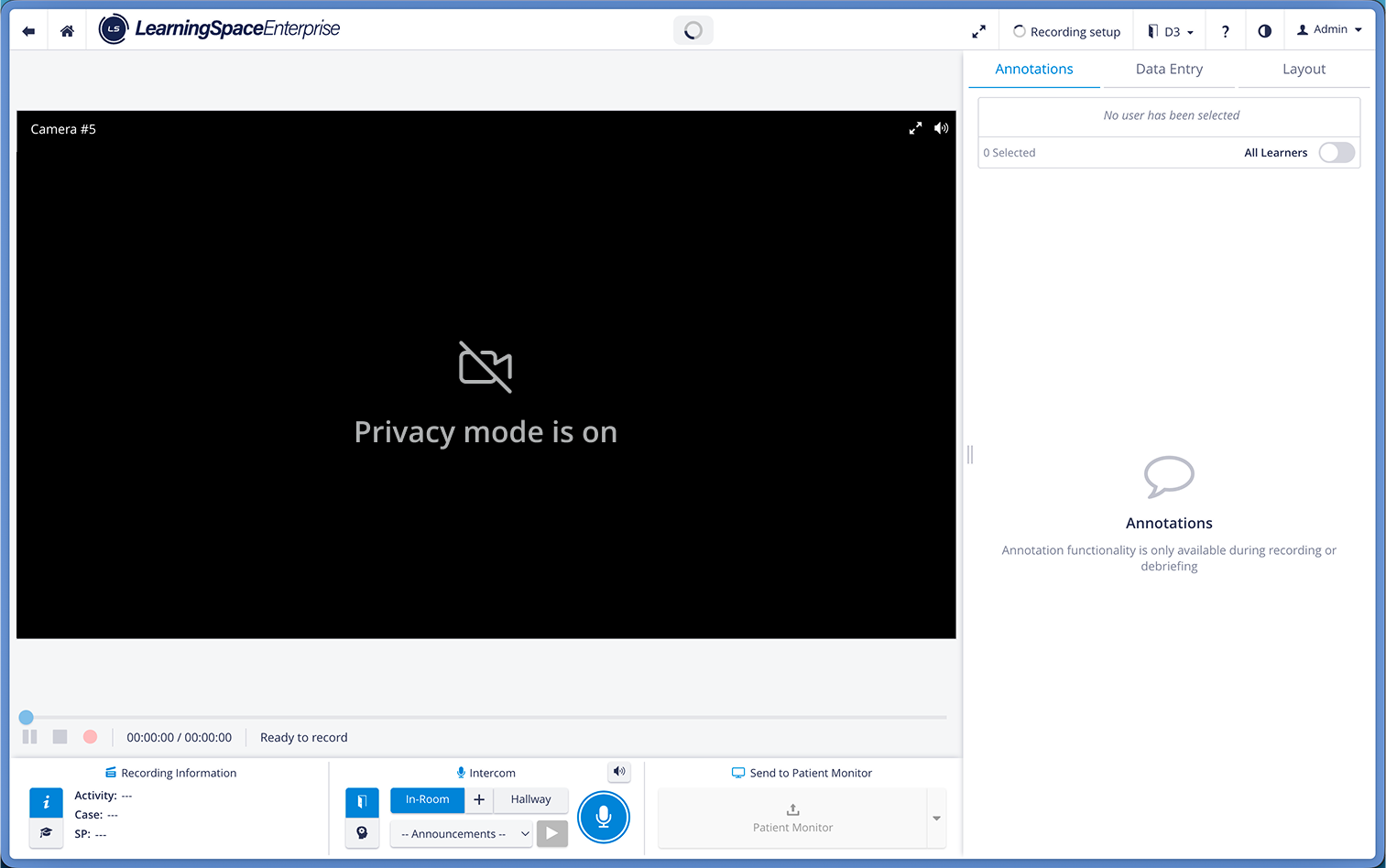
Single Room View - Privacy Mode Enabled
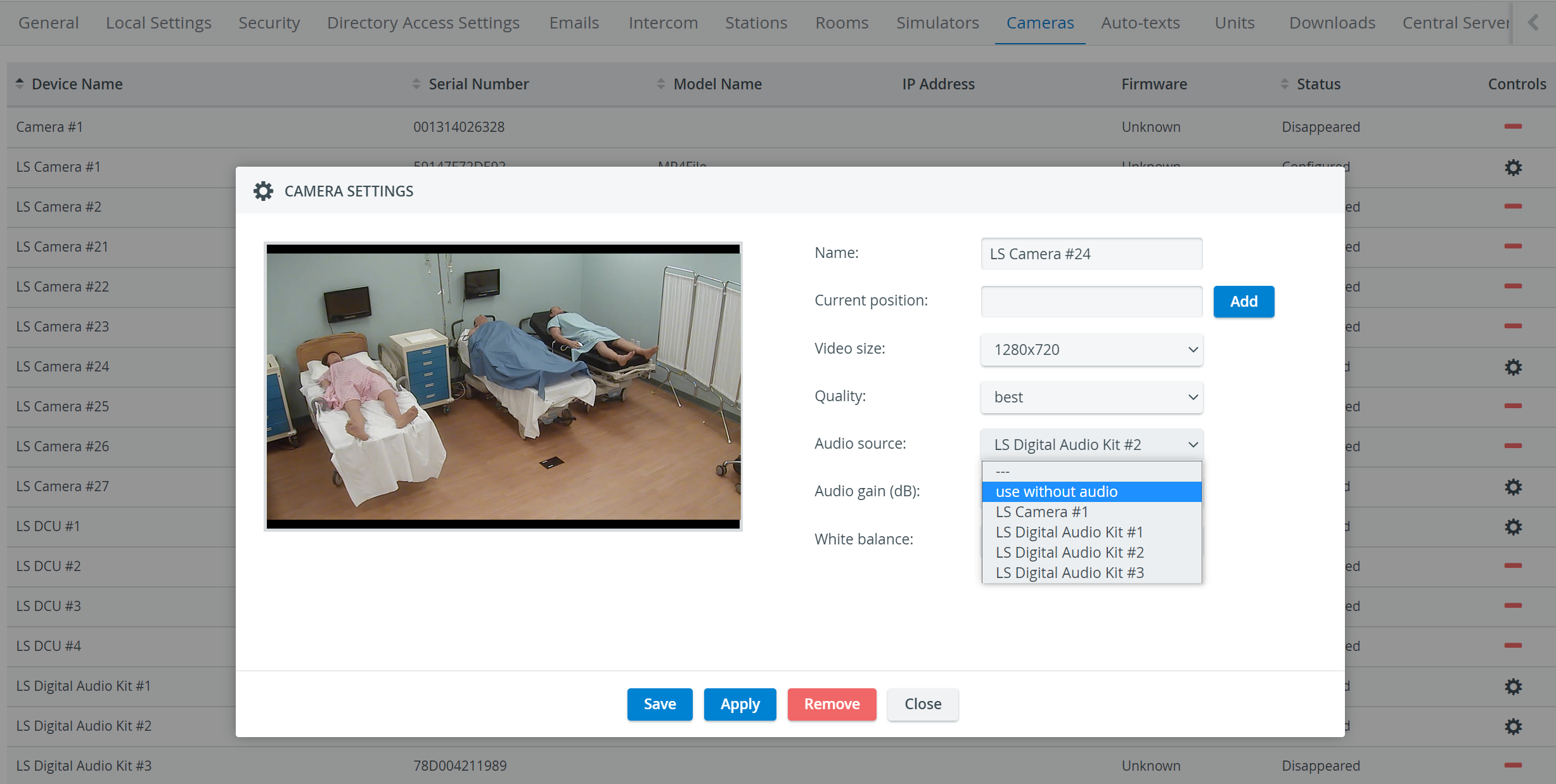
When Privacy Mode is enabled, the Privacy Mode indicator also appears in the Camera Settings window of the System Manager:
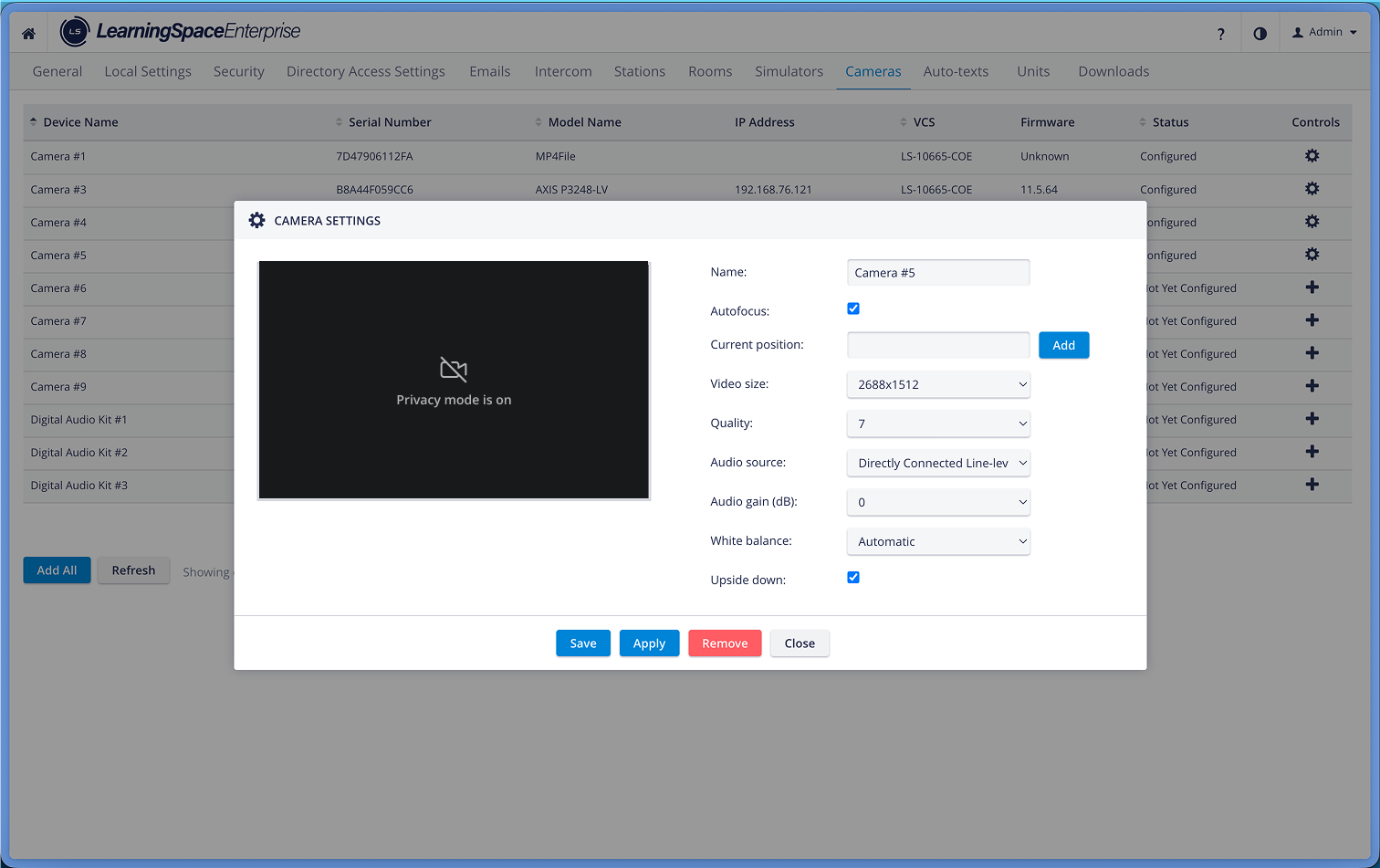
Privacy mode - Camera Settings
Privacy mode is currently not supported for mobile cameras. See Mobile Recording Feature
Learn more about the Auto-mute feature here.
Disable Privacy Mode
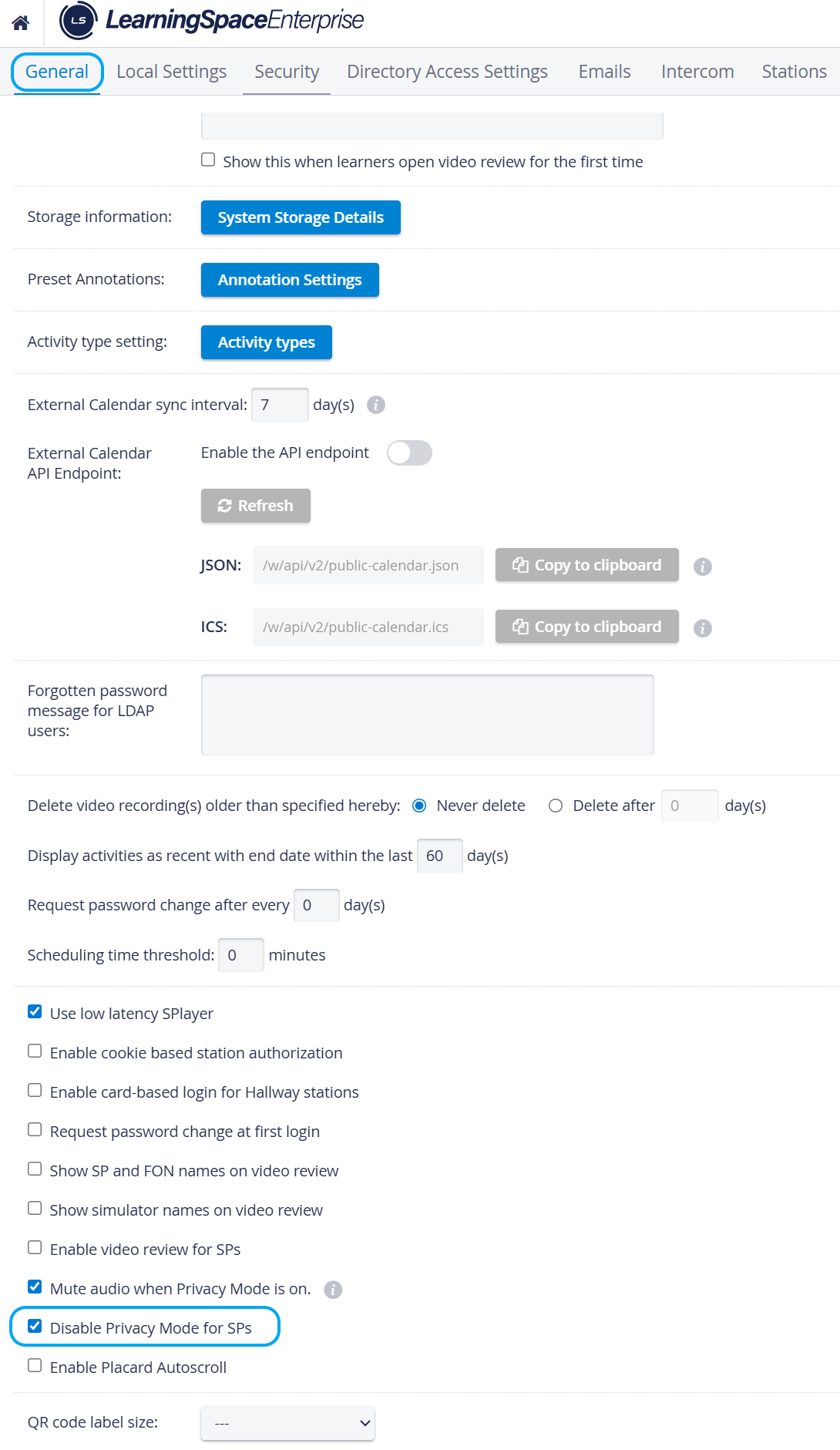
Privacy mode for SPs can be centrally disabled on the General tab of the System Manager.
When the respective checkbox is not selected, Privacy mode is available for SPs.
Privacy Mode Status
Privacy Mode ON | Privacy Mode OFF | |
Icon & Status | 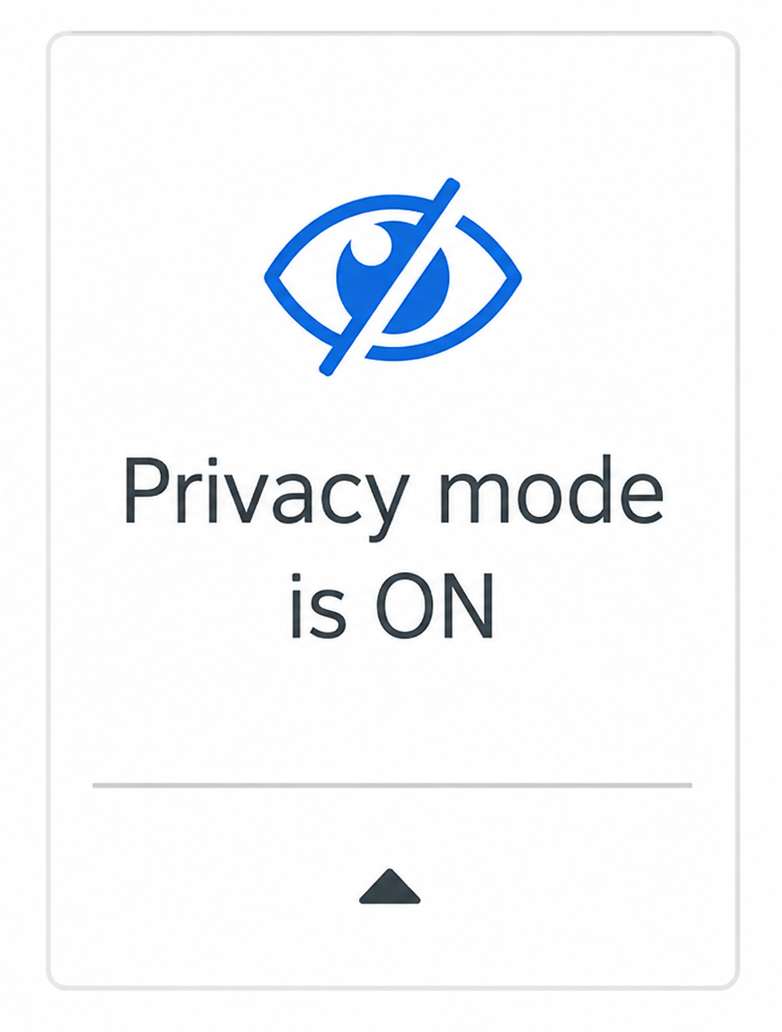 | 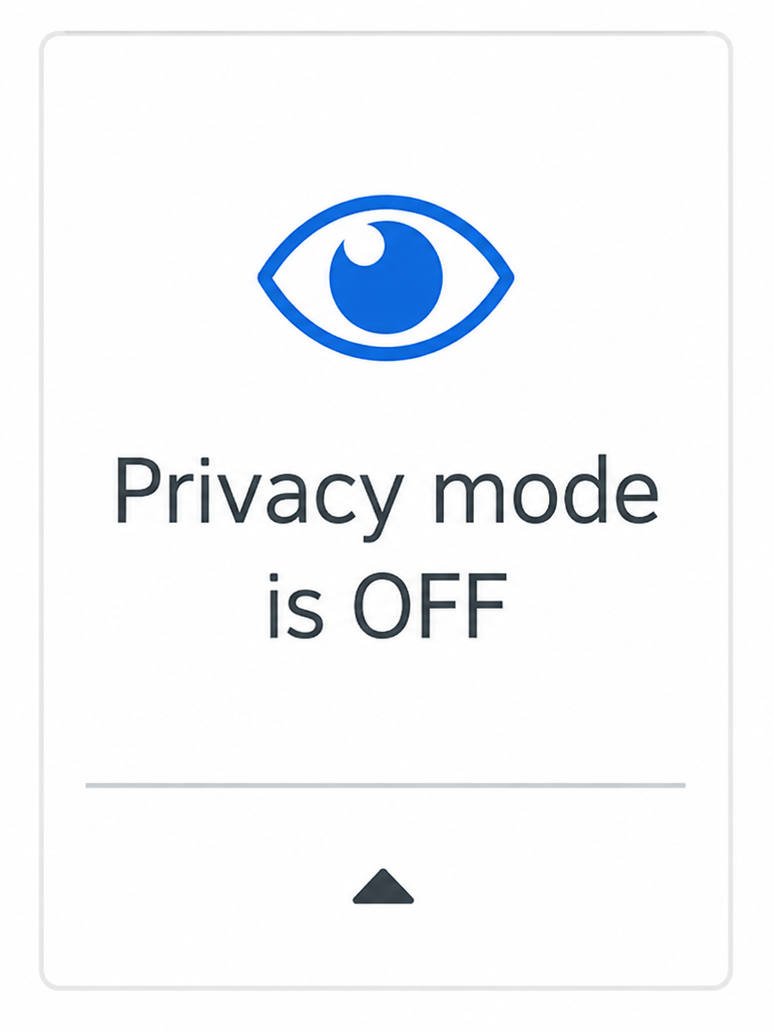 |
Room Status | The camera feeds are blocked. | The camera feeds are not blocked. |
Minimize the SP Toolbar in your profile using the arrow next to the Privacy Mode icon.
Where to Find Privacy Mode on Your Screen
The SP toolbar for enabling Privacy Mode becomes available after you have successfully logged in to LearningSpace: you can find it in the upper right corner of your Dashboard.
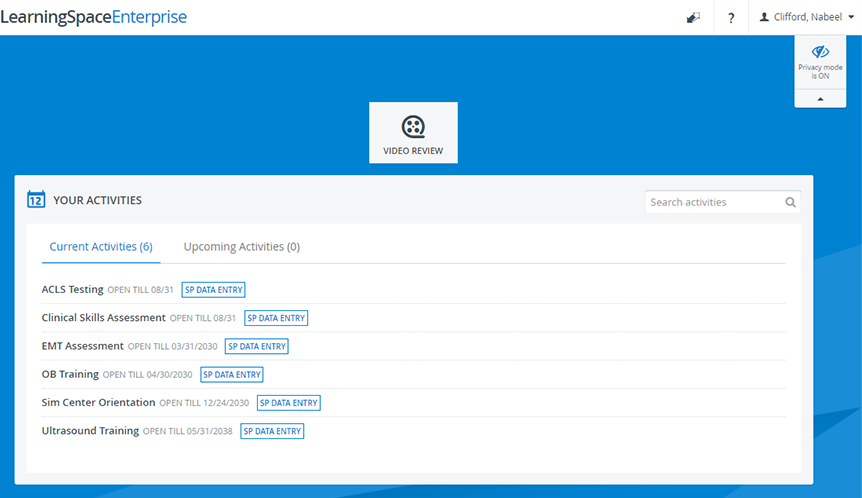
You can also access the room's privacy setting on the Learner selection page:
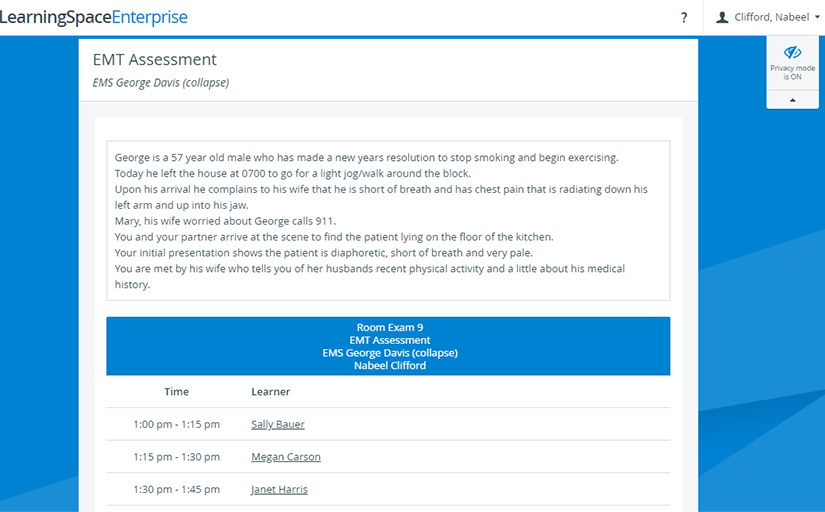
Or while you are completing data entry:
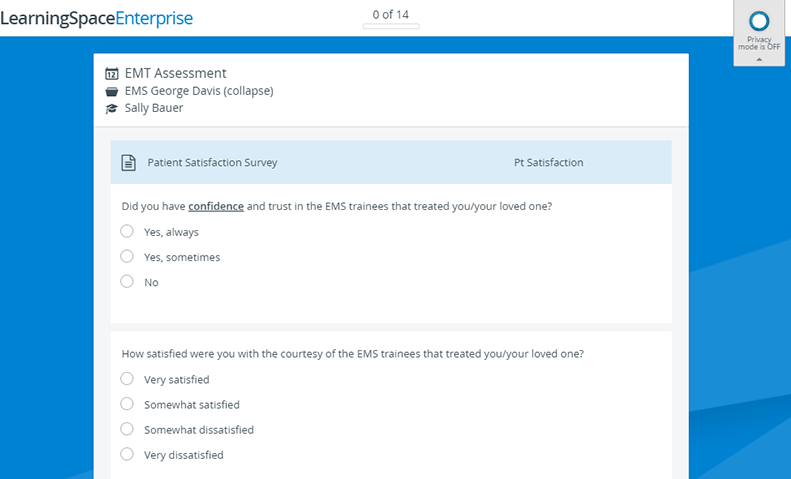
Push-Button activation of the Privacy Mode
In the latest versions of LearningSpace, Privacy mode can be controlled using a Push button within the physical rooms. Once a Push-button has been connected to a DAK (Digital Audio Kit) physically, and the DAK is configured on the Cameras tab, it can be selected as a
Record control device
Privacy control device
from the following two drop-downs of the Room Settings pop-up:
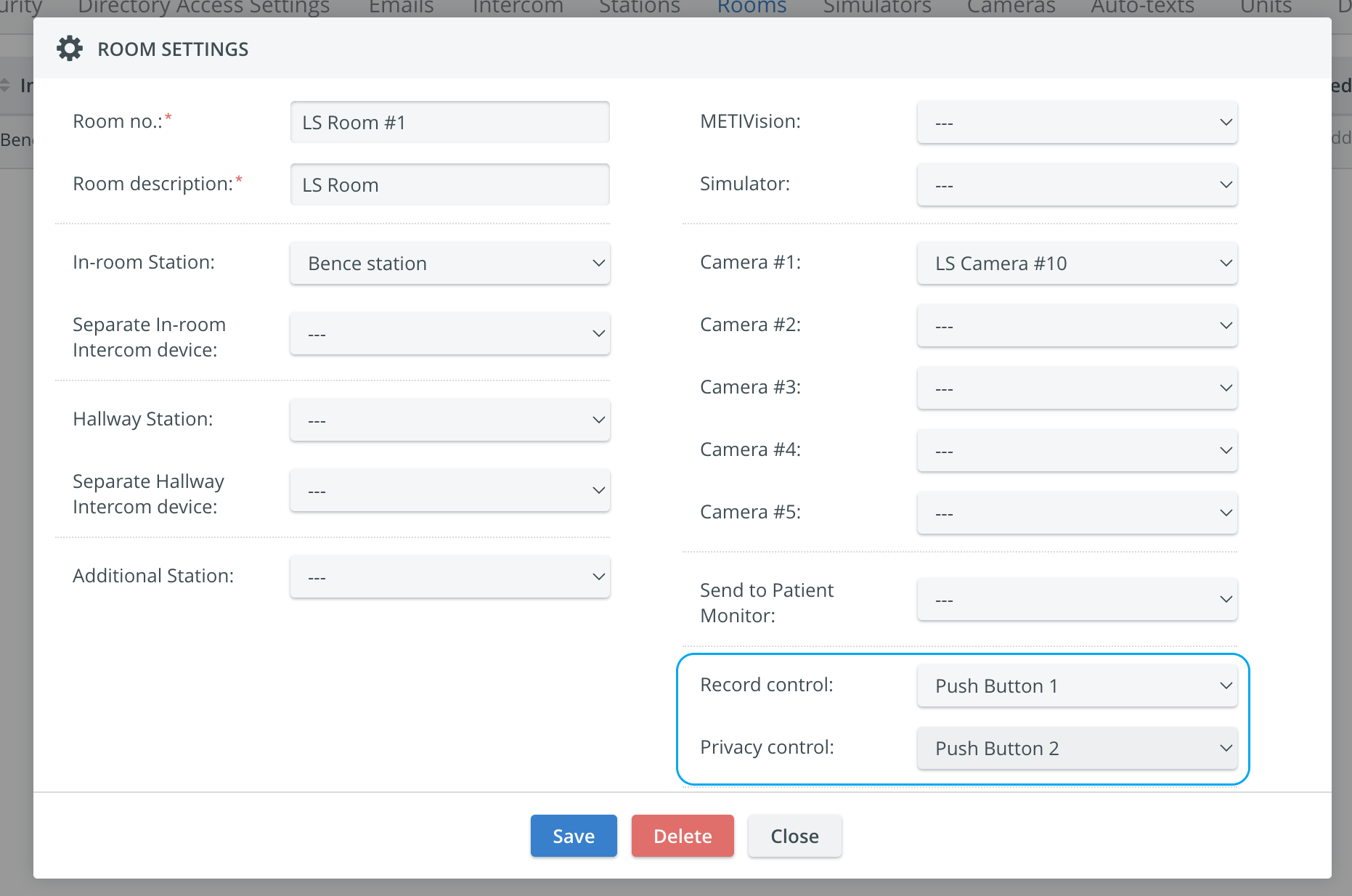
Push-button hardware can only be assigned to a room once. Once assigned, it cannot be selected from the other drop-down any longer - otherwise, the following error message comes up:

⚠️ One push button can be added to only one room within the system.

Simply by pressing the Push-button installed in the room, Privacy mode can be activated or turned off.
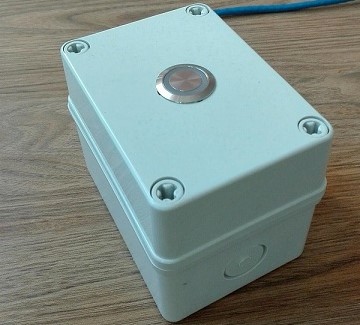
If two DAKs are used with two Push buttons (one DAK/one Push button) → record control and privacy control can be used simultaneously.
By utilizing only one DAK device and one Push button → either record or privacy control can be managed by the Push button.
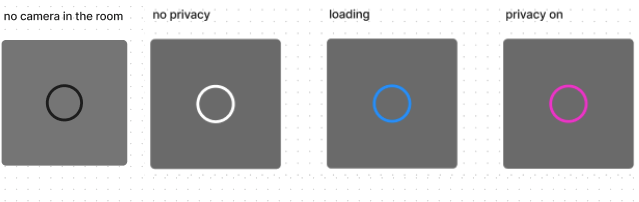
Light indication colors for the Privacy control button:
White: Button is ready to use, idle
Blue: Request is sent, waiting for a response
Pink: Privacy mode is active
Black: No camera in the room
NOTE: The Push-Button has a 5-second throttling protection; any pushes within 5 seconds of the last push will be ignored.
Privacy Mode and DCU/ Encoder
Privacy Mode is accessible even when a DCU or a JTech encoder is present. (Earlier, adding a DCU or JTech encoder to a Room with Cameras disabled would disable Privacy Mode. This limitation has been removed to ensure that Privacy Mode can always be enabled.)
NOTE: If there is a DCU/encoder in the room along with cameras on which privacy mode can be enabled, users can activate privacy mode in the room using the SP toolbar or push button, but privacy mode will only be enabled on the cameras and NOT ON THE DCU/encoder.
When pressing the 'Privacy Mode On' button on the SP toolbar, a header message will appear with the following text: “Please note that a connected capture device may continue to operate and record during Privacy Mode.”

Privacy mode does not affect the device(s) connected to the DCU or encoder.
Privacy Mode is now available under the following conditions:
The audio source is set to: ‘use without audio.’
The audio source is connected to another Elevate-handled device that is mutable.
The mute icon is disabled if no audio is available on the assigned device (i.e., if the camera or its audio source cannot be muted).
For more information, visit the How to Manage Privacy Mode for SP Users page.
Privacy API
A prototype API has been implemented for LearningSpace, allowing a device to control the room’s privacy settings directly from within the room using a wall-mounted touch panel (a network device panel).
Because the touch panels are behind a "controller" that makes requests to LS, all requests appear to come from the same IP address as seen by LearningSpace.
Setup process
Add the "controller" computer to LS as an additional station.
Add the "controller" station to all the rooms that need to be controlled.
Use curl to verify the operation of the API at http://learning.space.address/w/api/v2/privacy.cgi,
It acts/performs just like pressing the privacy buttons on the UI.
Note: If the computer is not a station in any room in LS, nothing happens because the station's IP is used to look up the associated room; this API does not allow non-stations to control LS privacy.
SP toolbar still works alongside this new tool.
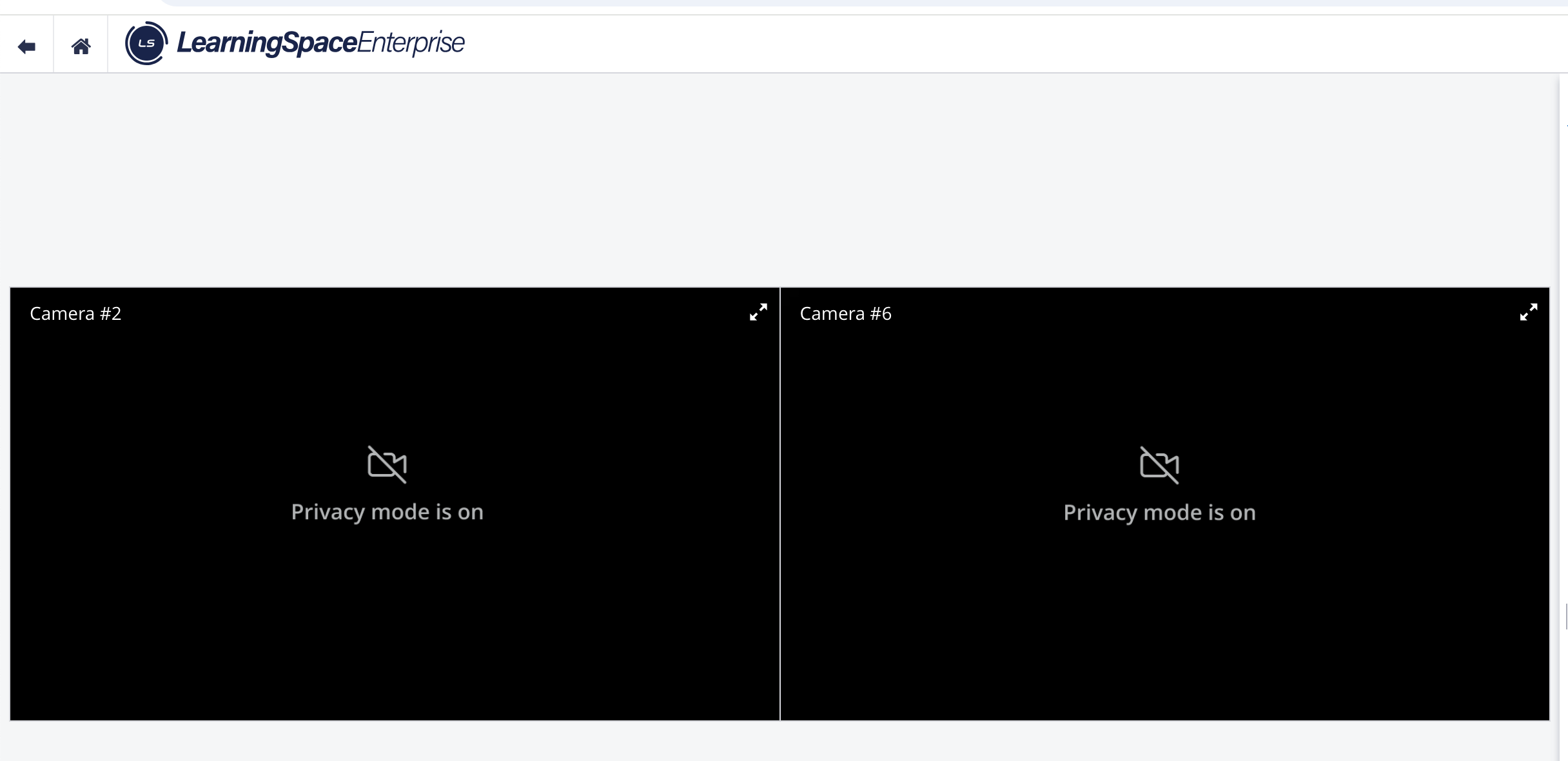
Blacked-out Camera Views - SP Privacy Mode Active
Troubleshooting
Issue: Privacy Mode is not available.
Solution: Contact the event coordinator or SP manager.
For more information, please contact the AVS Support team using one of the available contact options listed here.