Prepare Your Zoom Owner Account
Before you start setting up the OAuth application and connect LearningSpace with your Zoom owner account:
Check and make sure that you have enough cloud storage per licensed user,
manage Zoom waiting rooms,
explore and set up auto-saving chat features.
Check Your Current Storage Amount
Virtual event recordings are first saved to the cloud when you conduct a virtual event in a Zoom (Oauth) virtual room. Once recording files are saved to the cloud, LearningSpace begins processing the videos and downloads duplicates of the recordings via a secure HTTPS channel to the Video Review module.
In Case Recordings Get "Stuck" in the Cloud
Downloading virtual event recordings from Zoom's cloud to LearningSpace might take some time. Still, if you notice that the recordings have not arrived in the Video Review module within 6 hours, we recommend you retrieve the meeting recordings and upload them to LearningSpace. Continue to this page for instructions on how to recover your recordings from Zoom's cloud.
When the recordings arrive in the Video Review module, the original video files are transferred to the Trash folder in your Zoom account. This is the default setup for the Zoom virtual room integration, designed to leave you with enough cloud storage.
Disable Automatic Transfer of Zoom Cloud Recordings to the Trash Folder
Would you like your cloud recordings to remain in the Recording Management folder after they are imported into the Video Review module? We can disable the automatic transfer of Zoom cloud recordings to Trash upon your request. Contact LearningSpace Customer Service for more information.
Recommended Storage Amount
Zoom offers 1 GB/month of free cloud storage per licensed user by default. However, recordings of a LearningSpace virtual event held in a Zoom room will most likely exceed the free cloud storage limit.
Since the free storage is insufficient for recording a virtual event, we highly recommend purchasing the extra 100 GB/month/licensed-host plan.
Check the total amount of your cloud storage in your Zoom owner account:
Log in to your Zoom owner account.
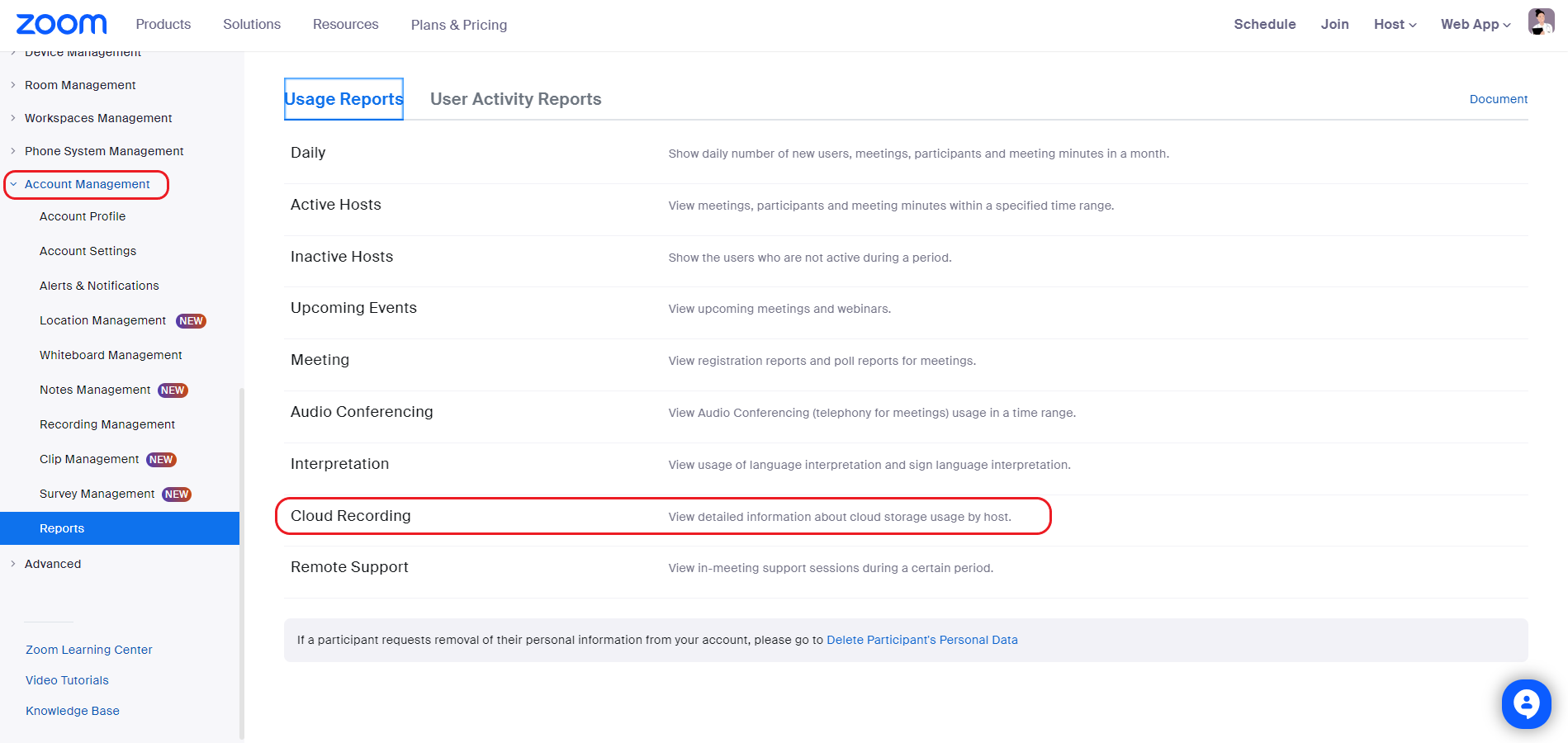
Open the Account Management drop-down on the left.
Search for Reports and select it.
You will land on the Usage Reports tab, where your Zoom account usage statistics are gathered.Select Cloud Recording:
You will be redirected to the cloud storage report of your Zoom owner account:
Check the total storage allotment in the green field.
Suppose the total storage is divided by the number of licensed users, resulting in 1 GB per user. In that case, you don't have enough cloud storage to safely store the recordings of virtual events until LearningSpace downloads them to the Video Review module.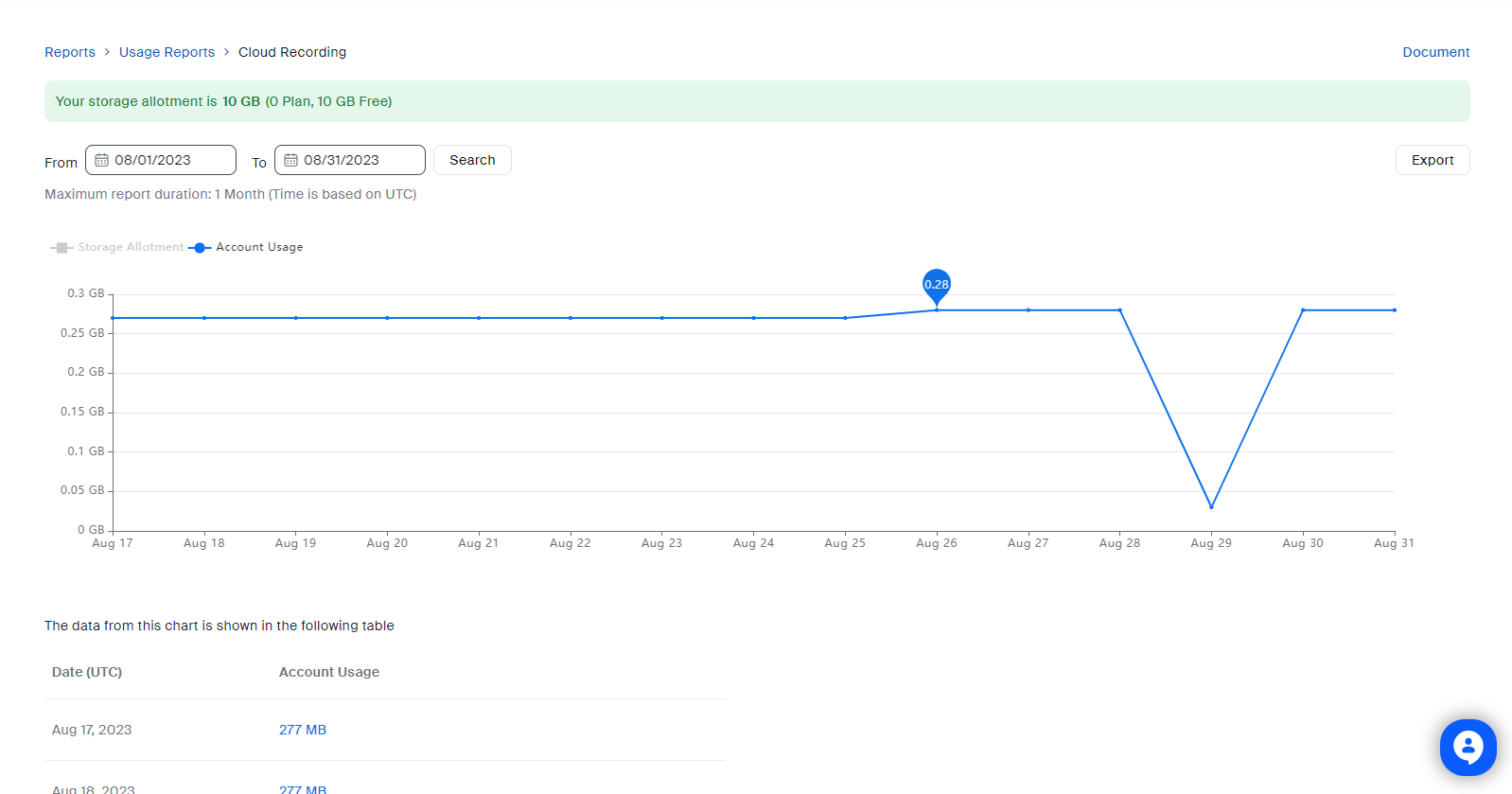
Note
Once LearningSpace has successfully downloaded virtual event recordings to the Video Review module, cloud recordings are moved to the trash folder in your Zoom owner account:
Video recordings do not take up space in your cloud storage once they are in the trash folder.
The recordings will be stored for another 30 days before being automatically deleted.
How to Increase Cloud Storage Without Changing Your Current Plan
Go to the Plans and Billing drop-down and select Plan Management.
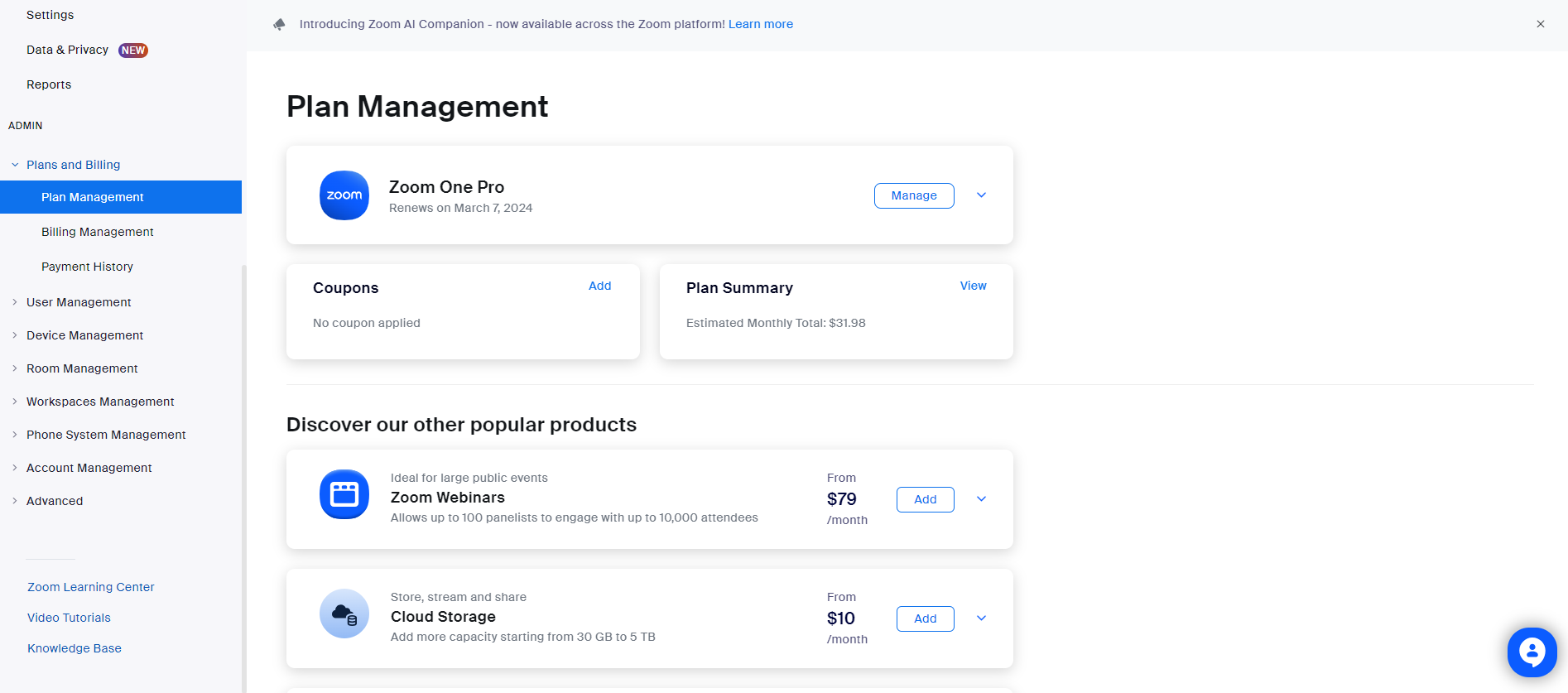
By default, your current plans are displayed (e.g., Zoom One Pro).
Scroll to Cloud Storage and click on Add.
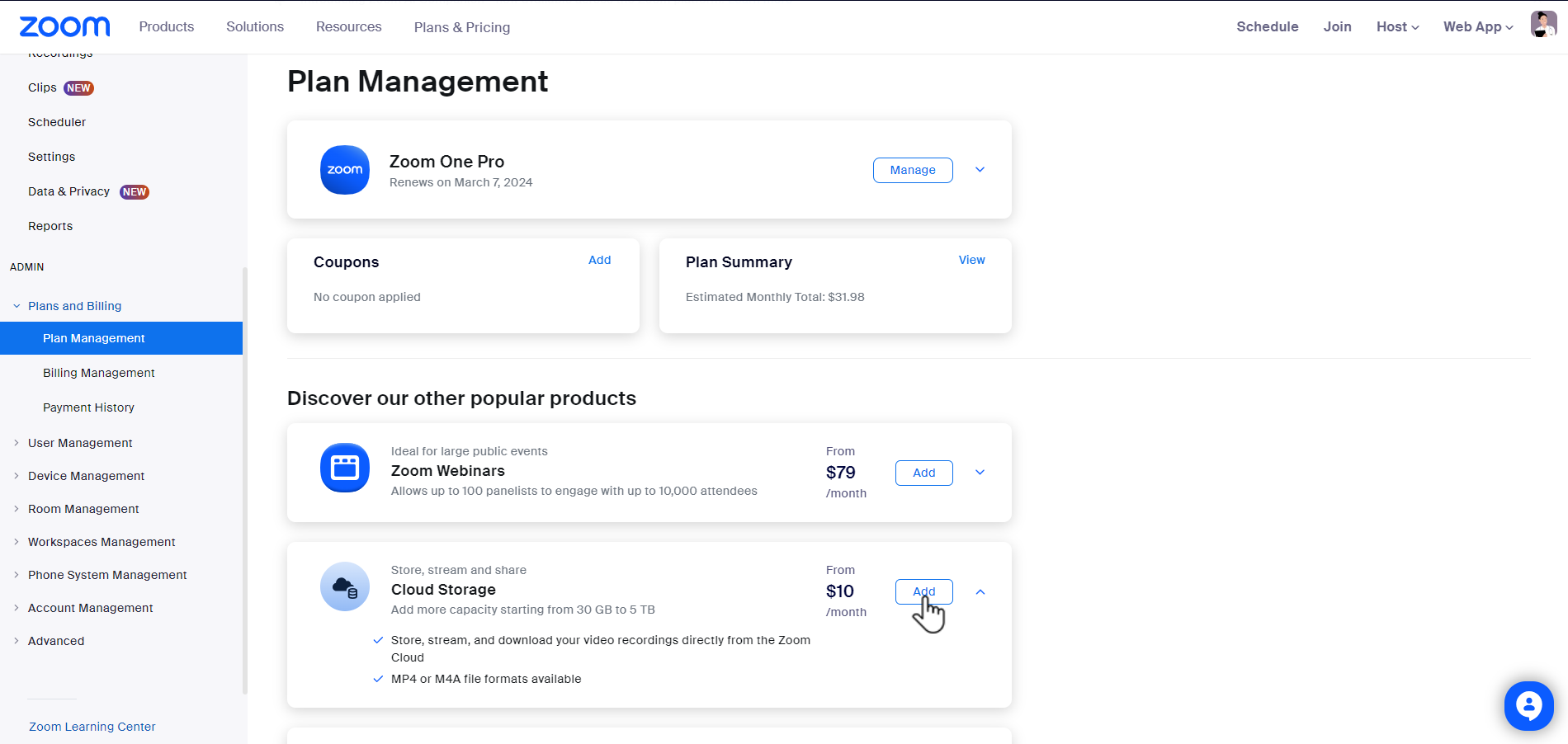
You will be redirected to the Checkout page, where you can manage your Cloud Storage.
Select the 200 GB/month solution (highlighted in blue frame):
This solution is sufficient to temporarily accommodate recordings of virtual events.
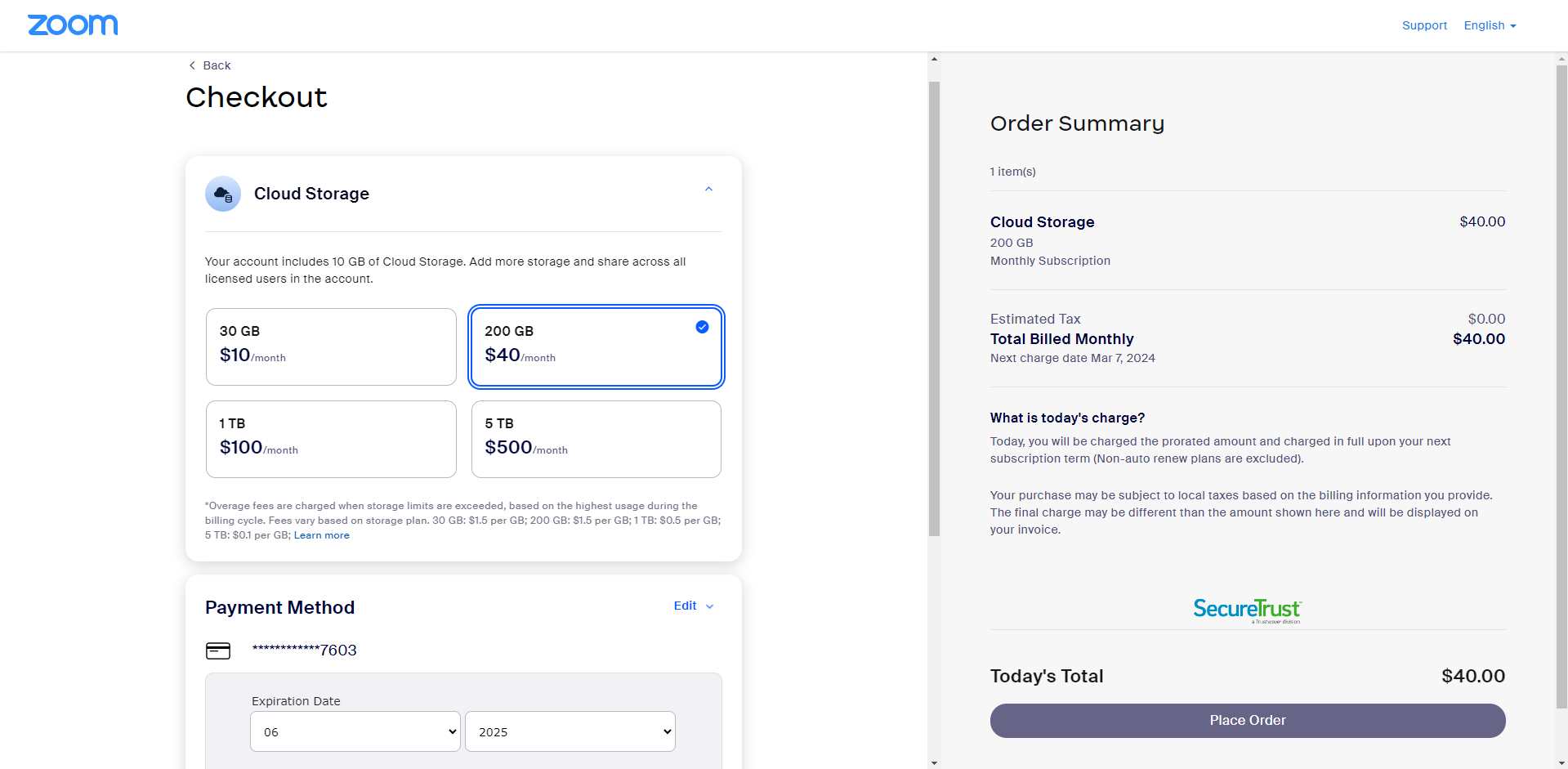
After selecting the extra cloud storage, scroll to the bottom of the page to verify your payment method and complete the purchase by clicking the Place Order button on the right.
Zoom will confirm that your purchase has been successful.
Disable Waiting Rooms
Zoom has enabled the Waiting Room feature by default in its May 2020 update. If waiting rooms are enabled, SPs must admit each learner to the virtual encounter they are currently hosting.
To disable this feature:
Log in to your Zoom owner account.
Open Account Management on the left.
Go to Account Settings.
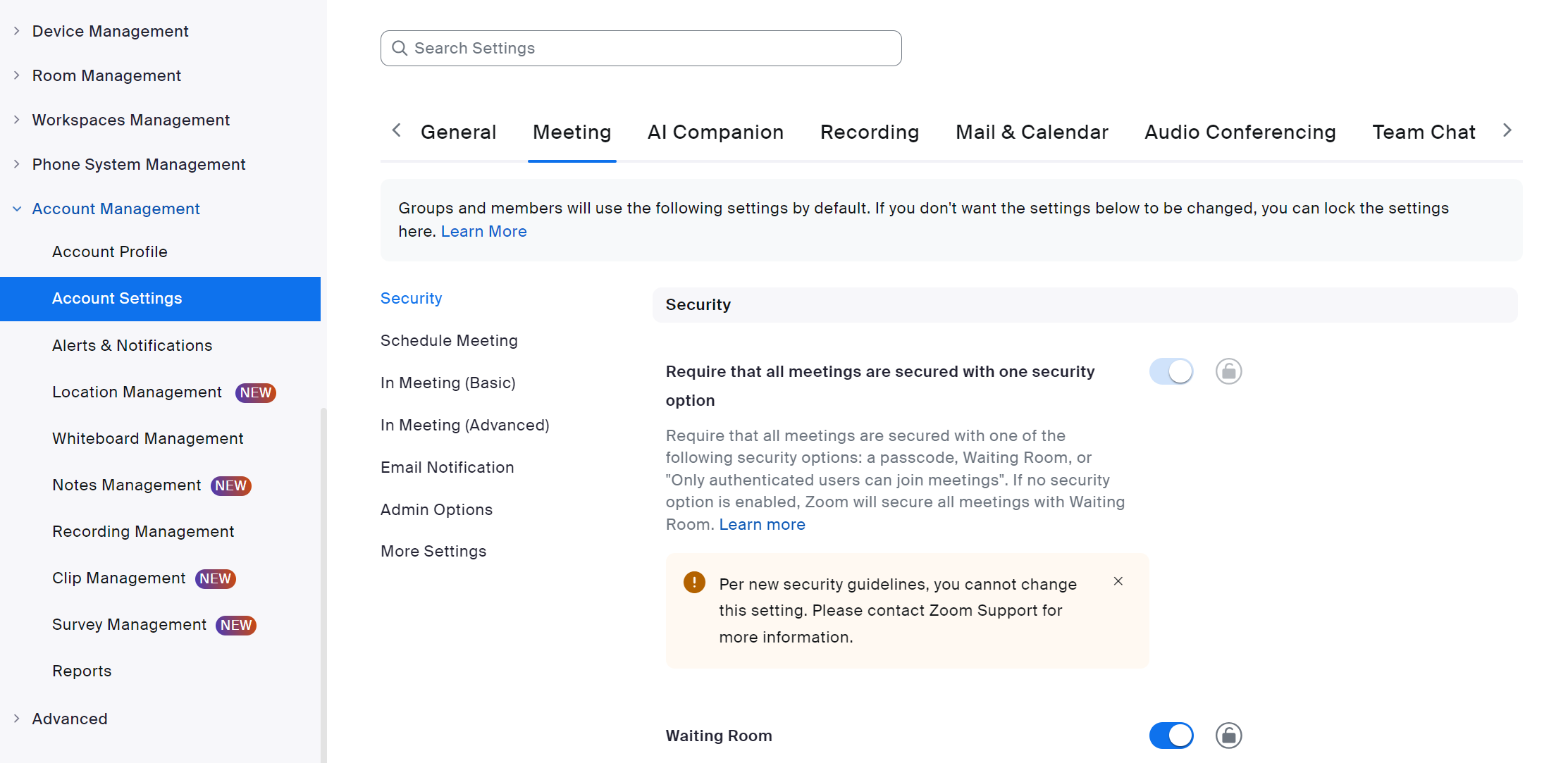
On the Meeting tab, scroll down to the Waiting room setting.
You can find the setting right away in the Security section.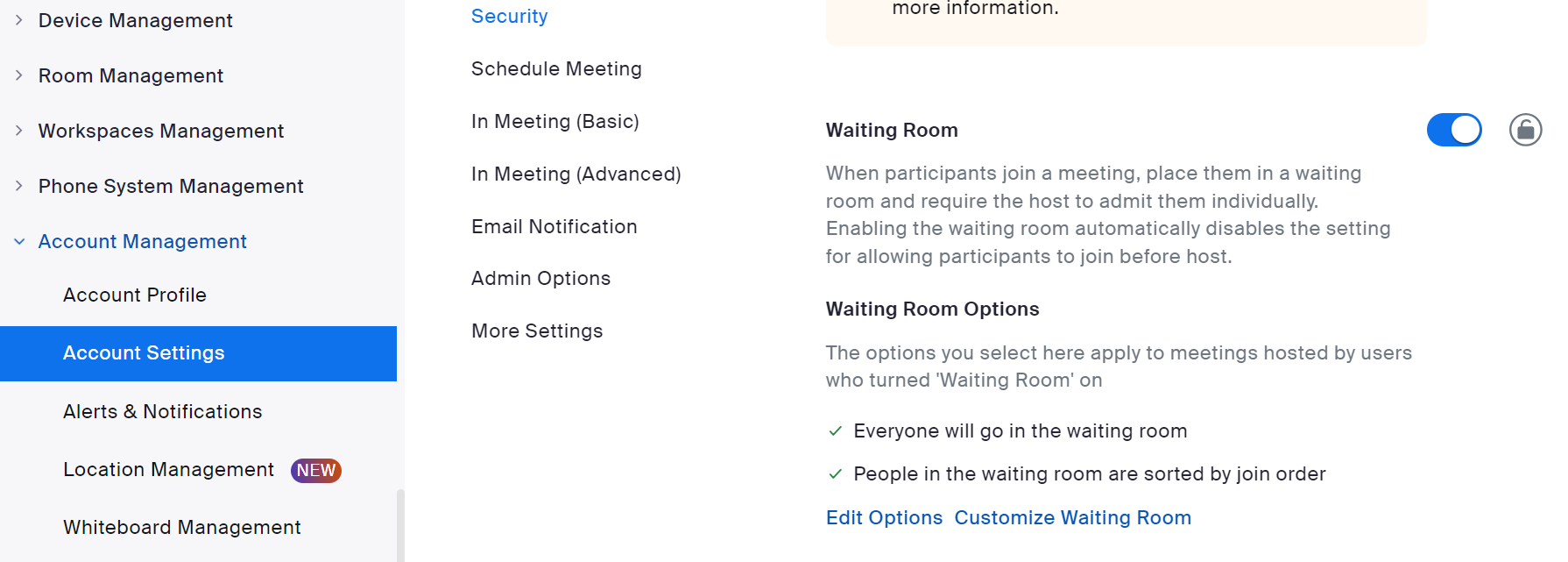
Toggle the switch in the Waiting room.
A dialogue will open where you have to confirm the setting: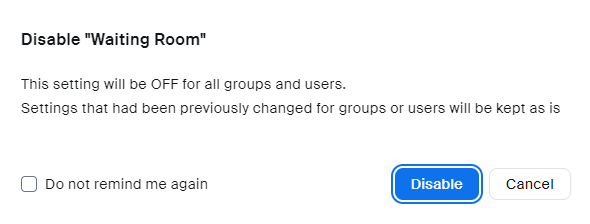
Click Disable, and your change will be saved automatically.
Enable Auto-Save for Chat Conversations
Chat conversations are not saved to LearningSpace, unlike virtual encounter recordings.
Enable automatic chat saving to have chat conversations saved locally or to the cloud when SPs end their virtual encounters.
Save Chats to the Cloud
Saving Chat Conversations to the Cloud
Save in-meeting chat messages while cloud recording is in progress.
Only chat messages sent to everyone while the meeting was being recorded to the cloud will be saved.
Saving chat messages to the cloud can only be enabled for each user separately:
Log in to your Zoom owner account.
Open User Management on the left, then select Users.
In Users, click on the user account you want to modify.
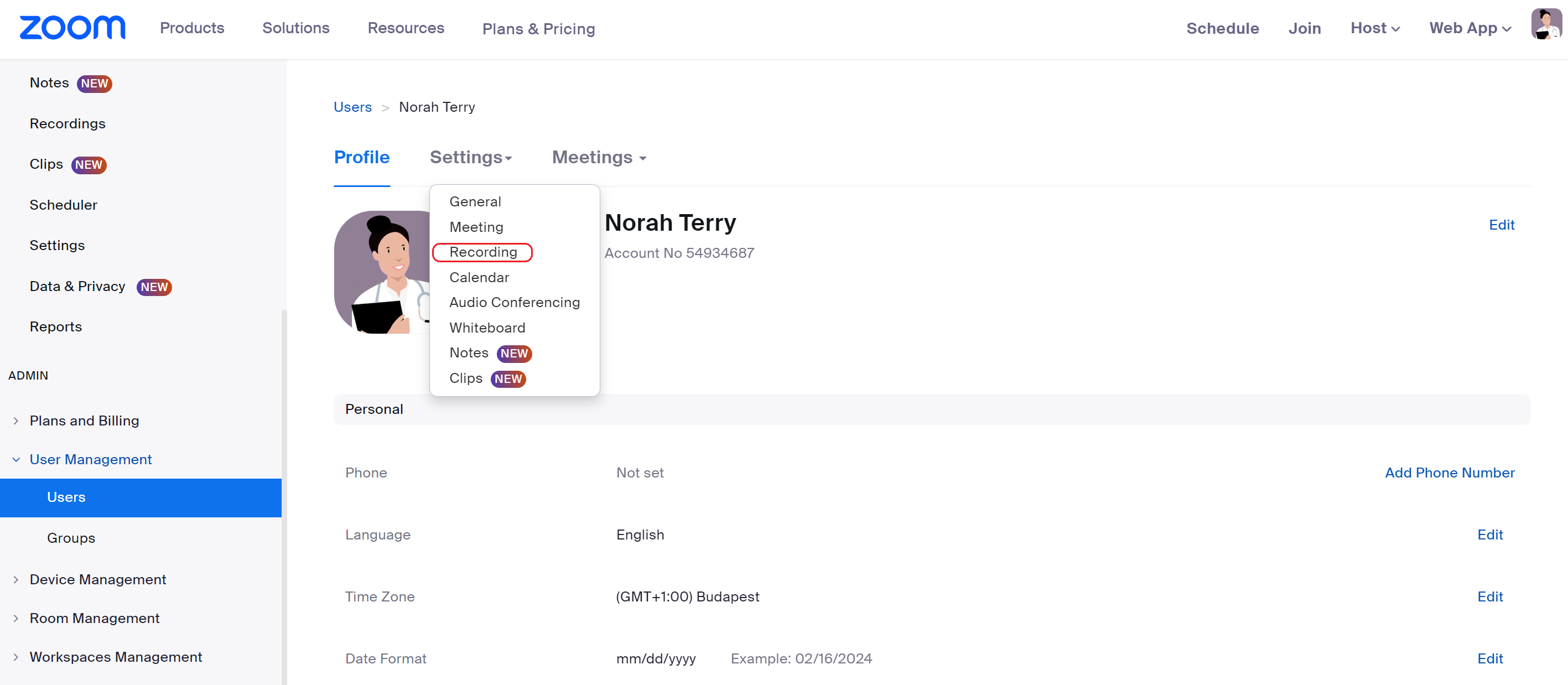
You will be redirected to the user account's profile page.Once there, open the Settings drop-down.
Select Recording.
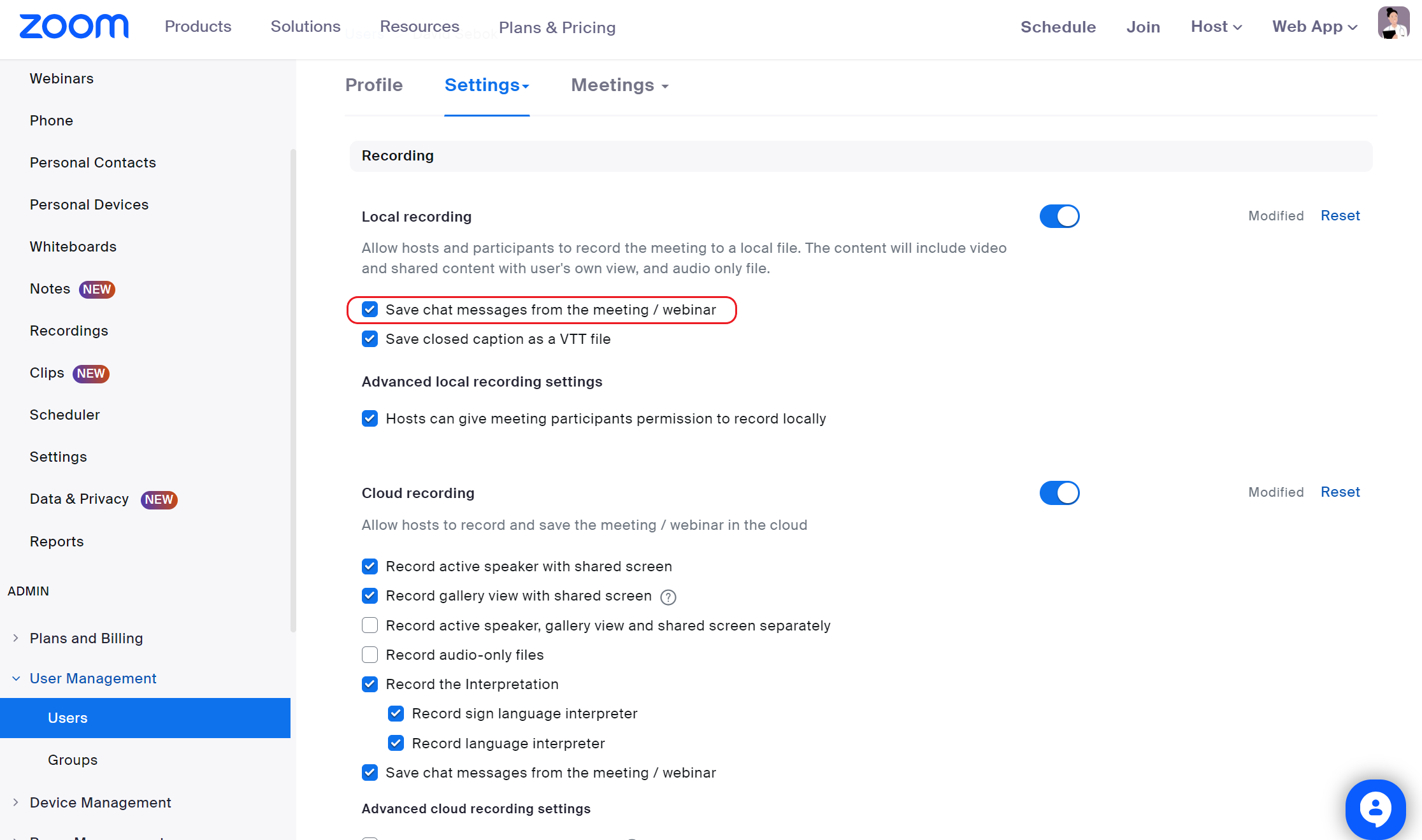
Scroll down to "Save chat messages from the meeting/webinar".
Select the checkbox to save your settings.
Access the Saved Chat Conversations of a Virtual Room
Chat files can be retrieved from the cloud storage in each licensed user account of a LearningSpace virtual room.
By default, once meeting recordings arrive in the Video Review module, they are automatically moved to the Trash folder in the virtual room's user account.
Disable Automatic Transfer of Zoom Cloud Recordings to the Trash Folder
Would you like your cloud recordings to remain in the Recording Management folder after they are imported into the Video Review module? We can disable the automatic transfer of Zoom cloud recordings to Trash upon your request. Contact LearningSpace Customer Service for more information.
If a recording is in the Trash folder, you cannot download the meeting recording and its attachments—such as chat history or the separate audio file—from Zoom.
Deleted cloud recordings can be accessed for another 30 days after they were moved to the Trash.
How to Recover Recordings from the Trash Folder in Zoom
Log in to your Zoom owner account.
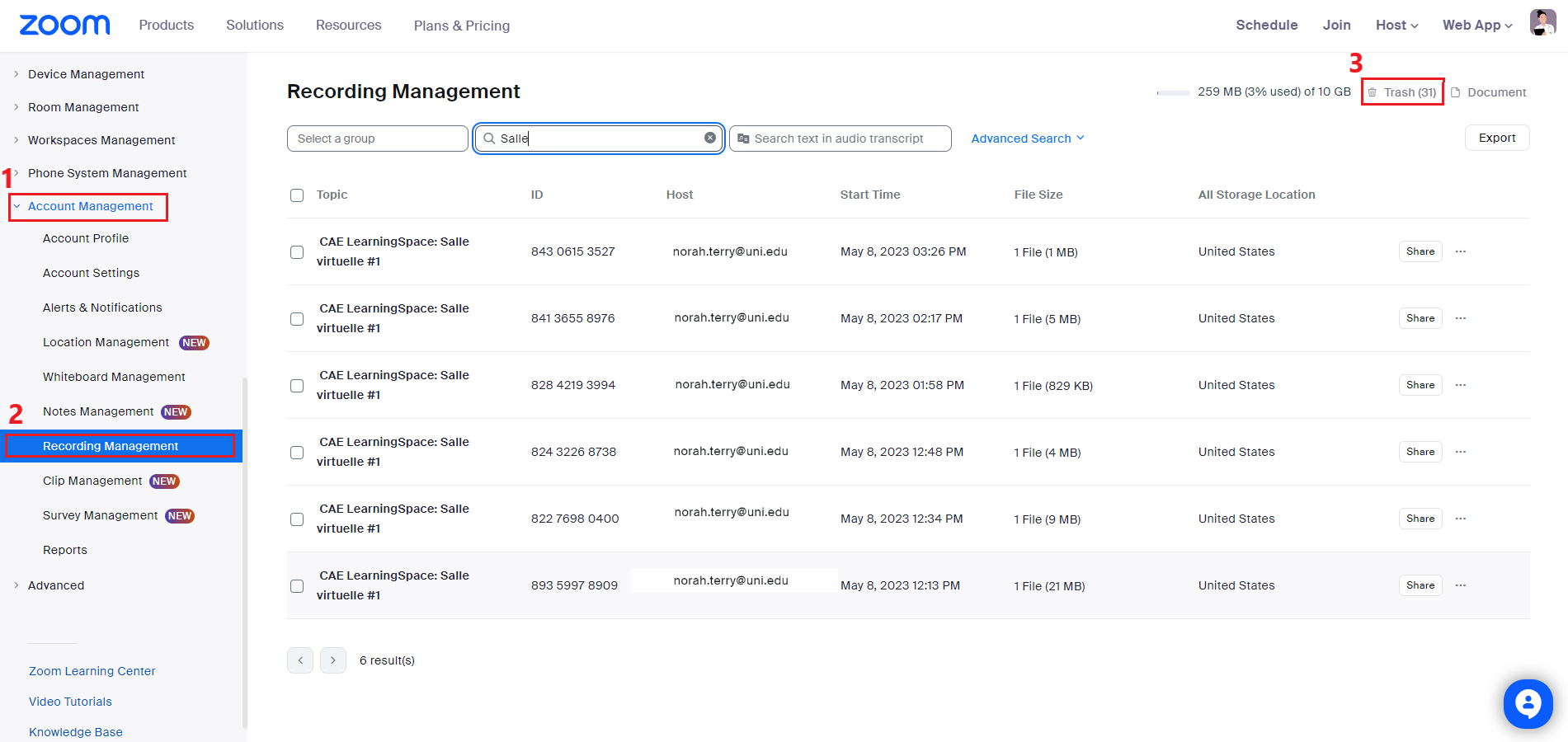
Open Account Management under ADMIN on the left.
Select Recording Management.
Here, you can access the cloud recordings of every user registered in your owner account.You can log in directly to the Zoom user account for a virtual room to retrieve the recording of the virtual event.
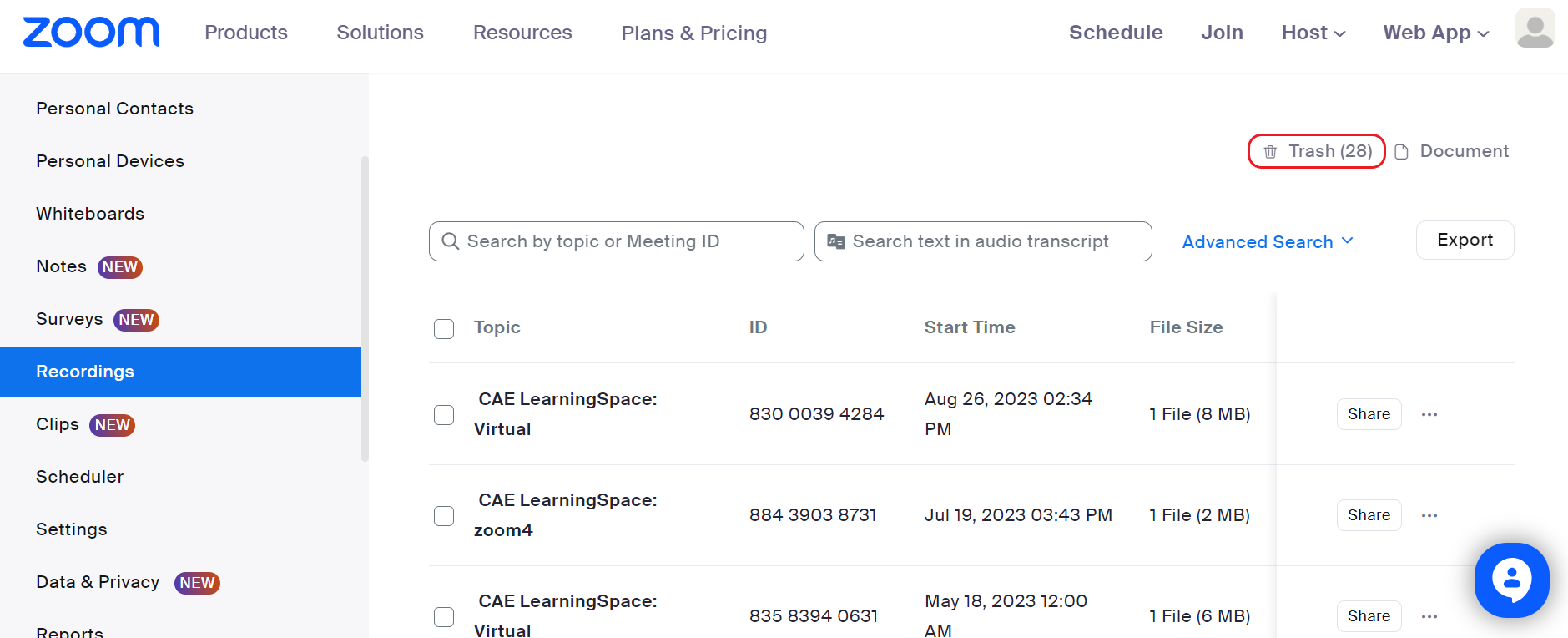
If you log directly into an account, go to Recordings.You can choose either option. From this point on, the steps of recovering your recordings from the trash are the same with either approach.
The screenshots included in this section show the recovery process inside an owner account.Go to the Trash folder: use the link on the right.
Select your recording from the list in the Trash folder.
The start time of each recording shows the moment when the SP in charge launched the virtual meeting from their learner pre-selection page. The recording immediately begins once the SP starts hosting the meeting.
Click Recover to move your recording back to your main recording page.
Confirm that you would like to recover the selected recording.
Otherwise, the recording remains in the Trash folder, and you will not be able to download it or its attachments—such as chat history or the separate audio file—from Zoom.
Click on the My Recordings link at the top of your page to return from the Trash folder.
Find your recovered video recording.
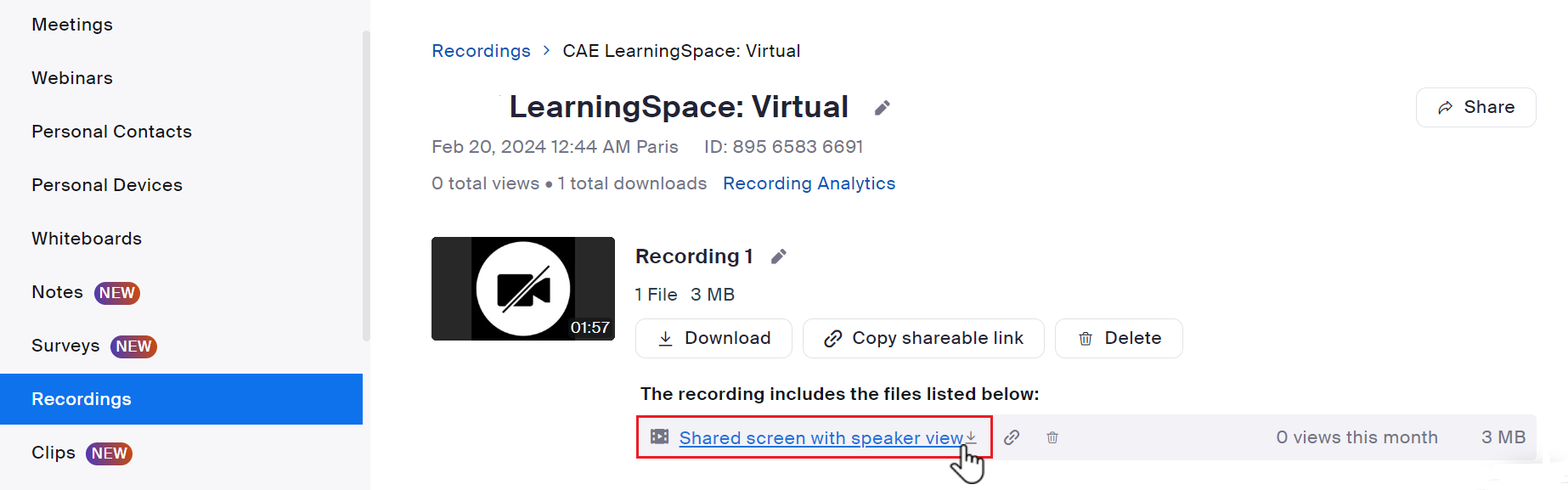
Click the Topic of the meeting recording to display all files for the recording.
Hover over the chat file to view options.
You can download the chat history, create a shareable link, or delete it.
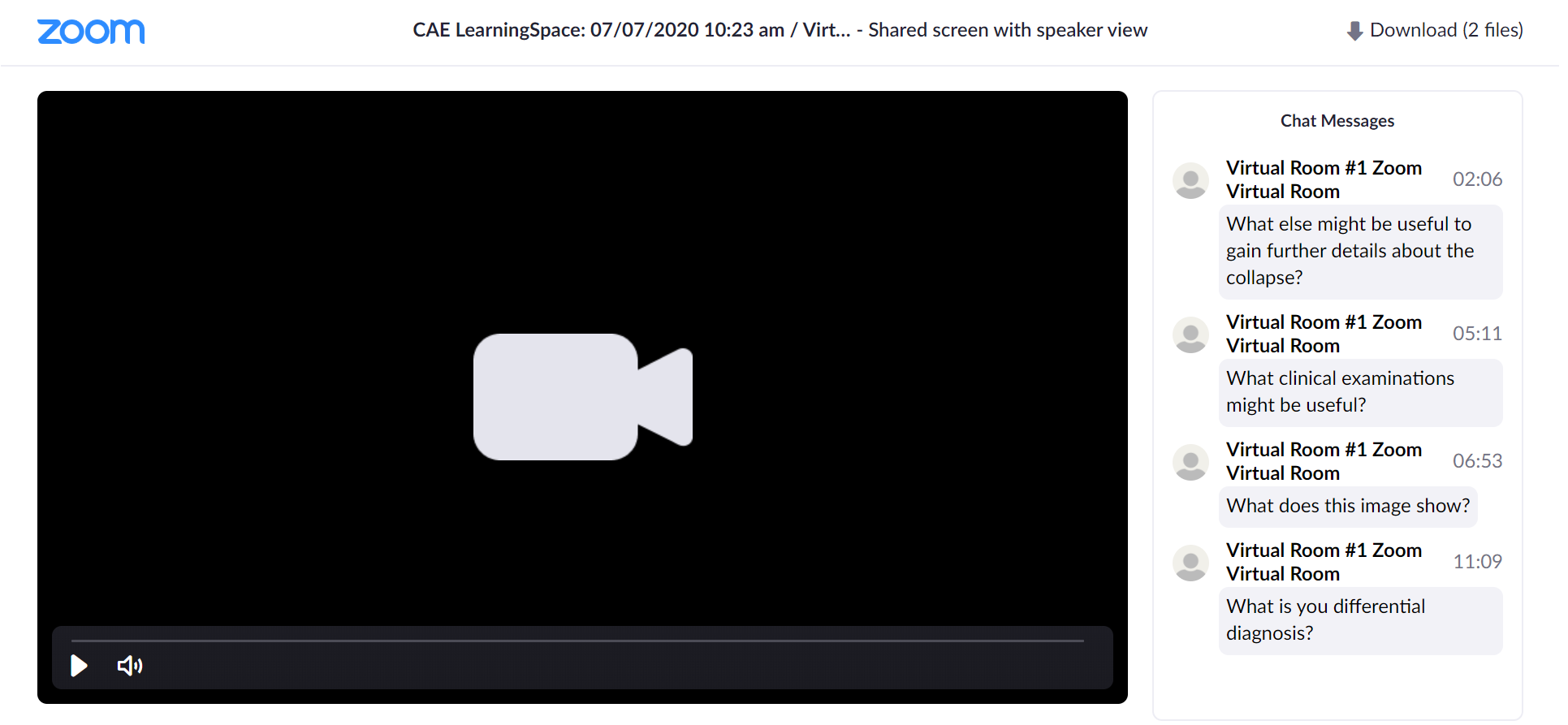
12. To display chat history side-by-side with the meeting recording, open the video recording by clicking on its title:
Save the Chat Locally
Saving Chat Conversations Locally
Set up auto-save in your Zoom owner account to apply the setting to every account registered as a User under that account. Every in-meeting chat message that the host receives directly—either one-on-one or sent to everyone—will be saved to the host's device when the meeting ends, either to the default location specified by Zoom or to a selected folder.
The downloaded chat file folder will open automatically when the meeting ends.
Log in to your Zoom owner account.
Open Account Management on the left.
Go to Account Settings.
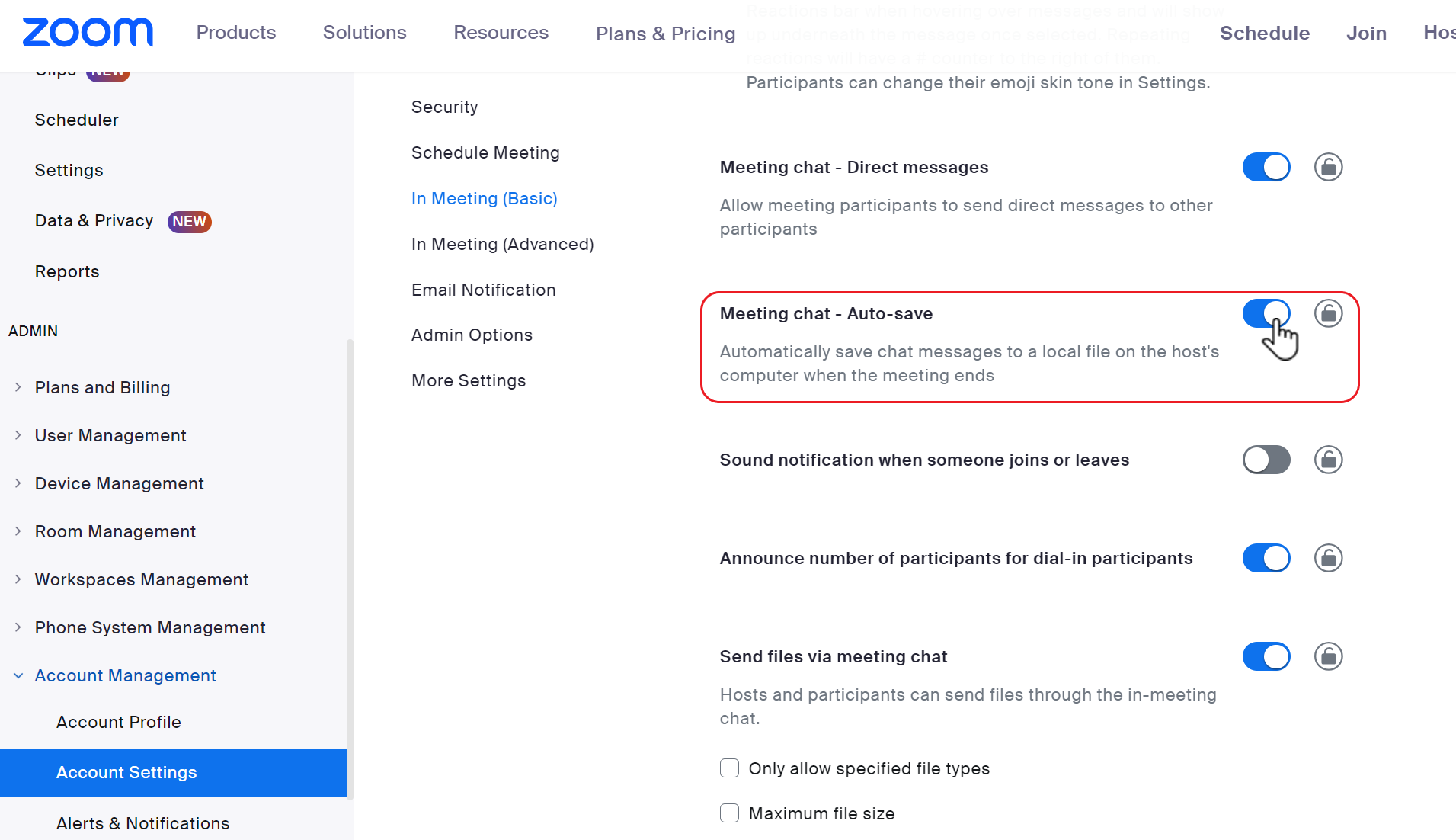
On the Meeting tab, scroll down to the Auto-saving chats setting.
You can find the setting in the In Meeting (Basic) section.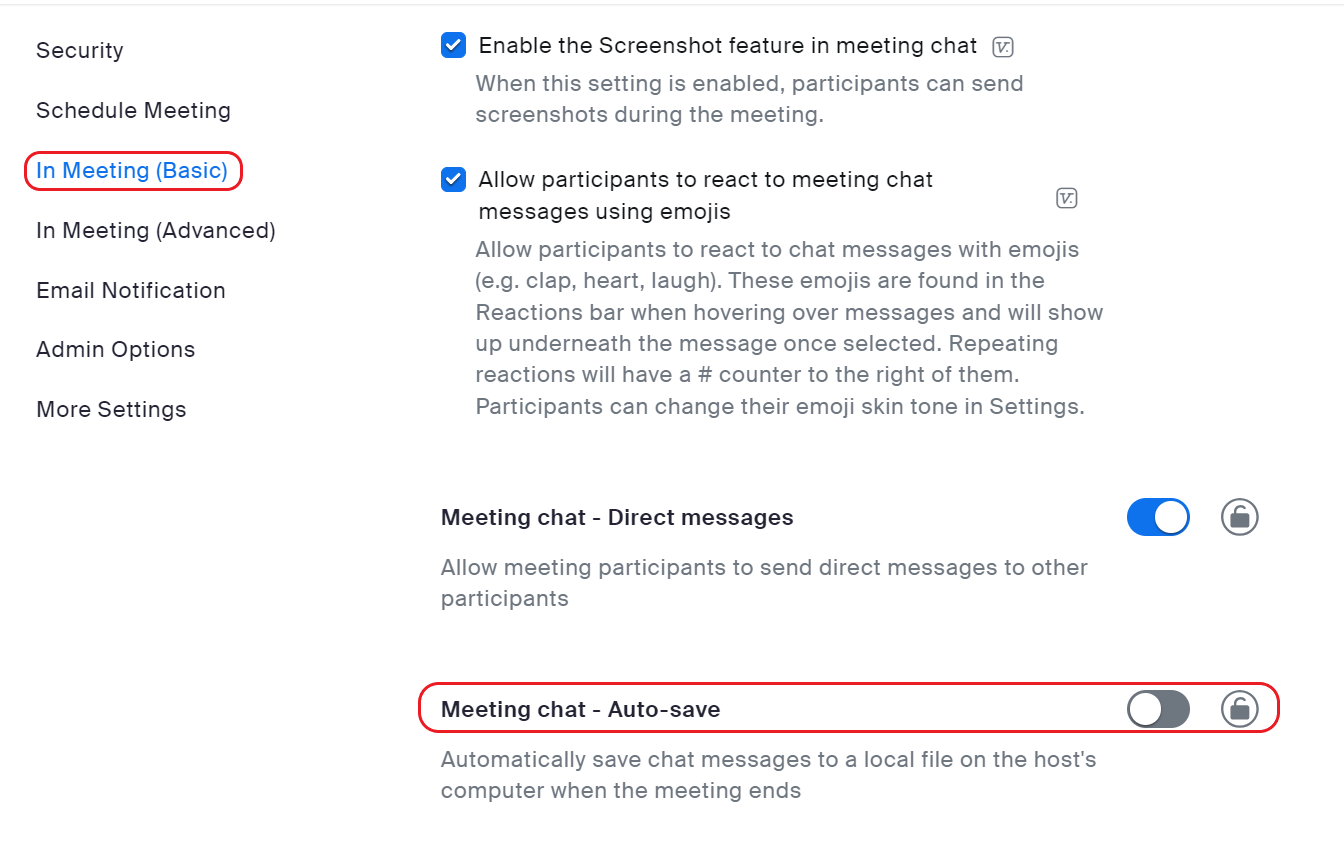
Toggle the switch at Meeting chat - Auto-save.
A dialogue will open where you have to confirm the setting: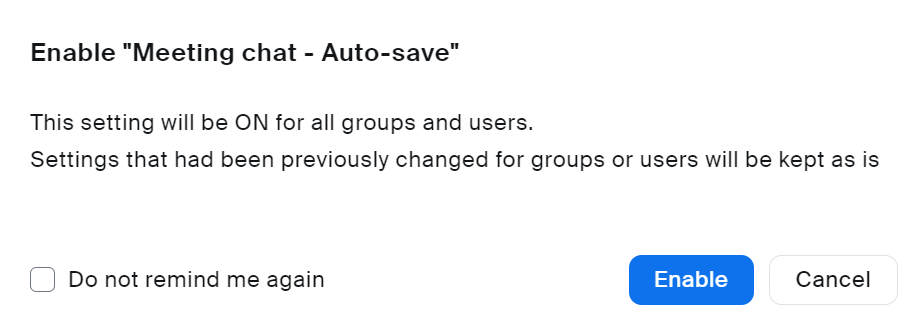
Click Turn On, and your settings will be saved automatically.
If you do not want to apply auto-save to every user in your Zoom owner account, you can manage user settings individually with User Management.
Open User Management on the left, then select Users.
In Users, click on the user account you want to modify.
You will be redirected to the user account's profile page.Once there, open the Settings drop-down.
Select Meeting.
Scroll down to "Meeting chat auto-save" to adjust the setting for this particular user.
On to the Next Step
Continue to this page to build an OAuth application in your Zoom owner account.
NOTE: JWT is not supported by Zoom any longer! Go to Set Up OAuth 2.0 (Open Authorization) for Existing Zoom Accounts for alternative solutions. (Learn more at Server-to-Server OAuth)