Performance Category Setup
Performance Category Management automatically assigns a label (a performance category) and, optionally, its description to each Learner's overall performance in a certain Activity.
With Performance Category Setup, you can create custom performance categories for a specific Activity. Learners will be categorized based on their performance throughout the Activity.
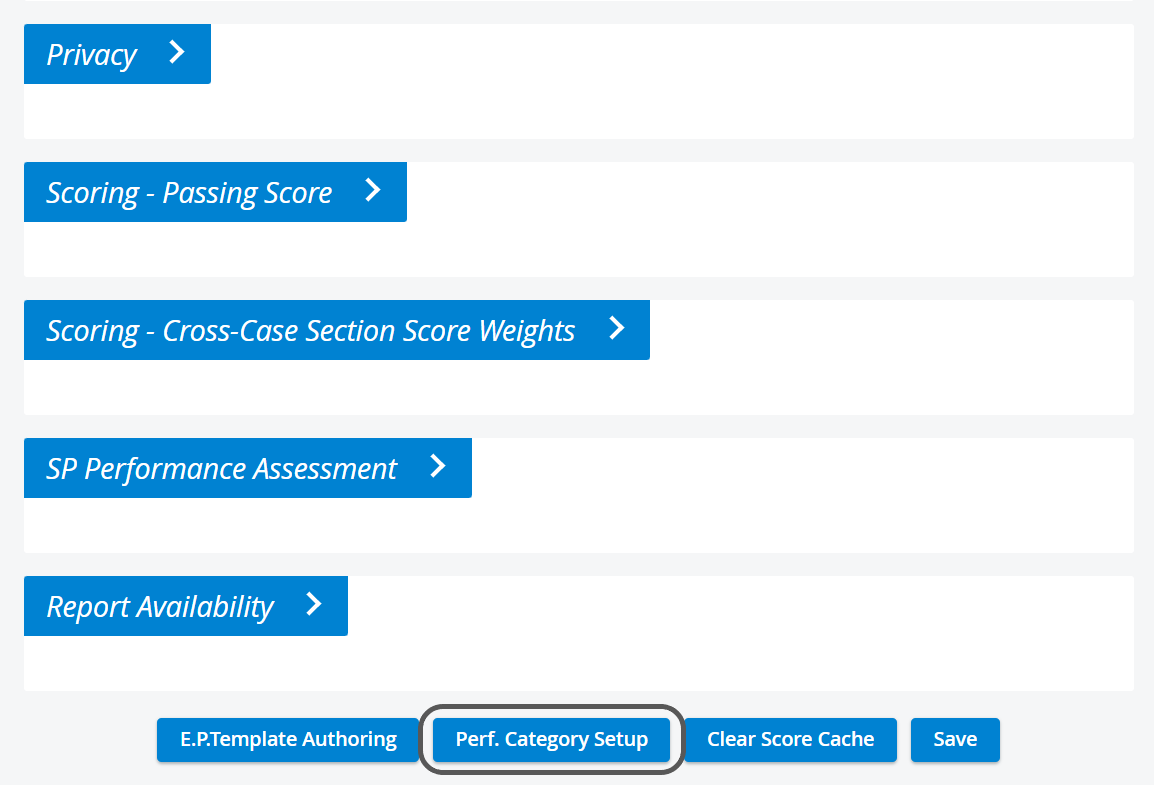
To assign a category to each individual's performance, you have to specify the categories for the Activity. On the Performance Category Setup page, you can
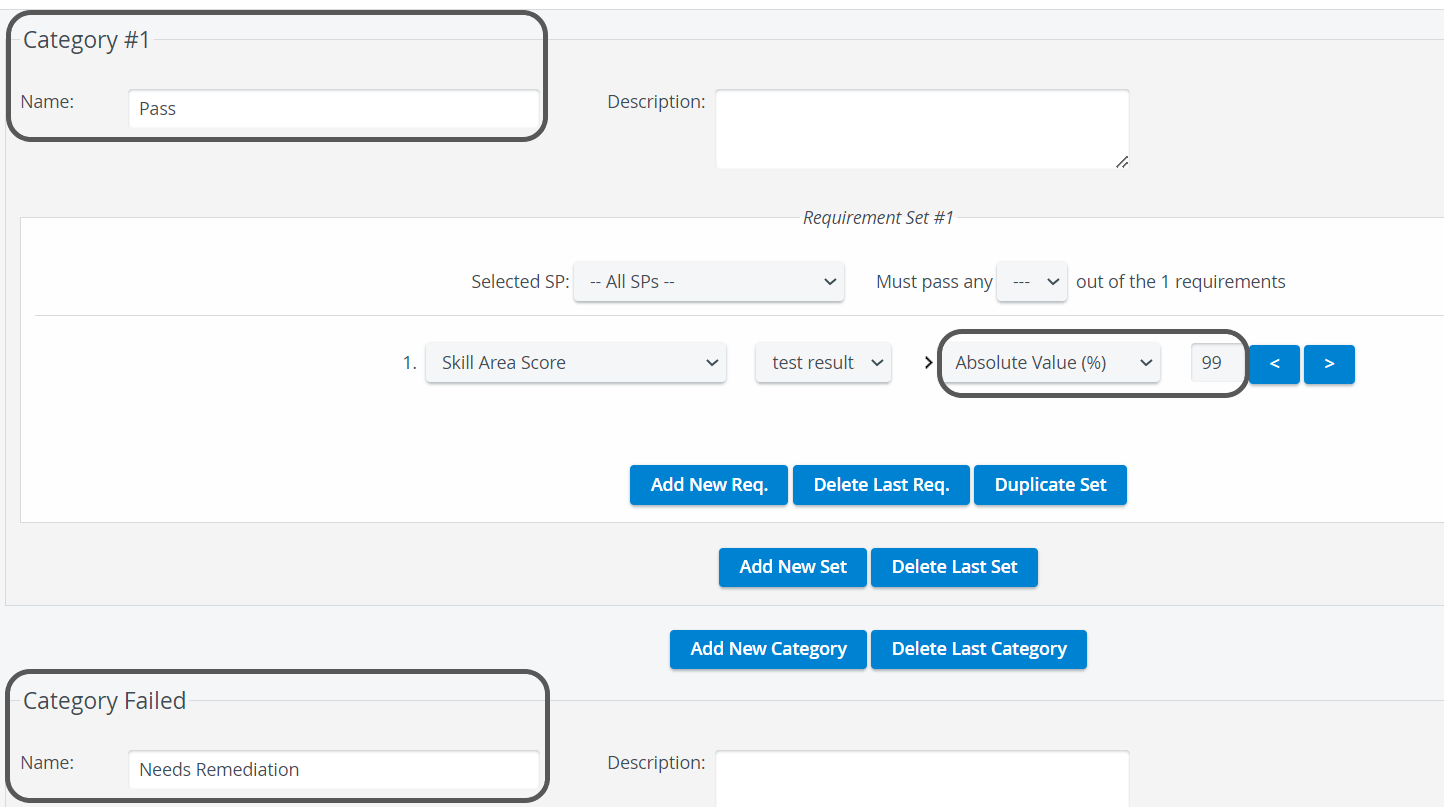
name the categories,
enter their description
and specify the requirement sets.
Note
Performance categories can be further specified by selecting a participating SP and/or adding different requirement sets.
By default, two category tables are displayed: Category #1: New Category and Category Failed. Each added category is numbered sequentially and presented in its own panel.
Important
The categories need to be associated with percentage scores. The best category (the one requiring the highest score) must be Category #1, with the next range of percentages set within Category #2, etc.
Requirements are made up of two parts in the categories.
Scope: the kind of score the requirement is about.
Check Value: the value to which the particular score should be compared. This could be an absolute value (50%) or a relative value (class average—2 STDEV).
The Scope and the Check Value are always separated by the > sign, indicating that the selected score should be greater than the selected check value to fulfill the requirement.
You can set the Scope for the
Activity level,
Case level,
Skill area level.
The scope can be the following
(the condition the check value refers to):
Activity Total: achieved score for the entire Activity.
Case Total: achieved score of the given Case. Setting this condition requires selecting a Case within the event.
Skill Area Score: The score achieved in the given skill area (sections with the same abbreviation). Setting this condition requires selecting a skill area (section abbreviation) within the event.
Section Score: achieved score of the given skill area section of a given Case. A skill area and a Case have to be selected.
Subset of the Section Scores in a Skill Area: achieved score in at least the specified percentage of section scores within a given skill area (identified by section name abbreviation). A skill area and a percentage value (X%) must be specified. The requirement is fulfilled if the student's performance exceeds the check value in at least X% of the sections with the given abbreviation.
Subset of Case Totals: achieved score of all the Case totals (at least a certain proportion of Case totals); percent value has to be specified.
Subset of all Skill Area Scores: achieved score of all skill area scores; percent value has to be specified.
Subset of all Section Scores: achieved score of all skill area sections; specified check value has to be met at a certain proportion of skill area scores; percent value has to be specified.
See details at Scoring Learners.
See how Check Value is made up
A Check Value is made up of a type and a specified value:
E.g., Absolute value: direct % numerical value, the minimum requirement of the student performance
The Percentile Score column contains the learner's percentile score in the corresponding section of the Activity. This shows how much (percent) of the class (more exactly, the learner group) performed worse than the concerned learner.
The conditions are always the minimal requirements. Fulfilled requirements are given the TRUE value; conditions in which student performance is below the required level receive the FALSE value.
Multiple requirements can be grouped together using logical operators and indentation.
AND: connecting two simple conditions; both conditions have to be met simultaneously to have the whole criterion met.
OR: connecting two simple conditions; at least one condition must be met to have the whole criterion met.
These requirement sets make up the categories assigned to student performance.
You can specify as many requirement sets as you wish and include as many requirements within them as you need.
The order of performance categories is important because Learning Space checks whether the Learner fits into the first group, then the second, etc., until it finds a “match”.
The system makes a decision using a true/false method. If the Learner does not fit in Category 1, the answer is false. Then, it checks Category 2, and so on, until the answer is true.
The Categories must be set in decreasing order.
Example 1:
Category 1 will be 90%, Category 2 -> 80%, etc.
According to this setup, a Learner with 75% performance will be false for Categories 1 and 2 and true for Category 3 (greater than 70%).
Example 2: Workaround
-> Name Category #1 as "A - Excellent"
Selected SP: All SPs
Must pass any --- out of the 1 requirement.
Event Total > Absolute Value (%) 91.99
This means that any Learner with more than 91.99% as an Activity total score will be categorized under the "A—Excellent" category.
-> Name Category #2 as "B - Very good"
Selected SP: All SPs
Must pass any --- out of the 1 requirement.
Event Total > Absolute Value (%) 83.99
This means that any Learner with an event total score of more than 83.99% but no more than 91.99% will be categorized under the "B—Very good" category.
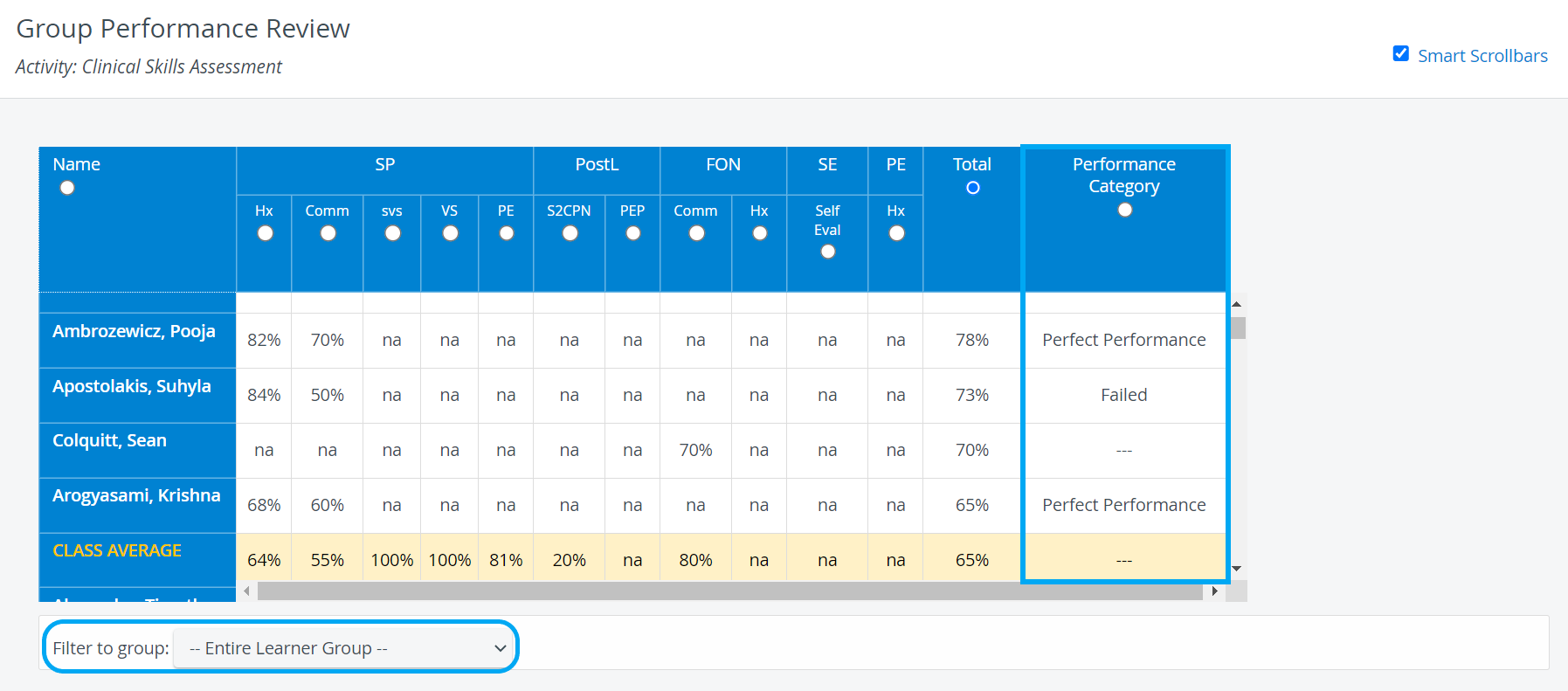
When reviewing reports, each student's performance category labels are assigned based on their performance and shown on the reports page.
You can see the performance category on
the Performance Matrix page,
on the Grade Report page,
and on the Skill Report page
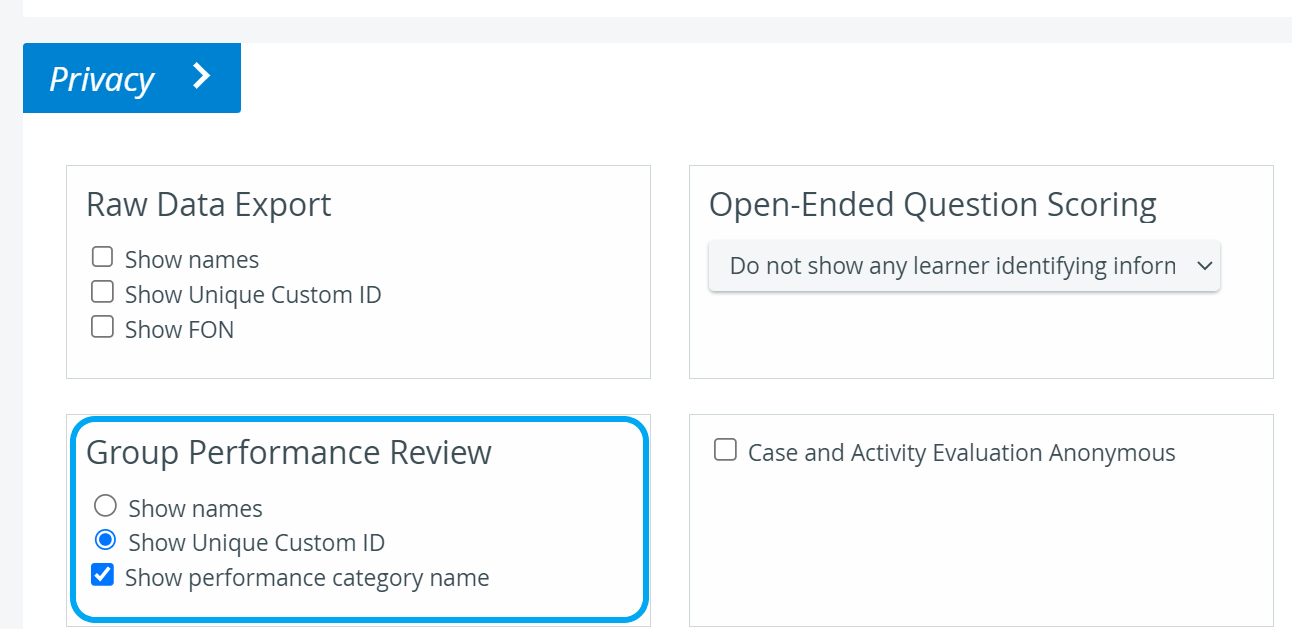
or on the Group Performance Review or Group Performance Report by Section if set so in the Activity Reporting setup.
For a step-by-step description, see How to Set Up Performance Categories.
For more information, see the Reports Module, Reports - How to pages, and the Reports Module Training Videos.