Pan-Tilt-Zoom - PTZ - functionalities
If your layout is different in your Single Room View, you probably have the Legacy version. For the user guide of Legacy pages, please go here.
PTZ functionalities
Within LearningSpace Single Room View, the following ways of pan-tilt-zoom (PTZ) functionalities are available to improve camera movements:
On-Screen PTZ: Click in the center of the video and pull the camera in the desired direction. The camera will stop moving when you release the mouse.

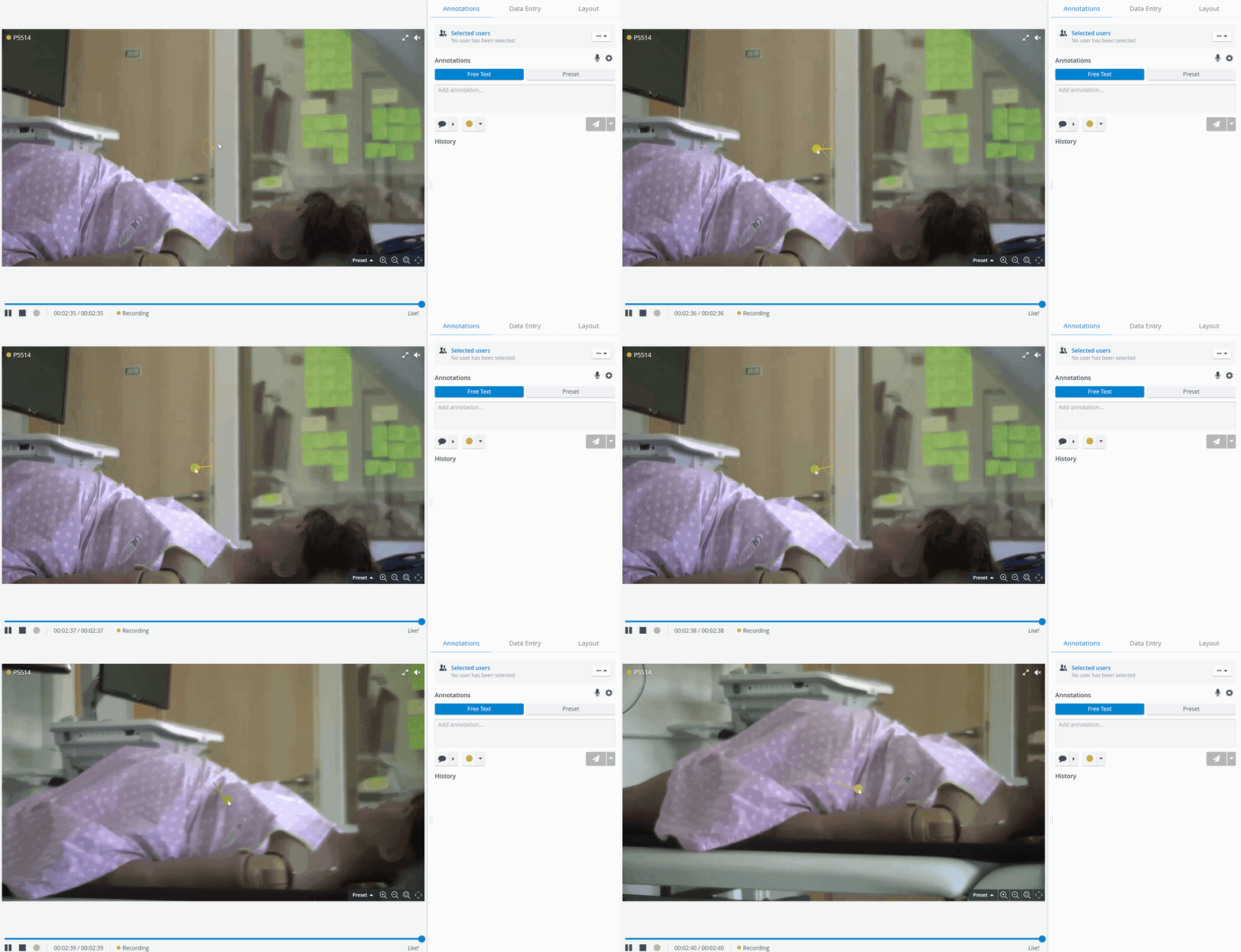
The on-screen PTZ is centered on the screen; thus, it cannot be used in the SRV camera feed footer or header.
Scroll-To-Zoom: zoom in and zoom out by scrolling with the mouse.
Pan-Tilt-Move: The camera moves in a direction after clicking into the desired area of the feed.
Area Zoom: The camera zooms into the area the user has drawn.

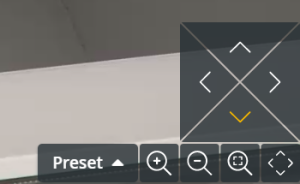
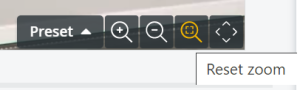
Move and reset buttons: The arrow and magnifying glass icons in the lower-right corner of the camera feed control camera movement. The Reset zoom icon resets the zoom level to the default value.
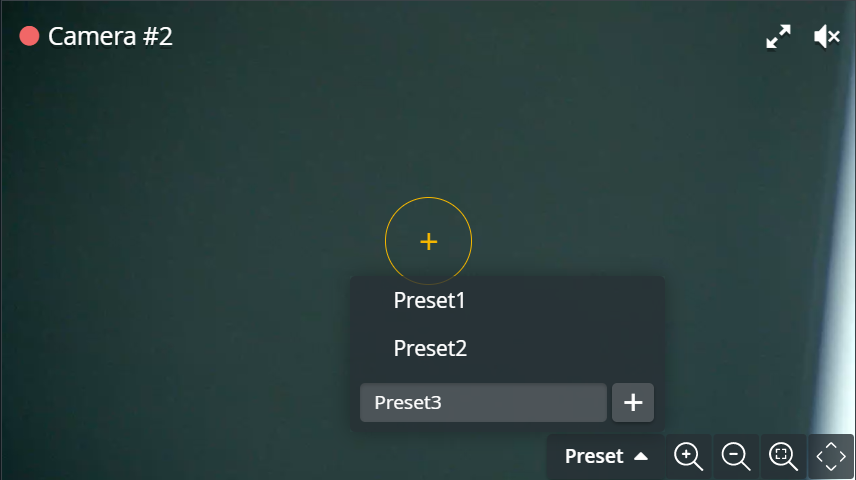
PTZ presets that already existed in the old version of SRV will remain intact in LearningSpace Single Room View.
For more information, visit our Recording - How to pages and watch the Recording Module Training Video.