OEQS Dashboard
After accessing the OEQS module for an Activity, OEQS evaluators land on the module's main page.
Before navigating to the Scoring page, OEQS evaluators may need to select the appropriate Activity, Case, and Part from the dropdown menus at the top of the dashboard.

The OEQS Dashboard offers the evaluator two options for displaying the current scoring status: 'Questions' or 'Learners'’

Questions View
The Questions view is the default view when entering the module. It displays the current scoring status for each question.
The OEQS evaluator can see the following information:
Scored Responses = number of responses scored by OEQS evaluators
All Responses = total number of responses submitted by all learners
All Learners = number of assigned learners who are supposed to submit responses to a given question
(In the case of Evaluator-Evaluee assignments, this number reflects the number of Learners an OEQS Evaluator has to evaluate.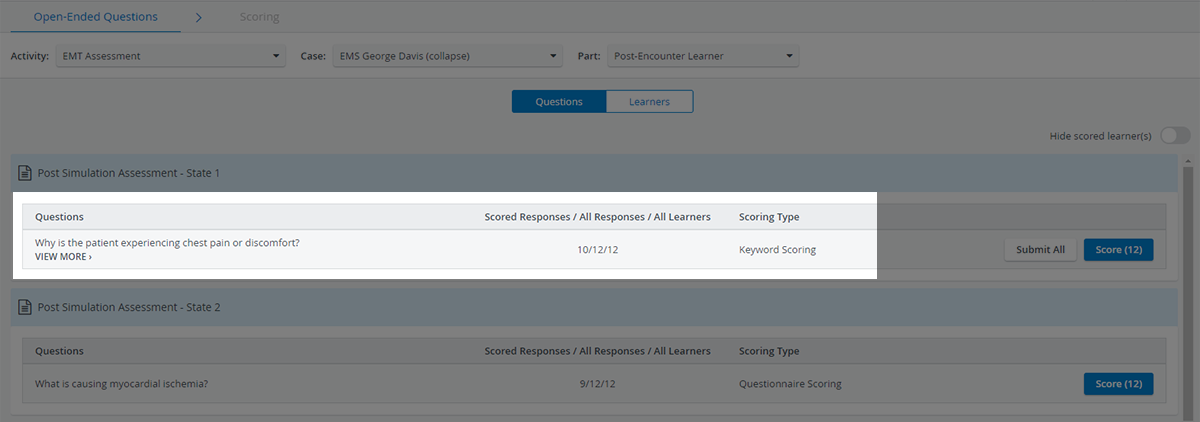
Scoring Type = scoring method (Not scored, Direct scoring, Keyword scoring, Questionnaire-based scoring)
The mentioned columns are not displayed in the Step 2 CS Patient Notes sections.
Clicking any one of the Score buttons will redirect the OEQS evaluator to the Scoring page.
The Responses panel on Scoring will automatically scroll to the response the OEQS evaluator has selected for evaluation; but all responses for that learner will be available for evaluation..
The Score button jumps to the first learner with incomplete grading and skips preceding learners who are fully graded on the Scoring page.
Submit All Option
For those responses evaluated using the Keyword method, the Submit All button is available. OEQS evaluators can click the Submit All button to approve the points recommended by keyword matches without having to review each response.
Find out more about how to set up Keyword scoring on this page.
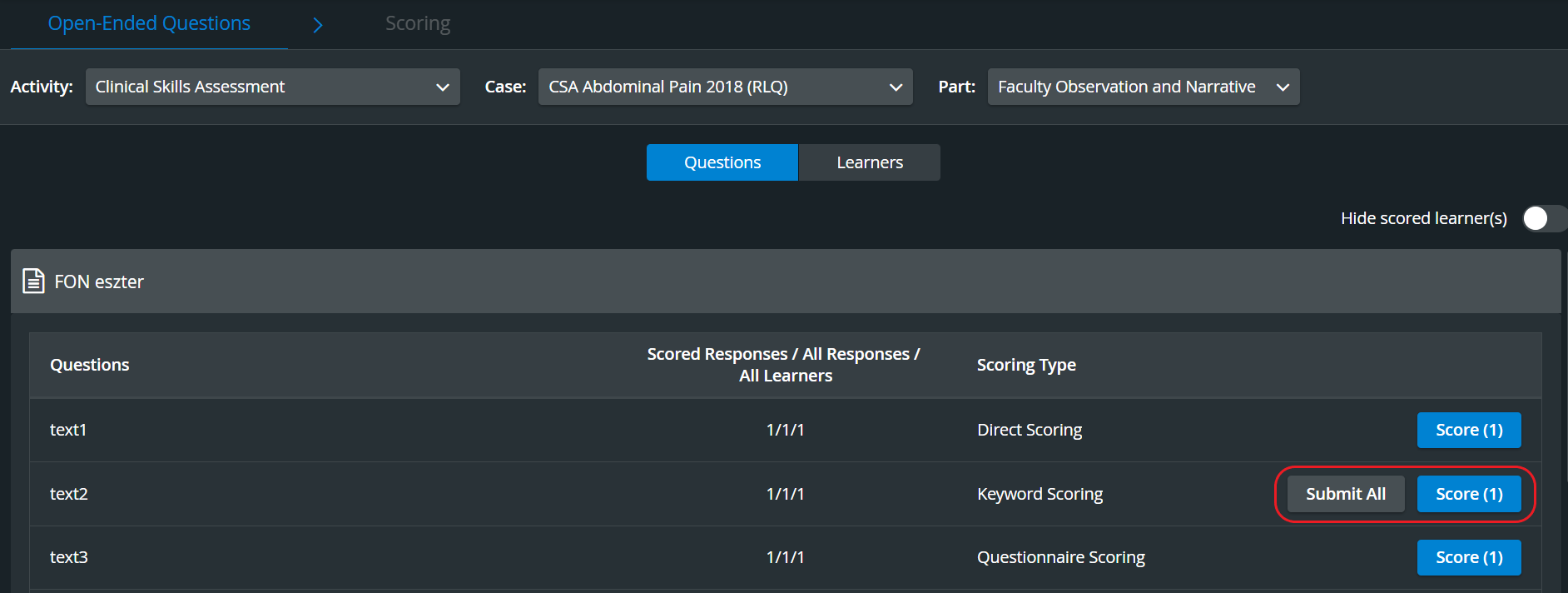
However, the OEQS evaluator can still review and update the evaluation of keyword-scored responses if necessary.
Learners View
In Learners’ view, OEQS evaluators can search and select a specific learner to evaluate:

In the Learners view, the OEQS evaluator is informed immediately about the following:
Scored Responses = number of responses scored by OEQS evaluators for each Learner
All Responses = total number of responses submitted by Learners *
All Questions = number of responses to be evaluated by OEQS evaluators - for each Learner
* Responses to open-ended questions can be submitted by SPs, learners, and FON users. Although any response can be evaluated, in practice, only learner responses are evaluated.
Clicking the Score button next to a selected learner will redirect the OEQS evaluator to the Scoring page.
The Responses panel will automatically scroll to the first response for evaluation, but all responses are available for review and evaluation.

Hide Scored Learner(s)
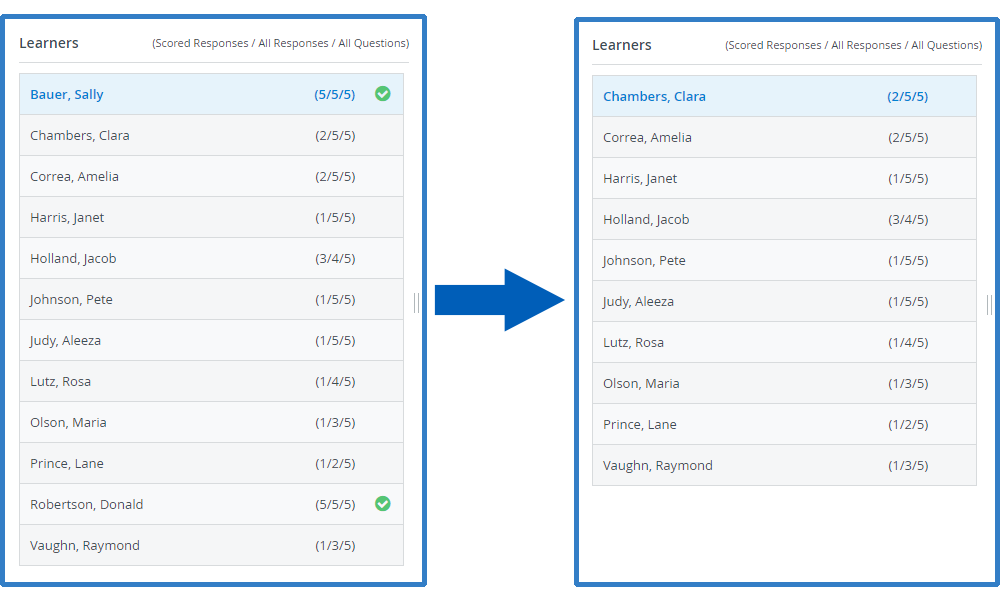
The Hide Scored Learner(s) feature on the OEQS dashboard helps OEQS evaluators focus on remaining scoring tasks in both available views.
When the Hide Scored Learners switch is activated, the number of already scored responses of each question item is removed from the Score button in the Questions view:
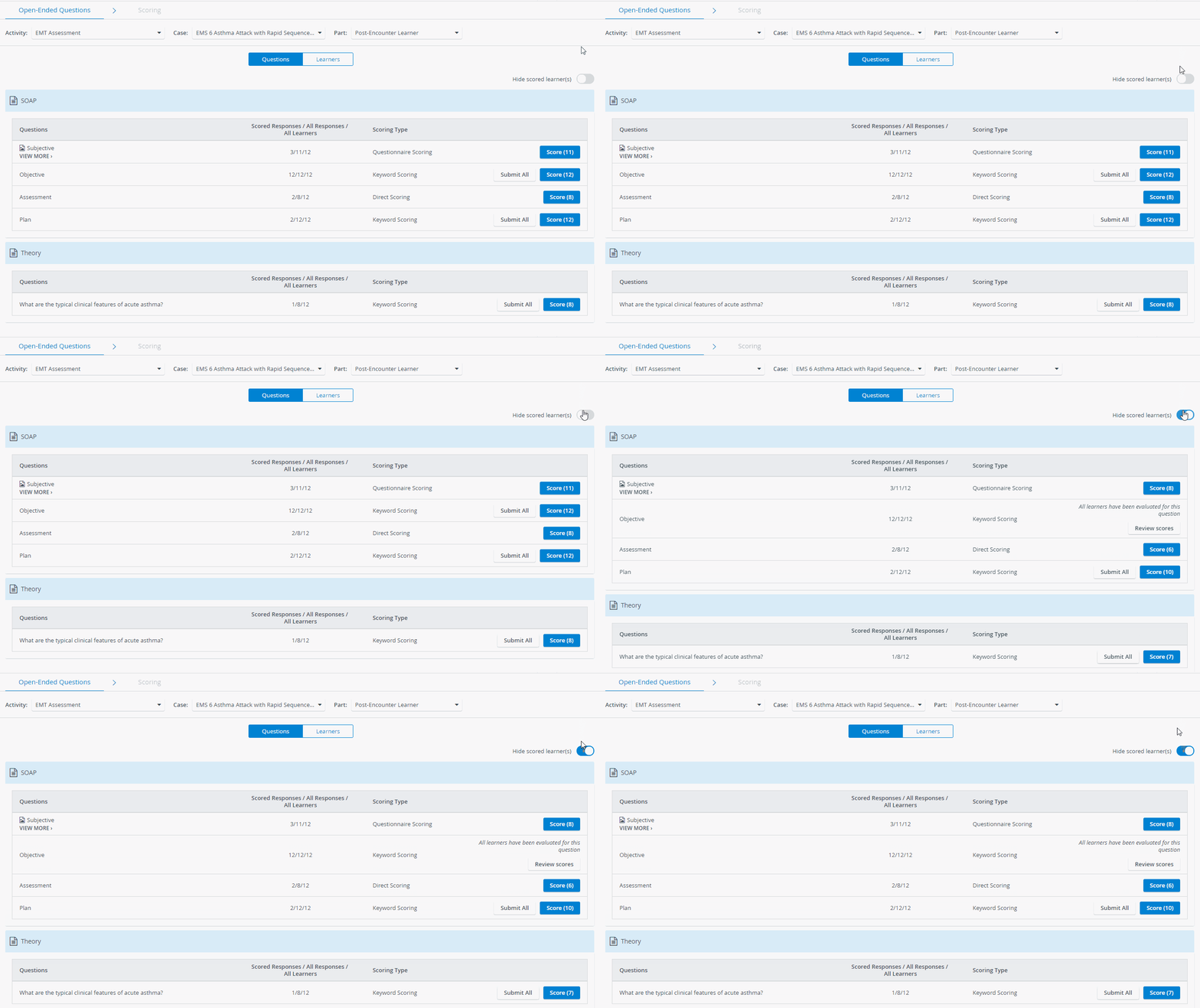
In the Learners view, the Hide Scored Learner(s) option hides those learners who have already been scored:

Also, when entering the Scoring page while the Hide Scored Learner(s) option is switched on, completely scored learners will be hidden on the Learners panel: