Notification Feature - Classic
LearningSpace has introduced a notification feature whereby users with Admin roles are directly provided with new information regarding the software.
Notifications can be opened by clicking the bell icon next to the User Profile button in the top right corner. New ones are indicated with their number in a red circle at the icon.
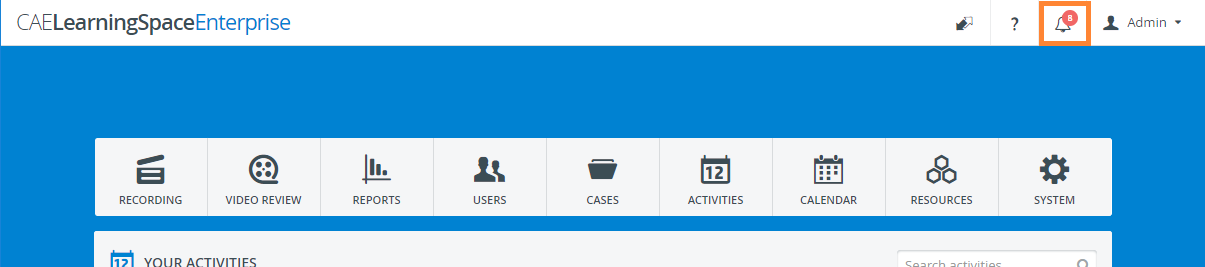
Once a notification is read (i.e., any Admin user clicks on the notification field), it will no longer be listed in bold, and the number of new notifications decreases.
NOTE: Notification fields may include a direct link to emailing the responsible party with relevant questions and/ or a link to the related page of the help site.
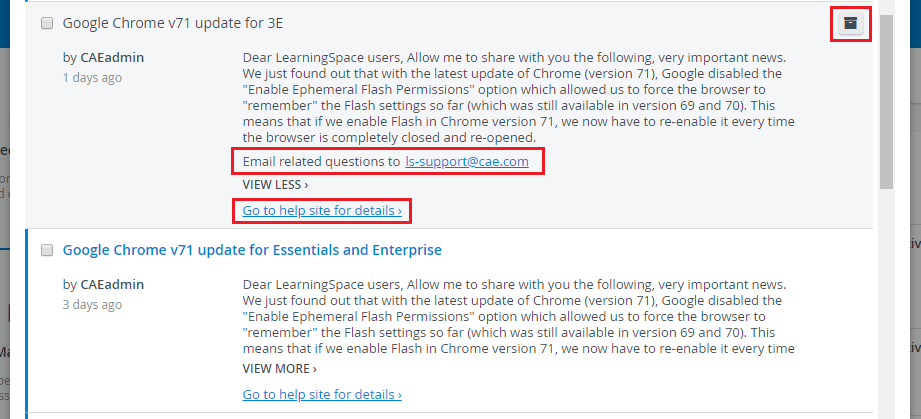
Notifications can be archived by clicking the filing box icon in the top right corner of the notification field.
NOTE: The filing box icon appears when ticking the checkbox of a notification or hovering over an already-read notification.
Multiple notifications can be archived by ticking their checkbox and clicking the Archive selected button in the top left of the tab.
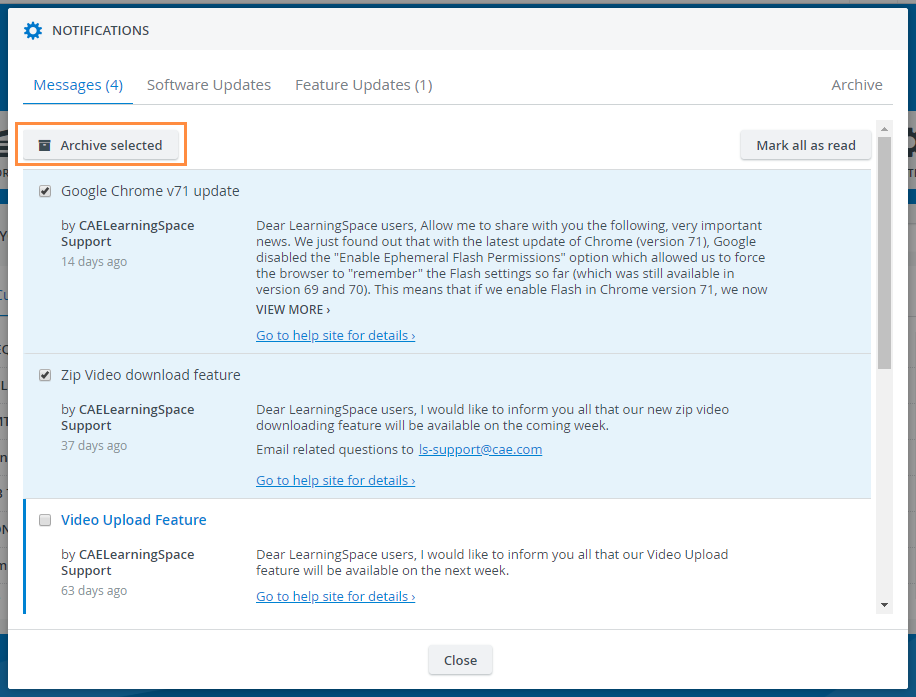
Messages
This tab communicates all information relevant to or may affect the software's usage —usually information from Customer Support about changes introduced with browser updates that impact the LearningSpace software.
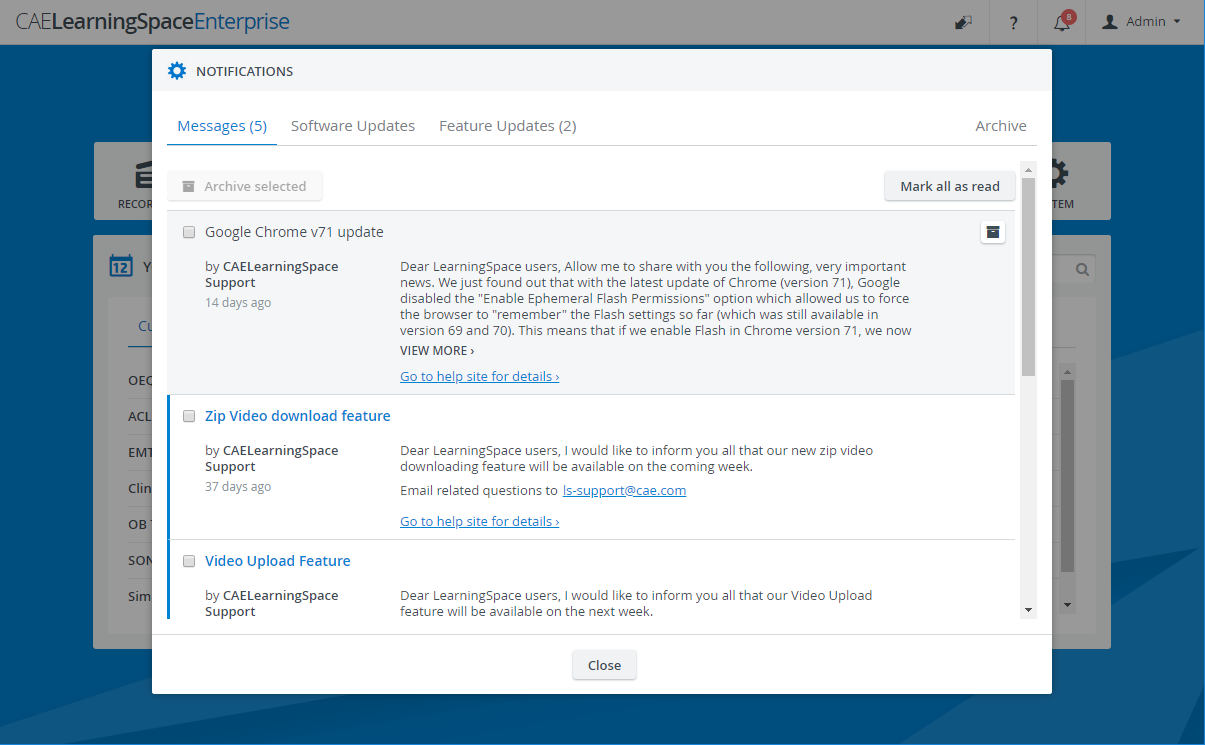
Software updates
Software updates inform about developments or revisions meant to eliminate potentially arising issues.
Such updates are installed automatically with overnight maintenance.

Feature updates
This tab lists all newly introduced features that are available to customers. Enabling such features is optional; users can choose not to install them.
IMPORTANT: While enabling a feature is optional, it is also irreversible. That is, enabling a feature cannot be revoked.

Archive

The Archive tab contains all archived notifications - including messages, software, and feature updates. The notifications are listed in chronological order (according to the date and time of their sending).