Monitoring Page
For Admin users only.
Follow up on the virtual events of a selected Activity on the new Monitoring page.
Access the monitoring page of your Activity from the Dashboard by clicking the Virtual Event Monitoring option:

The Virtual Event Monitoring button only appears next to an Activity
On the day, the Activity has a virtual event scheduled
If only virtual rooms are added to the event
If the Virtual Room Support module is turned on
Layout
The Monitoring page displays each virtual event for the day, displaying each case separately by the virtual room the case is assigned to:
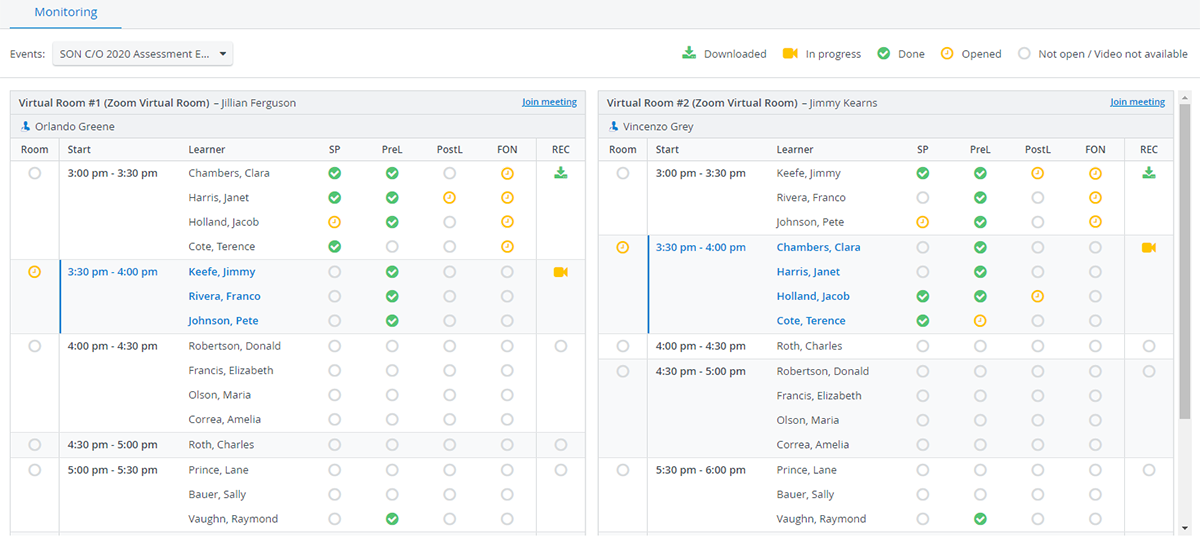
The names of the SPs assigned to the virtual encounter are also displayed in the header of each virtual room.
Virtual Encounter Observation With Admin Privilege
By clicking the Join meeting link in the top-right corner of a virtual room, you can join the current virtual encounter in that room.
⚠️ We recommend joining the meeting without audio or video to avoid interrupting the recording flow.
Each virtual encounter scheduled in the room is displayed by its start date:
You can set a group size greater than 1 for your scheduled virtual events, allowing multiple learners to participate in the same virtual meeting.
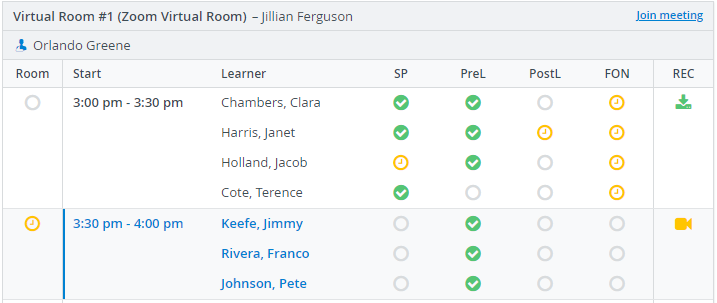
Each learner added to the virtual encounter is displayed in a separate row to make it easy to track their data entry progress.
On the Monitoring page, observers can also check whether a virtual meeting is running on schedule and whether video recordings are available in the Video Review module in LearningSpace.
Statuses
Abbr. | Meaning |  |  |  |
Room | Virtual Room status | The virtual encounter has ended in the virtual room with the Stop option by the SP in charge. | The virtual encounter is currently in progress in the virtual room. | No virtual encounter is running in the virtual room at the moment. |
SP | SP checklist status | SP has submitted the data entry. | SP data entry is in progress. | SP hasn't opened the checklist yet. |
PreL | Pre-encounter checklist status | The learner has submitted the pre-encounter checklist. | The learner is viewing the pre-encounter checklist. | The learner hasn't opened the pre-encounter checklist yet. |
PostL | Post-encounter checklist status | The learner has submitted the post-encounter checklist. | The learner is filling out the post-encounter checklist. | The learner hasn't opened the post-encounter checklist yet. |
FON | Faculty Observation and Narrative Checklist status | The FON Data Entry user has submitted the checklist. | The FON Data Entry user is completing data entry. | The FON Data Entry user hasn't opened the checklist yet. |
Virtual Room: In-Progress and Finished Virtual Encounters
The virtual room statuses that indicate a

✅ or a finished virtual encounter implies that an SP has launched or ended the virtual meeting session on their Learner Pre-Selection page. However, do not verify whether the assigned learner or learners have joined and participated in the virtual meeting.
REC | |  | |  |
Displays the status of Video Recording in the virtual room. | Video recording is not available for the virtual encounter yet. | During an active virtual encounter session (Room status):  | After a virtual encounter has been ended (Room status: ✅), the status indicates that the video recording of the recent encounter is being processed and saved to the Video Review module. | The recording of the virtual encounter has been downloaded, and it is available in the Video Review module. |
Learn more on our Distance Learning with LearningSpace pages.