LS Check-In Application Guide for Learners
What Is the LS Check-In Application?
The LS Check-In Application provides you with a QR code on your mobile phone that you can use to check in and out at the Check-in Stations of your institution and log your contact hours. All you need to do is log into your LearningSpace account via the LS Check-In Application to access your virtual QR-code ID card.
A Check-in Station is necessary for the Learner Check-In and Check-Out feature, which can be a Kiosk or any device to which a QR code/barcode reader can be connected (workstation computer, tablet, etc).
The LS Check-In Application supports Single Sign-On (SSO). If your institution uses Single Sign-On for its services, you can log into your LearningSpace account with your SSO credentials via the application.
Download the LS Check-In Application from Google Play or the Apple App Store.
Start the application.
You will be presented with the server setup screen.Enter the URL of your institution's main LearningSpace server address on the server setup screen:
Ensure that the URL you include starts with 'https://'. The server address you must provide is the hostname or IP address you will find in the Check-in Station's browser.
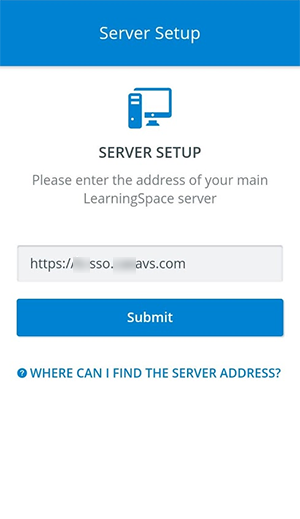
Tap Submit.
The application will connect to your institution's LearningSpace server.You will be presented with the following page:
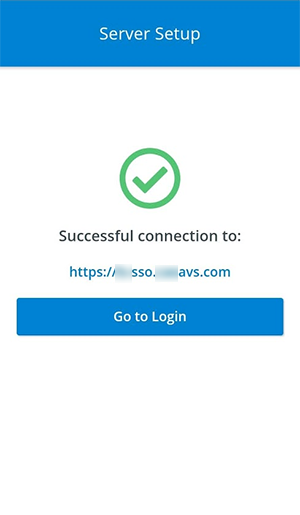
Tap on Go to Login to proceed.
Single Sign-On (SSO)
If your institution has implemented Single Sign-On (SSO), you can log in to your LearningSpace account with your SSO credentials. The Go to Login button will direct you to your institution's identity provider of choice, where you can enter your credentials.
Provide your institution's email address (used for SSO).

Enter your SSO password.

Your institution provides your Single Sign-on (SSO) email address/username and password. Contact your local IT department if you are not sure which credentials you need to use for SSO.
You will be logged into your LearningSpace account in the LS Check-In Application.
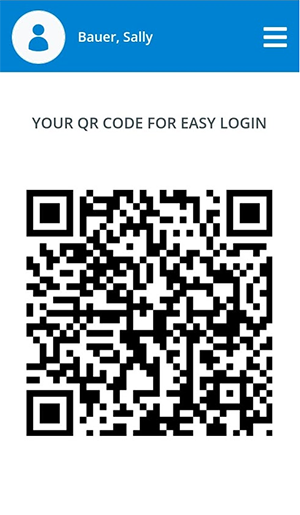
Scan your QR code at the Check-in Station when checking in and out of your institution's training facility.
The Check-in Station will authenticate and direct you to your login page, where you can view your events for the day.Tap on Check-In on the Check-in Station's screen to log your contact hours.

LearningSpace User Login
If SSO is not available at your institution, you will be redirected to the LS Check-In Application's login page after Go to Login. Use your LearningSpace user credentials to sign into the application.
Enter your email address and password you use for your LearningSpace account.
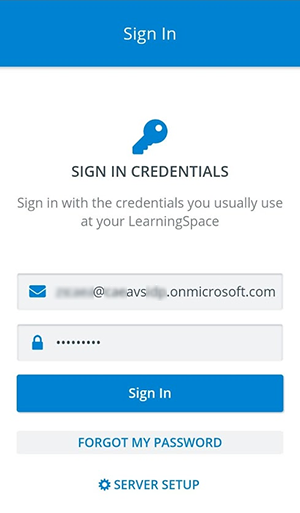
You will be logged into your LearningSpace account in the LS Check-In Application.
Scan your QR code at the Check-in Station when checking in and out of your institution's training facility.
The Check-in Station will authenticate and direct you to your login page, where you can view your events for the day.Tap on Check-In on the Check-in Station's screen to log your contact hours.
Related page