LearningSpace NextGen Room View 2022 Release Notes
In our 2022 Summer release, the Single Room View (SRV) of LearningSpace Enterprise will have a much cleaner, more easy-to-use user interface on both the Recording and Video Review pages, increasing efficiency and enhancing user experience.
See what is changing in your LearningSpace Enterprise environment with this new release:
List of Enhancements of the Single Room View
SRV layout re-organized
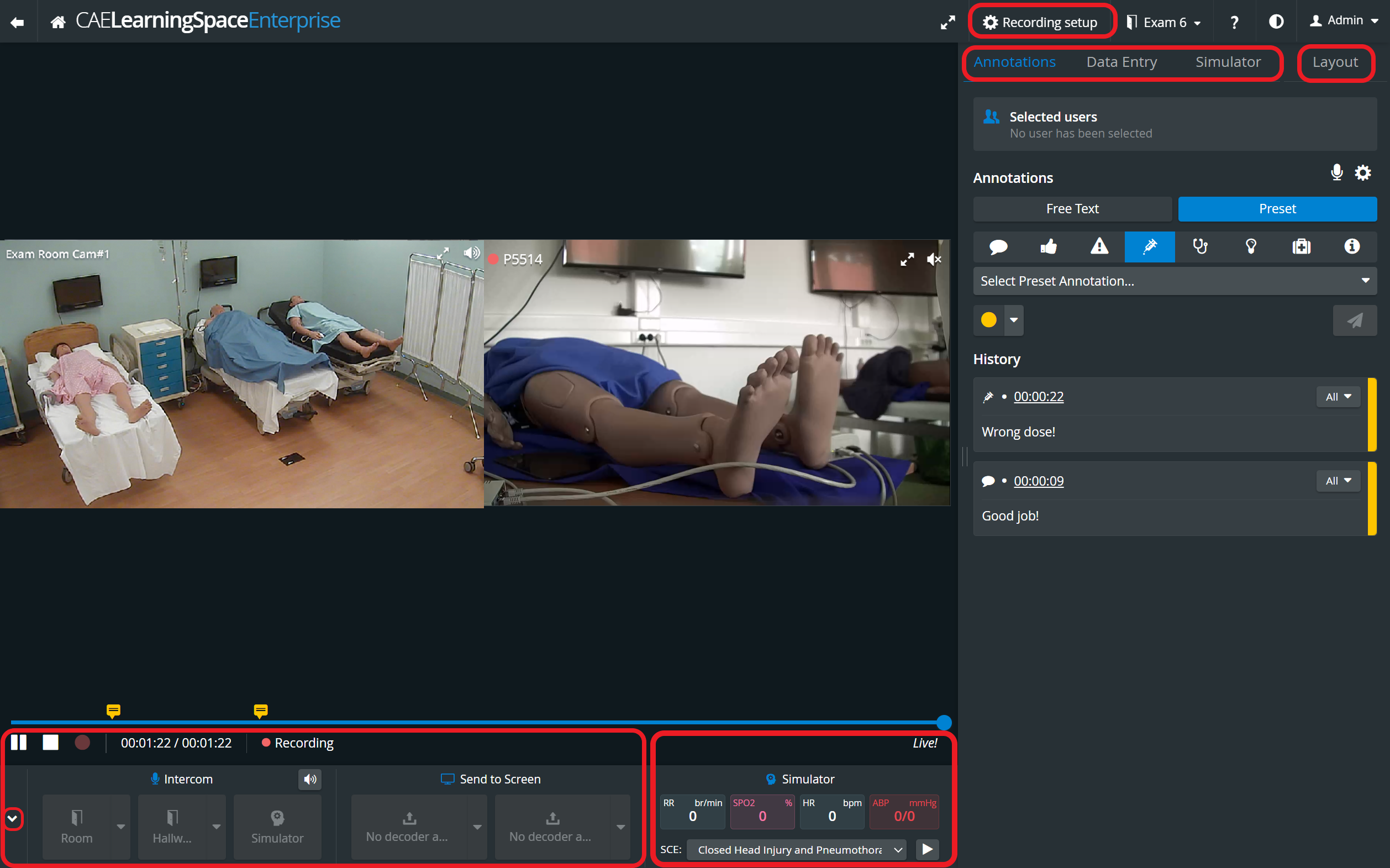
The user interface of the Single Room View becomes re-organized for more efficiency in the following way:
Re-organized basic layout
Video player moved to the left-hand side
Annotations and Data Entry tab moved to the right side
Simulator Control and Layout tab added
Record control was renamed to Recording setup and moved to the top
Intercom and Video control section moved to the bottom
Send to Screen option and Simulator Panel added at the bottom
Bottom panel can be minimized
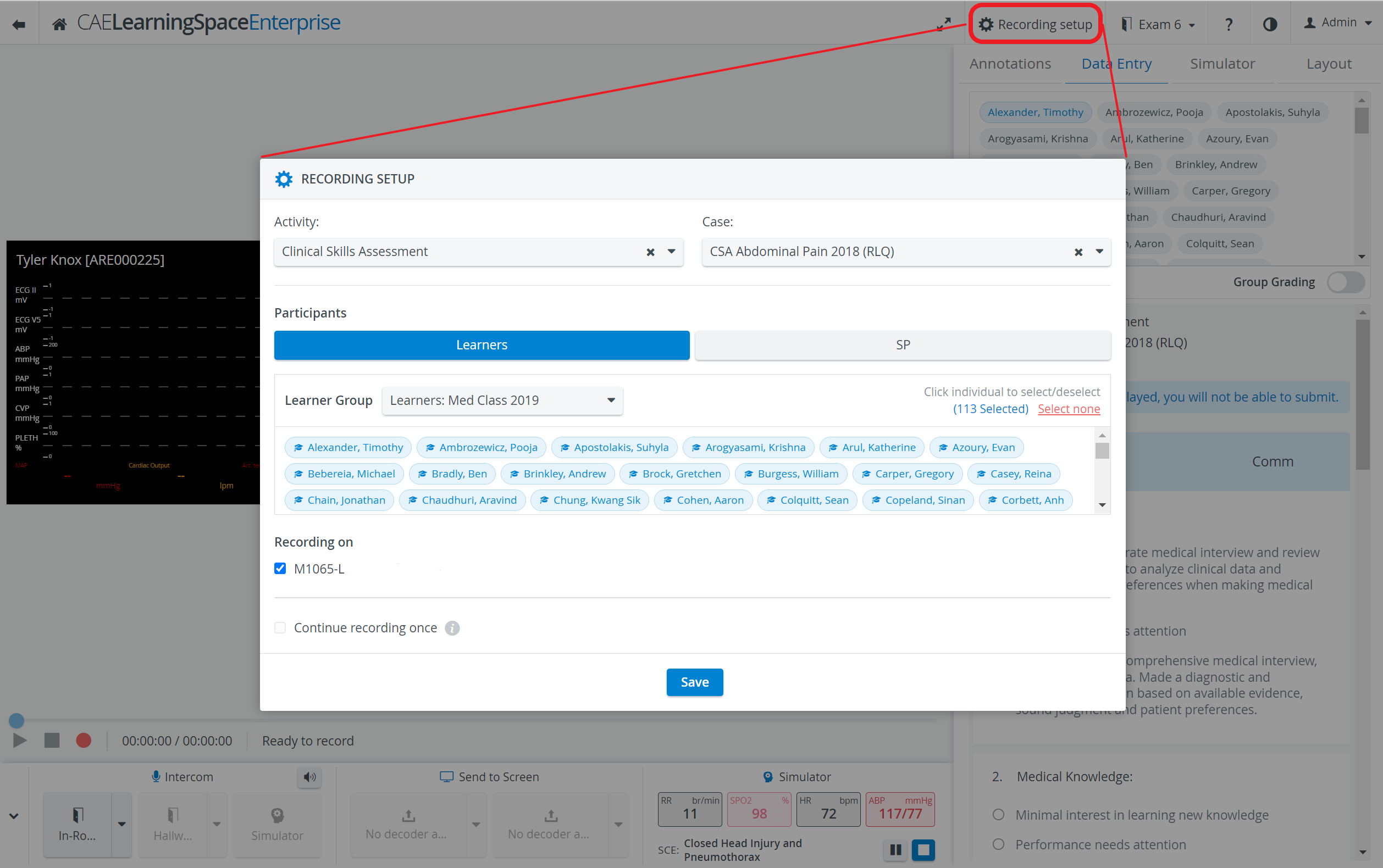
In the new Recording setup pop-up Activity, Case and Participants can be selected for the recording:
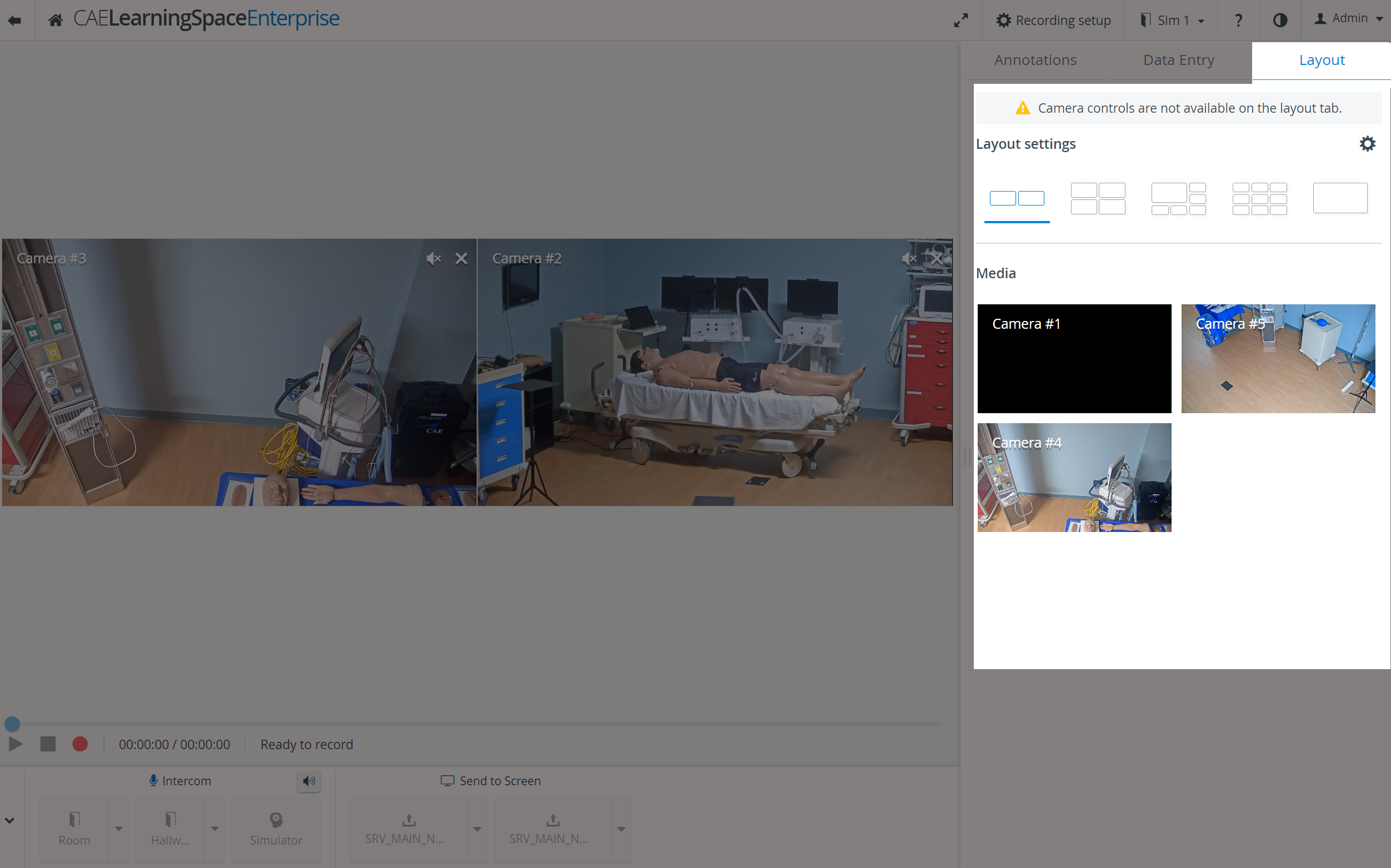
Layout tab
The Layout tab is located on the right side of the Single Room View and contains the Layout settings and the Media section panels.
Important
While the Layout tab is active, the on-screen Camera controls are disabled.
Layout settings section
In the new Single Room View layout, users can choose from the following views to get the most convenient and suitable layout for their aims:
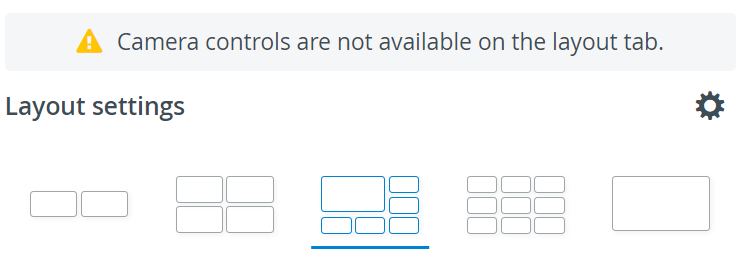
Double view: 2x1 feeds are displayed
Quad view: 2x2 feeds are displayed
Pinned view: 1+5 feeds are displayed, and one feed is highlighted
3x3 view: A maximum of nine feeds are displayed
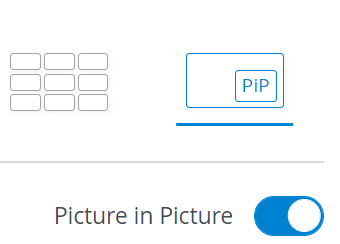
Single view: One selected feed is displayed. Picture-in-Picture view can be enabled by the toggle:
Before saving personalized layouts, all media sources are displayed in the optimal layout for new rooms by default.
IMPORTANT Note
With this new release, Layout is saved as part of the User’s settings and no longer as part of the Room’s setup. This means that, while there is no option to have someone set up a custom layout for a given room to be shared with everyone, each user will see their own custom setup and will not overwrite each other.
Saving, loading, and deleting layouts can be performed by clicking on the cogwheel icon in the Layout settings panel and opening the Layout settings pop-up window.
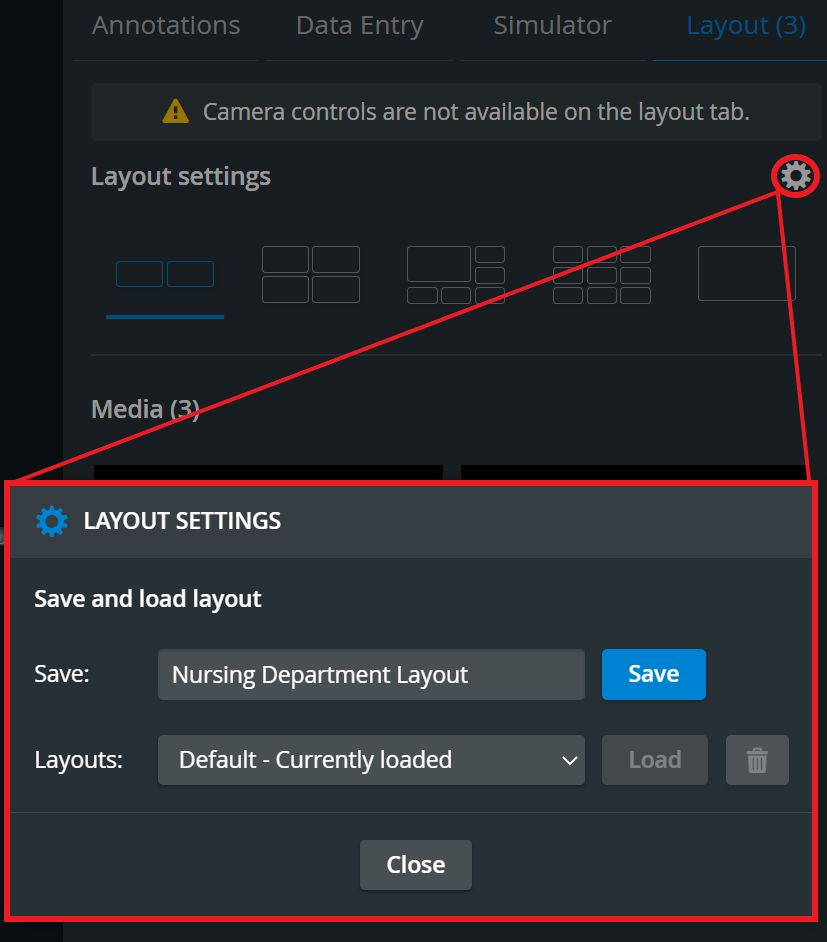
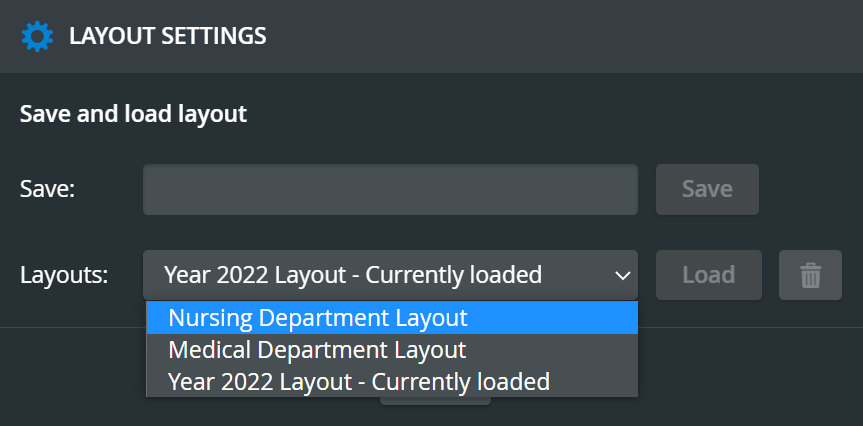
After upgrading to the new SRV, already existing Room layouts will be lost/reset.
Updates to Full-screen mode
The Slider component at the bottom is now available even in full-screen mode.
From now on, the whole camera layout can be set to full-screen mode, not just a single media stream.
Media Section
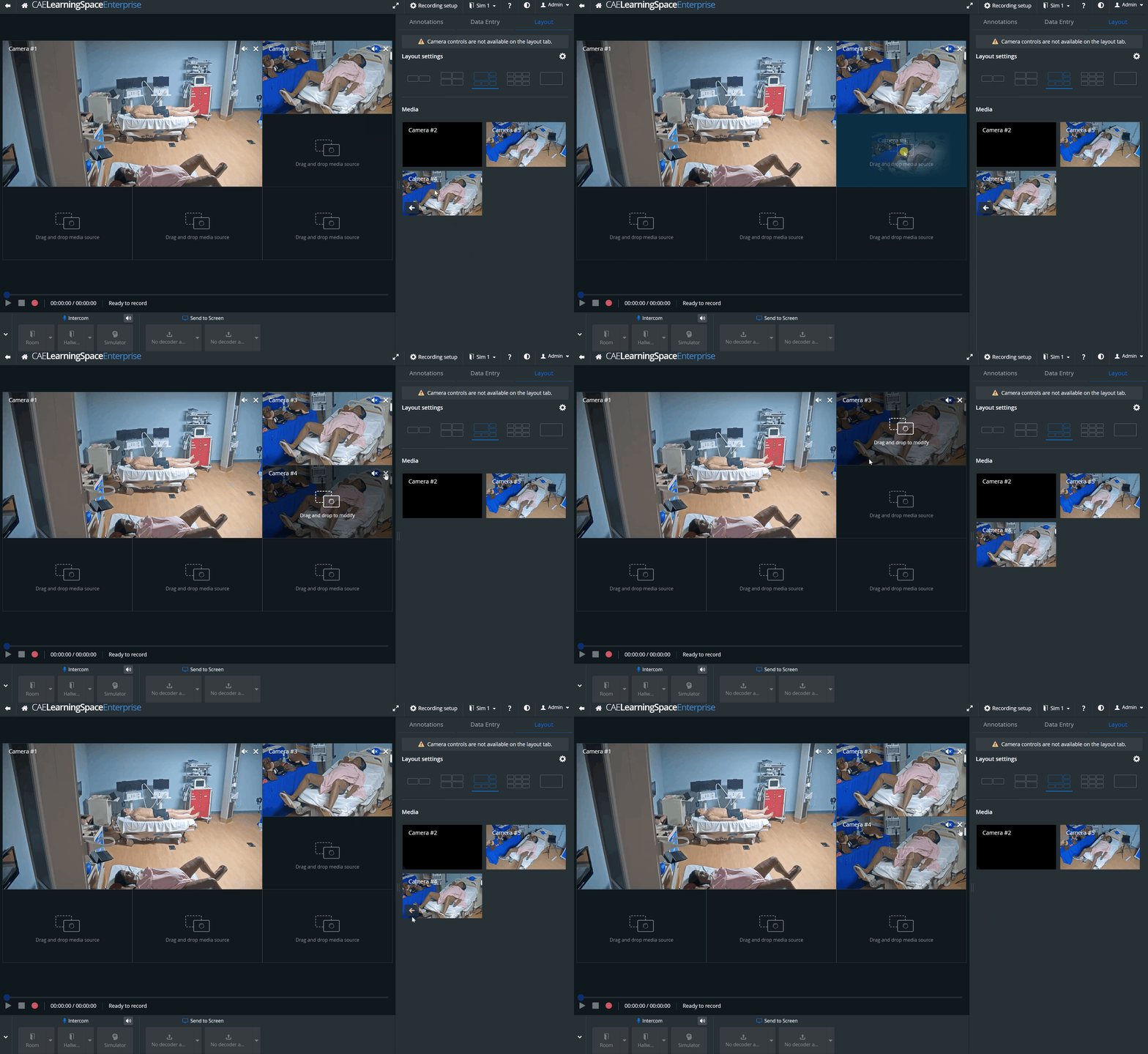
Camera feeds and simulator-related media (CTG, waveform, and trend chart/patient monitor) added to a room are available in the Media section. Media can be moved to and removed from the video layout—pinned or unpinned—by using the drag-and-drop or pin-to-layout functionalities. This way, only the selected media sources will be presented to the viewers.
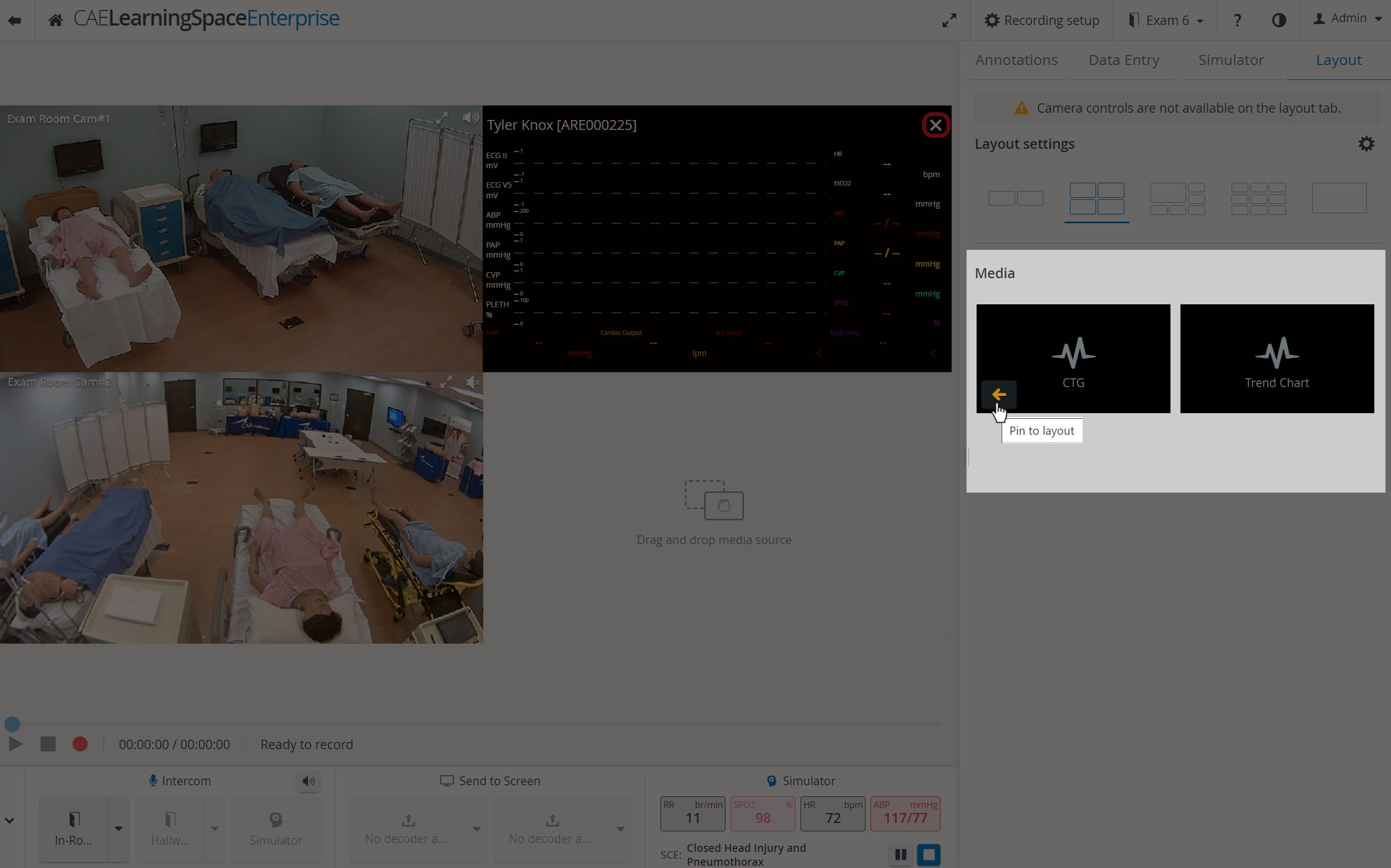
CTG, waveform and trendchart/patient monitor are displayed in separate windows from now on.
Drag-and-drop
Media sources (camera feeds, physio apps) can be moved into the video layout or into the Media section as desired using the SRV's new drag-and-drop functionality.
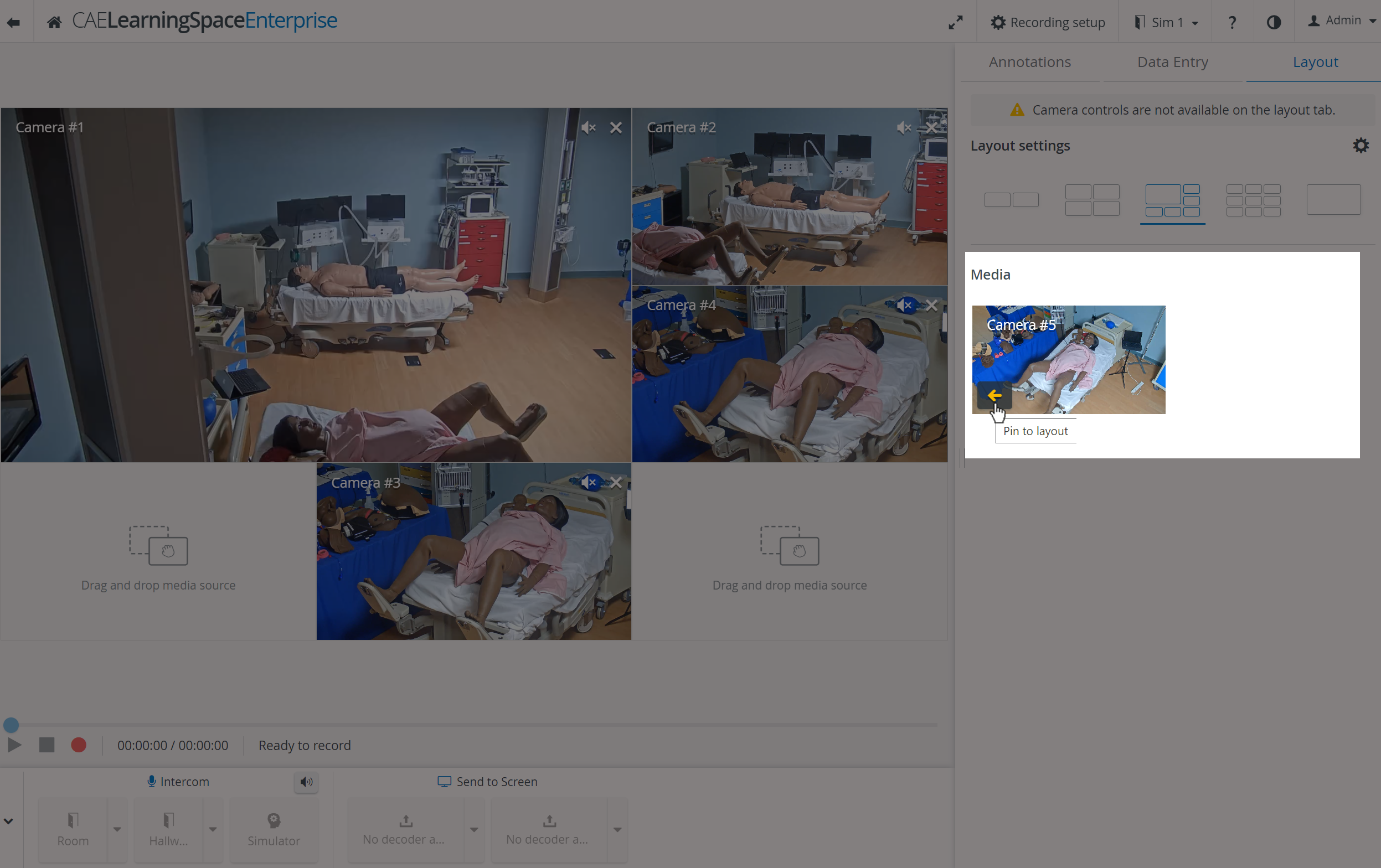
Pin-to-Layout
Media sources can be "pinned" (moved) to the layout also by clicking on


IMPORTANT
By default, recording applies to all media, whether added to the video player section or not. This can be overwritten in the Recording setup section.
Picture-in-Picture
One desired camera feed or media source can be displayed focused. In contrast, the rest of the media sources (a maximum of four) can be displayed in the corners of the video layout.
Media sources (camera feeds, physio apps) can be moved into the layout or the Media section as desired, using drag-and-drop or pin-to-layout.
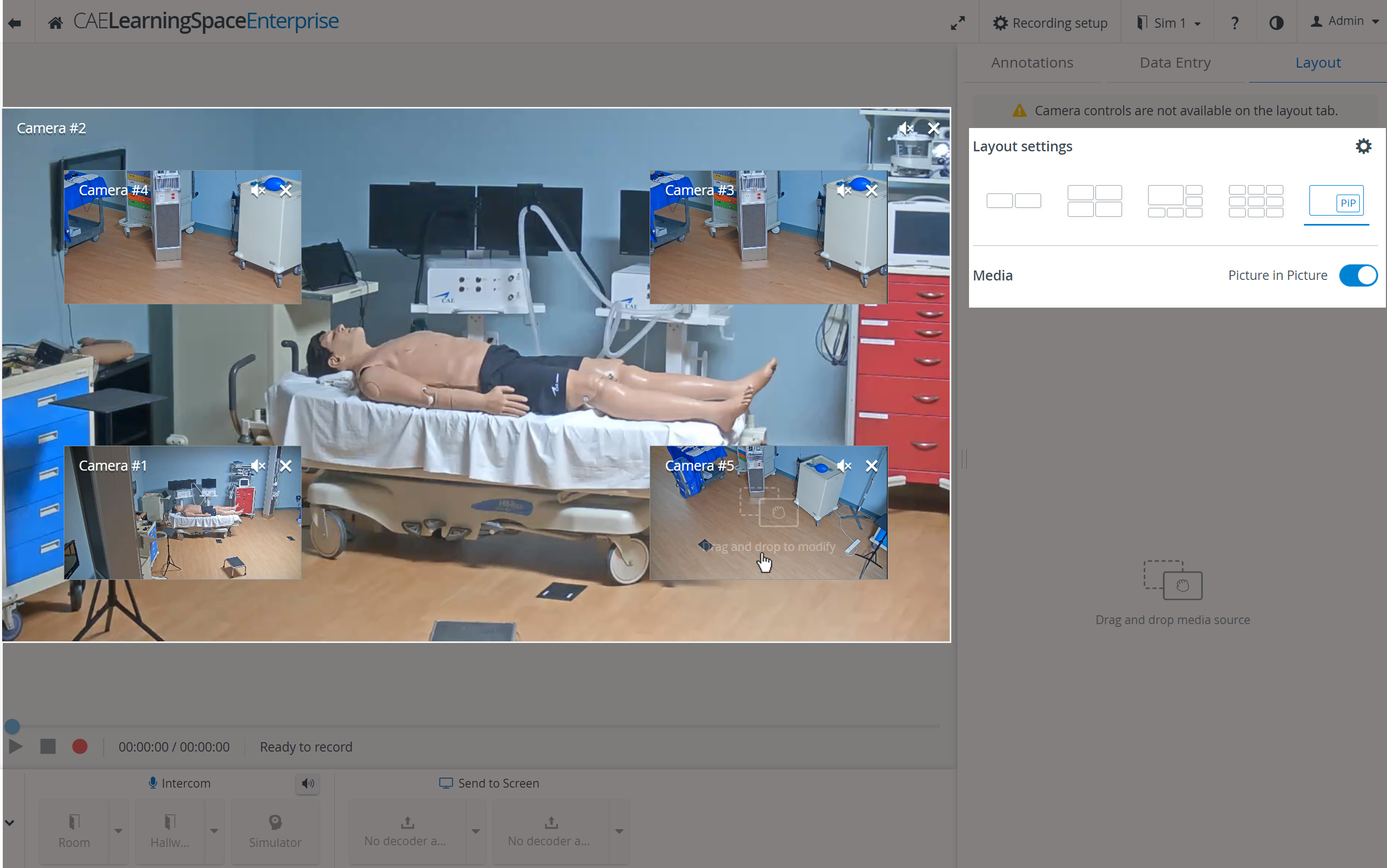
The Picture-in-Picture toggle is only available in the single Layout view.
Annotation section re-designed
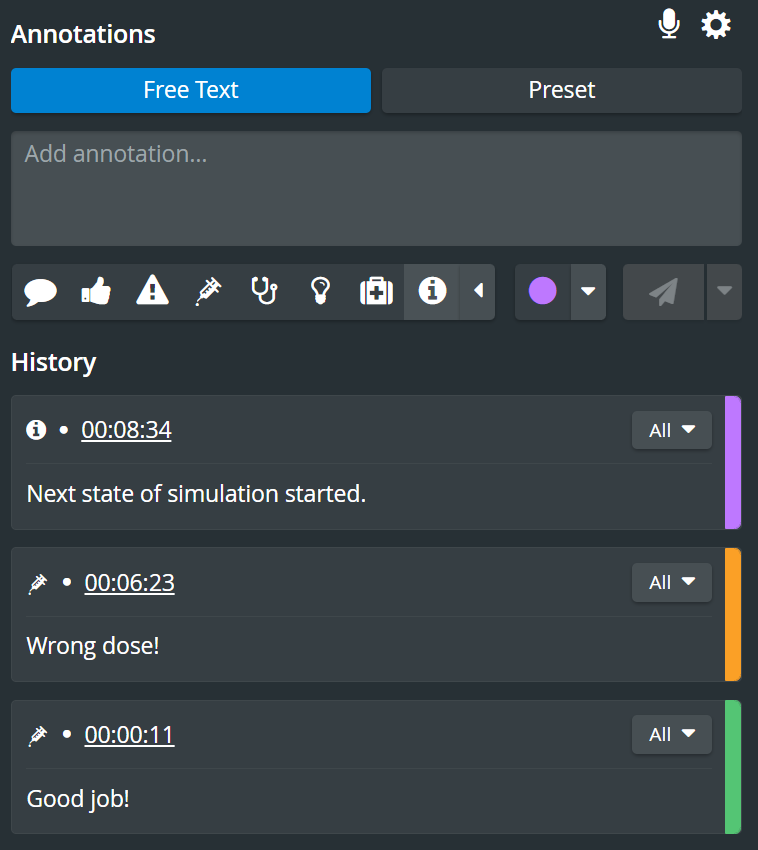
From this new release, LearningSpace users can
pre-select the color of a free-text annotation
pre-select the color of a preset annotation
change the color of an annotation under History
choose a category for an annotation/preset in an easier way
see the "All" phrase on the card, if an annotation is added to “All learners” (the name of all learners will not be displayed separately on the annotation card).
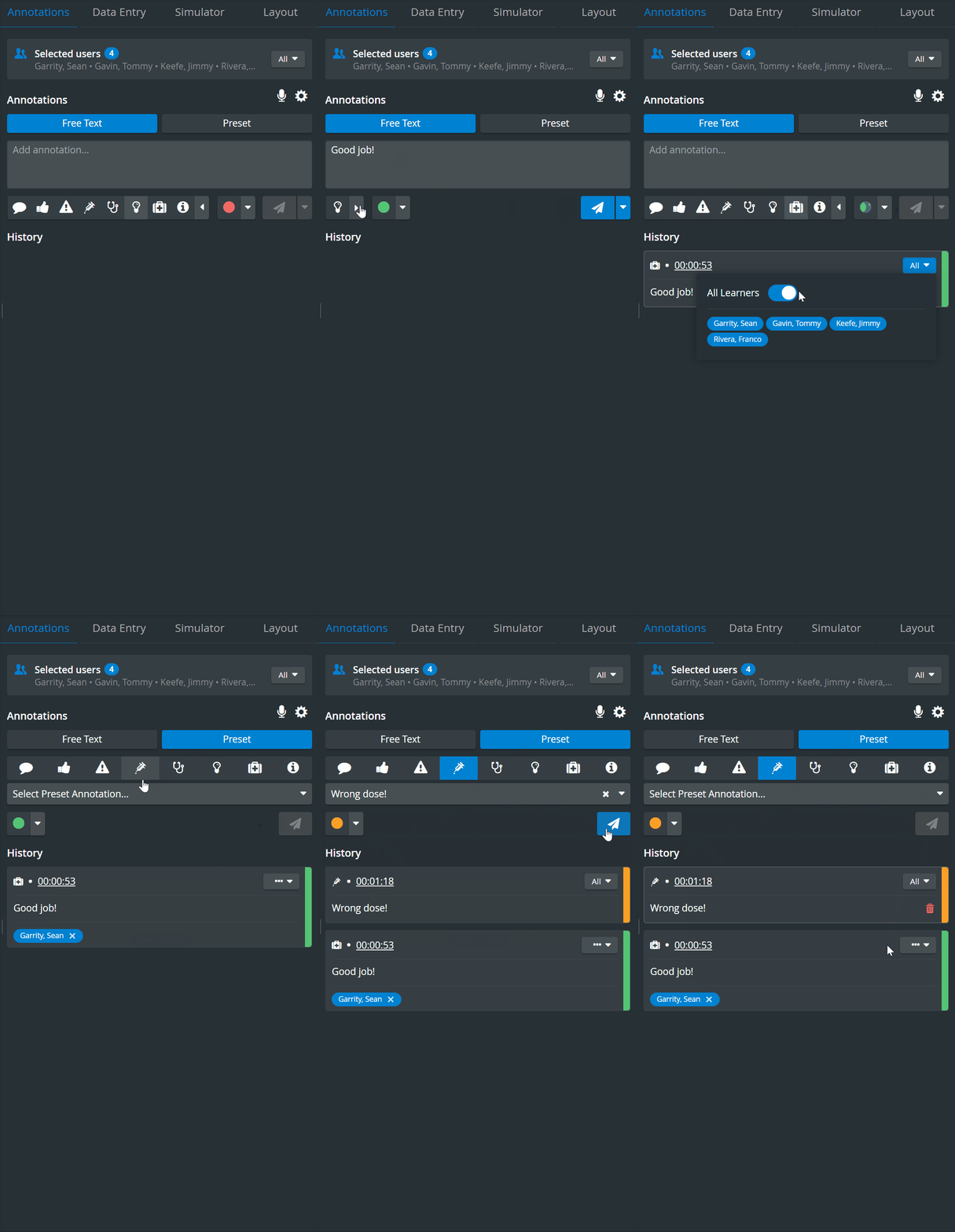
An annotation's color can be changed by clicking on the colored right-hand margin and selecting a different color from the color selection.
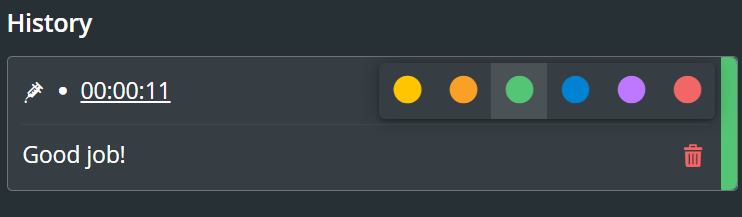
The timestamp of an annotation will represent the time of the first character typed into the annotation's input field.
Color name of annotation
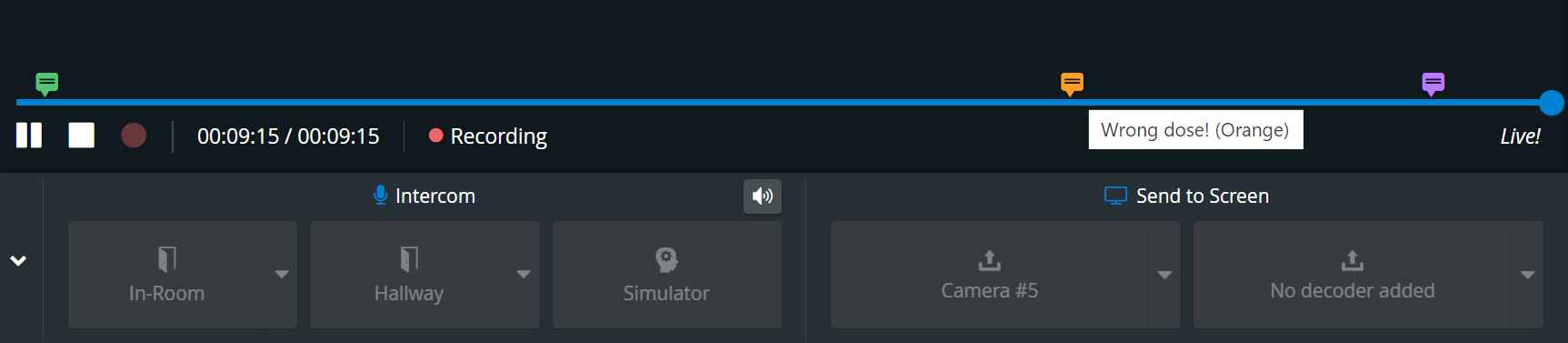
The name of the color of an annotation is displayed when hovering over the annotation on the timeline to comfort users with color-detection challenges.
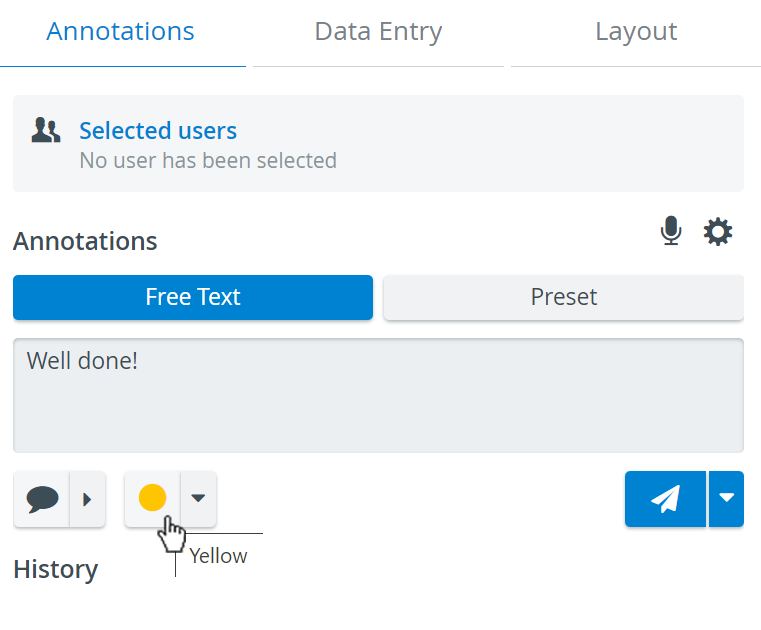
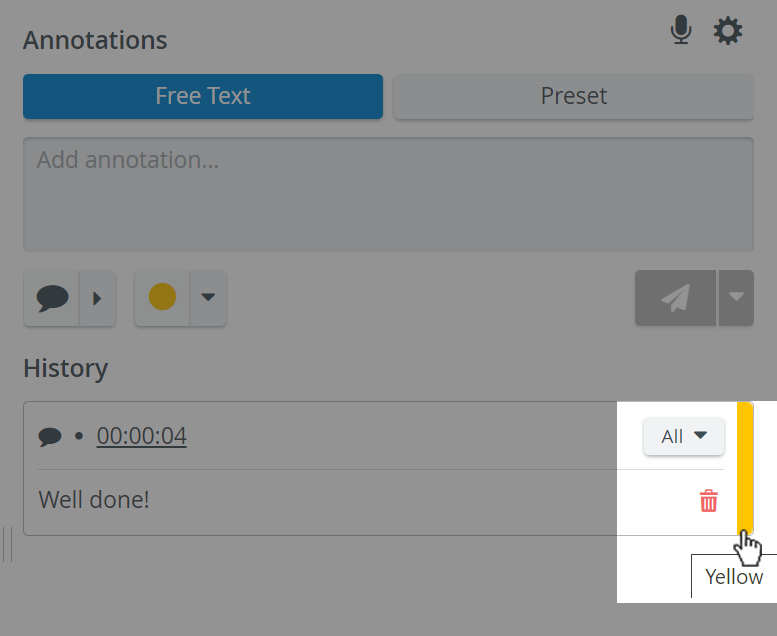
The color names are also displayed for the annotations on the video timeline/slider, where each annotation is displayed in the same color as selected for it in the Annotations panel.
Simulator Control tab
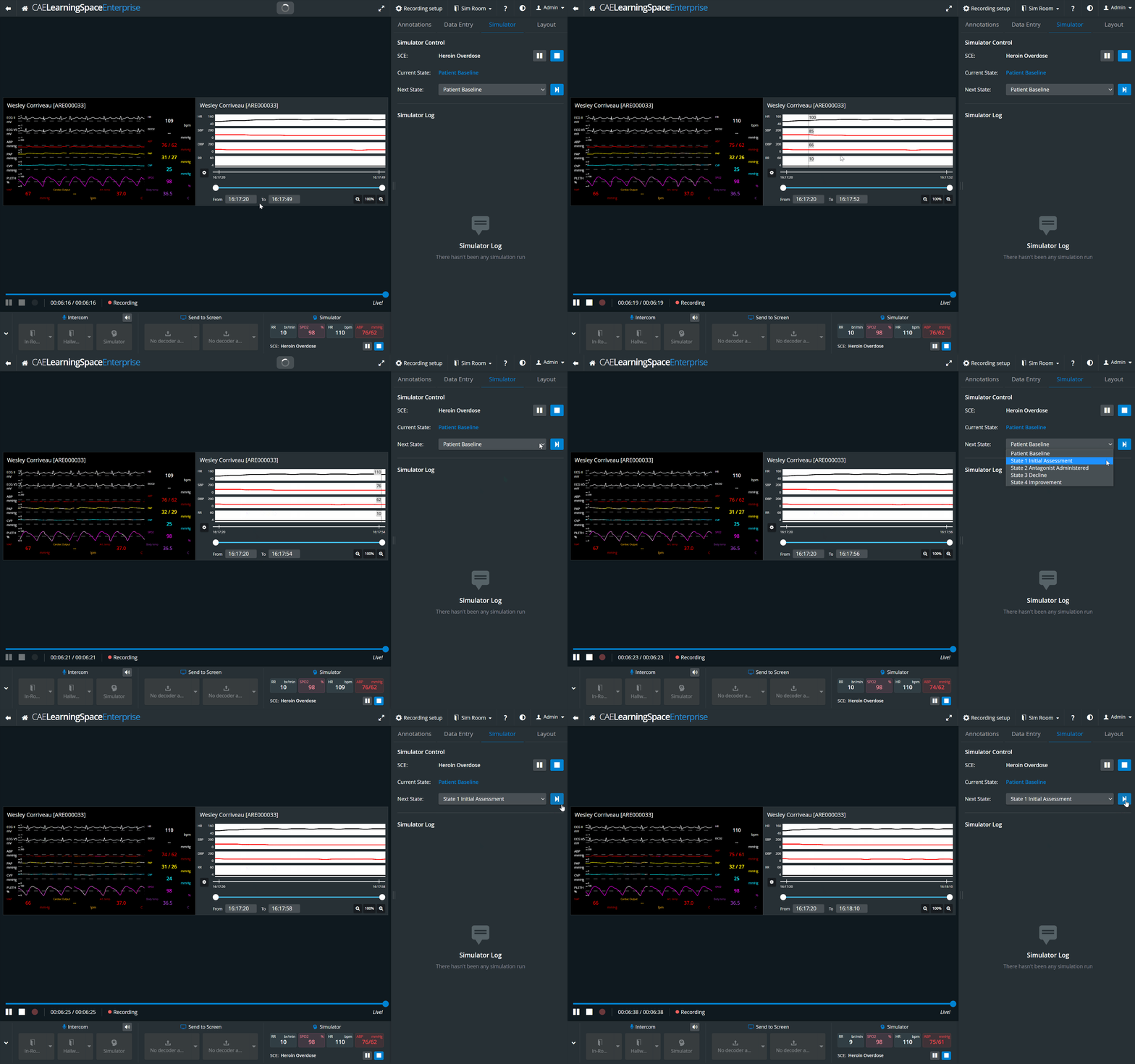
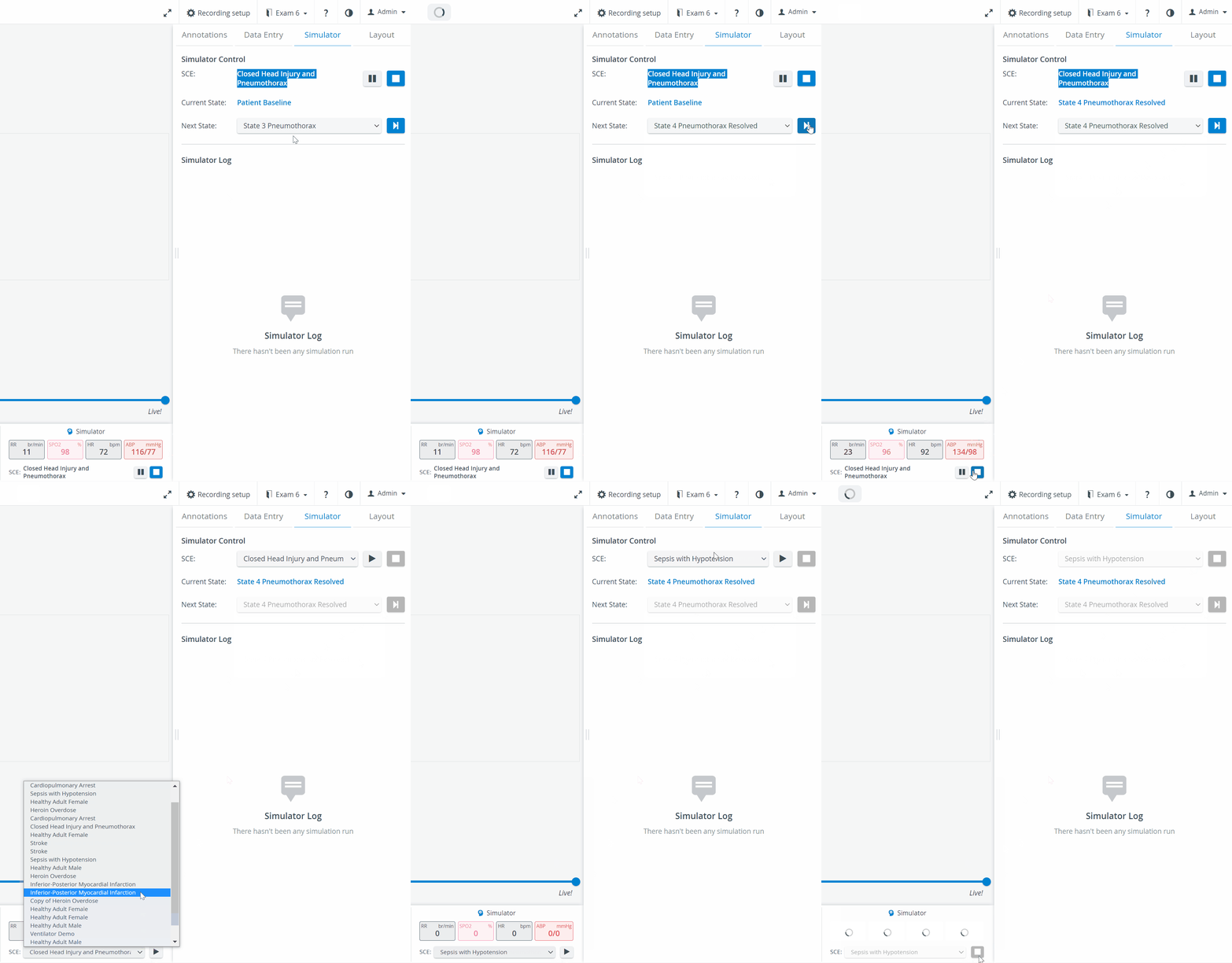
When a simulator is connected and assigned to a LearningSpace room, the Recording module's SRV has the Simulator Control tab displayed. Simulation data can be monitored and controlled from here, such as SCE/Case, Current State, and Next State, by selecting it from the respective drop-down and clicking

Also, the simulation scenario can be started/played
 paused

Installing and connecting a simulator can be done within the System module.
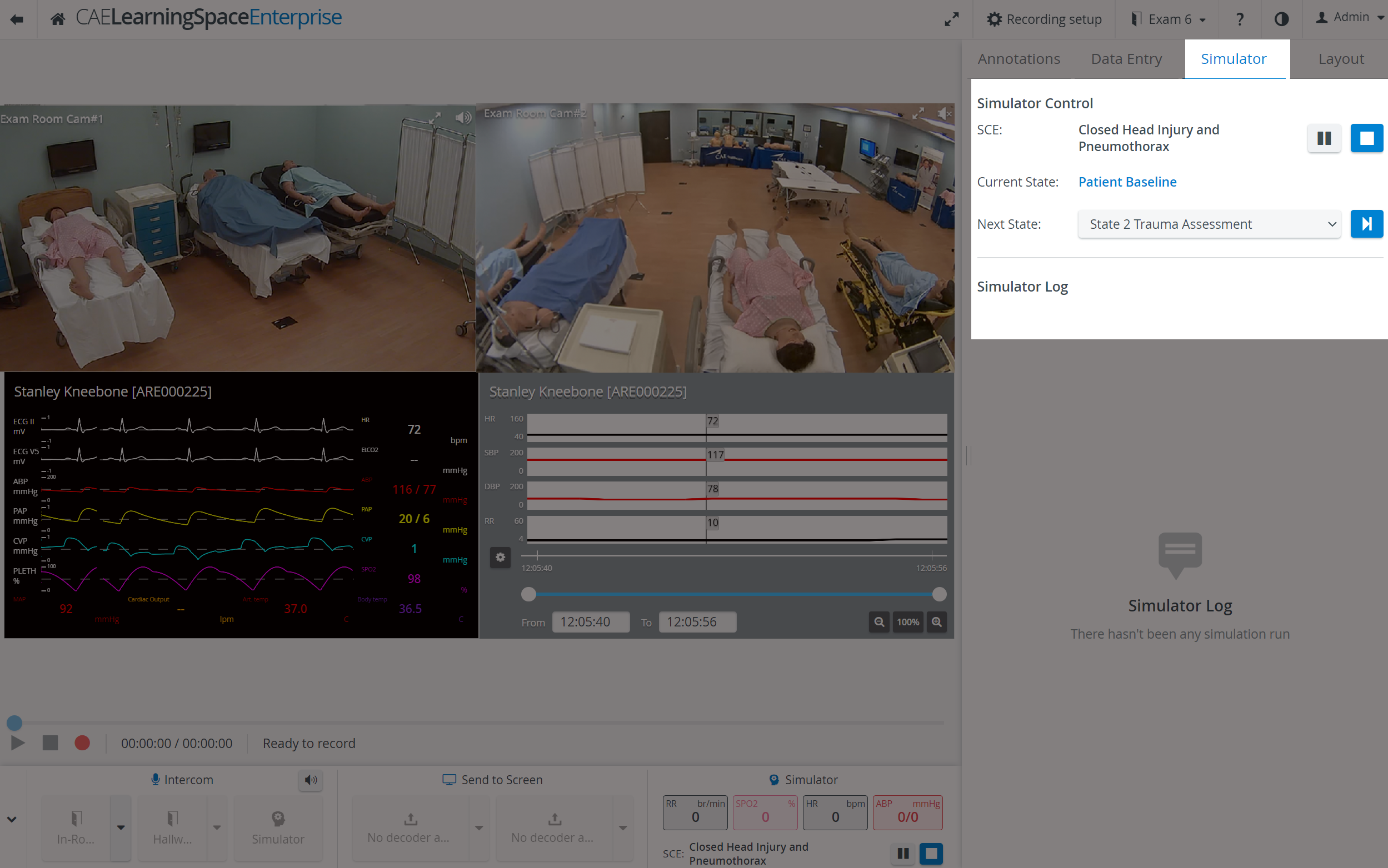
Elevate Healthcare simulators associated with a room display their respective Waveform and Simulator Log in the Single Room View and get recorded along with the camera feed when REC is started.

Physio apps (Waveform, Trendchart, CTG) are only recorded if the simulation is started before starting a recording.
Simulator panel
Simulator panel (widget) is introduced with this release in the Recording panel. When a simulator is connected and assigned to a room, the SRV of the Recording module will have the Simulator panel displayed in the bottom panel.
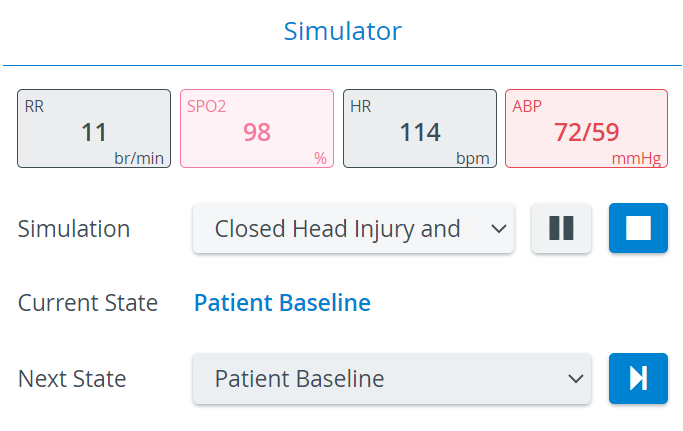
The Simulator panel provides information about
the main physiological data,
the simulation scenario running on the manikin: including the Simulation (SCE) Title, the actual ('Current') and the upcoming ('Next') States.
The Simulation scenario can be
played
paused
stopped
changed (by selecting another scenario from the drop-down).
The Next State drop-down menu allows for moving onto a selected State.

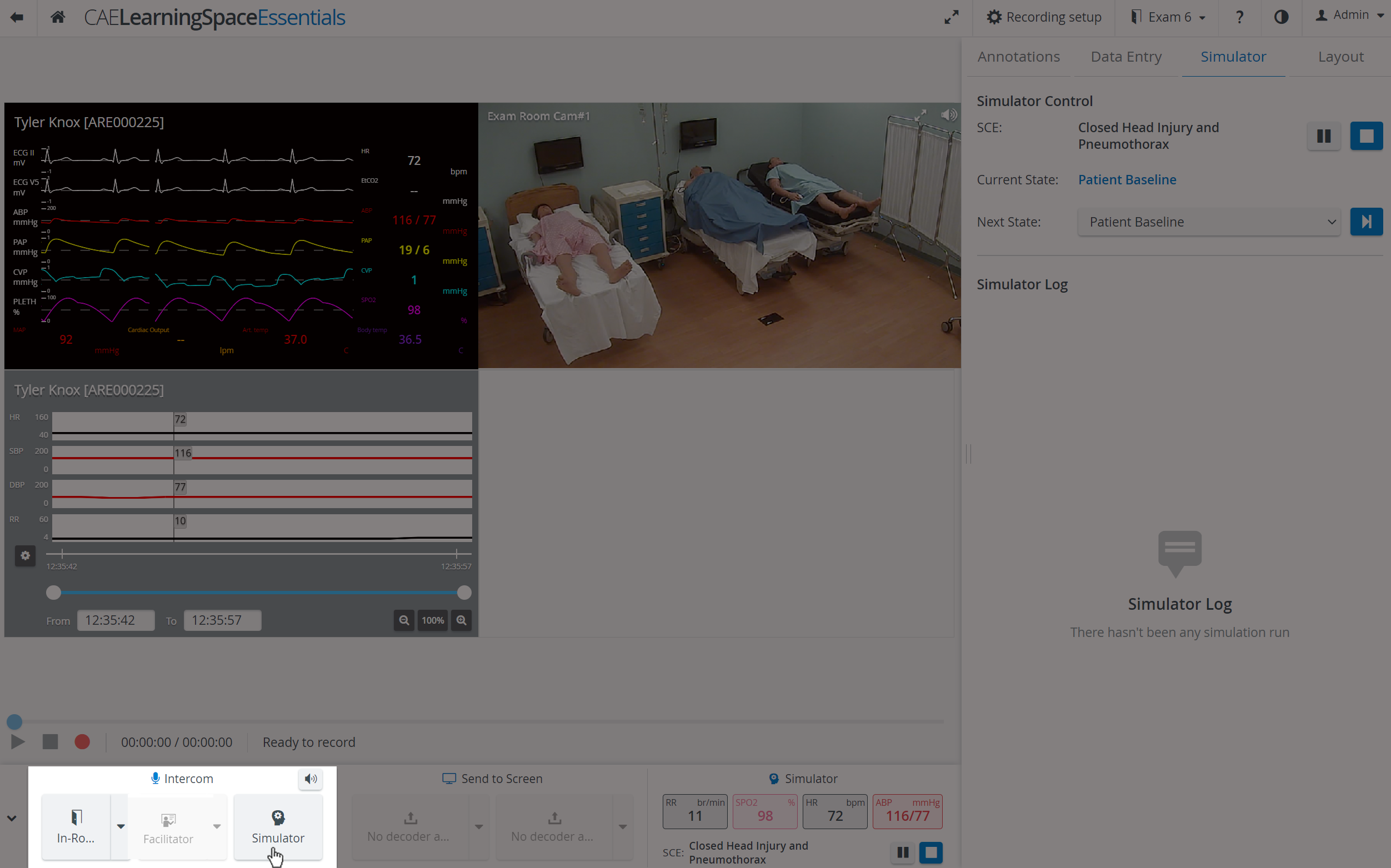
Intercom via Simulator
From this release, the Intercom can be used via Simulators as well within LearningSpace Enterprise: announcements can be sent to the simulator's head ("Voice of Patient") by pushing the Simulator button in the Intercom area.
IMPORTANT
The same announcement cannot be sent simultaneously to the Room and the Hallway.
Send to Screen option
With the help of a decoder, given media can be sent to a display in the room. Although this section is always visible, it is only useful when using Maestro simulators in the room.
Picture files can be sent to different display monitors by clicking the corresponding button. There are two kinds of output for the Send to Screen function:
display monitor
TouchPro patient monitor of the Maestro simulator

The Send to Screen option requires the following technical setup to be completed:
a monitor/decoder and/or Maestro simulator connected and assigned to the room (within the System Manager)
content uploaded (via Maestro)
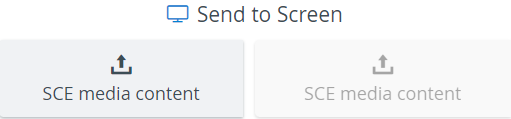
Content can only be uploaded via Maestro: if a Maestro simulator is connected to the system, content uploaded via Maestro will be available for sending.
PTZ functionalities
With the new release, new ways of pan-tilt-zoom (PTZ) functionalities are introduced to improve camera movements.
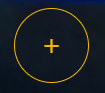
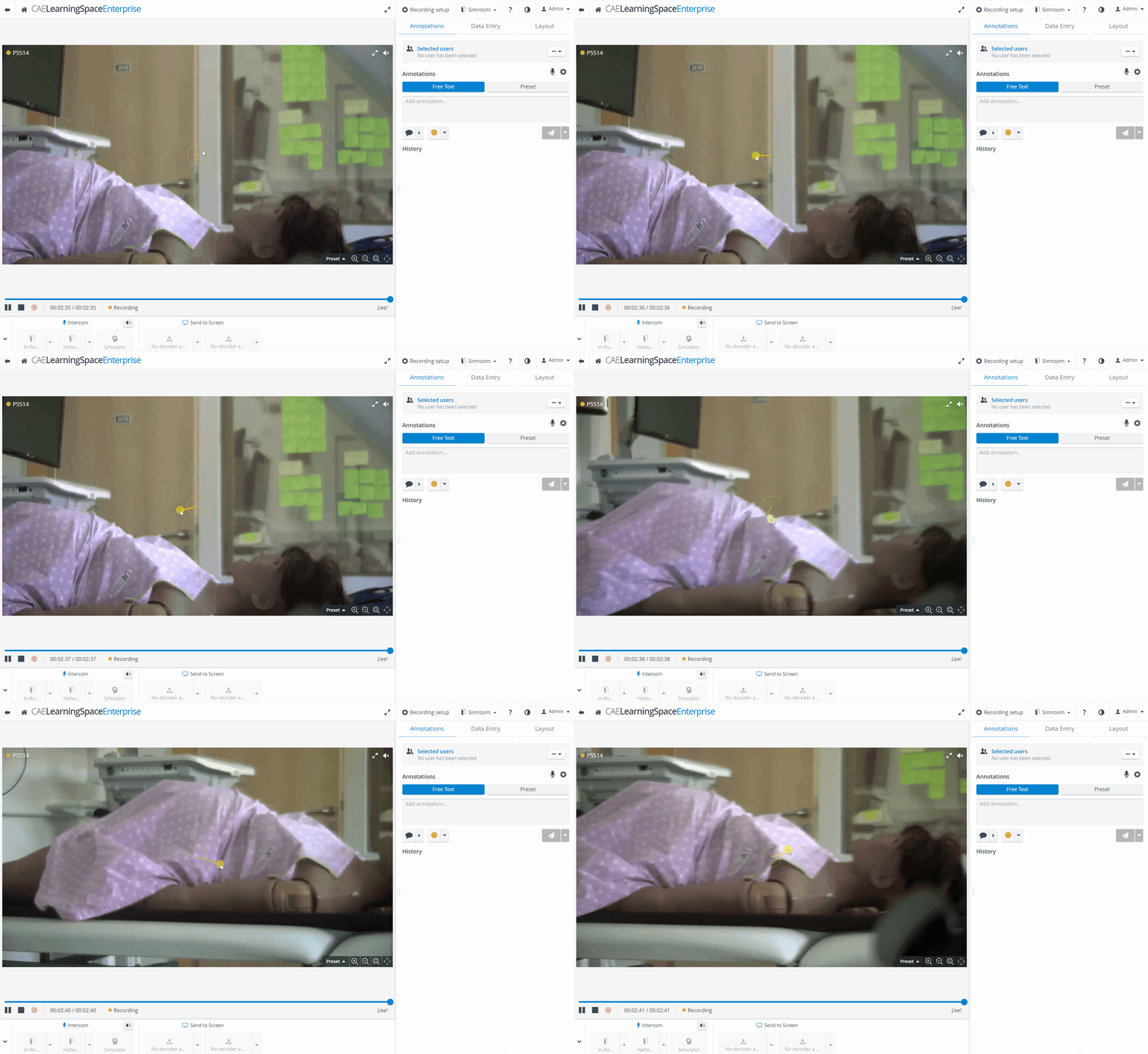
On-Screen PTZ: Click in the center of the video and pull the camera in the desired direction. The movement of the camera will stop by releasing the mouse.
IMPORTANT
The on-screen PTZ is focused on the middle of the screen; thus, it cannot be used in the footer and header of the SRV camera feeds.
Scroll-To-Zoom: zoom-in and zoom out by scrolling on the mouse.
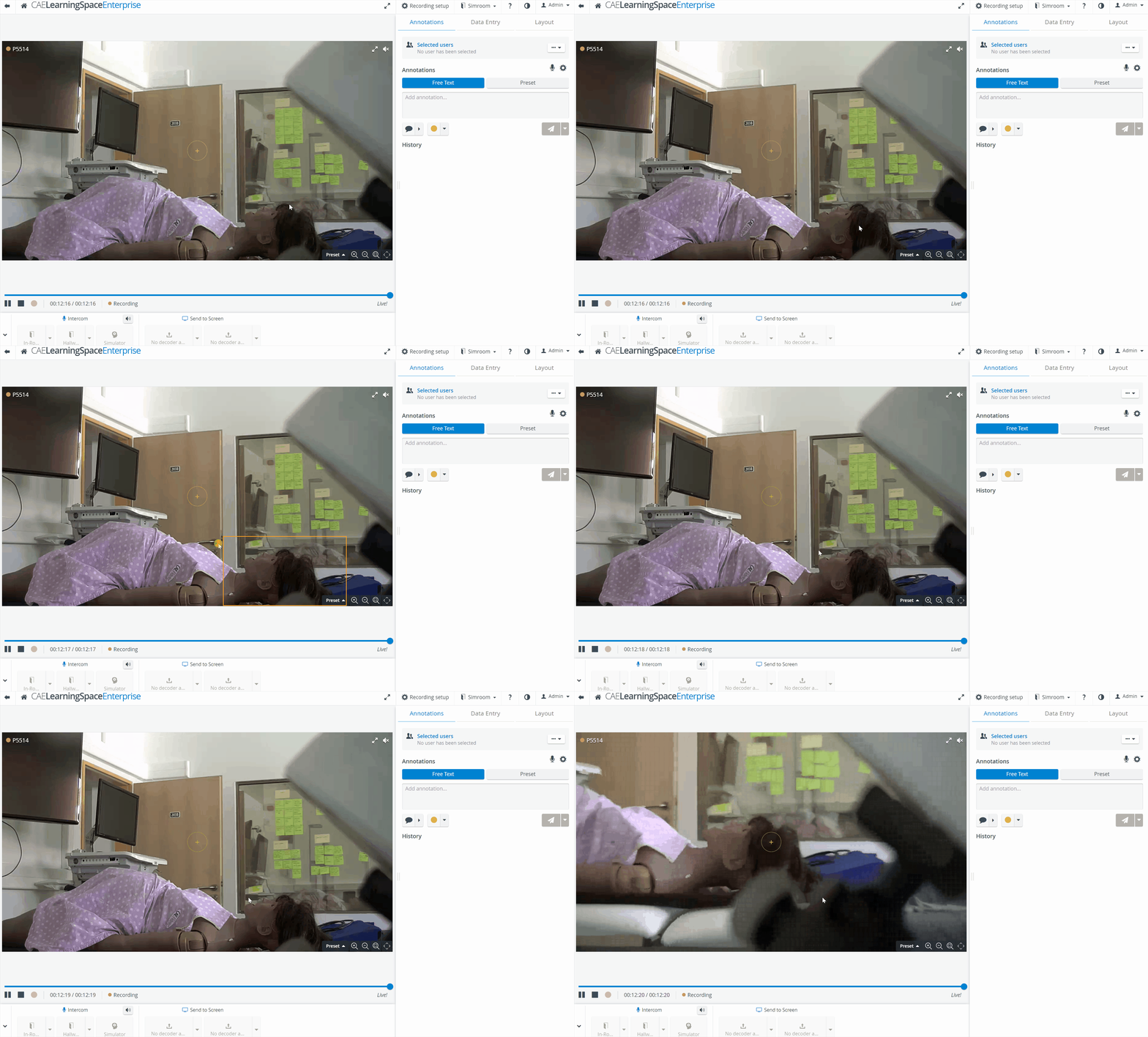
Pan-Tilt-Move: The camera moves in a direction after clicking into the desired area of the camera feed.
Area Zoom: the camera zooms into the area drawn by the user.
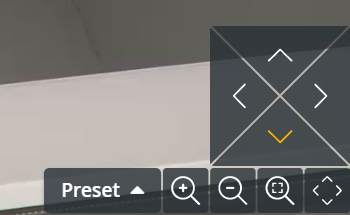
Move and reset buttons: The arrows and magnifying glass icons in the lower right corner of the camera feed control camera movement. The Reset zoom icon resets the zoom level to the default value.
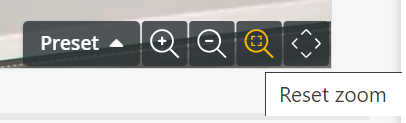
When upgrading to the new SRV - NextGen Room View - already existing PTZ presets will stay intact.
Playback
During live recordings, the following enhancements can make video review easier:
Recording can be paused or played back by dragging the slider to the desired point on the video slider.
Both current and live timestamps are displayed next to each other in the video record panel. Live view can be switched back to by pushing the Go Live button.

Video can be paused and the slider can be dragged after 30 seconds have passed from the start of recording. Before that time, the pause button is greyed out, and the slider cannot be moved.
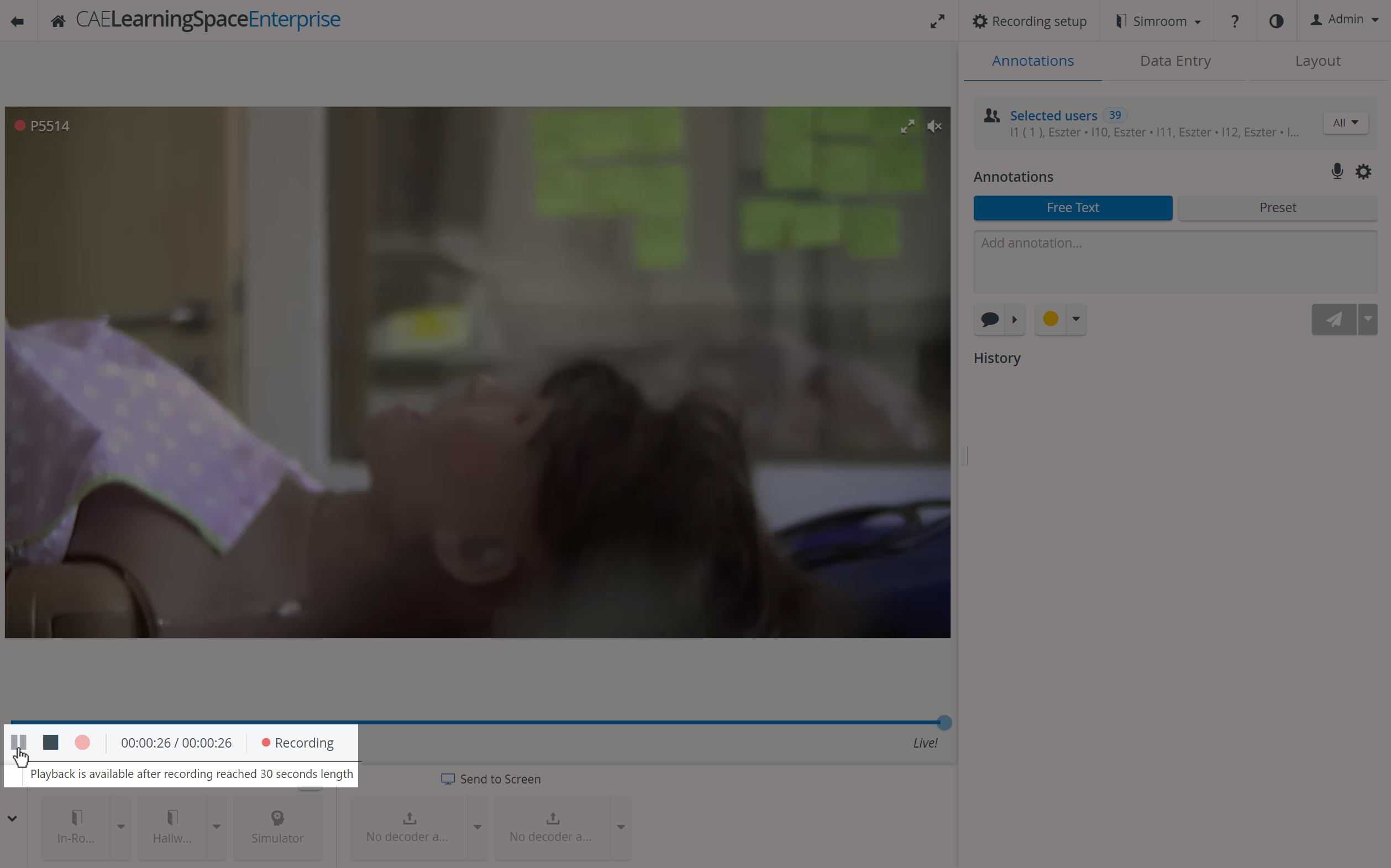
SRV in Video Review
The Single Room View on the Video Review page has the exact same layout as the SRV of the Recording module, with the following differences:
no Intercom and Simulator widgets are available
no camera control options (PTZ, etc.) are available
Information panel is added: by clicking on the More Details link, Simulation details can be viewed (Learners, SP, FON, Activity, Case). This panel can be minimized for more space on the focused content.
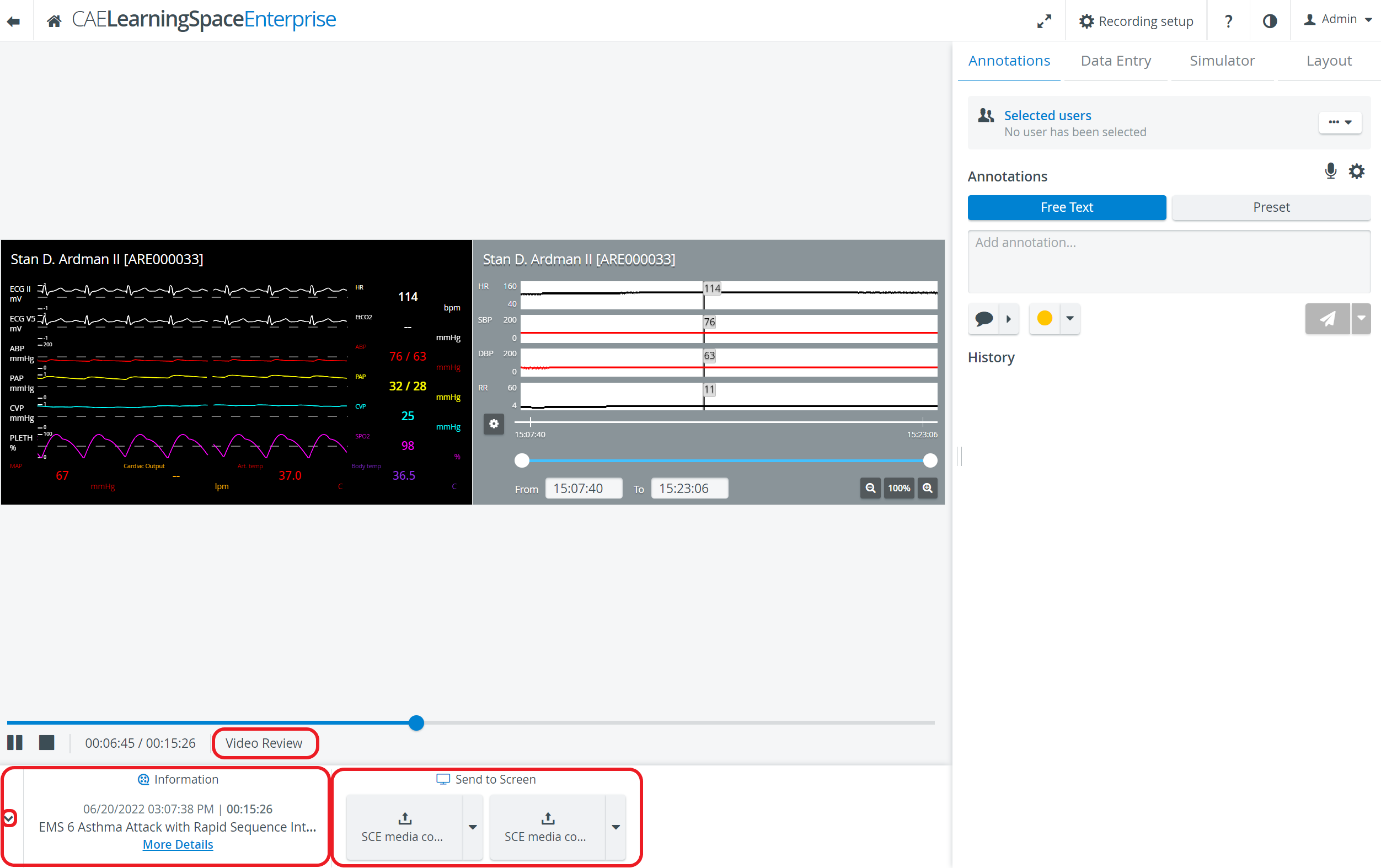
In Video Review, all media associated with the Simulation can be viewed in the Send to Screen panel.