Layout tab in Video Review
If your layout is different in your Single Room View, you probably have the Legacy version. For the user guide of Legacy pages, please go here.
Layout tab
The Layout tab, located on the right side of the Single Room View, contains the Layout settings and the Media section panels.
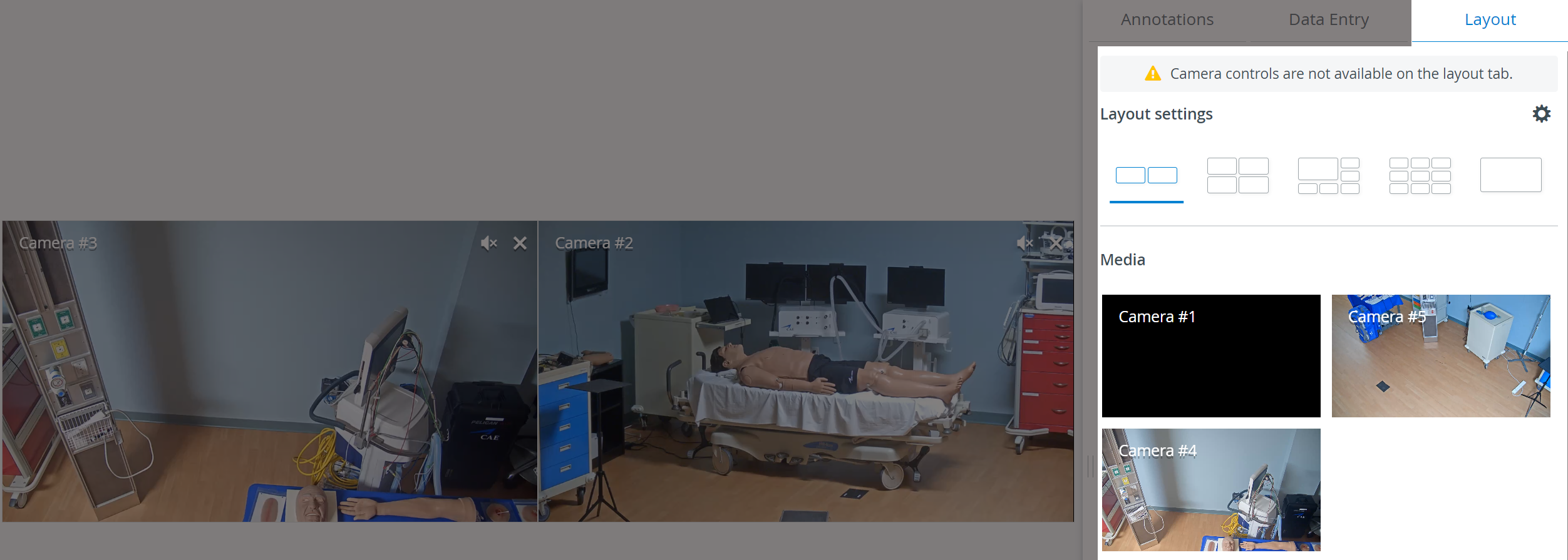
Layout settings section
In the LearningSpace Single Room View layout, users can choose from the following views to get the most convenient and suitable layout for their aims:
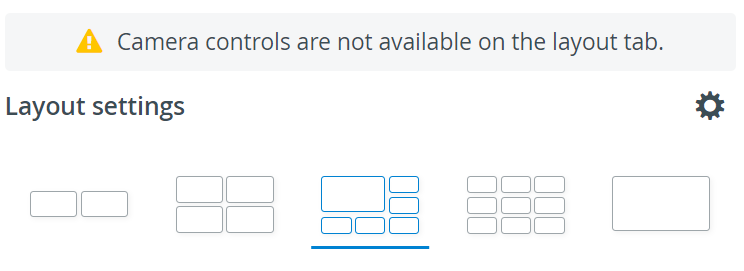
Double view: 2x1 feeds are displayed
Quad view: 2x2 feeds are displayed
Pinned view: 1+5 feeds are displayed, and one feed is highlighted
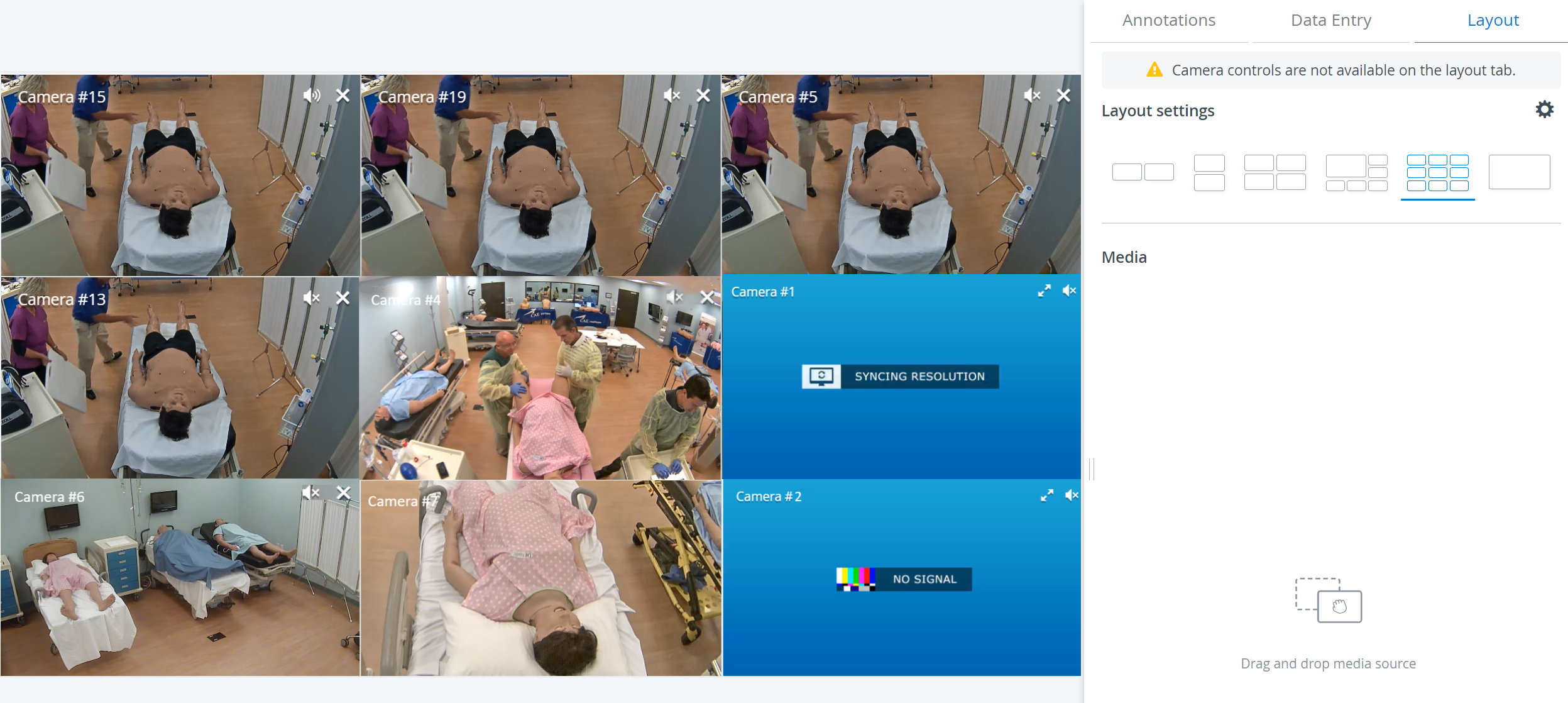
3x3 view: A maximum of nine feeds are displayed
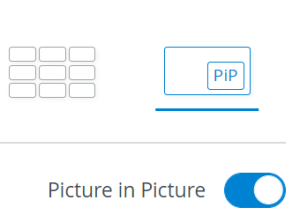
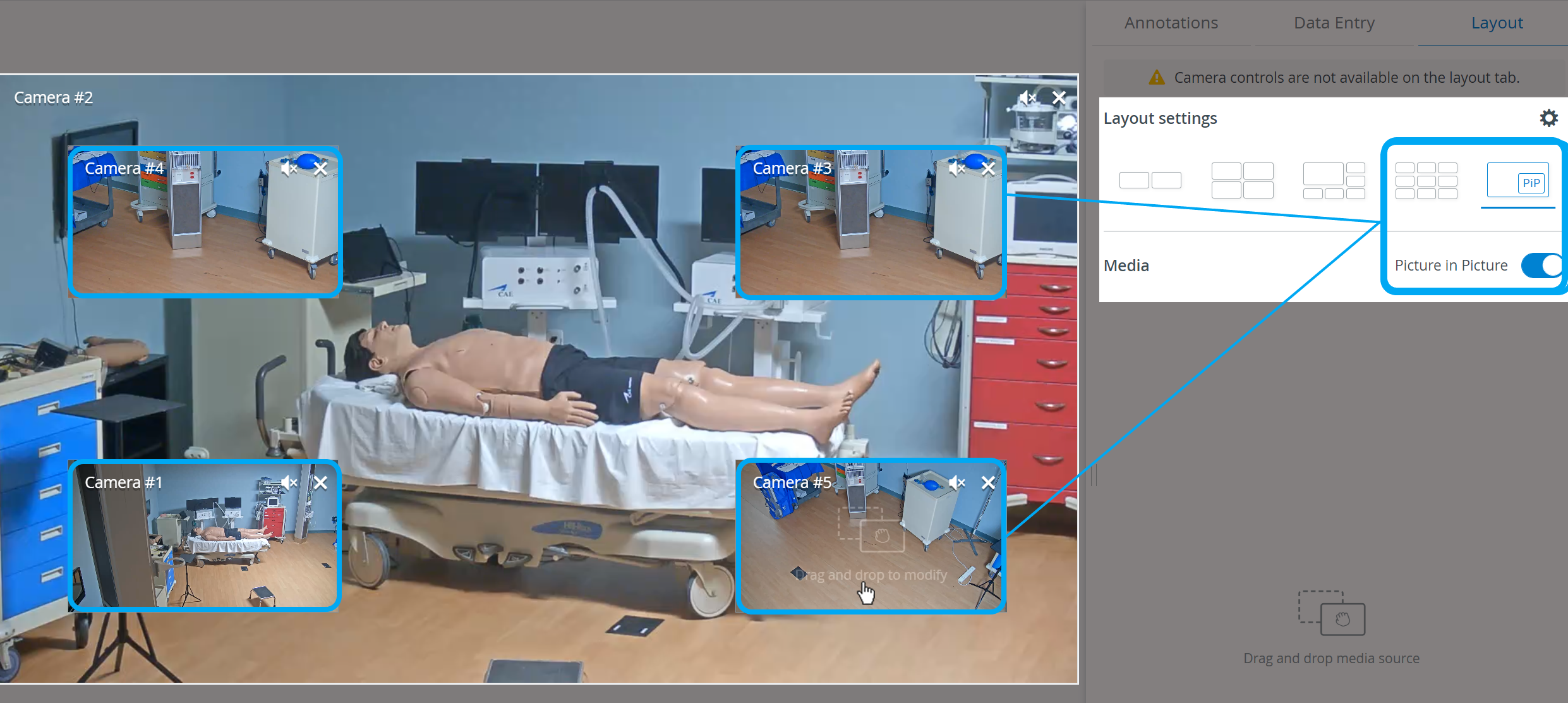
Single view: One selected feed is displayed. Picture-in-Picture view can be enabled by the toggle:
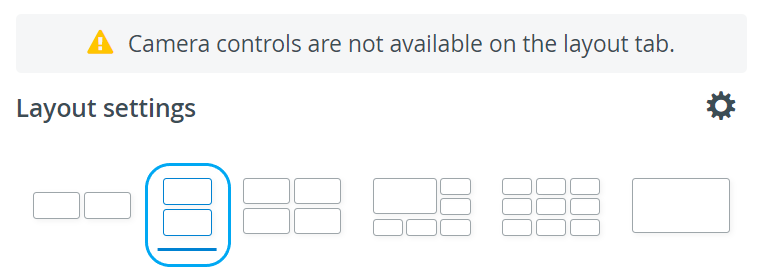
Vertical Double Layout
In some cases, two camera views must be displayed on top of each other (i.e., in a single column) during recording.
In the latest version of LearningSpace, the utilization of the space available in the Single Room View panels can be maximized, and the panels on the right side (or additional windows) can be displayed in a larger size with the help of the Vertical double layout feature:
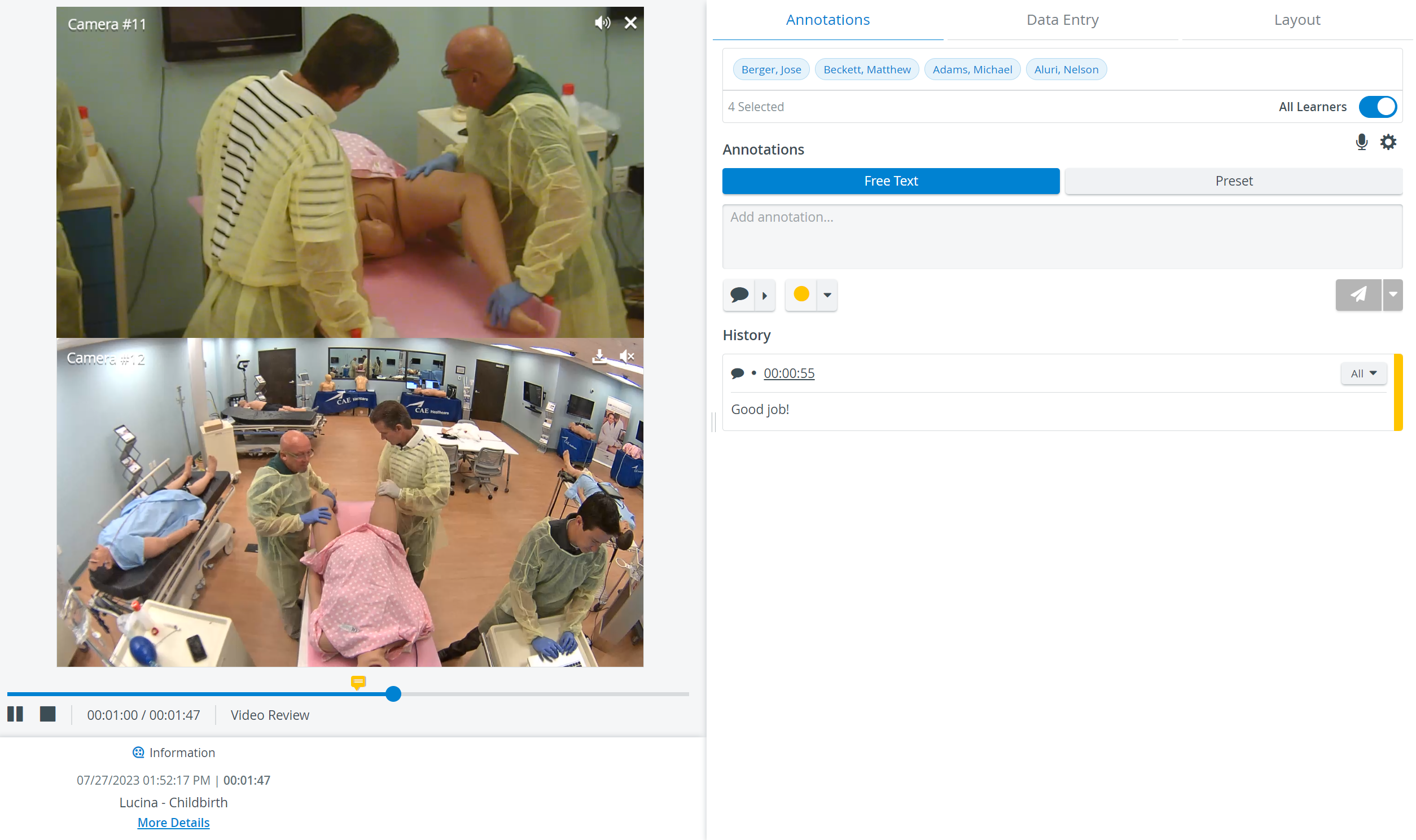
The recommended video size (aspect ratio) is 16:9 (e.g. 1280x720).
The sizing of camera streams might not be optimal with a 4:3 video size (an additional black bar/stripe might be visible at the upper and lower edges of the screen).
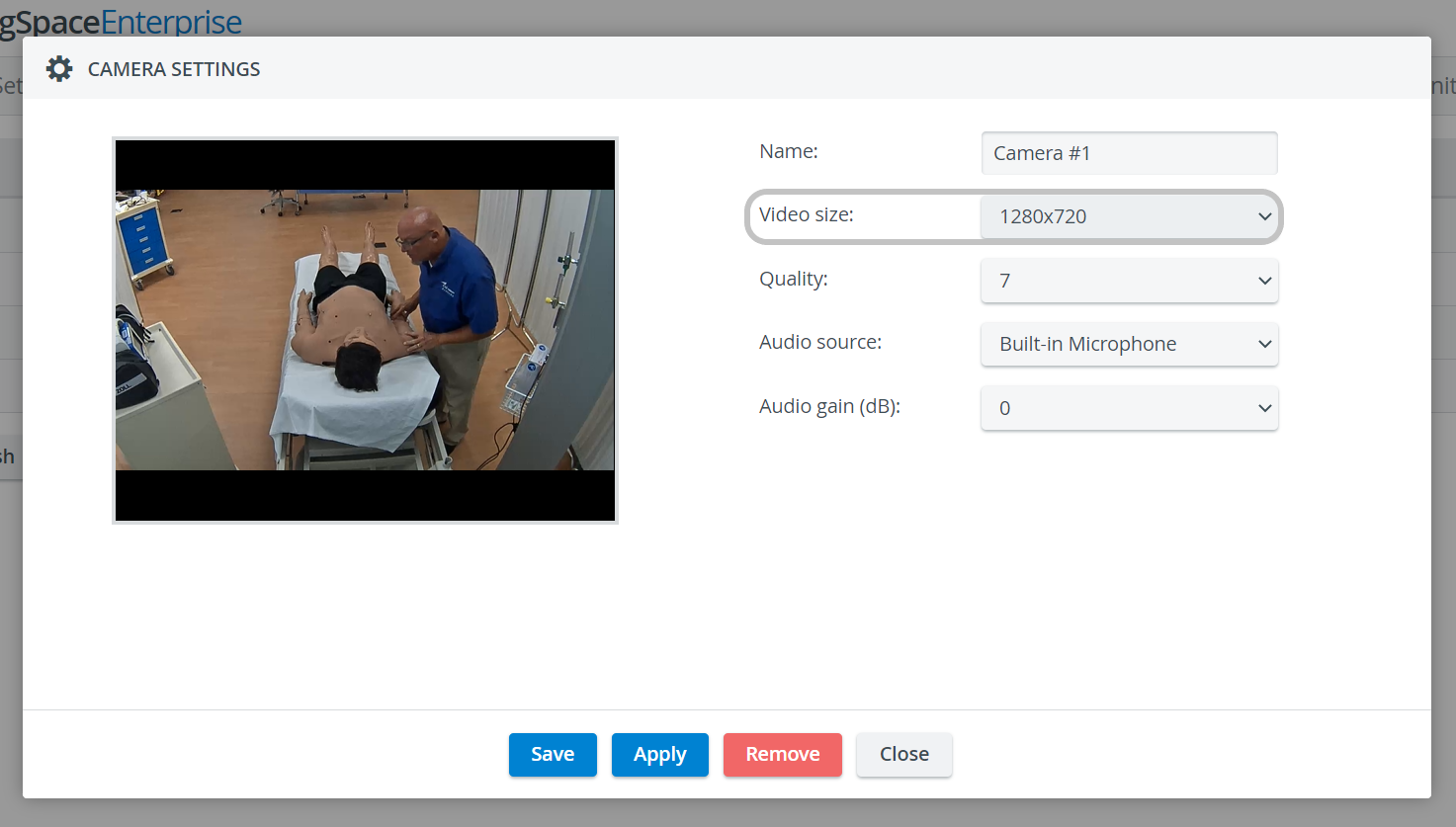
See also How to Manage Cameras and Speakers.
IMPORTANT: While the Layout tab is active, the on-screen Camera controls are disabled.
Before saving personalized layouts, all media sources are displayed in the optimal layout for new rooms by default.
IMPORTANT: A layout is saved as part of the User’s settings, not as part of the Room’s setup. This means that, while there is no option to have someone set up a custom layout for a given room to be shared with everyone, each user will see their own custom setup, and they will not overwrite each other.
After upgrading to the current LearningSpace Single Room View ("NextGen Room View"), existing Room layouts in the Legacy version of SRV are lost/reset.
Full-screen mode
The slider component at the bottom is available in full-screen mode.
The camera layout can be set to full-screen mode, not just a single media stream.
Media Section
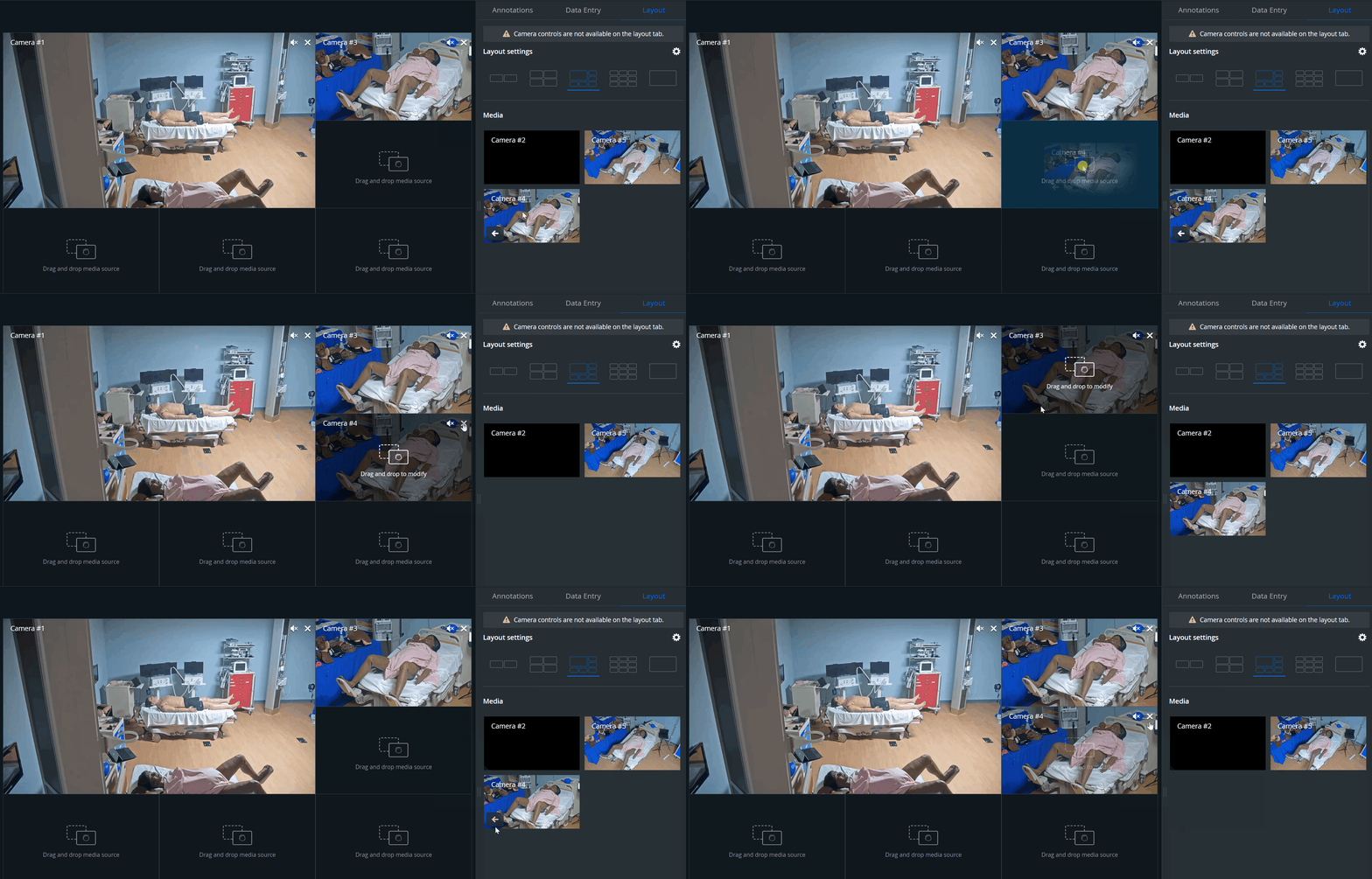
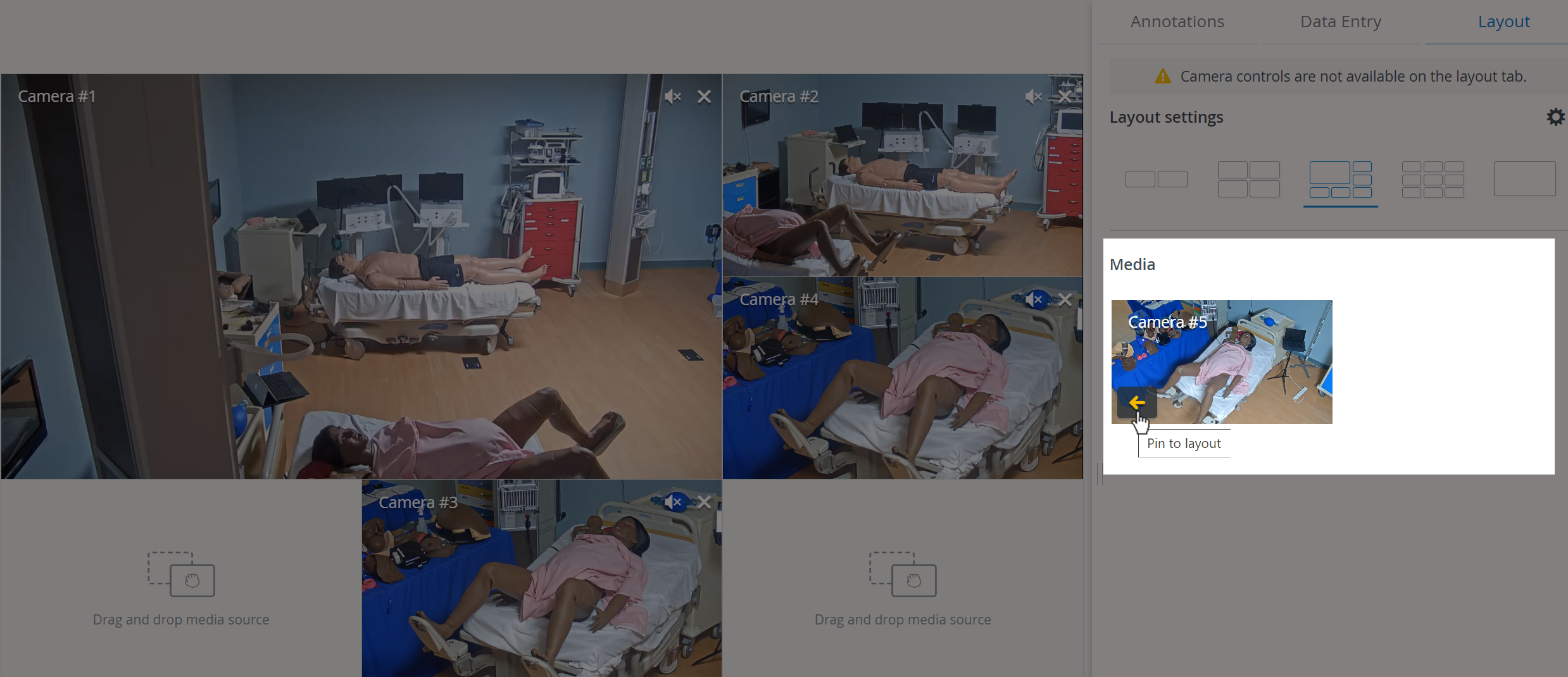
Camera feeds and simulator-related media (CTG, waveform, and trend chart/patient monitor) added to a room are available in the Media section. Media can be moved to and removed from the video layout - pinned or unpinned - using the drag-and-drop or pin-to-layout functionalities. This way, only the selected media sources will be presented to the viewers.
CTG, waveform, and trendchart/patient monitor are displayed in separate windows.
Drag-and-drop
Media sources (camera feeds, physio apps) can be moved into the video layout or into the Media section as desired using the SRV's new drag-and-drop functionality.
Pin-to-Layout


IMPORTANT
By default, recording applies to all media - whether added to the video player section or not. This can be overwritten in the Recording setup section.
Picture-in-Picture
One desired camera feed or media source can be displayed focused, while the rest of the media sources (a maximum of four) can be displayed in the corners of the video layout.
Media sources (camera feeds, physio apps) can be moved into the layout or the Media section as desired, using drag-and-drop or pin-to-layout.
The Picture-in-Picture toggle is only available in the single Layout view.
9-camera feed
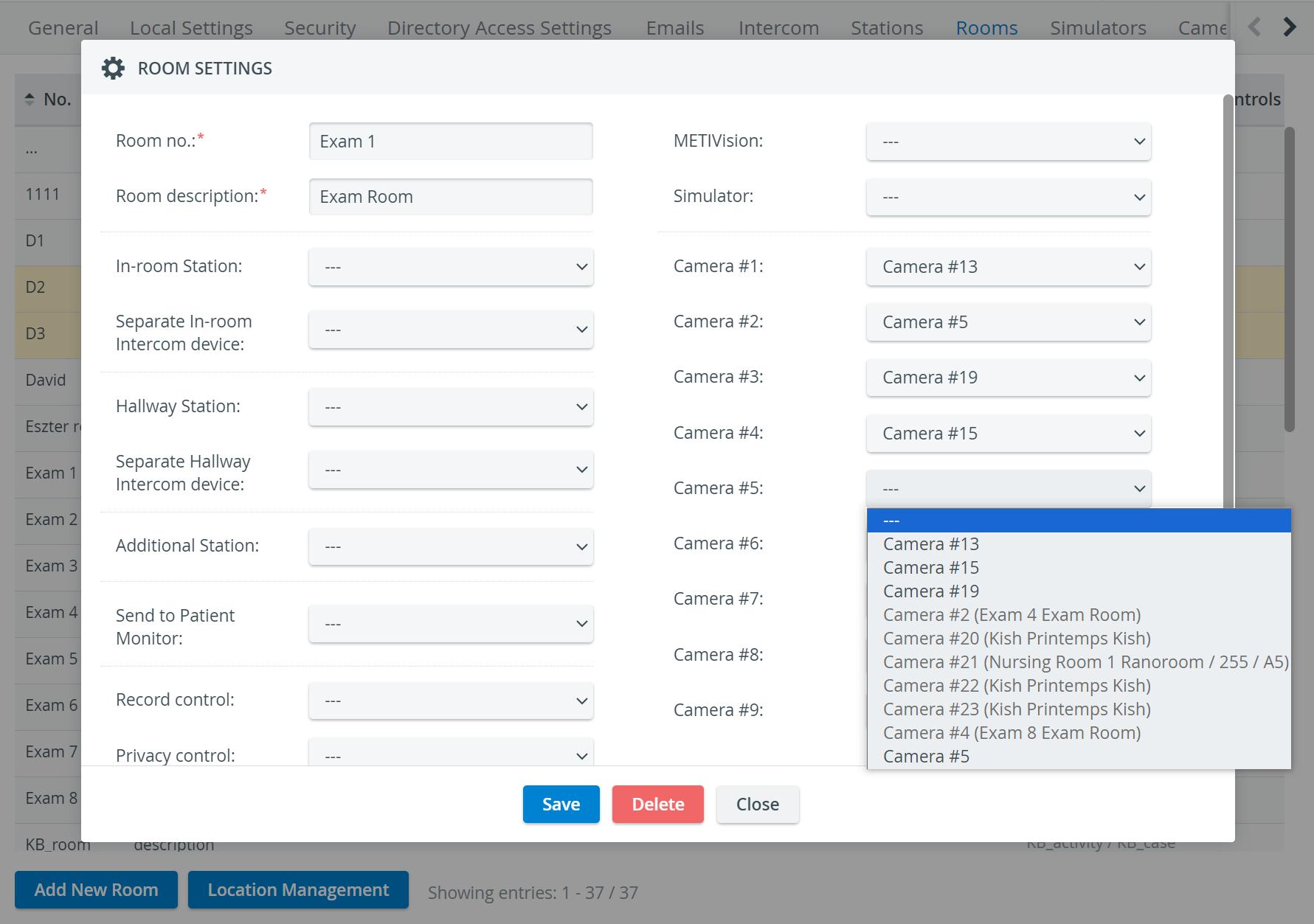
In the latest versions of LearningSpace, #6 #7 #8 #9, optional camera selector dropdowns have been added to the Room editor of the System manager.
It only allows the Single Room View's (SRV) 3x3 layout to be used with camera feeds.
The feature needs to be enabled on the backend and can be configured for a maximum of 9 cameras.
Please turn to your IT team to have the feature enabled and configured according to your needs!
Learn more on our Video review - How to pages.