Inventory Module Update 2022 Spring Feature notes
The latest Inventory Manager (2.7 version) will include the following enhancements:
Automatic Transaction assignee privilege assignment for new Learners
In the User Manager, when utilizing the Add new user option, the Transaction assignee checkbox is from now on checked by default for Learner privilege users (if the Inventory manager is enabled within the LearningSpace system).
This way, Learners can be selected as Transaction assignees during Transaction processes in the Inventory.

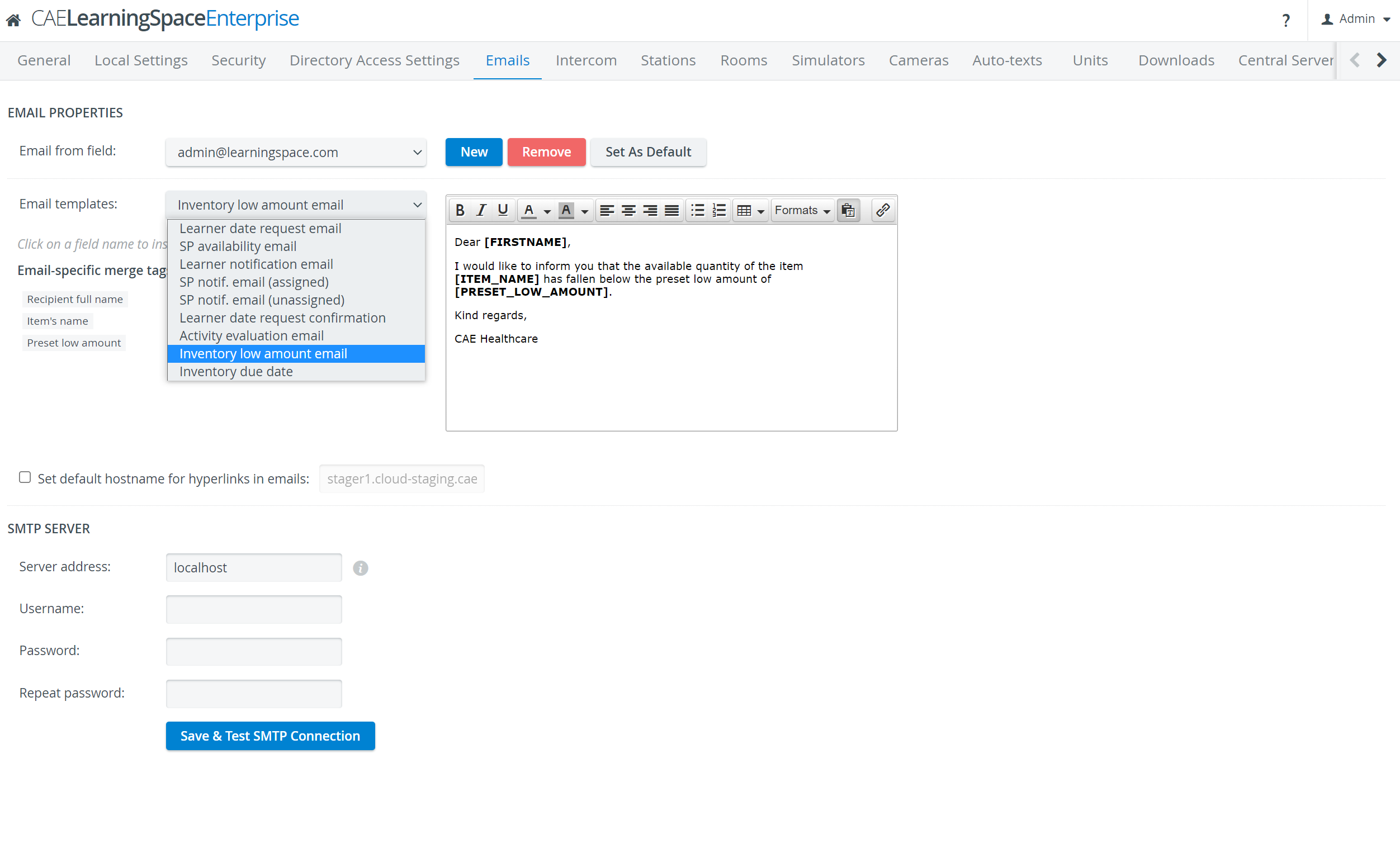
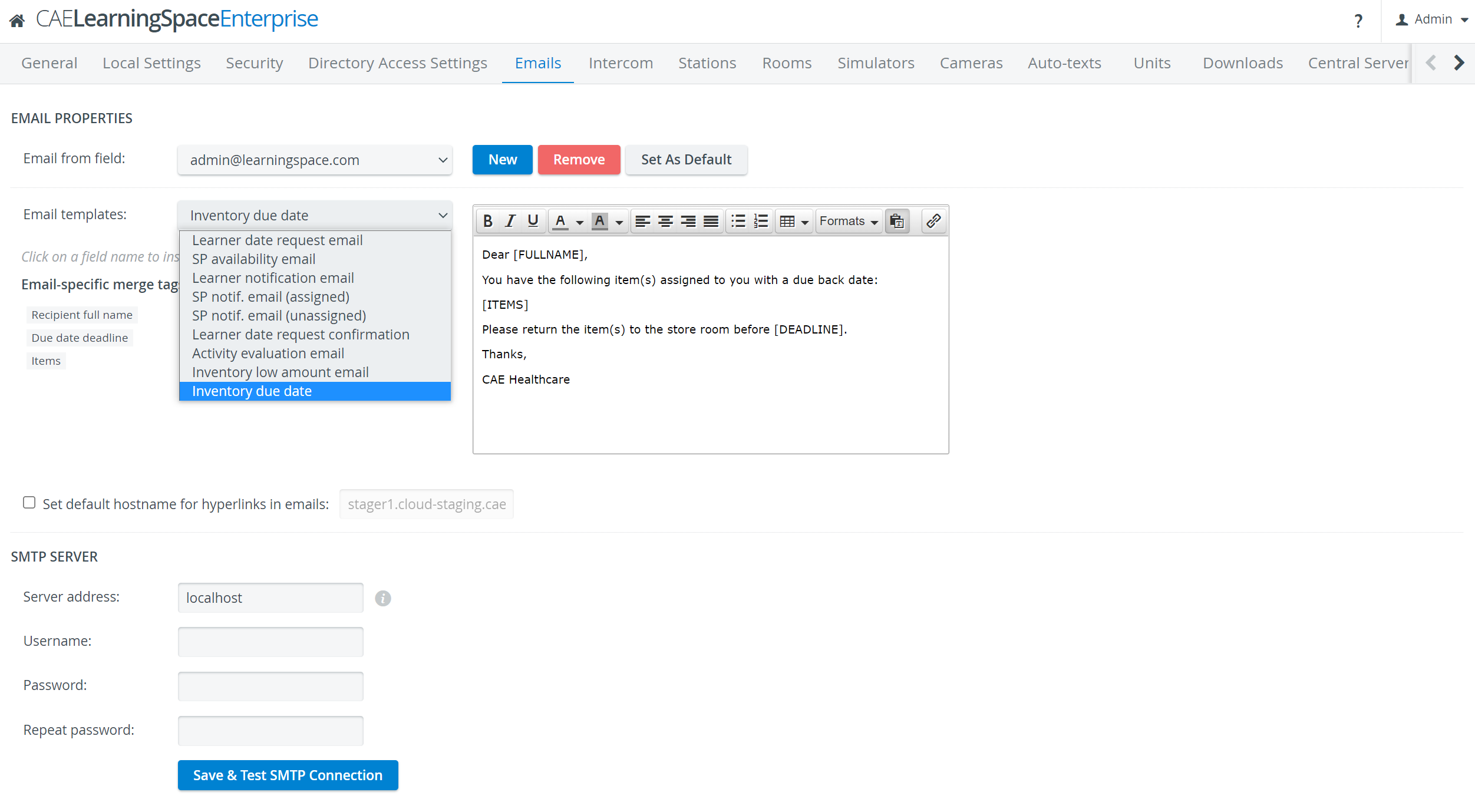
Email templates
Inventory-related email templates available on the System Manager's Emails tab have been specified. The following notification email templates are available in the respective dropdown:
Setup Sheet merge

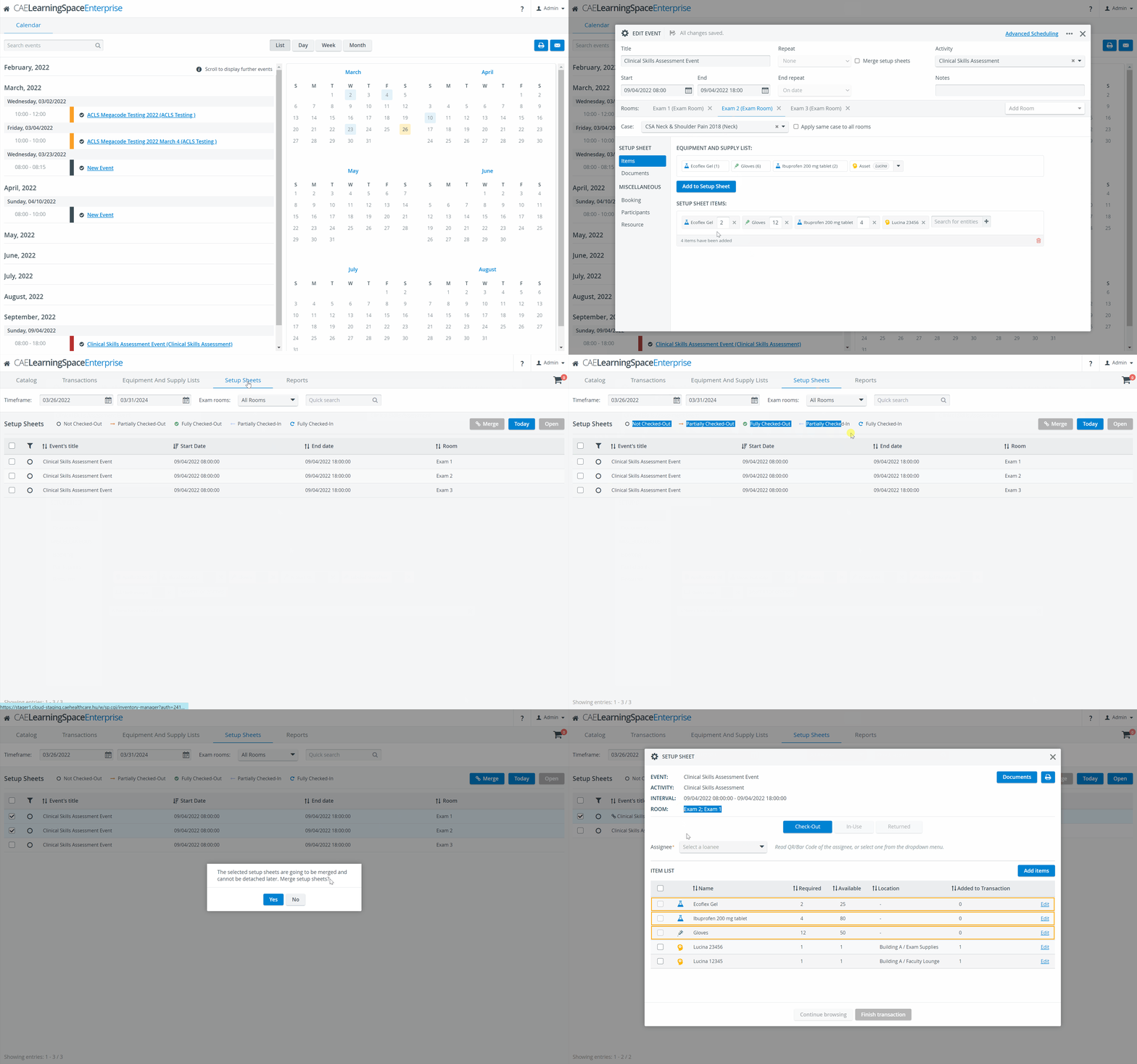
To facilitate the work of Inventory managers, Setup sheets of multiple Cases can be merged within Calendar events, with the new Merge Setup sheets option.
This enables them to Check out requested items using multiple Setup sheets simultaneously.
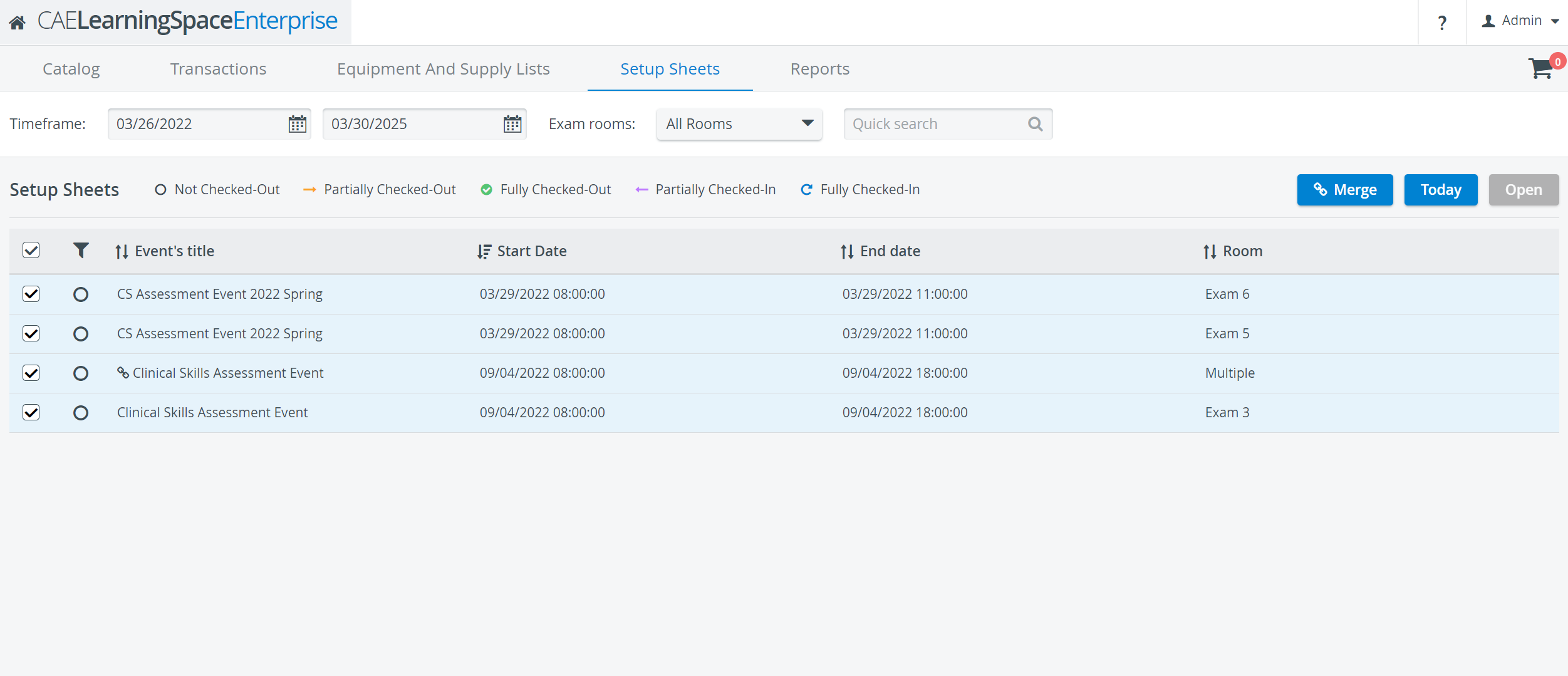
By hovering over the Setup Sheet merge icon, the information "Merged" is displayed.

You can merge:
Setup sheets of multiple rooms/cases within the same event (both in the Calendar and the Inventory module)
Setup sheets of different events (only within the Inventory module)
already merged Setup sheets (only within the Inventory module)
In the Calendar, only the Setup sheets of multiple rooms/cases within one Event can be merged. The merged Setup sheet only applies to the specific event it was created in.
A warning message is displayed before finalizing the merge:
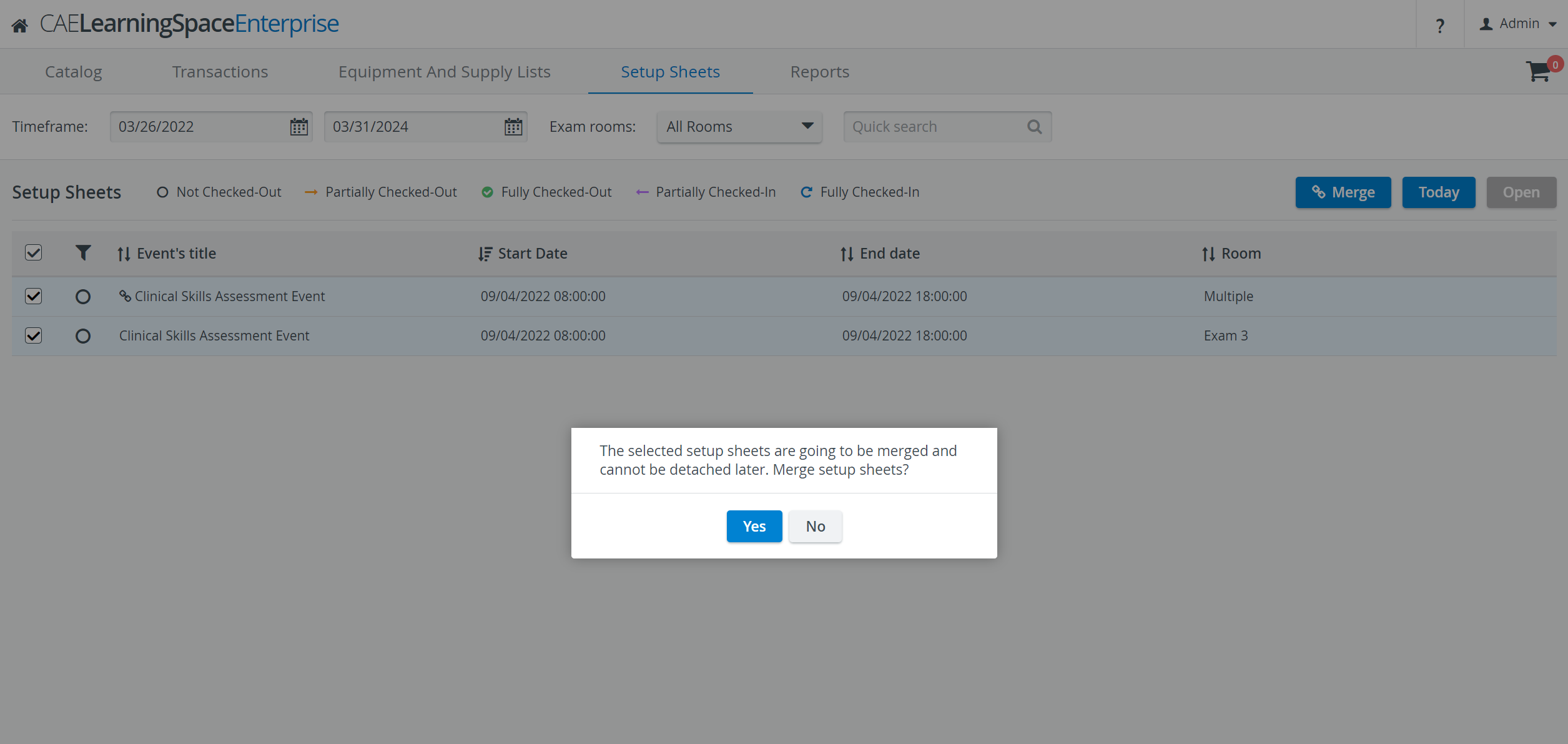
Merged Setup sheets can not be detached later on. If it is necessary to “undo” a merge, the merged Setup Sheets must be deleted and re-created individually.
You can delete or modify the merged Setup sheets within the Calendar event or delete the event itself.
A Setup sheet merge can also be performed via the Calendar module. In this case, only the Setup sheets of the selected event can be merged.
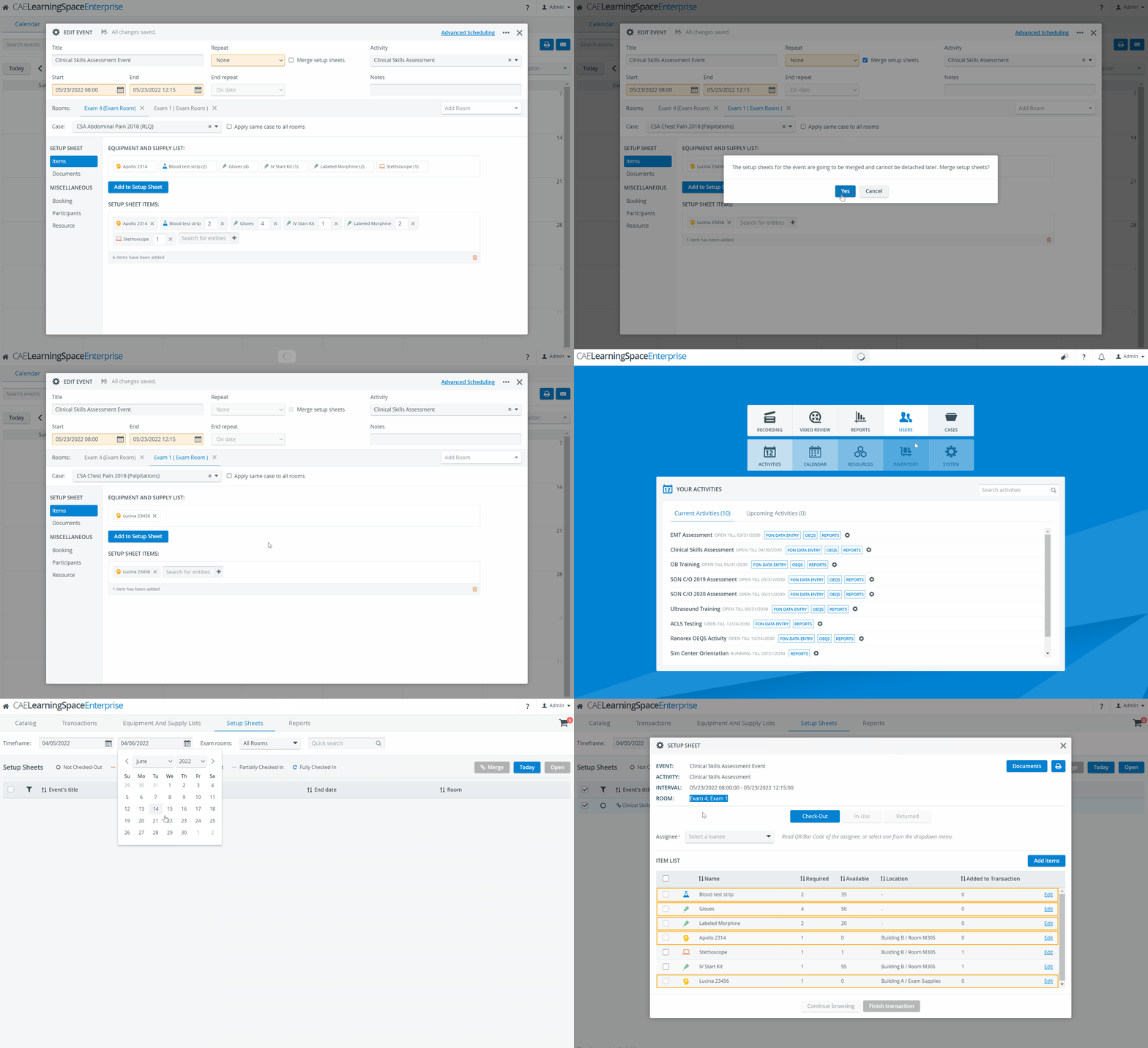
During a Setup sheet merge, Assets are not multiplied since these are all specific equipment, with an amount of 1.
Until Check-out, all additional items added will be included in the merged Setup sheet. After Check-out, further items can be added to the Setup sheet within the Inventory but not via the Calendar.
Since Setup sheets with Transactions cannot be modified, merging Setup sheets after Check-out is impossible either: the Merge button will be inactive.
See also: Document upload to merged Setup sheets.
Setup Sheet Statuses
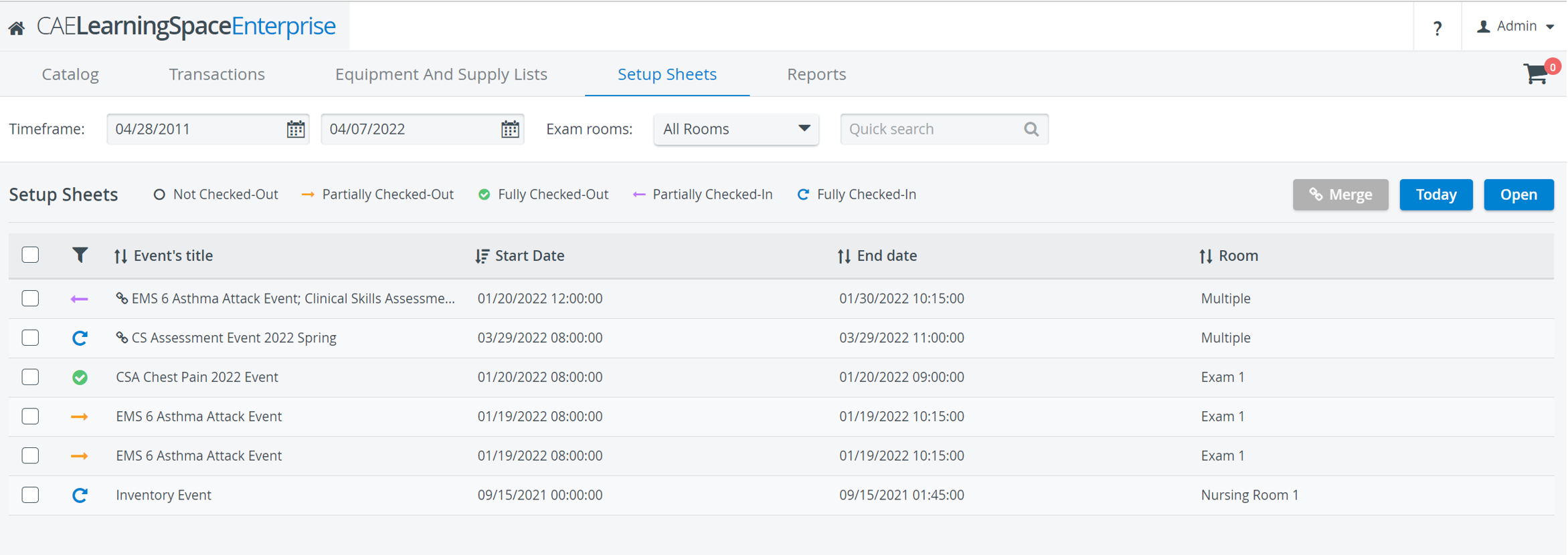
New status symbols have been implemented for Setup sheets in this new version of the Inventory manager:
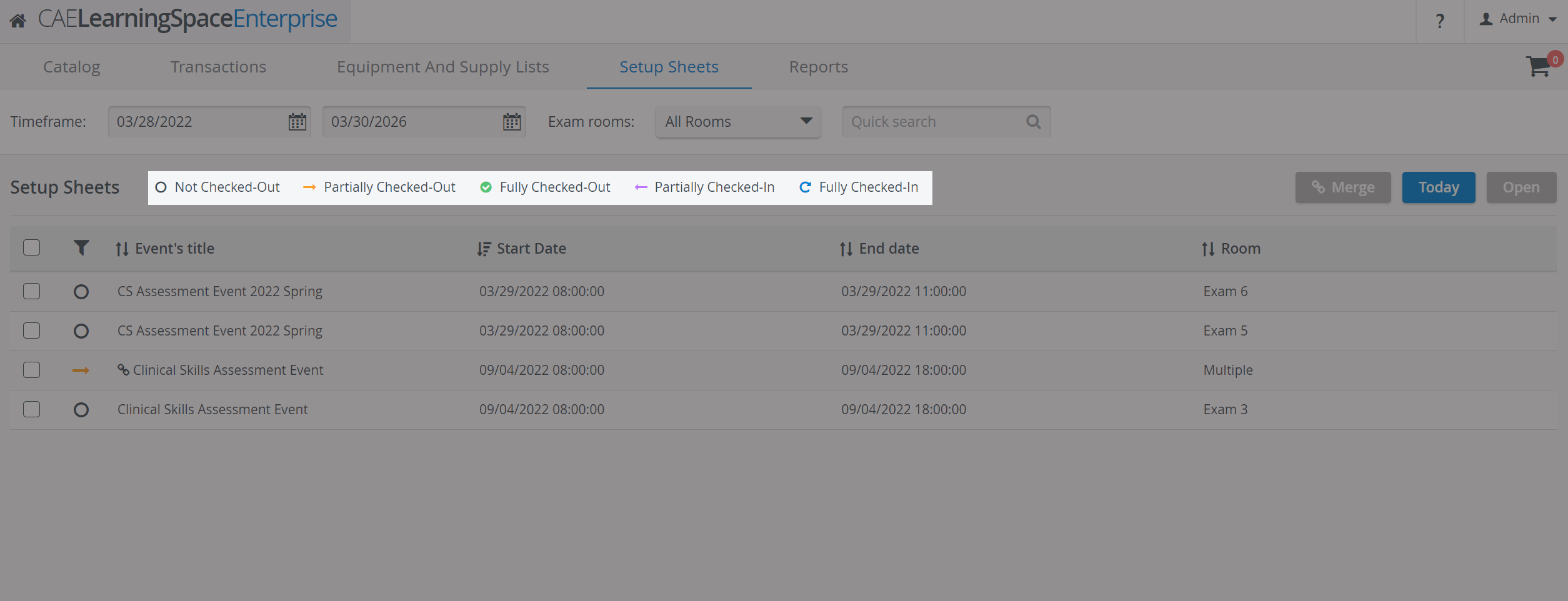
- Not Checked-Out

- Partially Checked-Out

- Fully Checked-Out

- Partially Checked-in

- Fully Checked-in

The status symbols are displayed on the Setup sheets tab, according to a Setup sheet's Check-in or Check-out status.
Item Status
Items of a Setup sheet can be checked out and checked in (returned) individually or all at once - depending on their availability in the Inventory.
Based on its status, an item can be displayed under the
Check-out tab → this tab indicates which items were requested when the Setup sheet(s) for the event(s) were generated ("to be checked out")
In-Use tab → items already checked out can be checked back in from this tab (Consumables can be checked back in after editing/selecting location and amount)
Returned tab → this tab indicates which items have been checked back into the Setup Sheet.
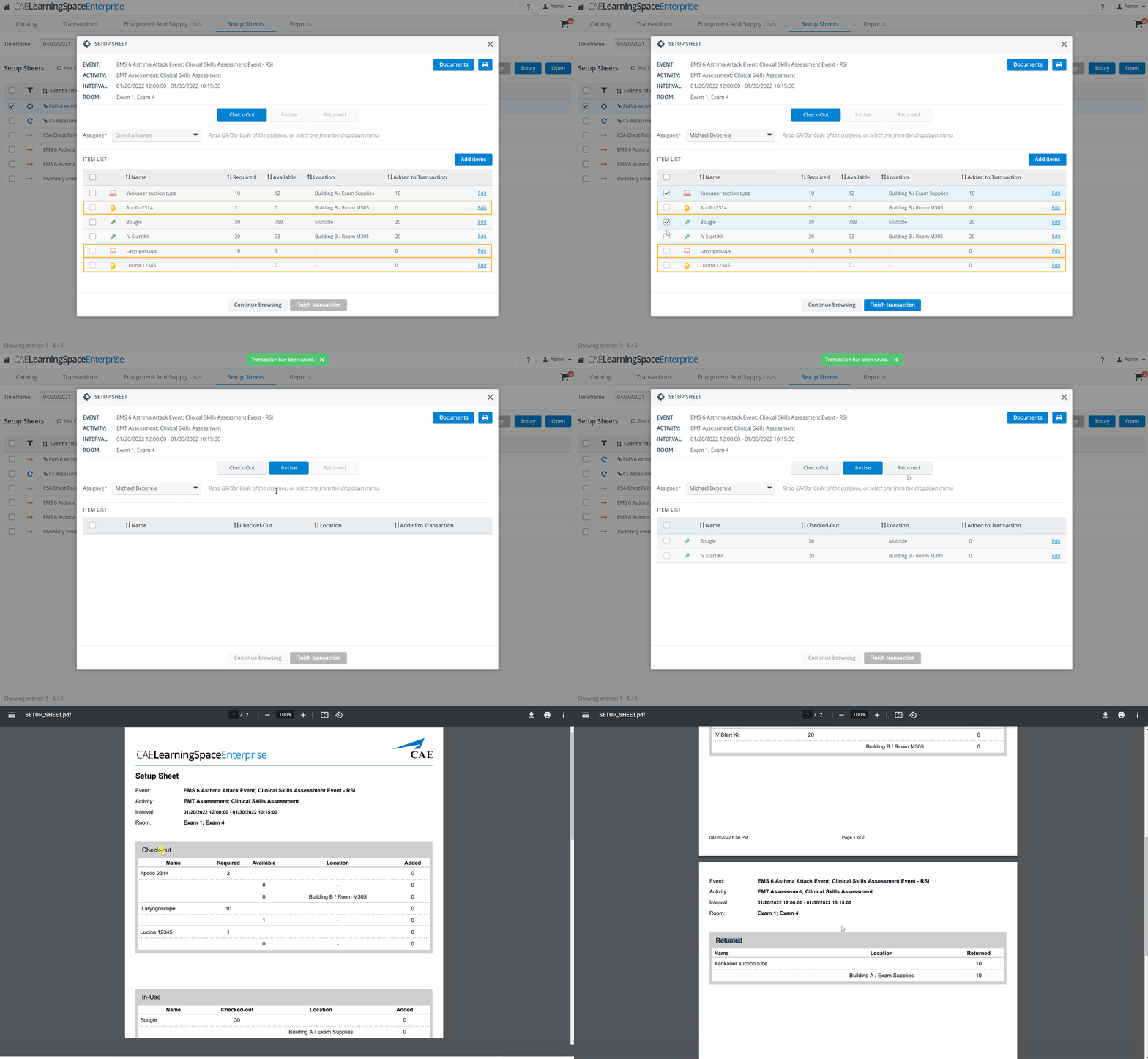
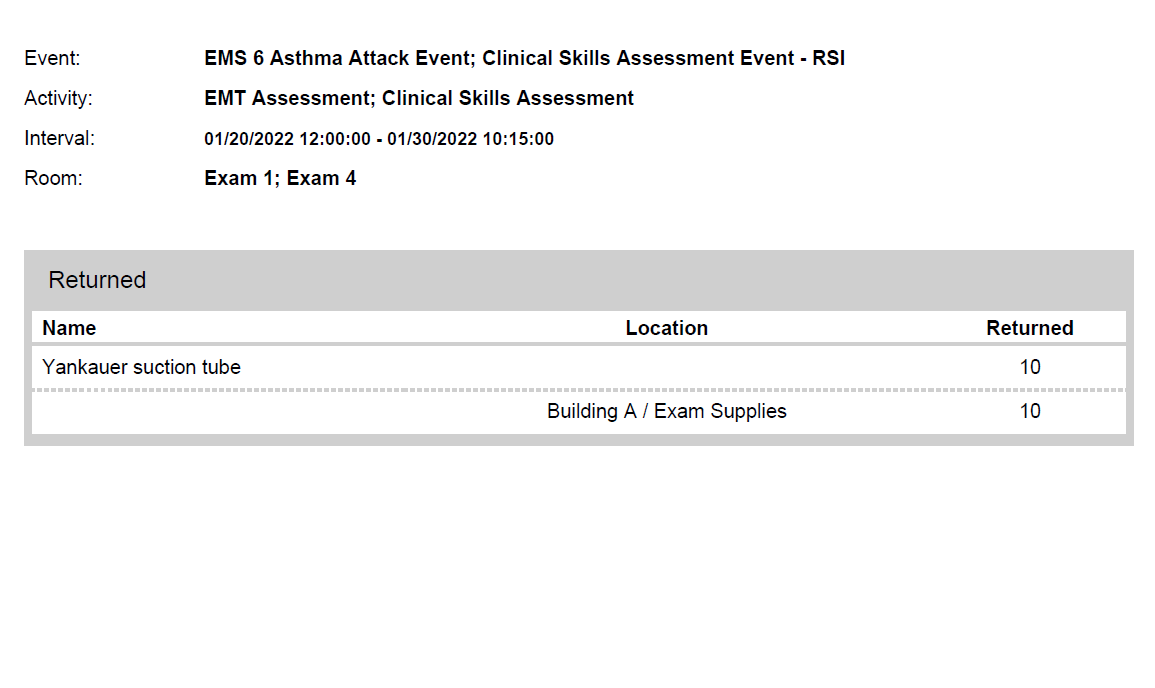
Also, in the printed version of a Setup sheet, the items are from now on grouped and listed by their status: Check-out, In-Use, Returned.
Required Quantity

The required quantity of each setup sheet item is displayed in the individual items' Setup sheet pop-up to help during the Transaction process.
If the Added to Transaction quantity of an item is lower than the required quantity, the item is displayed in an orange frame and cannot be checked out until the necessary amount
has been checked in (in the case of Assets and Non-Consumables)
has been selected based on the expiration date (in the case of Consumables with expiration); after clicking Edit,
has been selected based on location (in case the required full amount is not available at only one location) after clicking Edit.
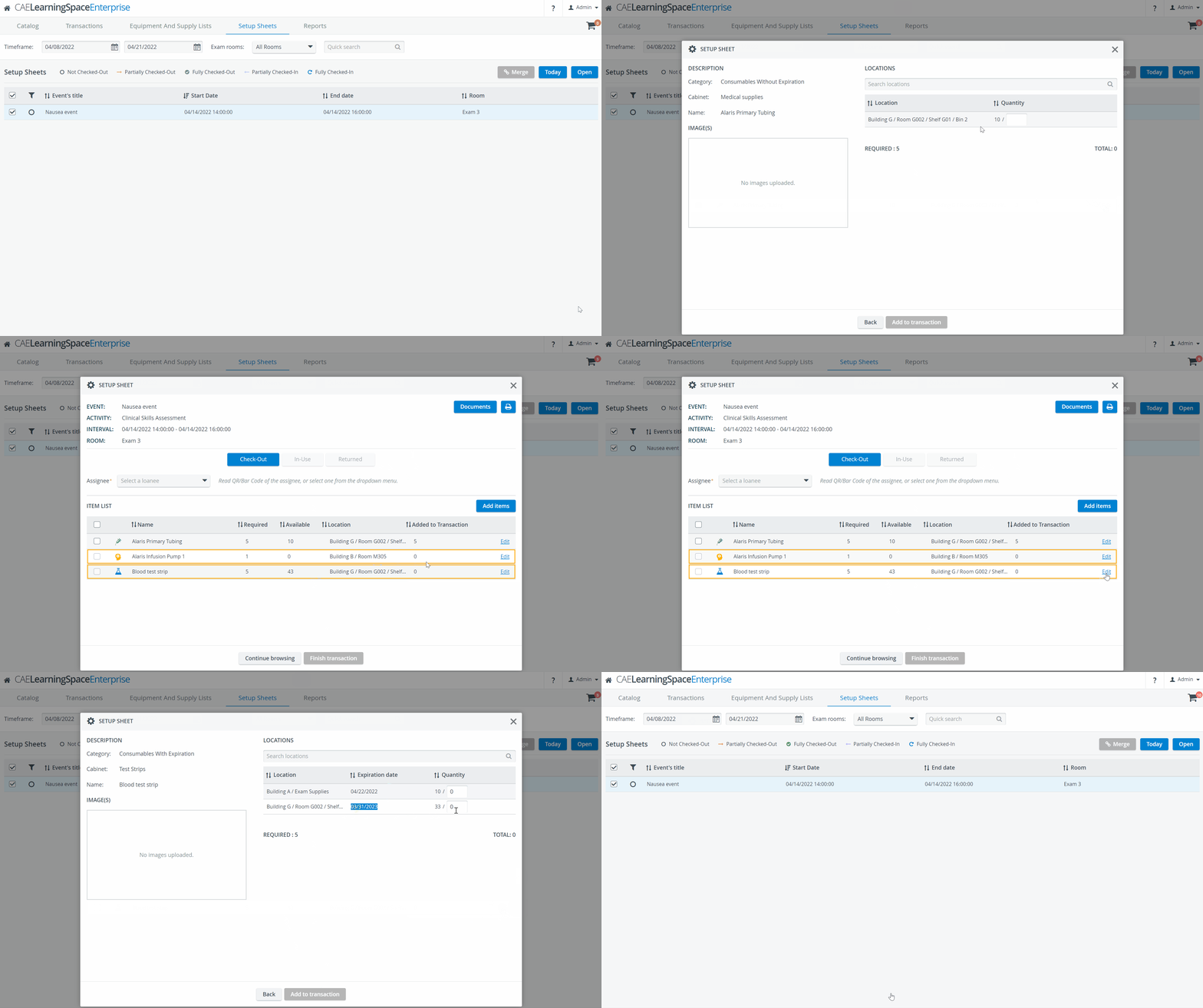
The orange frame is displayed according to item type as follows:
Assets: it is only displayed if the item is not in stock
Non-Consumables: it is only displayed if the item is not in stock
Consumables with expiration: it is always displayed upon opening a Setup sheet until the item has been added to the transaction based on the expiration date and/or until the item has been selected based on location
The frame indicates that the requested quantity has not yet been selected for Check-out.
It is possible to complete the transaction without the full required quantity being checked out - and this will result in a partially checked-out status of the Setup sheet. In such cases, the orange frame remains.

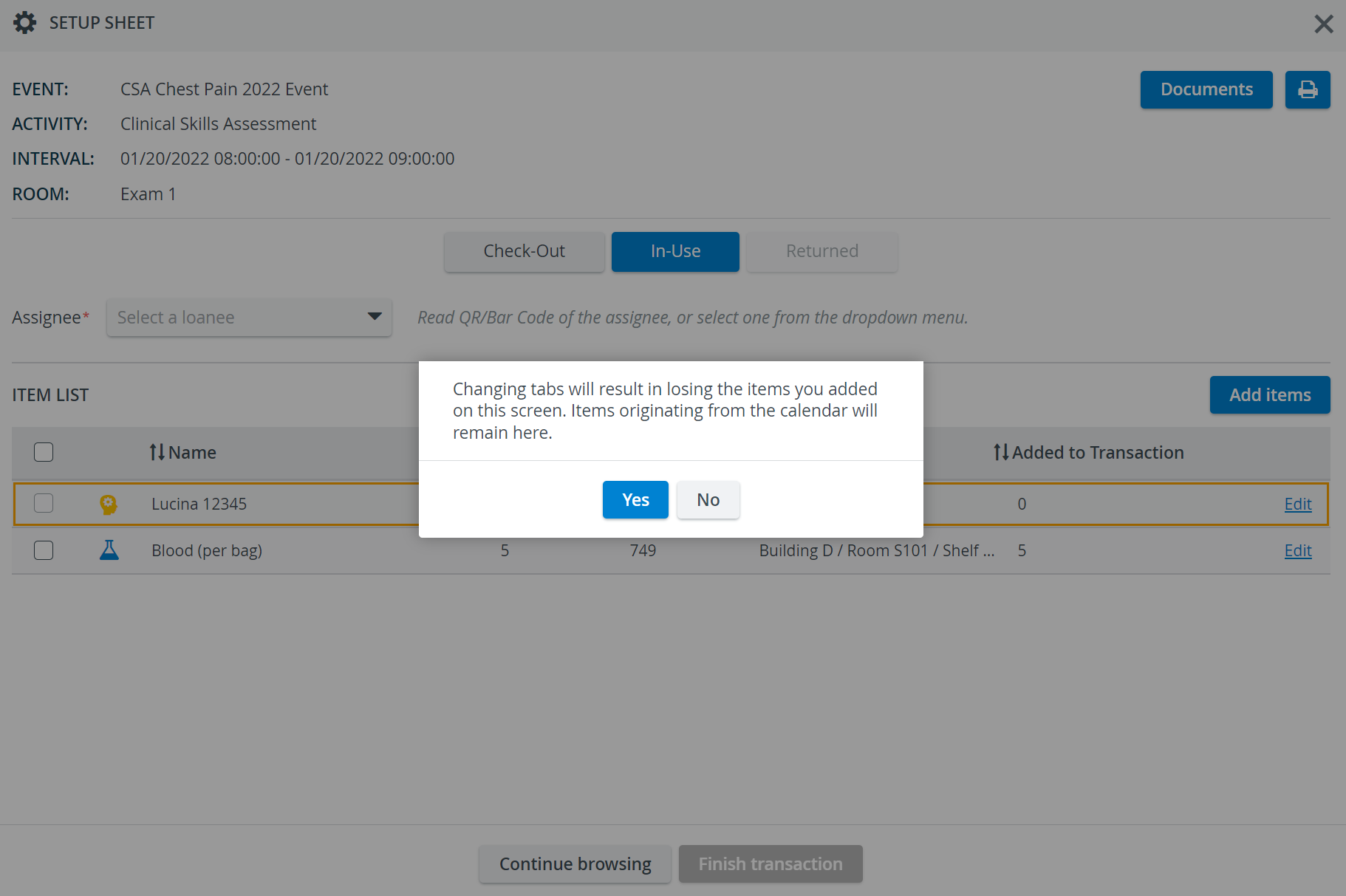
The Add Items button allows you to add additional items to the Check-out tab.
However, if you change tabs before finishing the Check-out transaction, the items will disappear.
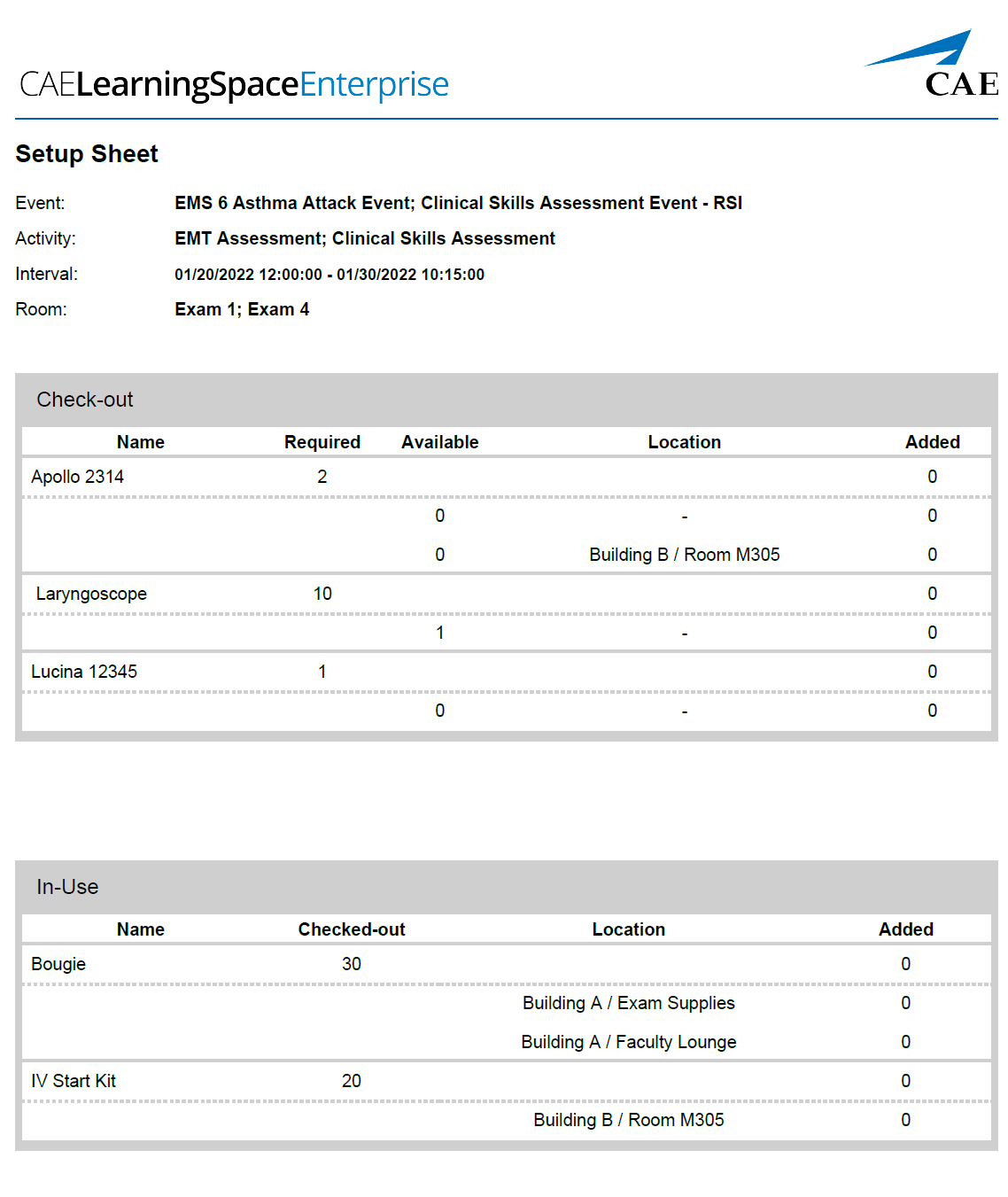
Change in the printed Setup sheet
In the printed version of a Setup sheet, the items are from now on grouped and listed by their status: Check-out, In-Use, Returned:
Document upload
From now on, document upload is possible to events via the Calendar module without a Setup sheet being added to the event (if the Inventory Manager module is enabled).
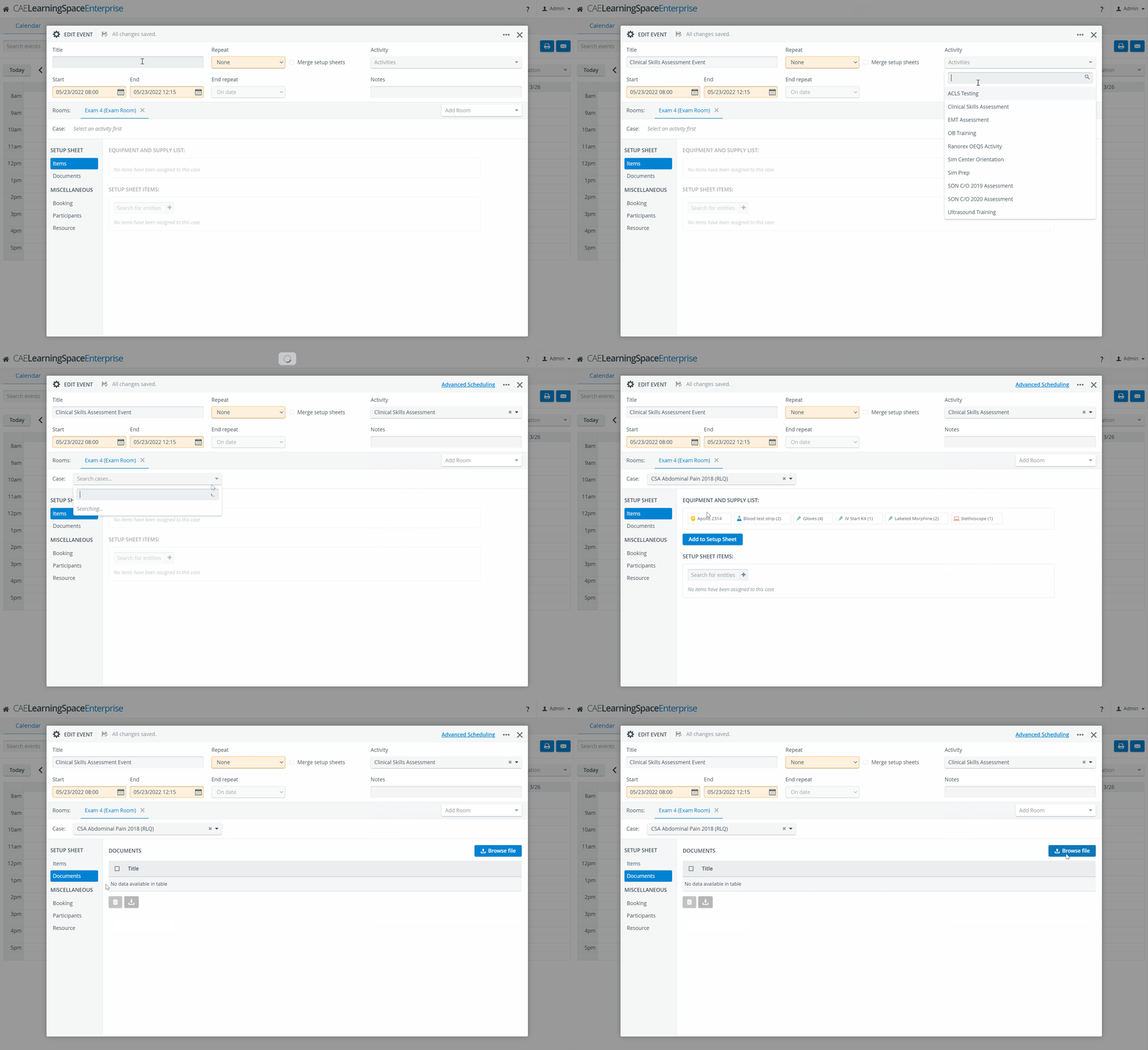
Documents uploaded to events this way are only displayed in the Calendar, not the Inventory module. Once a Setup sheet is added to the event, however, the documents will be available in the Inventory as well.
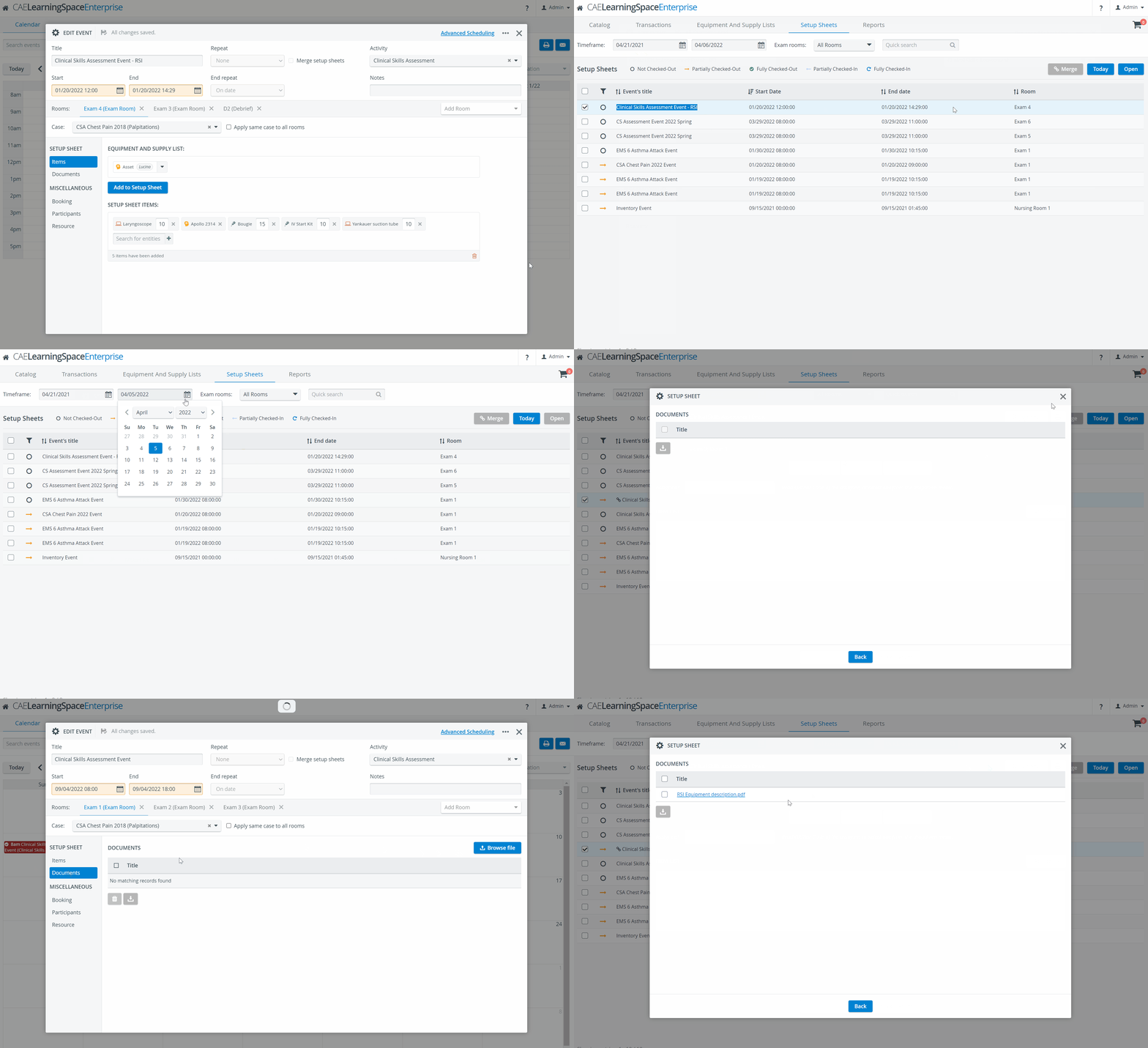
Documents can be uploaded to Setup sheets in the Inventory and the Calendar modules.
When Setup sheets are merged, documents previously uploaded to them are also added. After a merge, documents can only be uploaded to an event via the Calendar.
Search option for Equipment and Supply lists
A Quick search field has been added to the Equipment and Supply Lists tab to help find Equipment and Supply lists easier:
