Intercom Panel in Center Overview
Available to users with Intercom privileges or Admins.
The Intercom panel is located on the left side of the Center Overview (CO).
When entering Center Overview—CO, the Intercom panel is minimized by default; click it to display it, or use the Window Layout Settings in the upper-right corner of CO to change the layout.
Send live or recorded audio announcements via the Intercom to the authorized hallway (learner) and/or in-room (SP) workstations, speakers, or other intercom endpoints set up in the rooms displayed on CO.
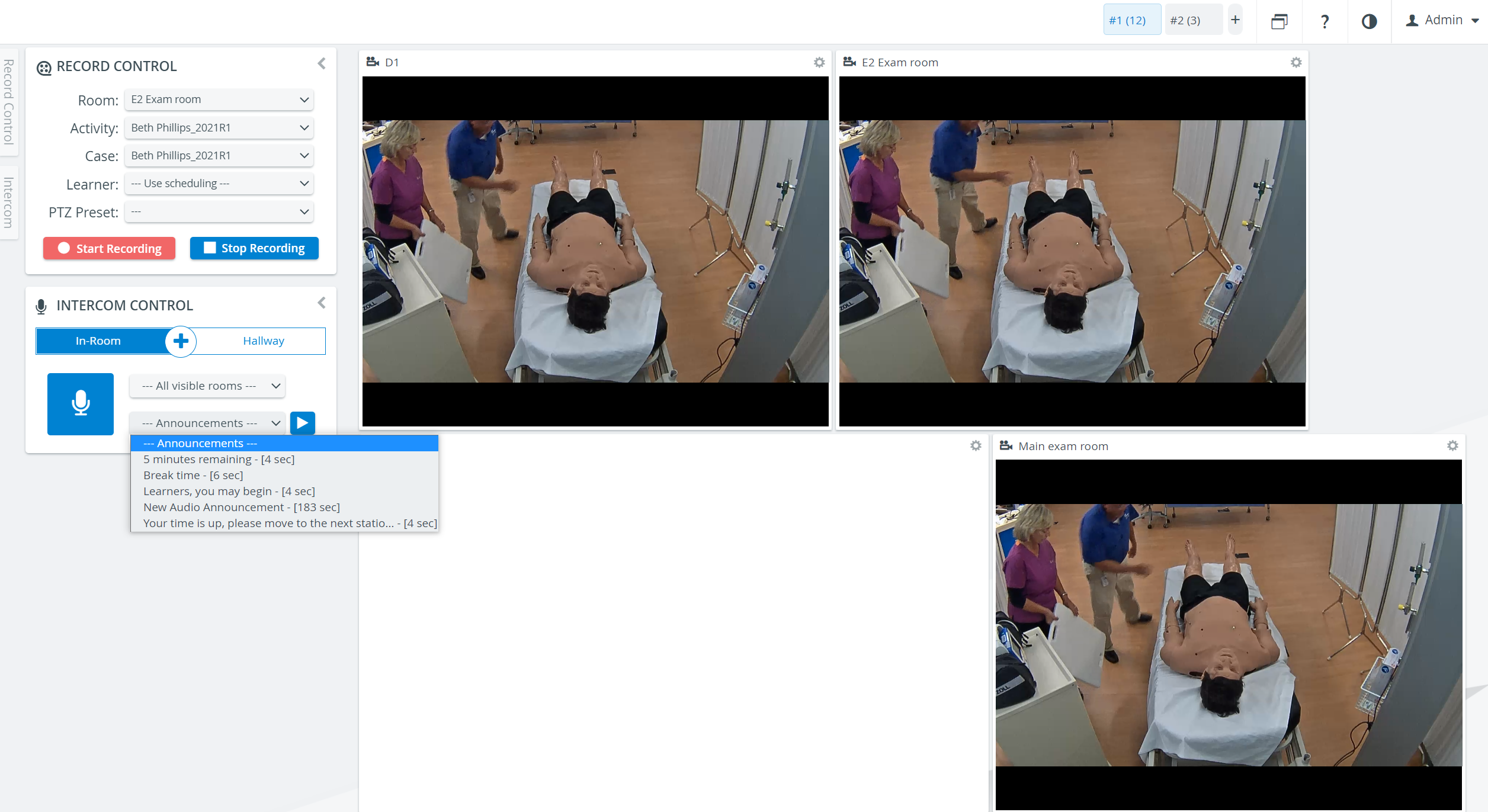
Authorized workstations, speakers, other intercom endpoints, and preset announcements are set up and enabled in System Manager. For details, see How to Set Up Conditions for Intercom.
IMPORTANT: The Intercom functionality in LearningSpace requires the web browser to have access to the client PC's microphone, which in turn requires a secure HTTPS connection to the LearningSpace server.
That is, the use of the client computer's microphone can only be conducted with a valid SSL certificate. (This restriction stems from the Chrome browser security regulations.)
The Push-to-Talk function of Intercom is not supported on iPads in LearningSpace.
Continue to this page to learn how to use the Intercom in Center Overview.
For more information, go to the Recording - How to pages.