How to View Recordings
Video Review Page
Select the Video Review icon on your Dashboard.
You will enter the Video Review module's list view, where all recordings you have access to are listed.Recordings are sorted by their creation date, by default, from newest to oldest.
The list can be rearranged by clicking on the column headers to sort by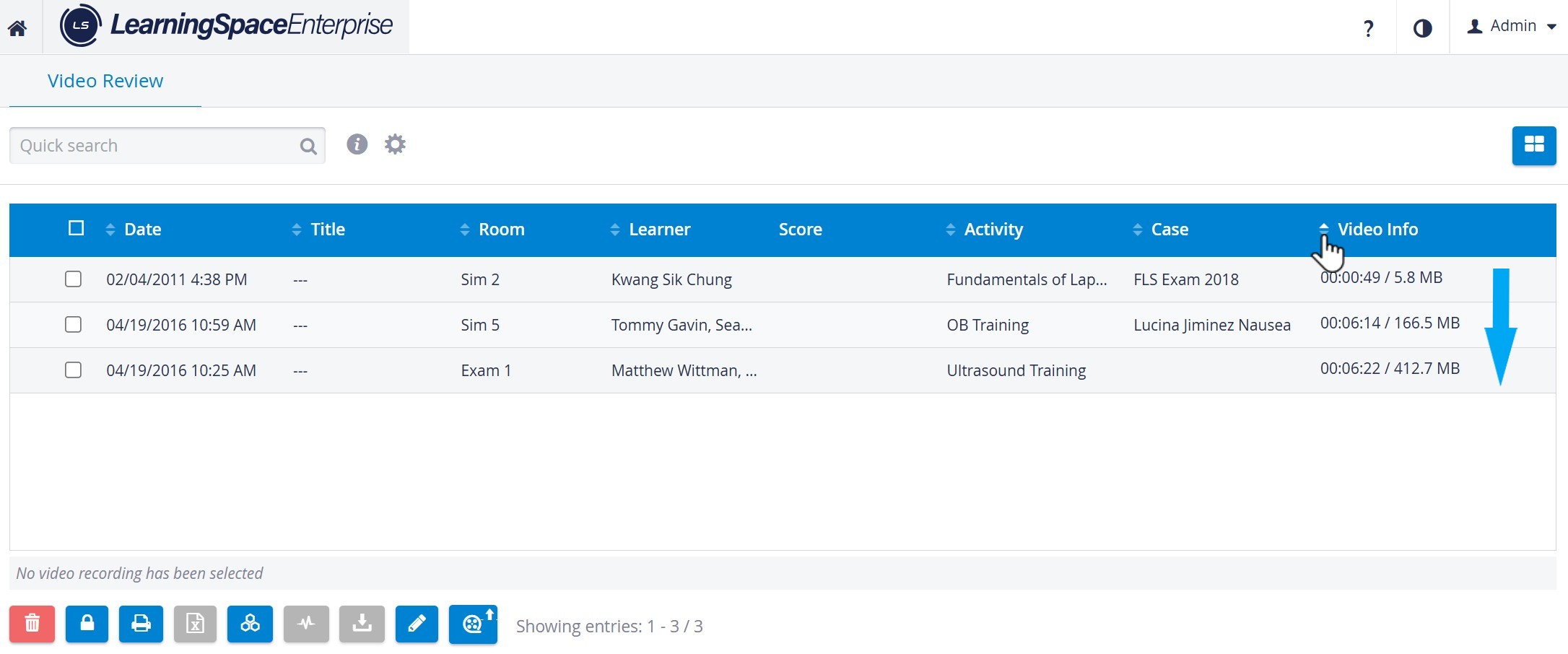
Date,
Room,
Learner/SP/Faculty
Activity/Case, or
Video Information (length/size)
Click on a column header to reorder the rows according to that particular data type. For example, click on the Activity header to sort the recordings in alphabetical order by the name of their activities.
By clicking on a column header twice, you reverse the order of the selected data type.
Custom sorting is not saved in a user's profile. The module restores the default order of the recordings every time a user returns to this page.
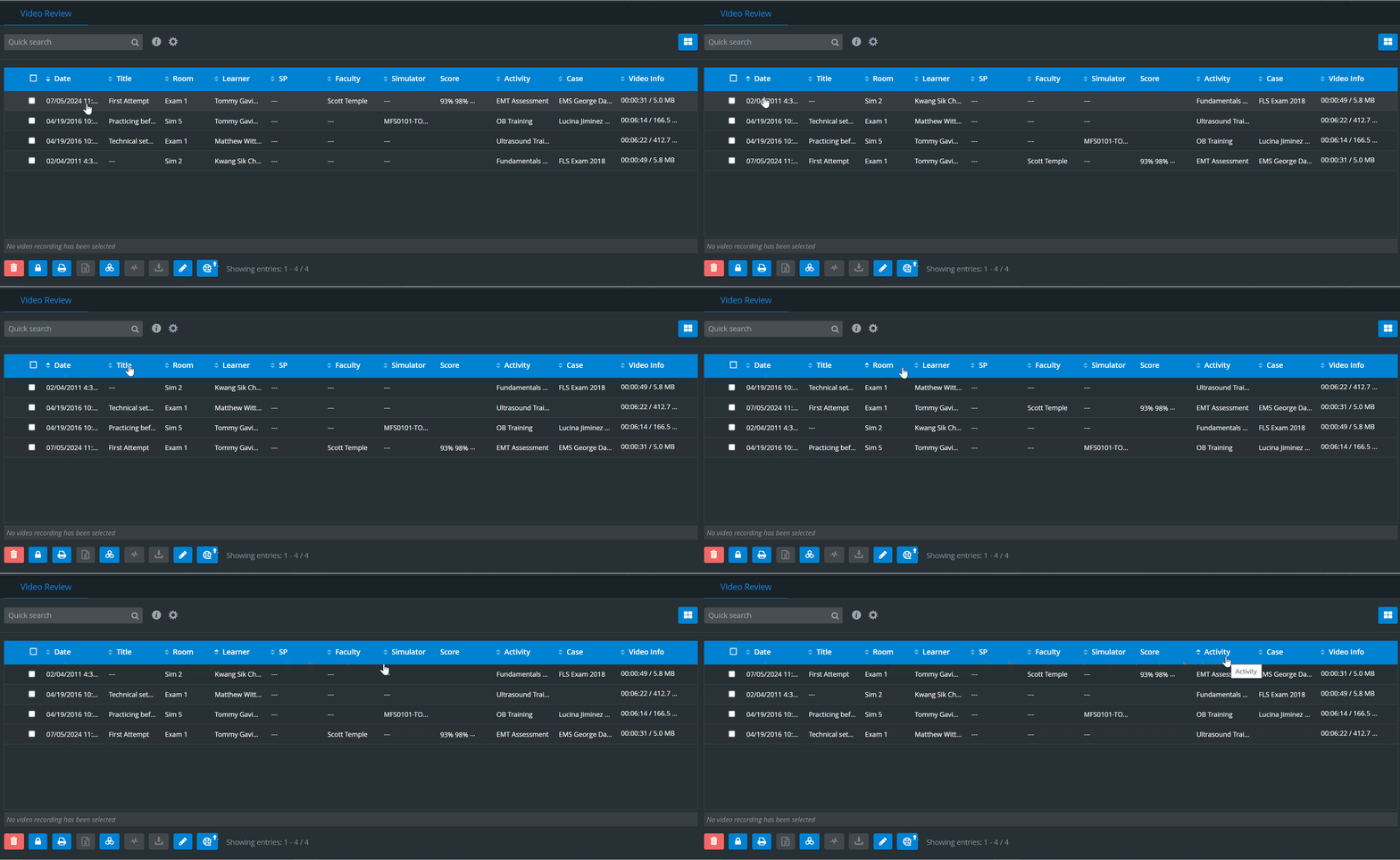
Learn more about the different layout options in Video review on our Grid Layout and List View pages.
SP Names on Recordings
SPs' names appear on a recording if they are either assigned manually or automatically—by Scheduling—to the recording or after they submit data entry for a learner featured on the recording.
If the SP who portrays the Case differs from the SP who submits the SP checklist, both names will be included in the List View recording. Entering the Room View of the recording, only the SP who was assigned manually by the Record control panel or automatically by Scheduling will be included.
If the SP portraying the Case is the same as the SP who submits the SP checklist of a learner, the SP's name is included only once on the recording.
All SPs who submitted a checklist will be listed if multiple SP checklist submissions are allowed.
The SP who submitted most recently will be displayed if multiple SP checklist submissions are not allowed.
Quick Search
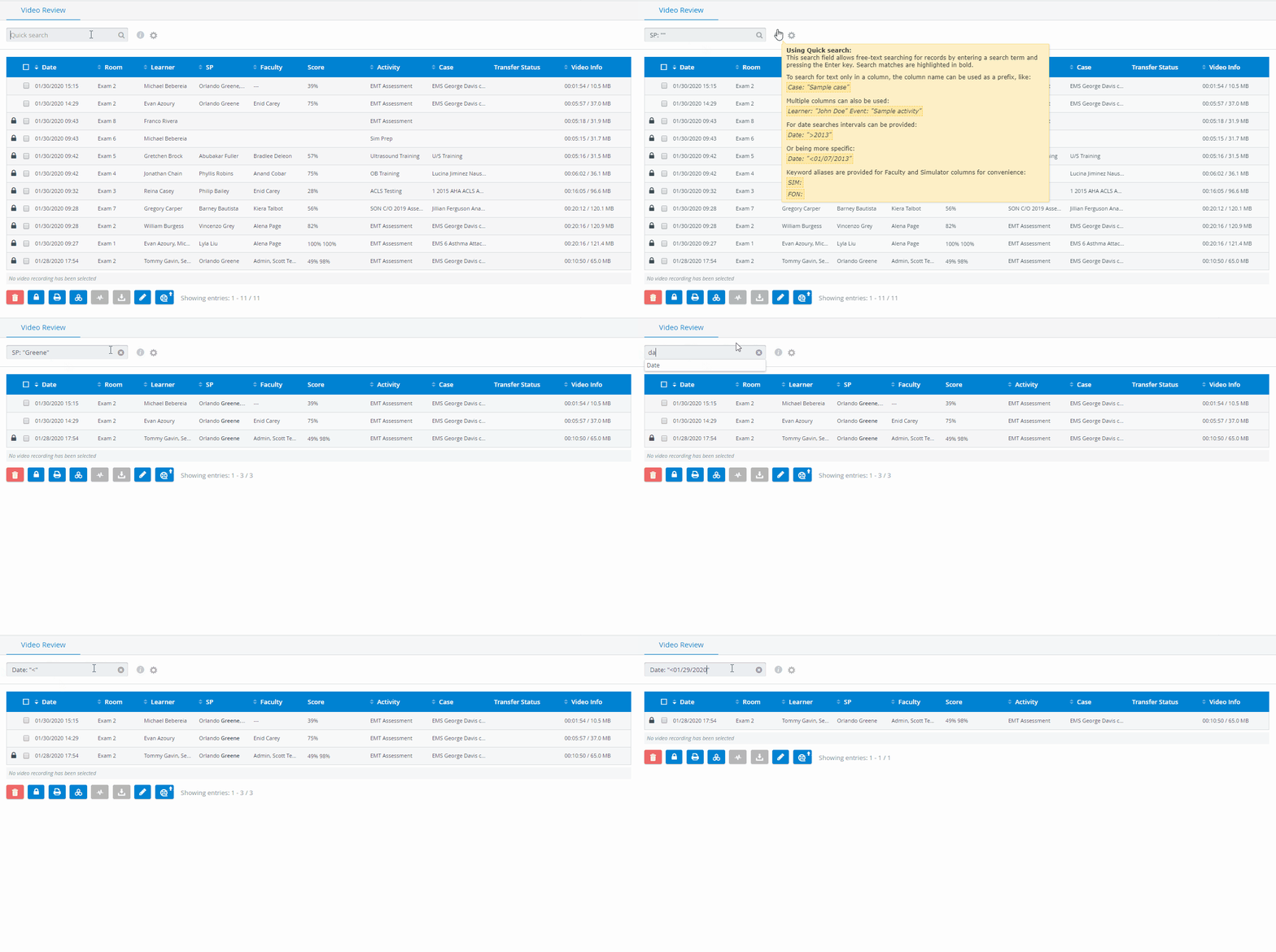
Use the Quick search field to filter and quickly find recordings
You can search by any property of the recordings except for the learners' Scores and Video info.
a. Hover over the information tooltip to display advanced search options:
Narrow your search to specific properties with the automatic search filters: Date, Room, Learner, SP/SIM, Faculty/FON
Activity and Case filters can be selected in the field.
b. Click the cogwheel next to the information tooltip to extend your search to:
Search inside annotations
and/orSearch inside event logs
By selecting each or both checkboxes, the system will look up the keyword you entered in the recordings' annotations and/or event logs.
The module will filter down to the recordings that contain the specific keyword.

Opening a Recording
Click in the row of a recording to enter its Single Room View (SRV).
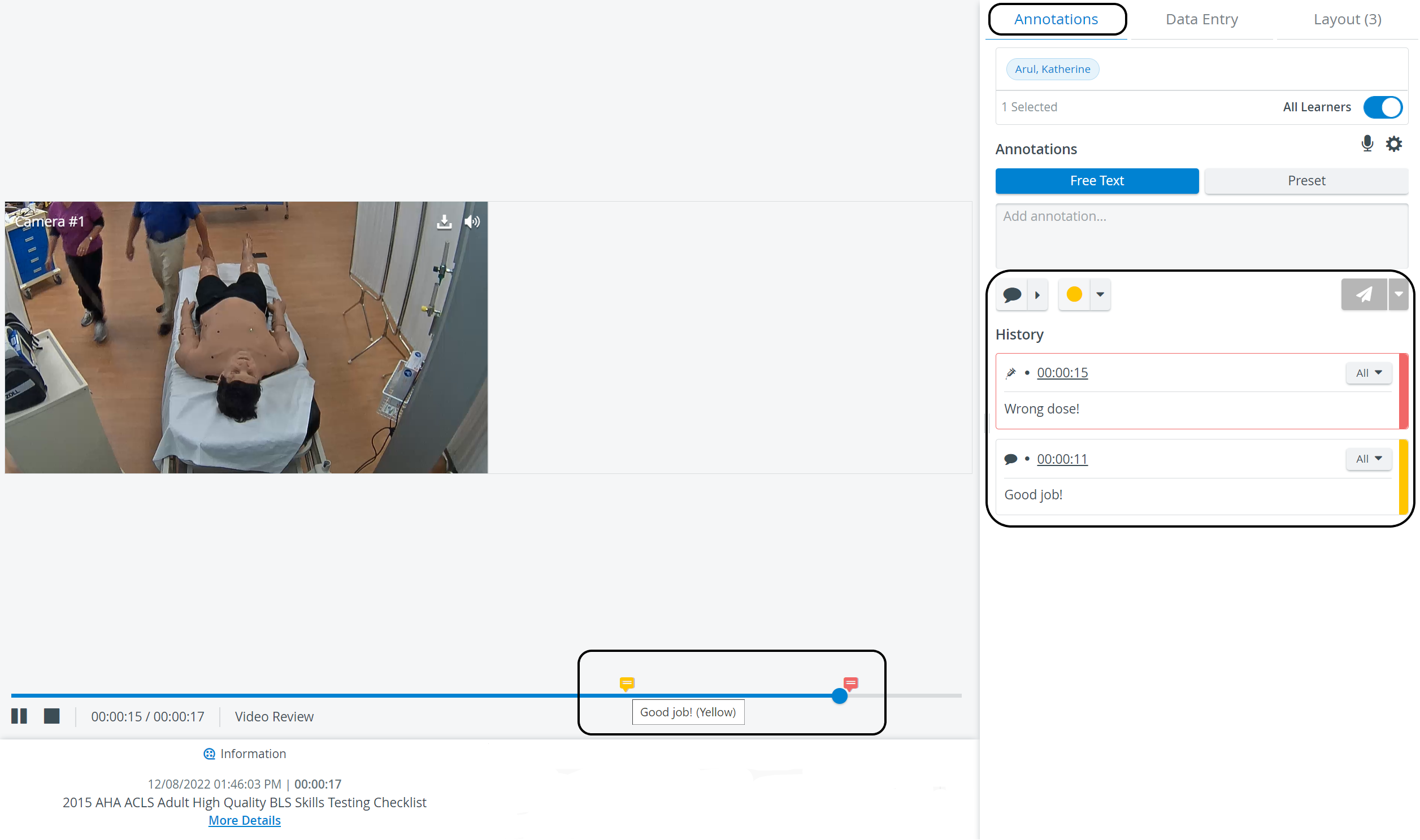
The recording automatically launches and displays the streams of every camera that was used in the recording.
You can also view the record control settings and annotations that were added during live recording or review.
Zoom Meeting Recordings
IMPORTANT: During virtual meetings, the Zoom meeting is automatically recorded, post-processed, and sent to the cloud on the Zoom side. LearningSpace only downloads the video from the Zoom cloud after it becomes available for download on the Zoom side. During this time, LearningSpace generates a video entry for the Zoom meeting (triggered immediately after the meeting starts) on the Video Review page.
Until the video is fully downloaded from the Zoom cloud to be reviewed in LS, the status of the video entry is “Downloading“. An info tooltip next to the status of such videos contains a rough estimate of when the videos will be available for review:

“Cloud recordings generally take about 2 times the duration recorded to process, but occasionally may take up to 24 hours due to higher processing loads. For example, an hour-long meeting with only 30 minutes recorded would typically take 30-60 minutes to process.“
For more information, visit our Video Review pages.