How to View and Print Chart for a Report
Create a customized report on the Scores tab as described in How to Create a Custom-Designed Report.
TIP: Add column and/or row average or use decimals if desired as described in How to Add Average Values to a Report.
When finished with formatting the report, click the chart icon in the top right corner of the tab.
The chart of the formatted report appears in a pop-up.
TIP: When hovering over the chart, a tooltip appears with detailed data on the scores.
3. Change the chart type using the drop-down menu in the top left corner.
4. Check the box next to the Show legend to display data about the bars.
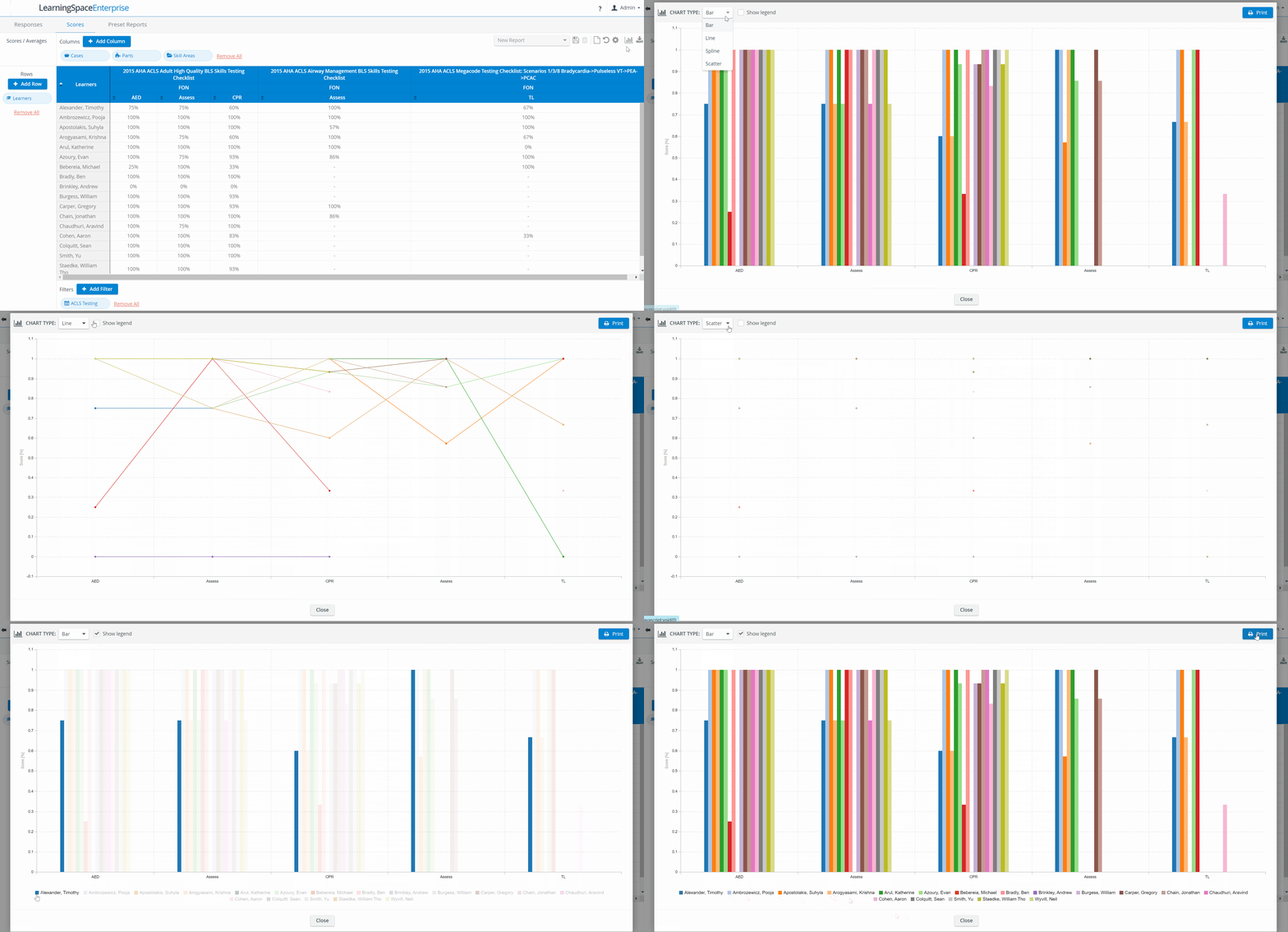
When the legend is displayed, hovering over a specific item of the legend prompts all the bars to be paled except that of the specific item.
5. To print the chart, click the Print button at the top right corner of the window.
Learn more on the Reports Module pages and from our Reports Module Training Videos.