How to Upload Photos via the Batch User Create Process
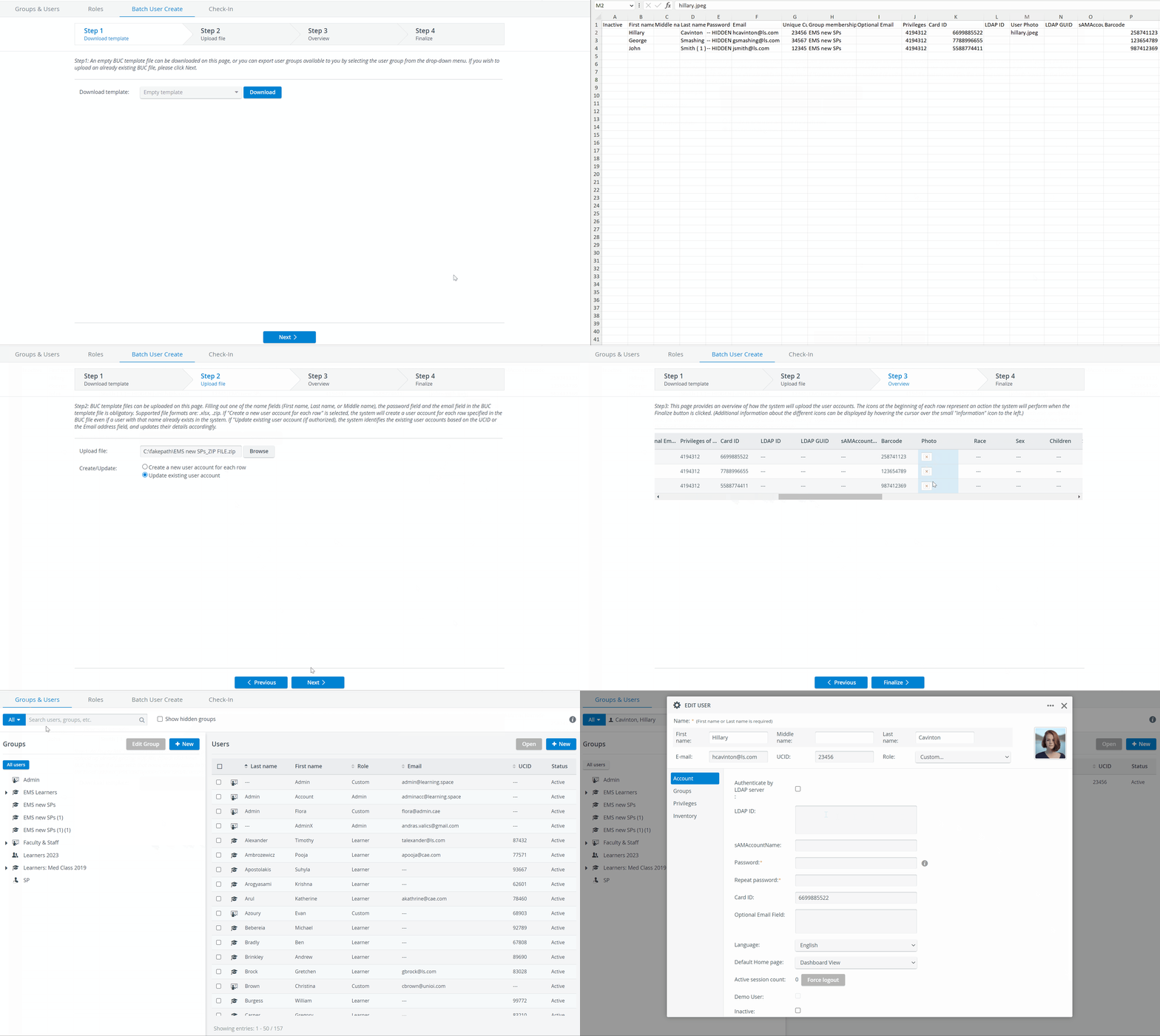
Create an Excel file as described in How to Create a LearningSpace-Compatible Batch User Create File
In the Excel file, type the precise name of the photo you want to upload, including the format, in the User Photocell (column M). E.g. Photo.jpeg
Save and close the Excel file.
Your .zip file should include only .jpg and .jpeg photos. Uploading other file formats in BUC will not be successful.
IMPORTANT: If the name of the photo as listed in the Excel, and the actual name of the photo file are not the exact same, the system will not be able to find and thus upload the photo.
Always enter the file format in lowercase letters for successful file upload.
Some example spreadsheet entries: Correct: FILENAME.jpg, filename.jpg, FileName.jpg, FiLEnAme.jpg
Incorrect: FILENAME.JPG
Select the completed Excel and all the user photos, and compress them into a zip file.
Rename the .zip file if you wish so, this will be the name of the created group.
IMPORTANT: While zip files can be uploaded, only the Excel template downloadable from LearningSpace can be used for Batch User creation.
The .zip file should not contain any subfolders or subdirectories.
4. Upload the .zip file at Step 2 of the Batch User Create process.
Continue the BUC process and check the photo column for the uploaded images.
Finish the BUC process.
Check the created/updated User accounts in the User Manager, for the uploaded images.
For further information visit our User Manager pages.