How to Sign In and Out of Your Account
Once you are a registered user in the LearningSpace system of the institution you work for, sign in to your account in the SP Administration Mobile application.
You may have been requested to submit an enrollment application; in this case, wait for your institution's approval.
When logging in to the SPA Mobile application, use the QR code of the institution you are currently working for to see every patient scenario date request sent by that institution.
Contact your institution's SP coordinators if you have not received a QR code yet.
Sign In
Download the SPA Mobile application to your smartphone if you haven't yet.
The mobile phone application is available in the Play Store and App Store.
Open your application and tap Sign In.
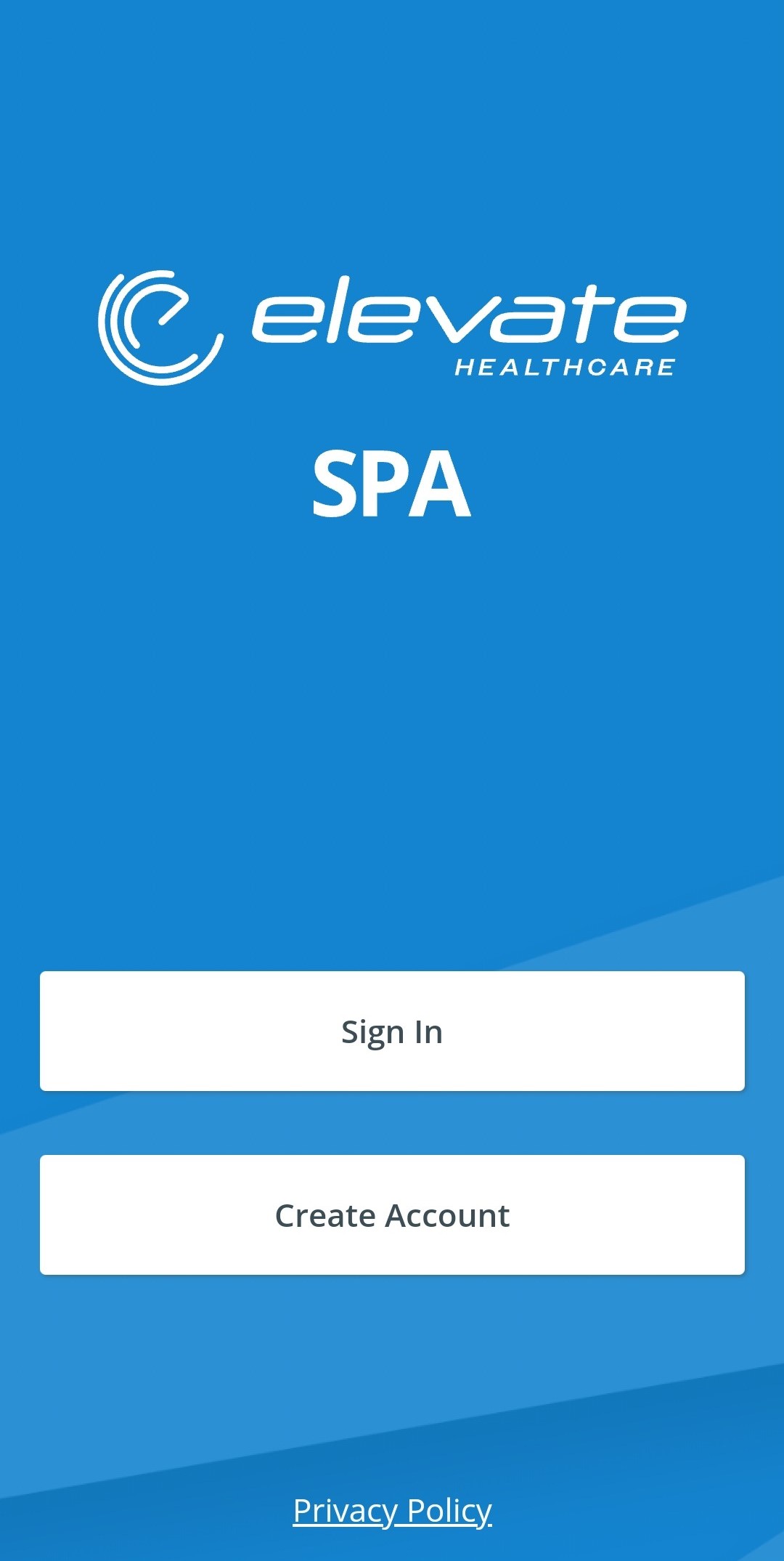
Prepare the QR code that your institution has provided you.
Important
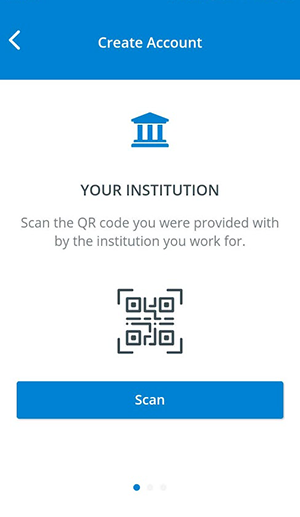
Your institution should provide you with a sign-in QR code to connect your mobile phone application to its LearningSpace server. If you have not been provided with a QR code yet, contact your institution's SP coordinators.
Tap Scan to scan the institution's QR code.
Allow the application to access the camera on your smartphone.
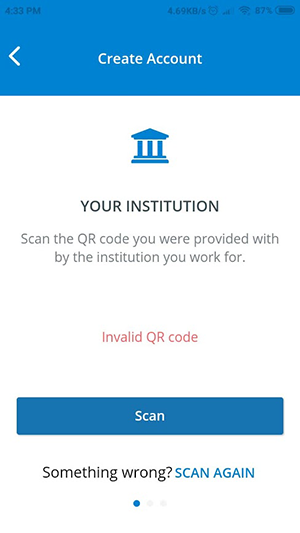
Invalid QR Code Error Message
Try scanning the QR code again if you are receiving the following error message:
If the scan is successful, the application will present you with the URL of your institution's LearningSpace system:
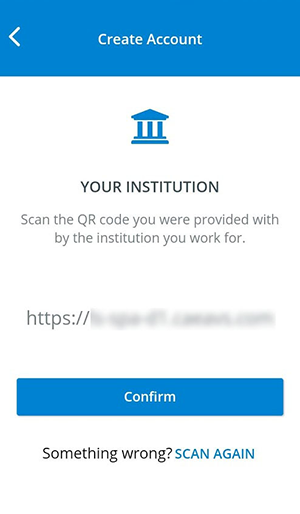
Tap Confirm to connect to your institution's server.
After connecting to the institution's LearningSpace server, enter your sign-in credentials.
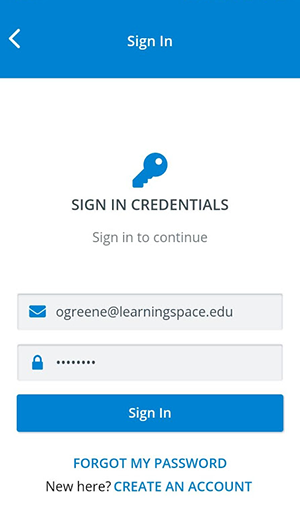
Password Reset
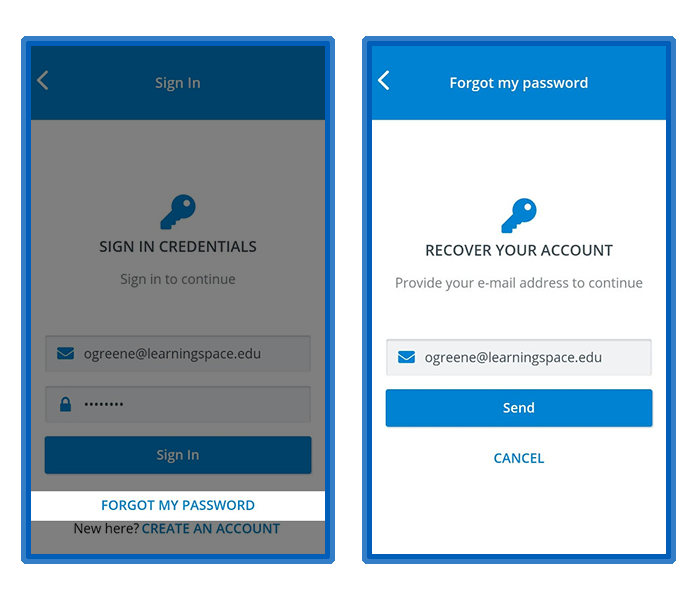
If you forgot your password, tap Forgot My Password and request an account recovery email.
Tap Sign In.
You will land on your Requests page: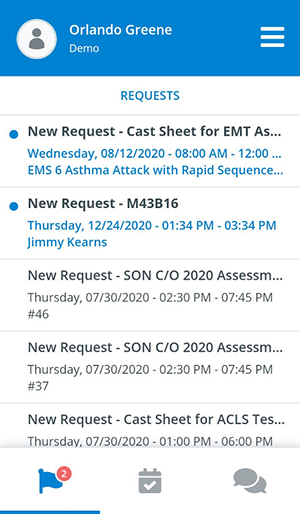
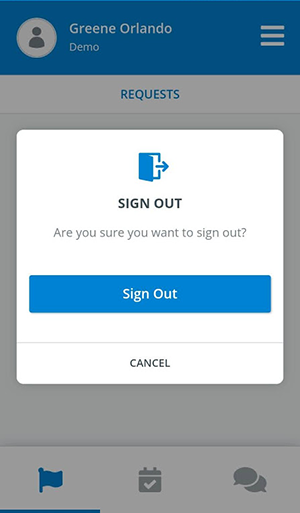
Sign Out
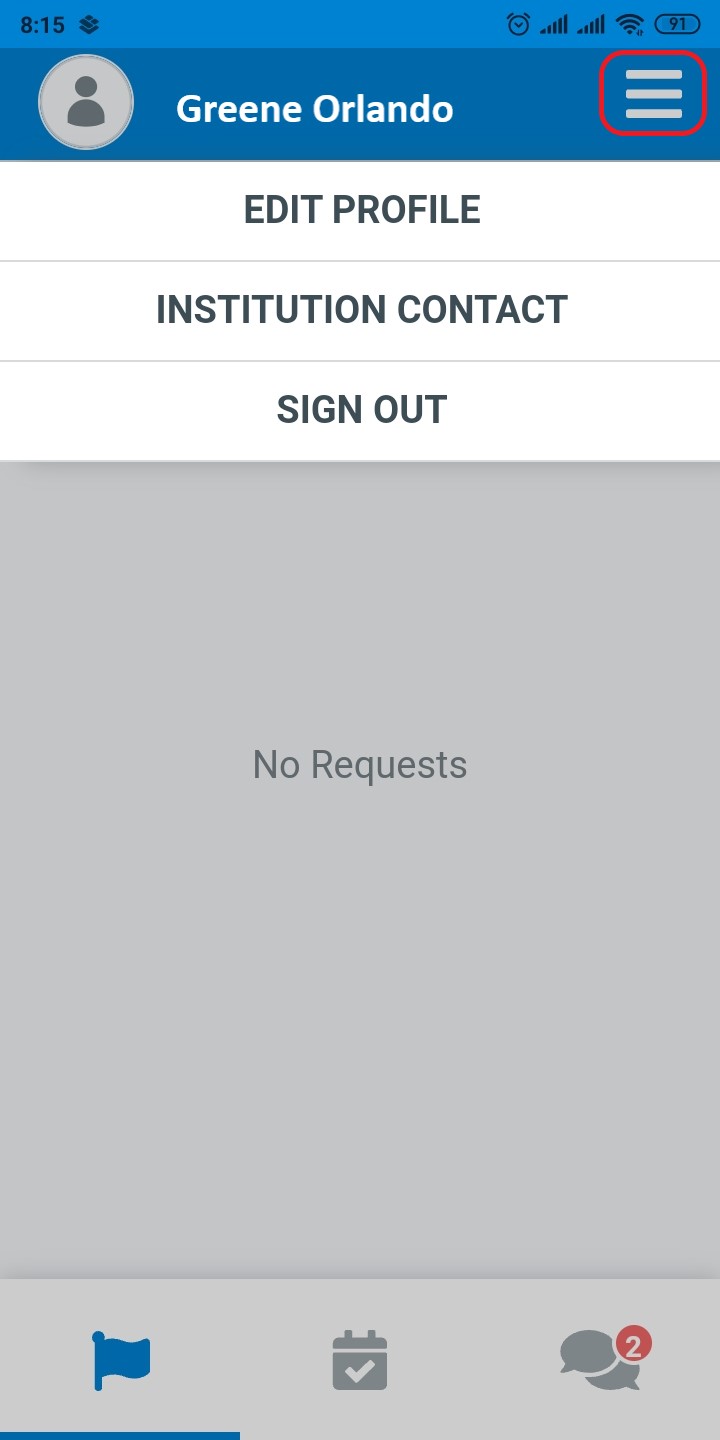
Tap on the menu in the top right corner to display your options.
Tap on Sign Out.
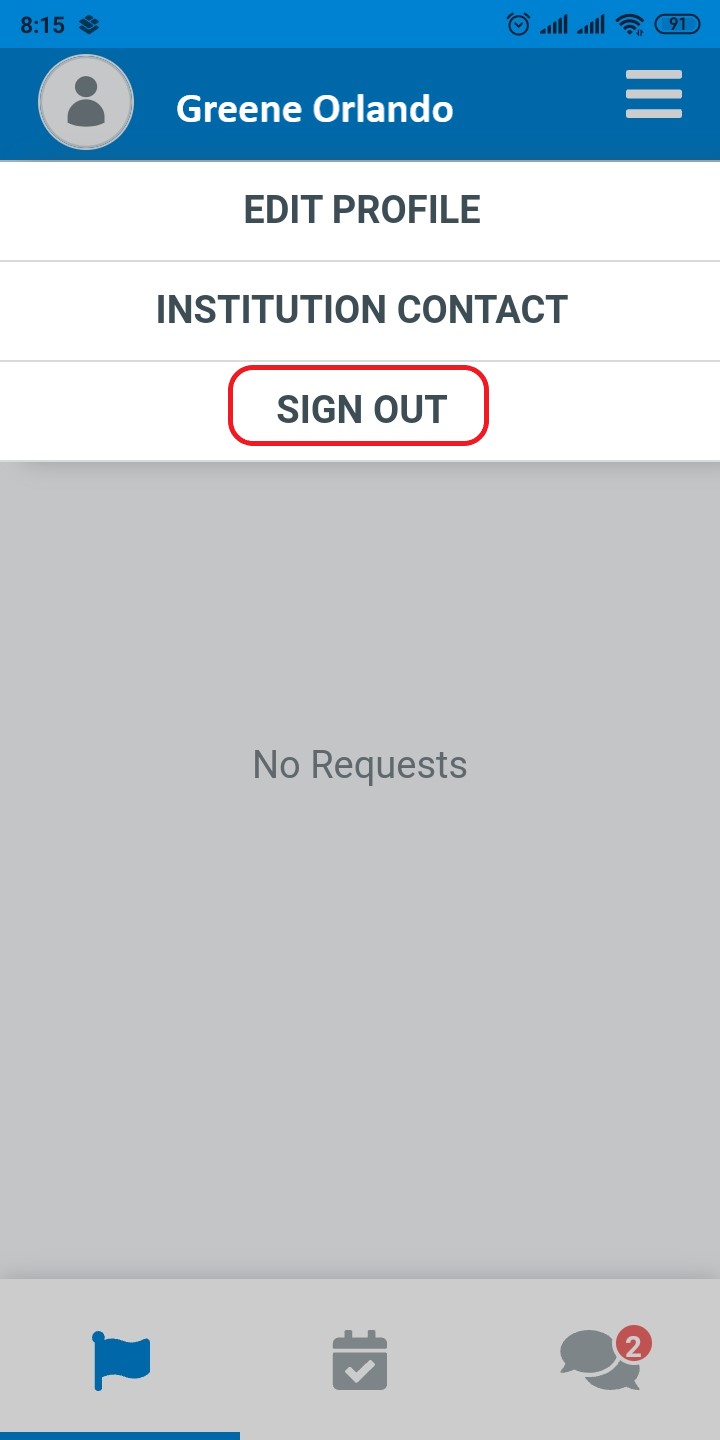
A popup opens where you can confirm your sign-out.