How to Set Up User-Action-Controlled Video Recording
In LearningSpace Enterprise, video recording in a Room can be initiated by certain user actions, eg. cameras would start recording upon the SP opening the SP checklist.
There are certain steps to follow to set up user-action-controlled video recording for an Activity.
Make sure that on the Rooms Tab of the System Manager
In-room and/or Hallway stations are added to the Rooms you want to use under Room settings
Activity and Case are selected for a Room, in case of RNSA setup
After selecting an Activity you want to work with, do the following:
1. Select Video Start and Stop Triggers
Go to the Basics tab of your Activity in the Edit Activity pop-up window.
The video start and stop drop-down menus are located on the right:
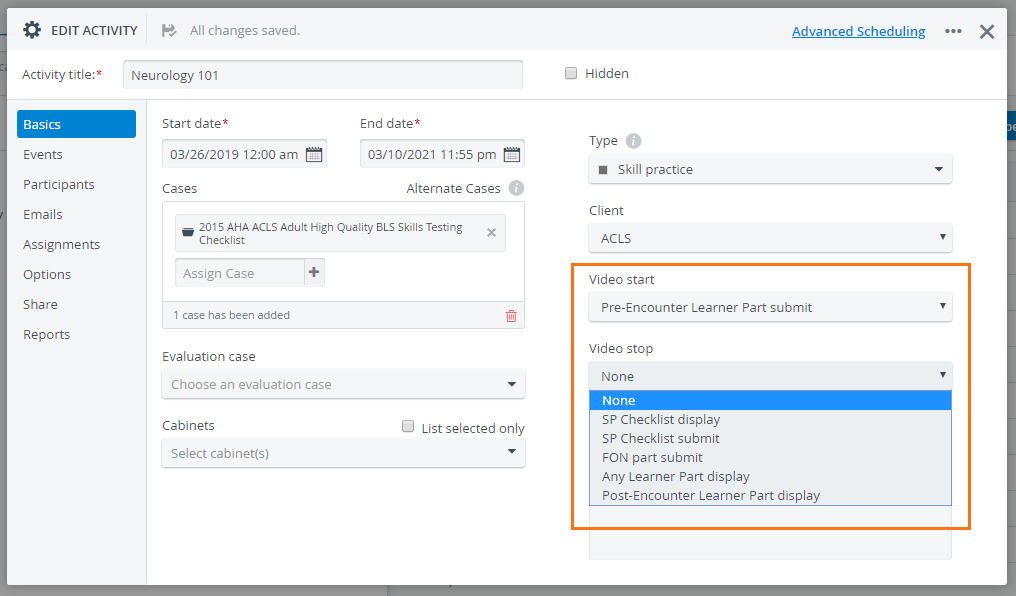
Once the conditions are selected, changes are saved automatically.
Set Start Conditions
a. Choose one of the following start conditions from the Video start drop-down menu:
Pre-Encounter Learner Part display (a Hallway /Learner Station assigned to the room must be used)
Pre-Encounter Learner Part submit (a Hallway /Learner Station assigned to the room must be used)
SP Checklist display (use an In-room / SP Station assigned to the room)
FON part display (use an In-room / SP Station assigned to the room)
Set Stop Conditions
b. Choose one of the following stop conditions from the Video stop drop-down menu:
SP Checklist display (use an In-room / SP Station assigned to the room)
SP Checklist submit (use an In-room / SP Station assigned to the room)
FON part submit (use an In-room / SP Station assigned to the room)
Any Learner Part display (a Hallway /Learner Station assigned to the room must be used)
Post-Encounter Learner Part display (a Hallway /Learner Station assigned to the room must be used)
The video start and stop triggers are all user actions.
Example of user-action-triggered video recording
If 'Pre-Encounter Learner Part display' is selected as the Video start condition and 'Post-Encounter Learner Part display' is selected as the Video stop condition, all cameras set up in the Activity's room will start recording when a learner opens their Pre-Encounter checklist on the Hallway workstation of the room. Afterward, the recording will automatically stop when the same learner opens their Post-Encounter checklist on the same station.
2. Set Up RNSA Login
User-actions only have control over video recording if users access the system through an authorized workstation.
Find the room of your Running-Non Scheduled Activity (RNSA) and open it for editing with the cogwheel icon.
Set up Learner (Hallway) Station
a. Set up the learner data entry workstation: select the name of the computer dedicated to learners from the Hallway Station drop-down;
Set up SP (In-room) Station
b. Set up the SP data entry workstation: select the name of the computer dedicated to SPs from the In-room Station drop-down.
Example of station assignment in the Room Settings pop-up:
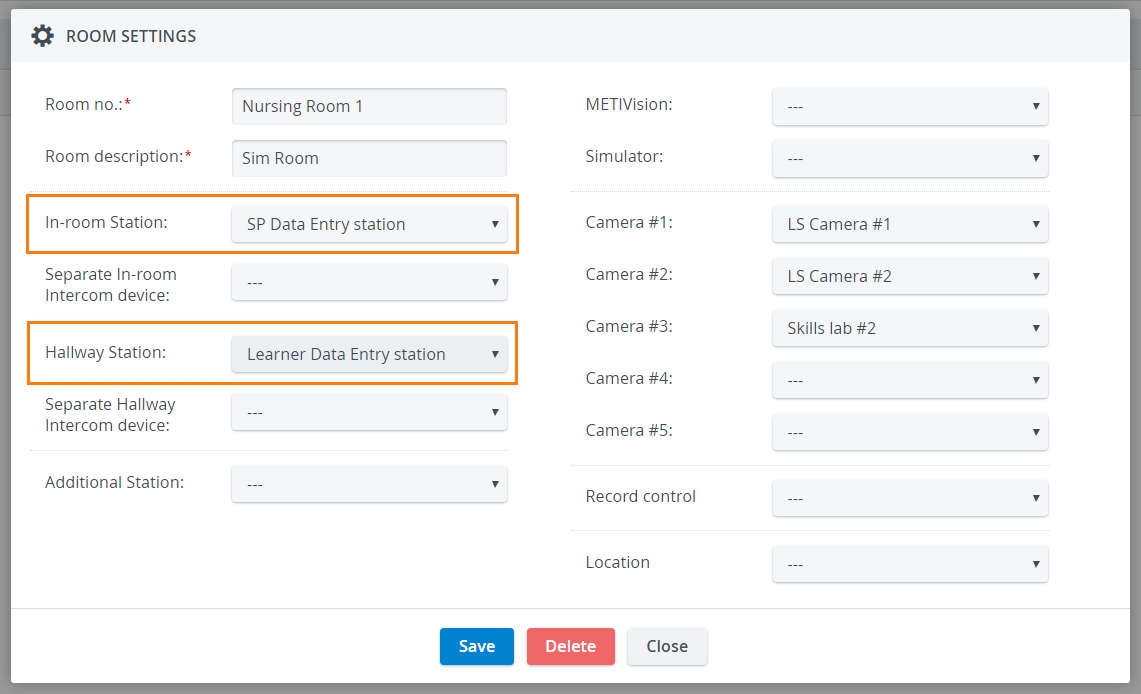
Make sure your users log in using the right workstations.
User-action-triggered video recording will not work if users log into a workstation that does not match their privileges. (See above)
NOTE: FON privilege users have to use an In-room / SP station.
⚠️ Learner automatic user-forwarding only works with Hallway configuration, and SP automatic user-forwarding only works with In-room configuration.
See more at How to Set Up Automatic User-Forwarding to Data Entry
If needed, your computer can have multiple workstation functions at the same time. To apply multiple functionalities, select the same computer in the station drop-downs of your choice.
Learn more under How to Set up RNSA Login.
IMPORTANT: Video recordings get tied to the RNSA Activity/Case/Learner/SP if started by the user action but do not get tied via the Recording module or the push button.
See RNSA - How to Reserve a Room Without Scheduling.
For further information, visit our Activity Manager, Activity - How to pages and view our Activity Manager Training Videos.