How to Set Up Report Availability for Report Reviewers
How to Activate the Reports Tab
The Reports tab is only active if Faculty and Learner groups are assigned on the Participants tab of the Edit Activity Pop-Up window of a certain Activity.
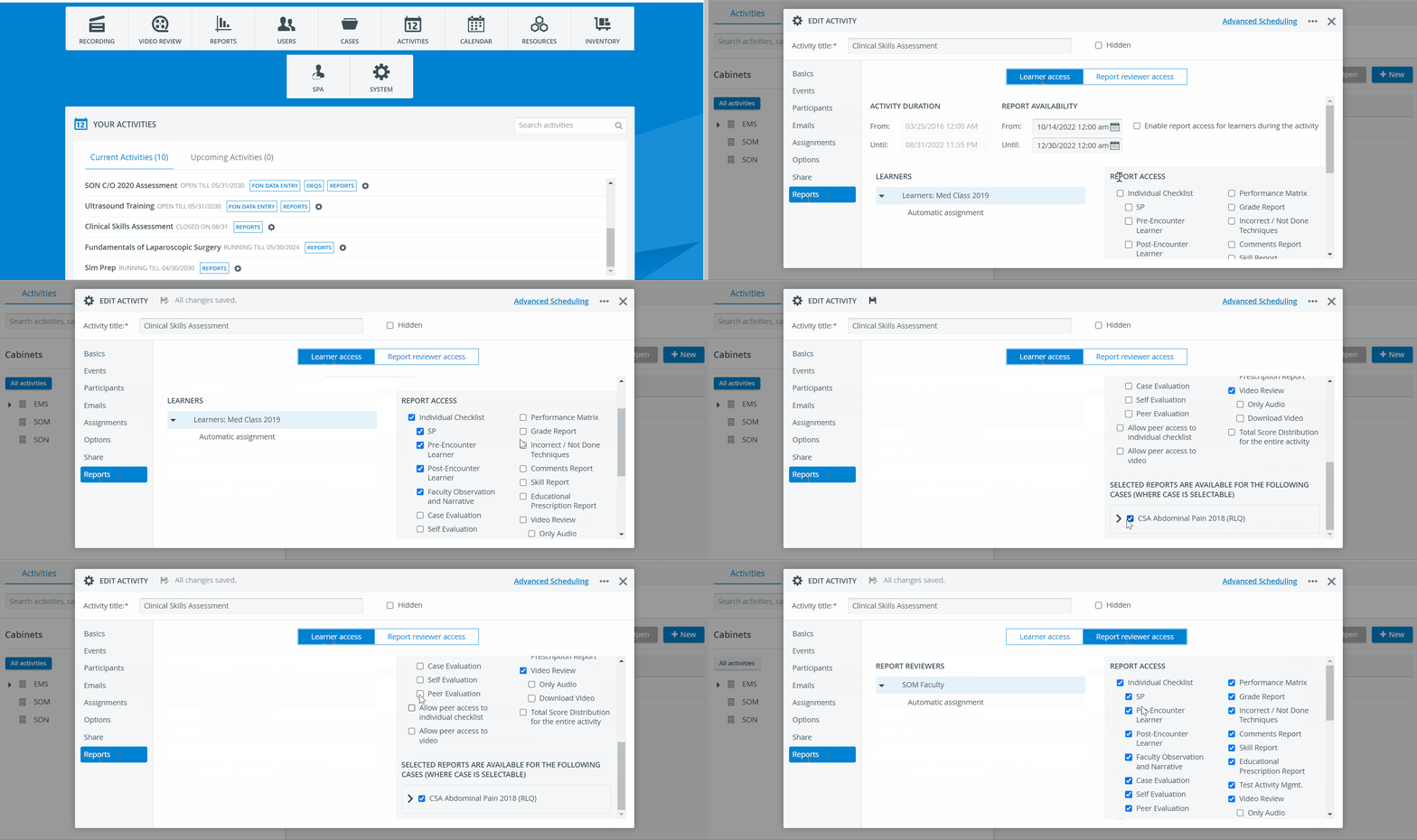
Create a new or open an existing Activity for editing in Activities.
Make sure you have selected a Faculty and Learner group in the Participants tab.Go to the Reports tab of the selected Activity.
By default, the Learner access settings are displayed.Switch to the Report Reviewer access tab by clicking on its banner.
You will find the Report reviewer group and its subgroups (if any are set up in Assignments) on the left and the Report access options on the right.When setting up a brand new Activity, you are presented with the following Report access setting. These options are checked by default for your convenience, but you can change them at any time.
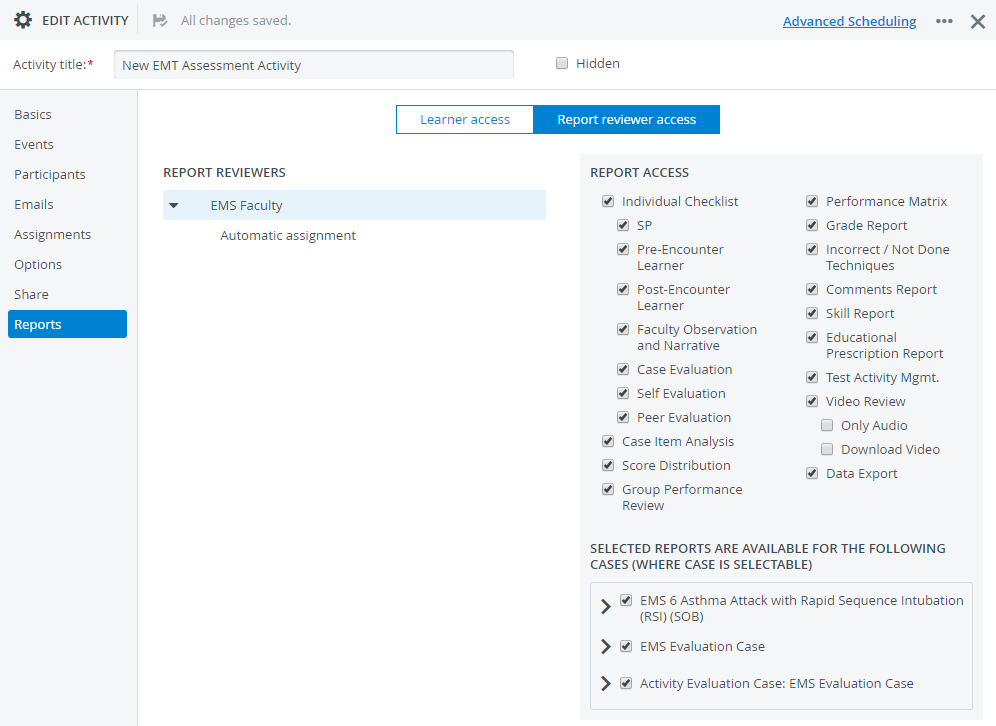
Select the main group or any of its subgroups to set up access to reports for them.
The subgroups displayed on the Reports tab are those set up on the Assignments tab (not in the User Manager).
Faculty Evaluee subgroups are displayed under Learner access, and Faculty Evaluator subgroups under Report Reviewer access.Check or uncheck boxes to control access to reports of the entire group or subgroups.
IMPORTANT: When setting up access for subgroups, access NOT given at a broader level (e.g., whole group) can be granted for a subgroup, but not vice versa.
4. Since users with Report Reviewer privilege are granted all access by default, uncheck the box of the report(s) and recording(s) you do not want to make accessible.
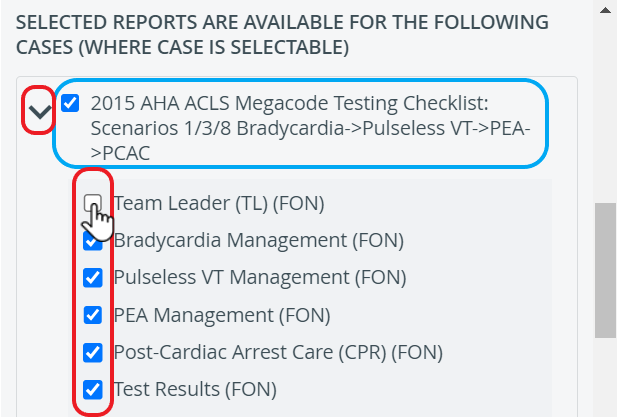
5. Uncheck the box of the Case(s) for which the selected reports would not be available.
By default, all Cases are checked and thus available.
IMPORTANT: Any access checked in the Report Access panel will only apply if a specific Case(s) is/ are selected. Only the Case(s) and Case parts/Sections checked under Selected reports are available for the following Cases (where Case is selectable).
6. Since changes are saved automatically, you can switch to any other tab or close the Edit Activity pop-up window.
The Report Reviewer (full control) privilege allows users to control the conditions of report access (also for Learners) for Activities shared with them on a read and write level, while being participants in the assigned Faculty group. (Through 'Go to Activity Manager' of the Report Availability tab within Activity Reporting Setup).
💡 See How to Share Activities with Activity Managers and SRP Users.
Report Reviewers have access to reports even after the Activity end date.
For further information, visit our Activity Manager, Activity - How to pages, and view our Activity Manager Training Videos.