How to Set Up a Trend Chart Display
Important Note for Enterprise Lite Users
This feature is for use with in-campus audiovisual (AV) inputs. Hence, it is not available for LearningSpace Enterprise Lite, which is only used for web-conferencing-based virtual simulation encounters. To unlock this feature, please upgrade to the LearningSpace Enterprise solution.
Access the desired Room View or Video Review screen.
Ensure that the Trend Chart is displayed and enlarged as desired.
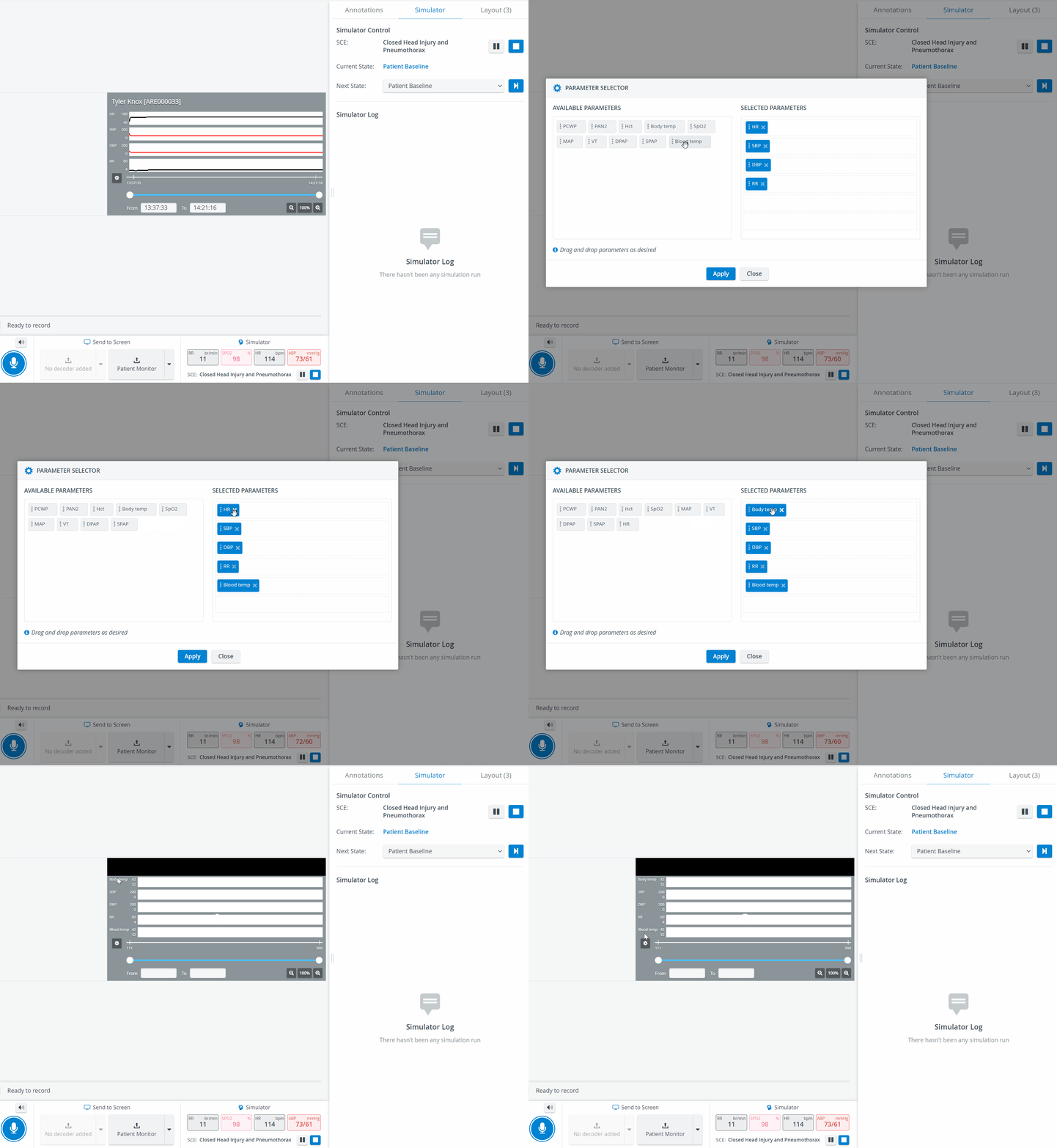
Click on the cogwheel icon in the Trend Chart panel. The Parameter Selector window appears.
To add a parameter to the display, select it from the Available parameters list.
Drag and drop the selected parameter to the Selected parameters list.
To re-arrange the displayed parameters list, use the drag and drop feature.
6. To remove a parameter from the Displayed parameters list, select it, drag it, and release it onto the Available parameters list.
For more information, visit our Recording Module and Recording Module Training Video pages.