How to Set Stations
For an introduction to Advanced Scheduling, please visit the How to Understand Concepts within Advanced Scheduling page.
Activity Scheduler page
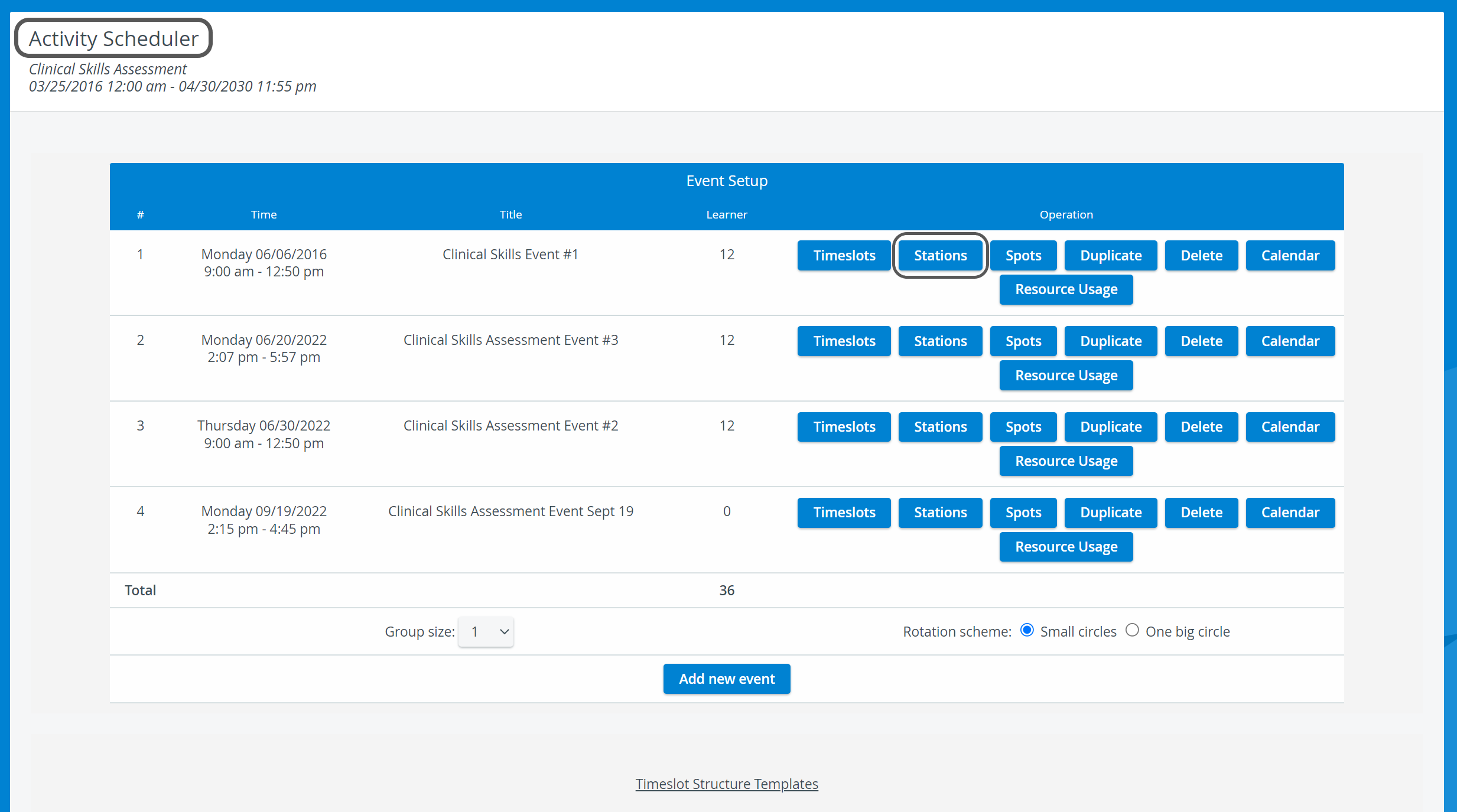
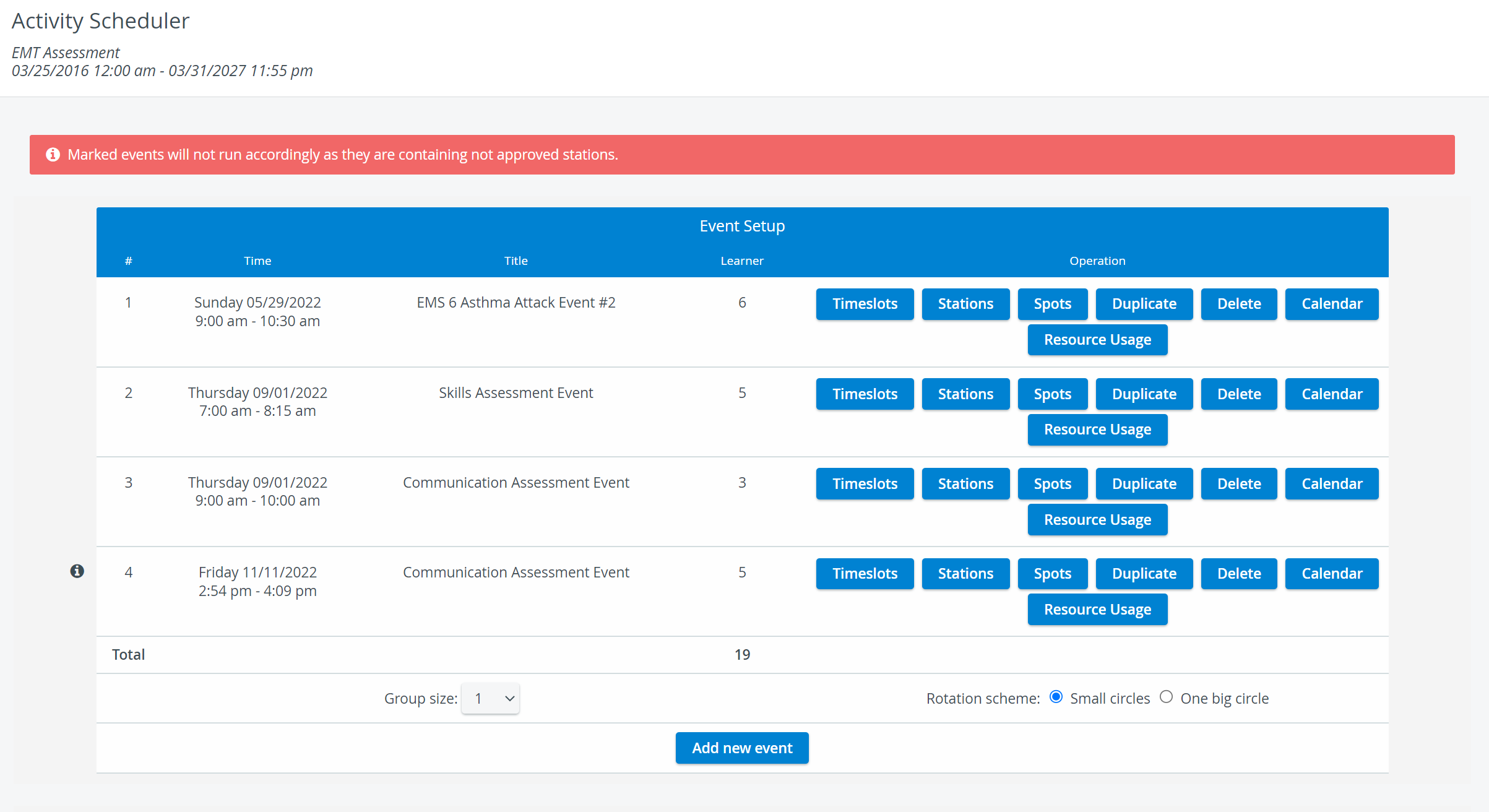
Access the Activity Scheduler page of the selected Activity.
Find your event and click on Stations.
.
Note
Stations can only be set up for existing events.
On the Scheduling (Stations) page:
First, determine the number of Cases you want your learners to complete during the event, which also means the number of Cases they need to complete within a round.
Learn more about rounds (and their relation to timeslots) here.Then, decide how many stations each case should be running.
A Case must be run on at least one station to provide spots for learners.
The number of spots is closely related to the timeslots of the event.
In a basic setup, where a Case only runs in one station, the number of spots is equal to the number of timeslots created for the event.
However, if multiple Case stations are set up, a timeslot can contain more than one spot.💡 The number of default spots within the event will multiply by the number of defined stations → which means you can assign more learners to the event.
How to Calculate the Number of Spots in an Event
Number of total spots = created timeslots* x number of stations
*The number of created timeslots in a round → should be equal to/ the multiple of → the number of required Cases.
Click Continue.
You arrive at a page where you can select the total number of Cases you want in your event, and you can also define the number of stations each Case will run on:
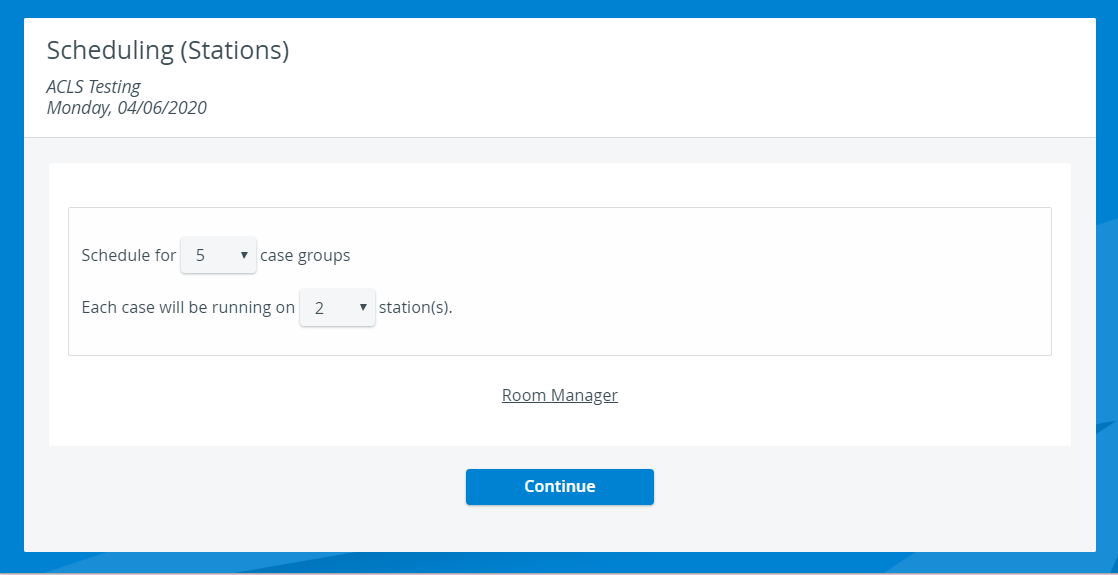
The same Case can run on multiple stations.
Click Continue once more.
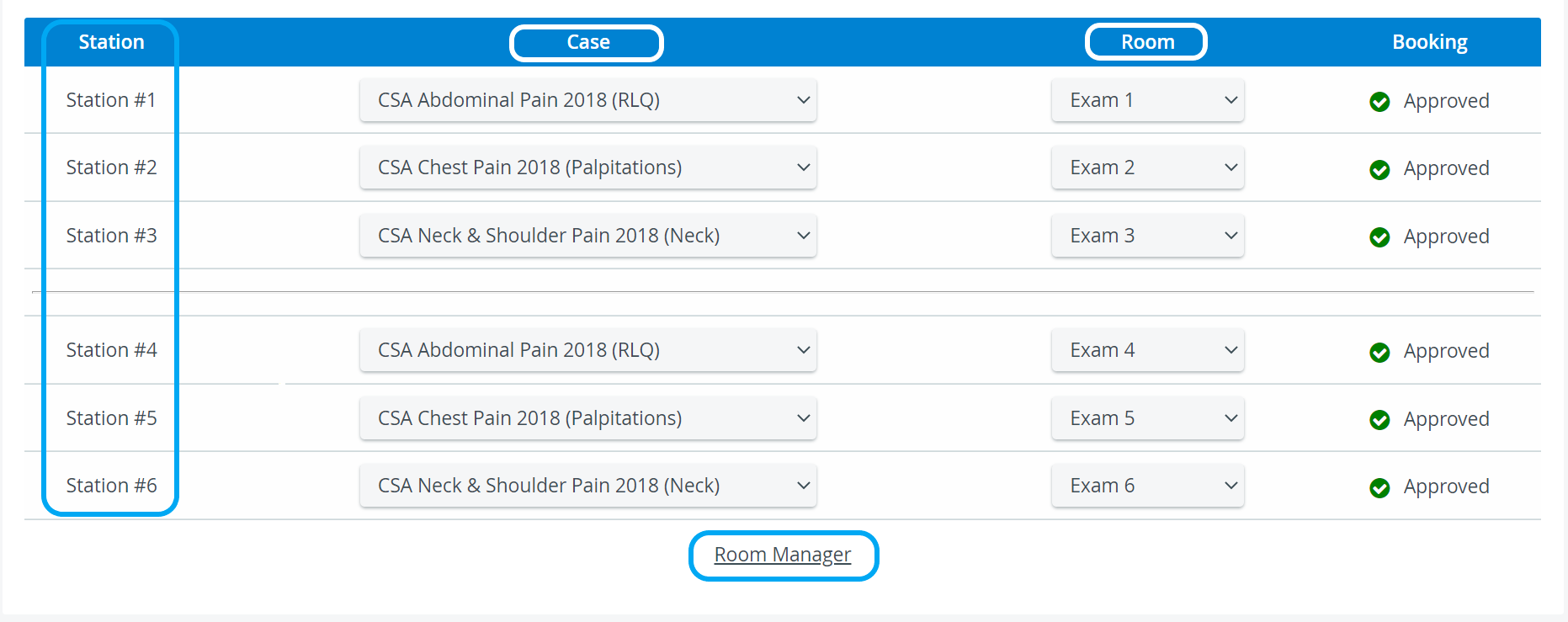
The system generates the exact number of stations based on the number of Cases you want to conduct during the event, multiplied by the number of stations you want each Case to run on:
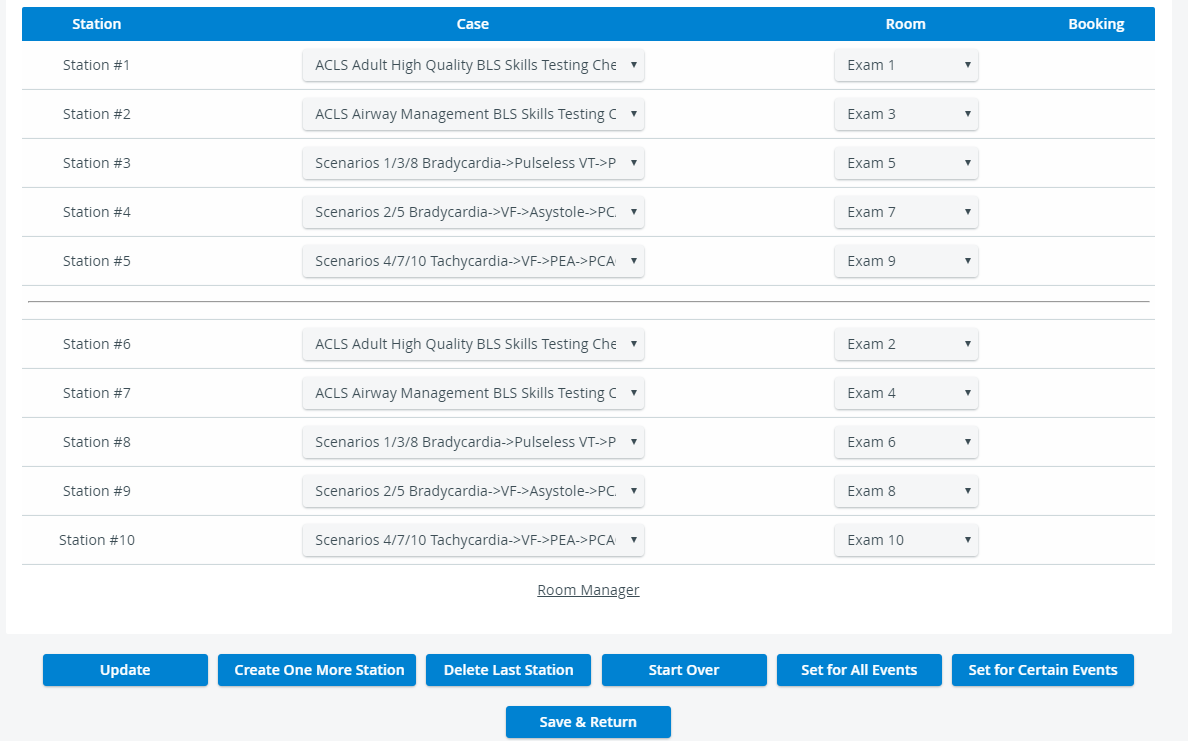
Review Case selection.
If you want to run each Case on multiple stations, you need to add the same Case to the number of stations you previously defined.
Batch Case Update Feature
This new feature enables users to select multiple stations and assign a Case value to all of them simultaneously, using the "Set Case for selected Stations" dropdown, rather than manually updating each station.
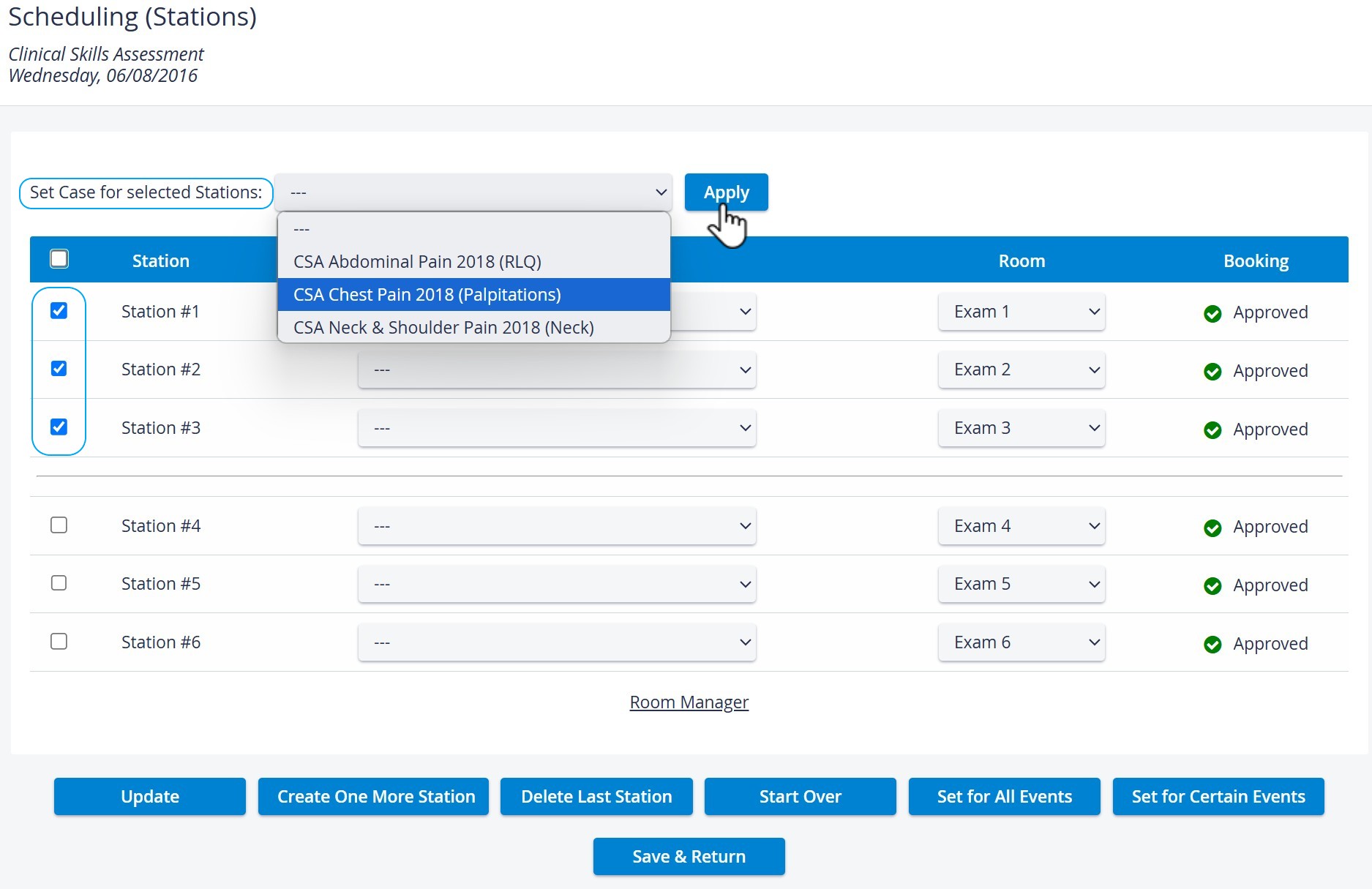
Set Case for selected Stations Dropdown
For easier mass selection, use the checkbox in the header for "Select All" and "Select None" controls.

After having used ‘Apply’, make sure to save your settings at the bottom of the page.
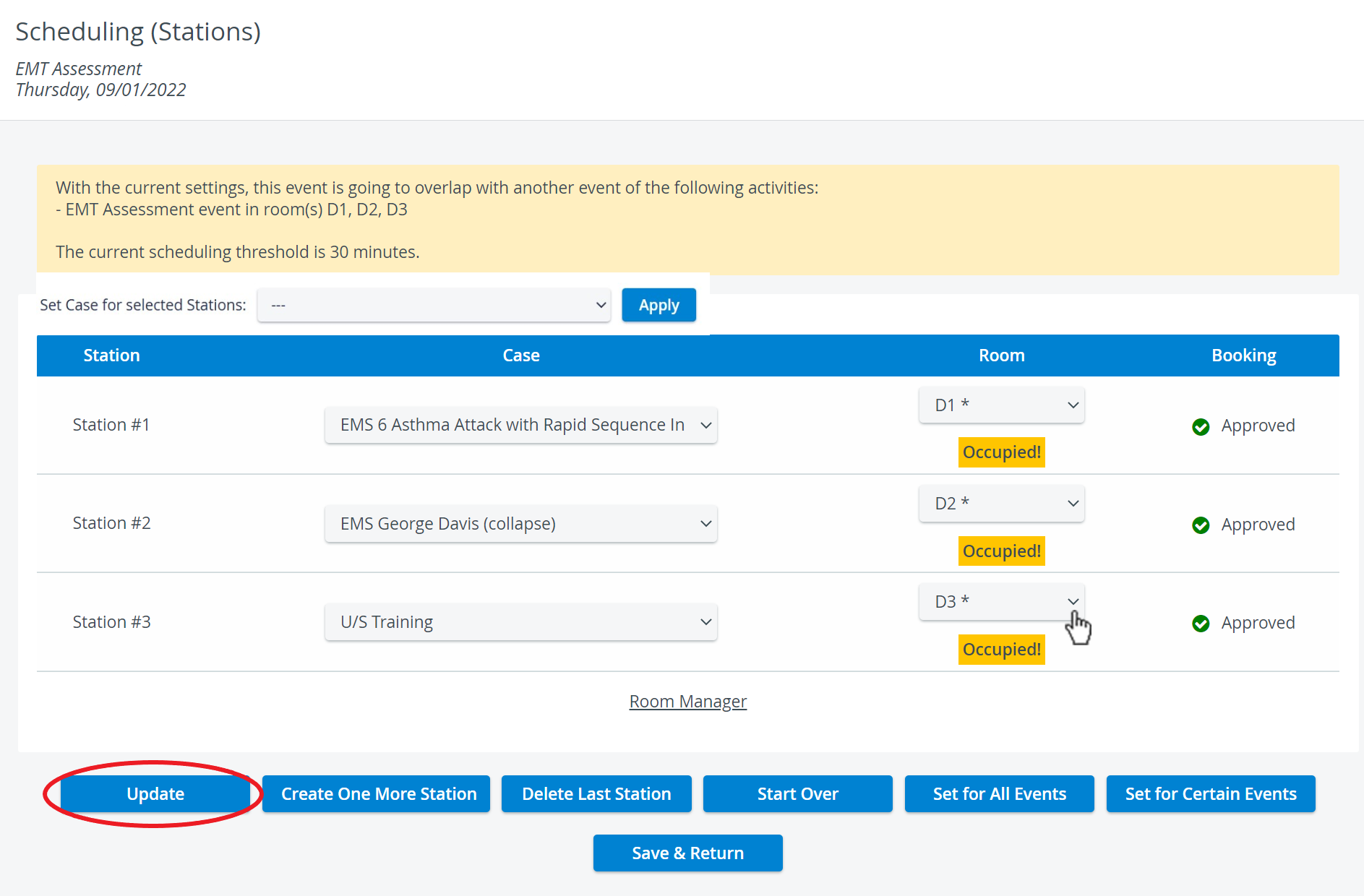
Assign a room to each station.
Important
You cannot assign the same room to more than one event station.
Click Update after selecting rooms to check if any have been taken.
If a room is vacant → the system will save the setting and book the room for the event.
If the room is occupied → the system will return the message Occupied! under the unavailable room.
In such case → select another room and hit Update again to check your setting.
What Does Each Button Do?
Update | Check if any room has become occupied (indicated in the drop-down with an asterisk next to the room name) |
Create One More Station | Create additional stations on top of the system-generated ones |
Delete Last Station | Delete the station displayed last |
Start Over | Return to the previous Scheduling (Stations) screen to set up a new Case and station conditions |
Save & Return | Save the changes and return to the Activity Scheduler page |
Set for All Events | Apply the station setup to all the events of the Activity |
Set for Certain Events | Apply the station setup to other selected events of the Activity |
Once you have set up all the stations, click Save & Return.
You will be redirected to the Activity Scheduling page.
Applying the Station Setup for Other Events
Access the Activity Scheduler of a selected Activity.
Click the Stations button of a scheduled event.
The Scheduling (Stations) page opens.To apply the station setup of the event to all other events in the Activity, select 'Set for All Events'.
A dialog box asks if you are sure you want to overwrite the settings of the events.
Once confirmed, the station setup will be applied to all the events within the Activity, and you will be redirected to the Activity Scheduler page.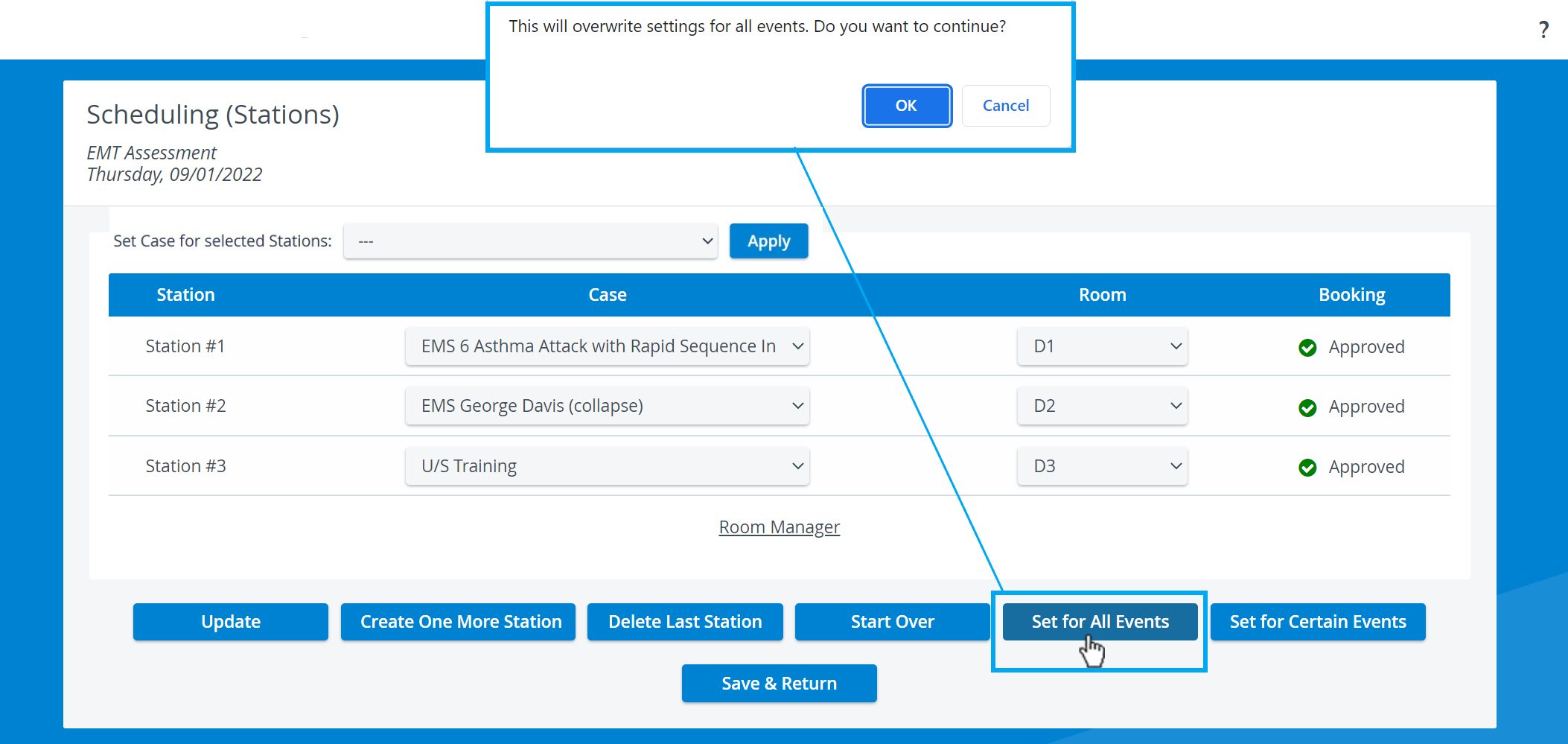
To apply the station setup to specific events, select 'Set for Certain Events'.
The Event Setup panel opens with a list of all the current scheduled events of the Activity.
Select the box next to each event to apply the station setup.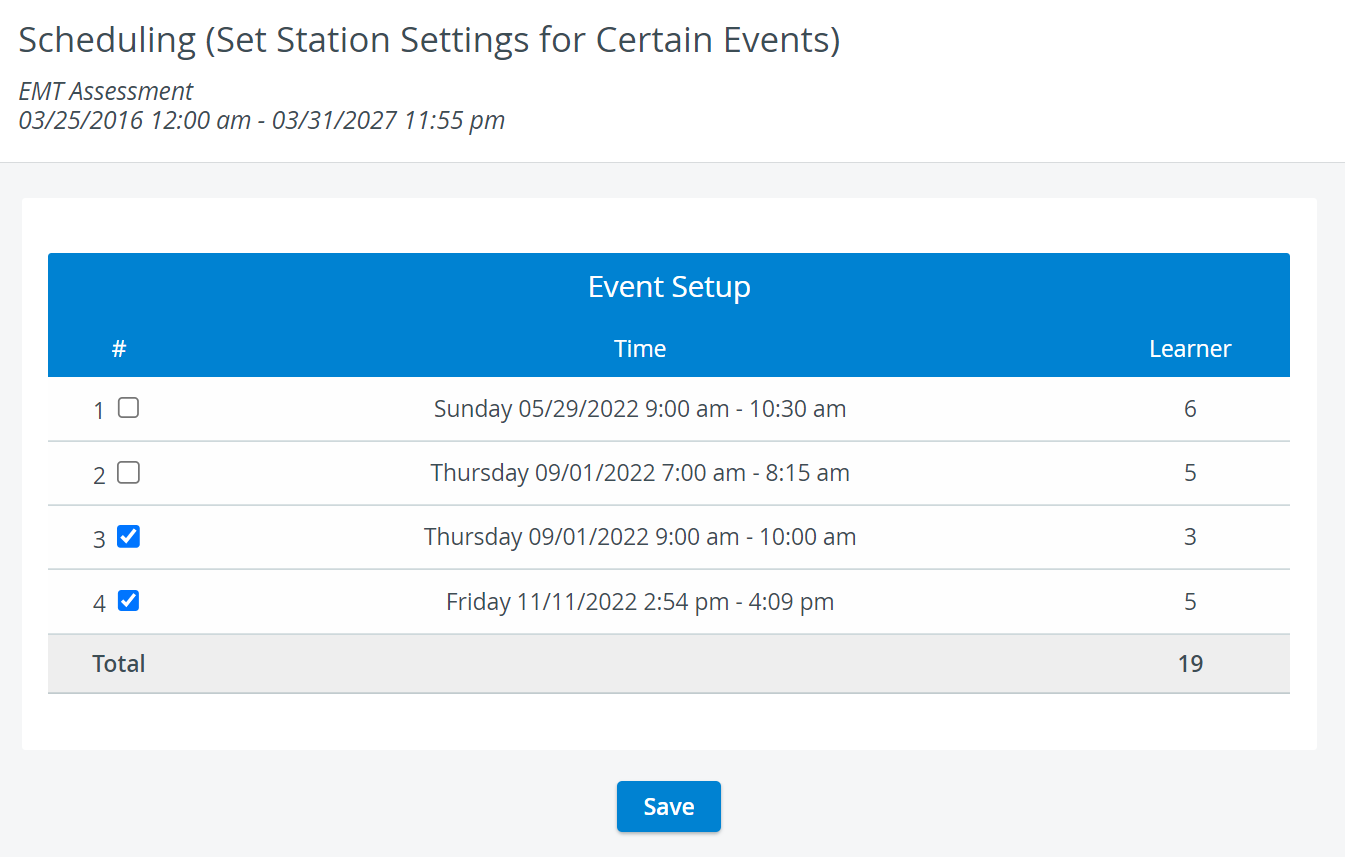
Click Save. The station setup will be applied to the selected event(s).
In the case of unapproved stations, the system will issue a warning and mark the affected event, allowing you to correct the station setup.

For further information, visit our Advanced Scheduling pages and view our Activity Manager Training Videos.