How to Search on the Groups & Users Tab
Within the whole database:
Start typing a search word in the smart search bar at the top of the tab.
Possible results will be listed below, with an icon before the search result(s) indicating the type(s) of the result(s).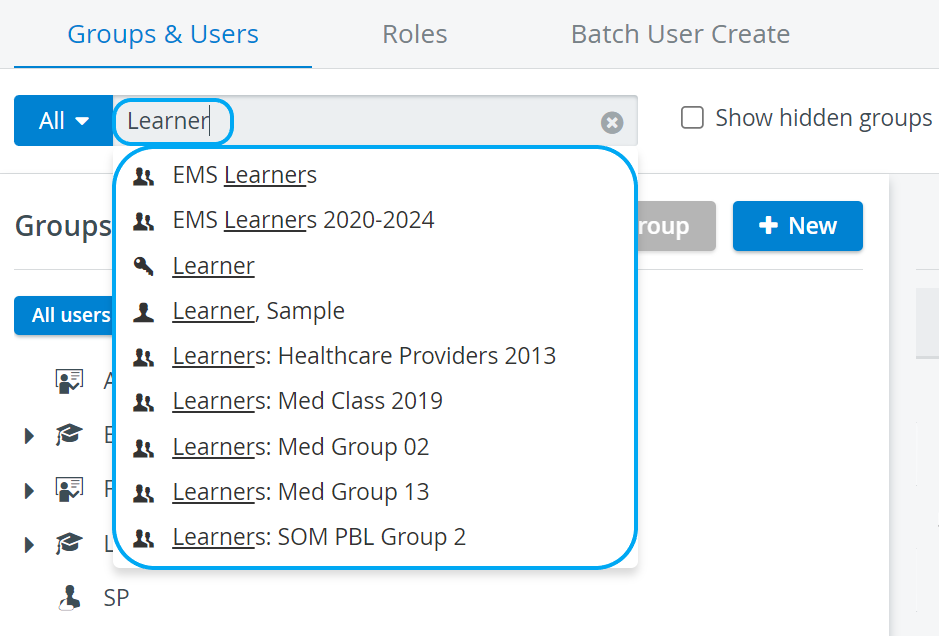
Select the desired search result by clicking it within the list.
The searched item will be presented by the system:
scrolling down to and highlighting the selected group
opening the Edit User pop-up window in case of a user
The right side of the tab shows a single user or a list of users whose email address, unique ID, or role matches the selected search result.
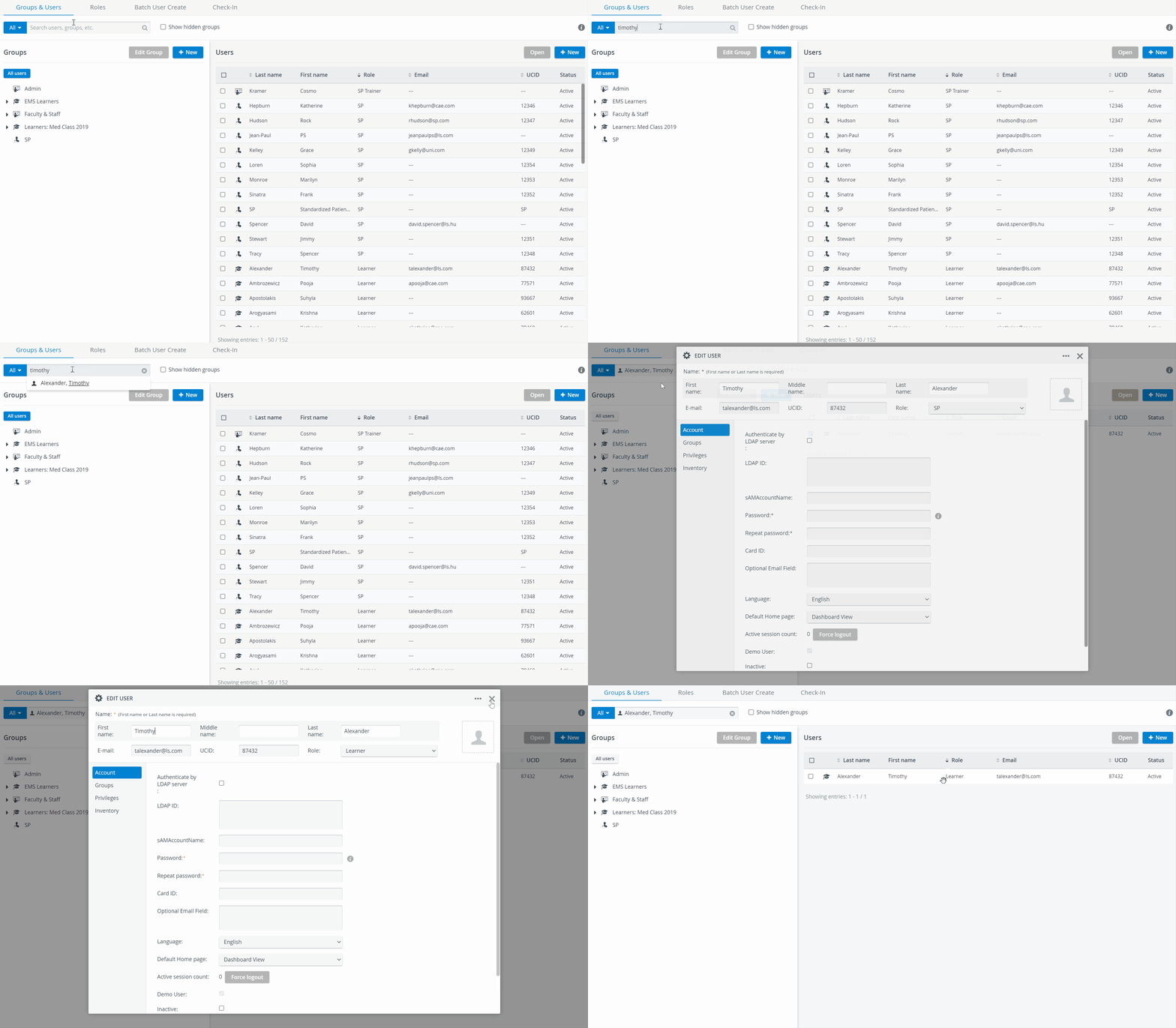
Any search word can be deleted; thus, a new search can be initiated by clicking the X on the right side of the search bar.

Targeted search:
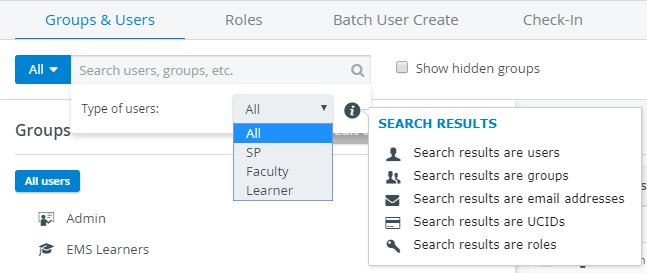
Click the All button before the search bar.
From the Type of Users drop-down menu, select which type you wish to search within.
The All category toggles to the selected type.
In the case of the SP category, further distinctions can be made by including or unchecking the additional data for SP users.
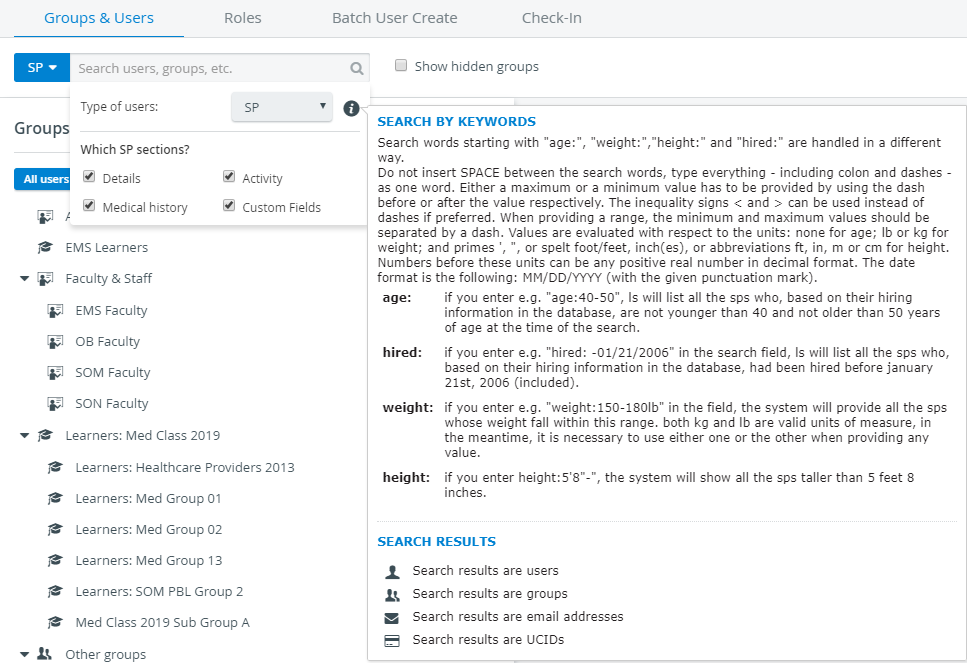
3. Click in the search field and start typing the search word.
The result(s) will be listed below when searching in the whole database.
For further information, visit our User Manager pages.