How to Review Resource Usage for Video Recordings
On the Resource Register tab, click the Video icon below the Calendar icon in the top left corner.
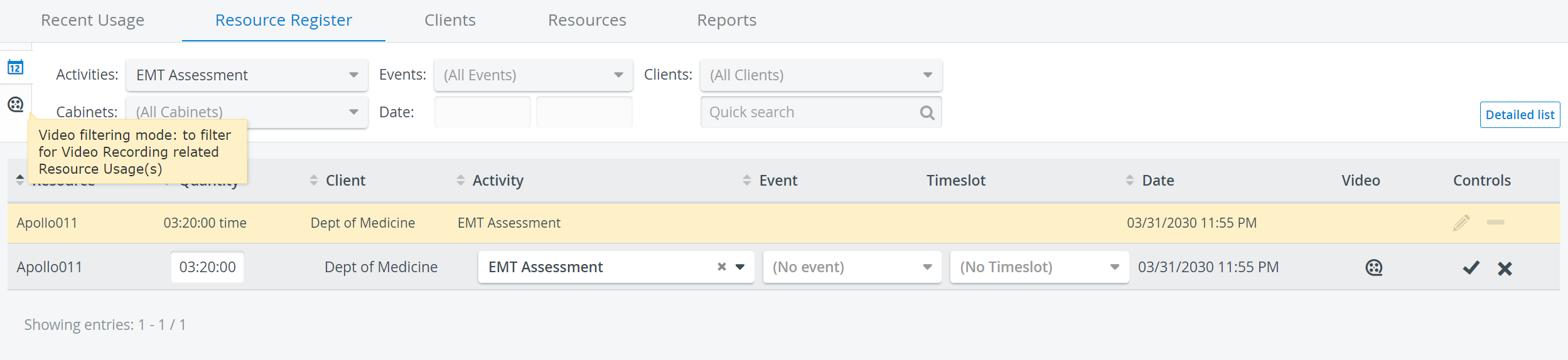
The Get video list link appears.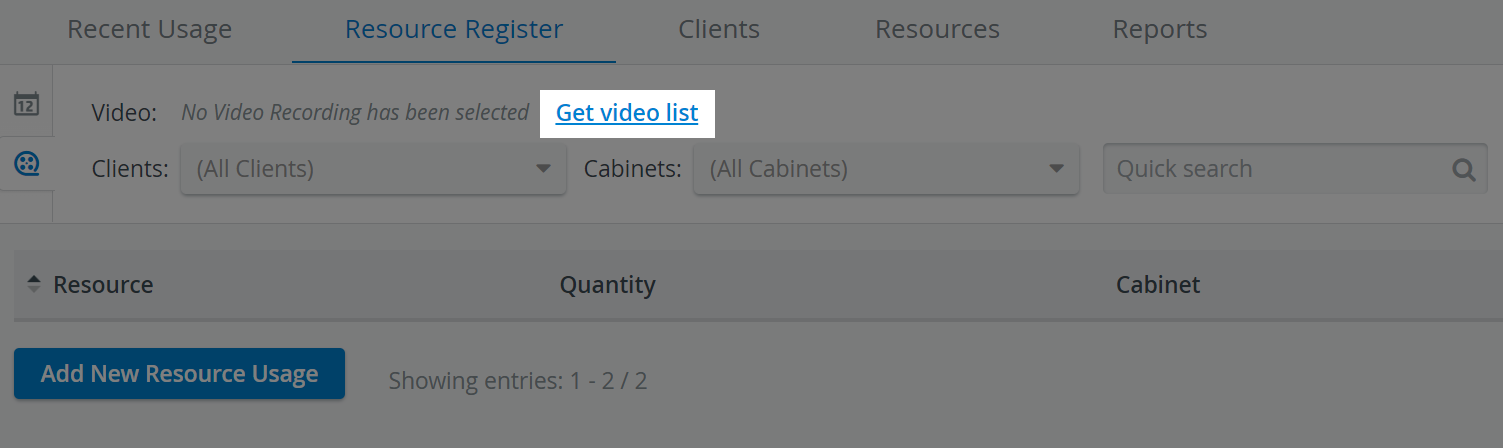
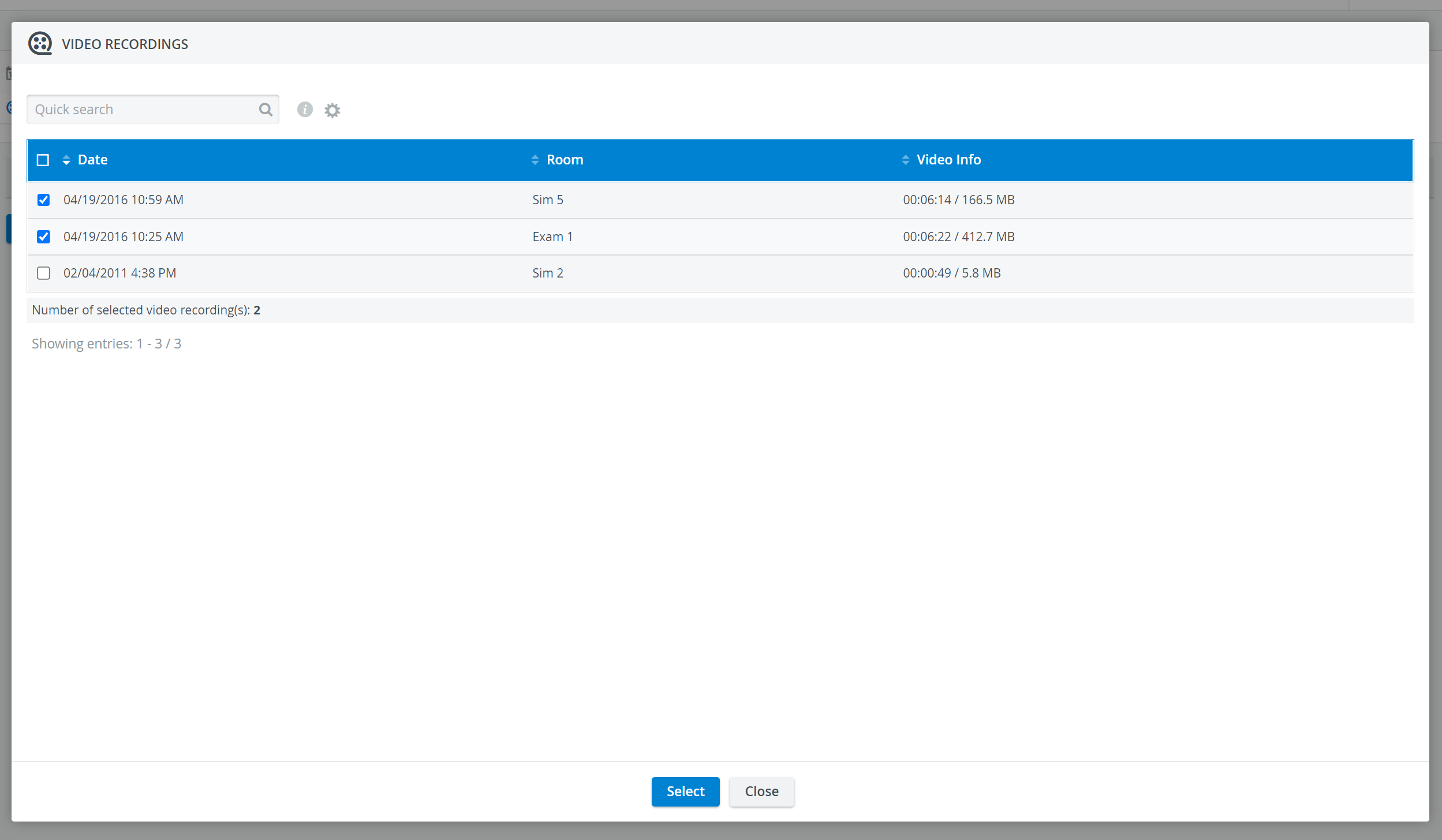
Click the Get Video list link to open the list of video recordings. The Video Recordings window appears.
Check the box before the recording or recordings you want to see resource usage information for.
Click Select.
The Resource Register updates to display the resources for the selected video recordings.Use the drop-down menus at the top of the register to filter the results.
Resources can be narrowed by typing keywords into the Quick search field.
For more information, visit our Resource Manager and Resources - How to pages.