How to Reuse Items
Reusing Items
On the Case Content page, select the desired tab/ part.
Click the REUSE panel in the bottom left corner of the page, below the NEW ITEM list.
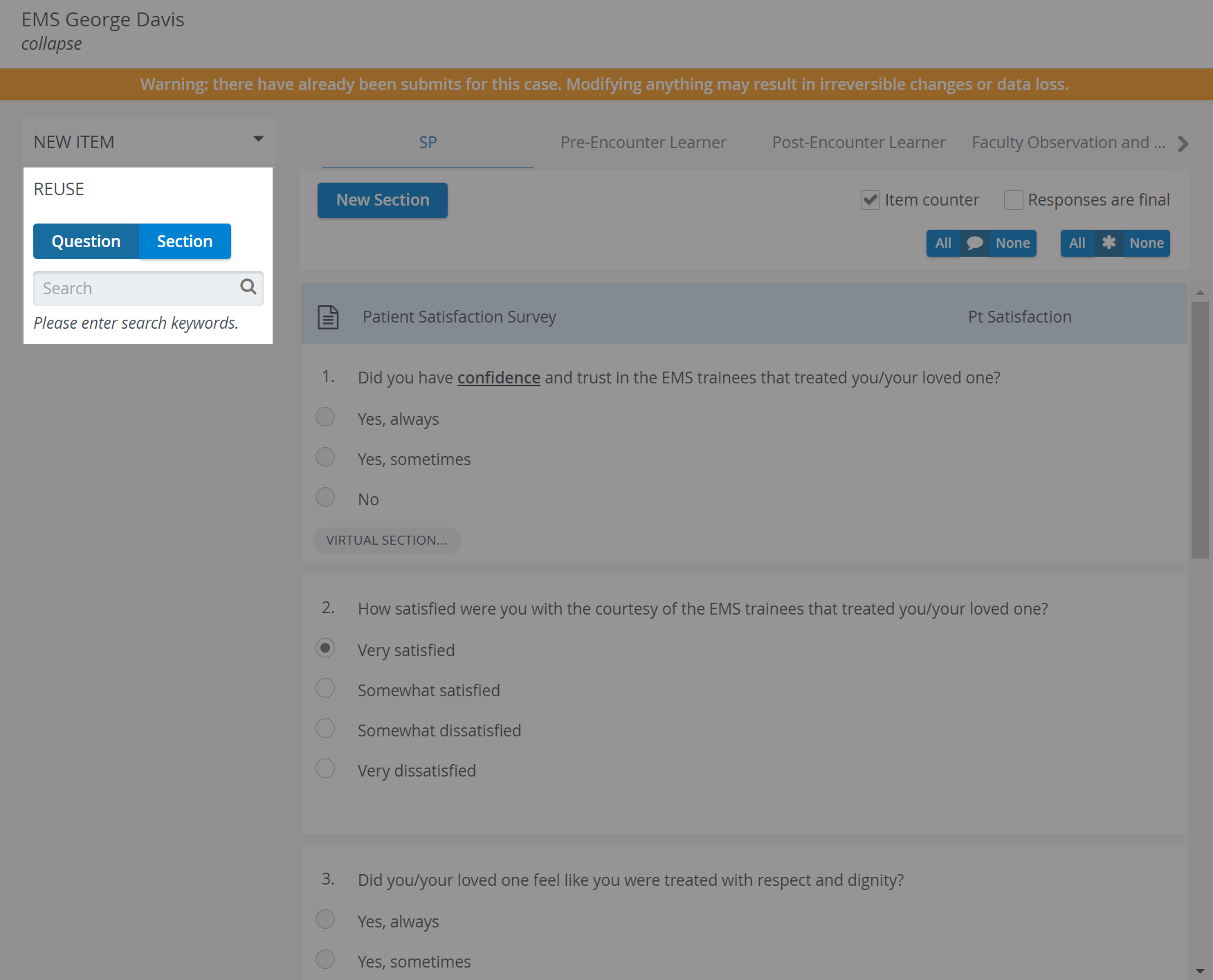
The REUSE panel expands, while the NEW ITEM list collapses.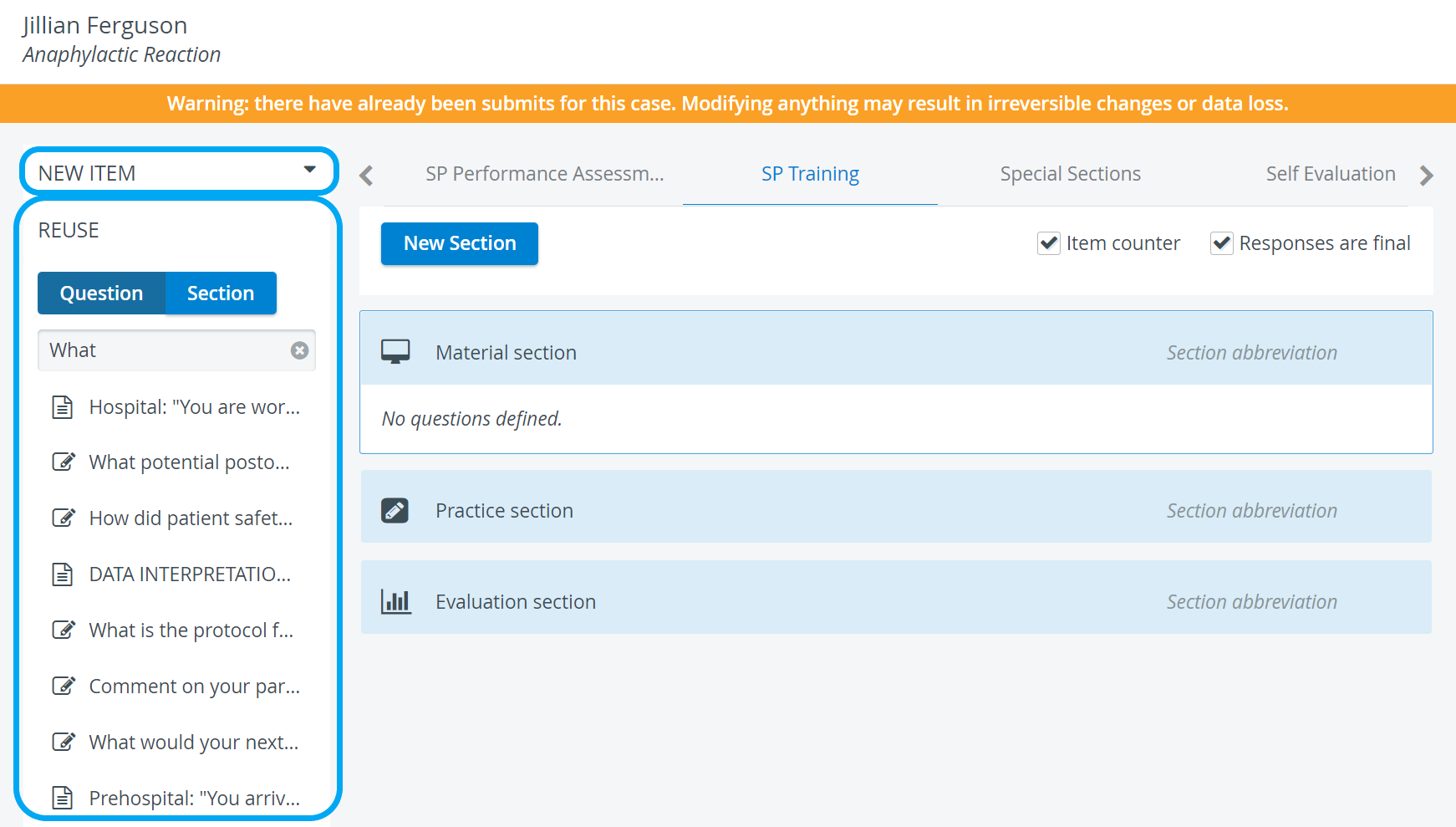
Make sure the Question category is activated, that is, the Question button is dark blue.
By default, the Question category is activated. For reuse of a Section, switch to the Section category.

Start typing any relevant word in the search field.
All items containing the letter combination entered in the search bar will be listed with the item type icon.Hovering over the listed item will prompt a tooltip window displaying the entire item (i.e., question and all answer choices).
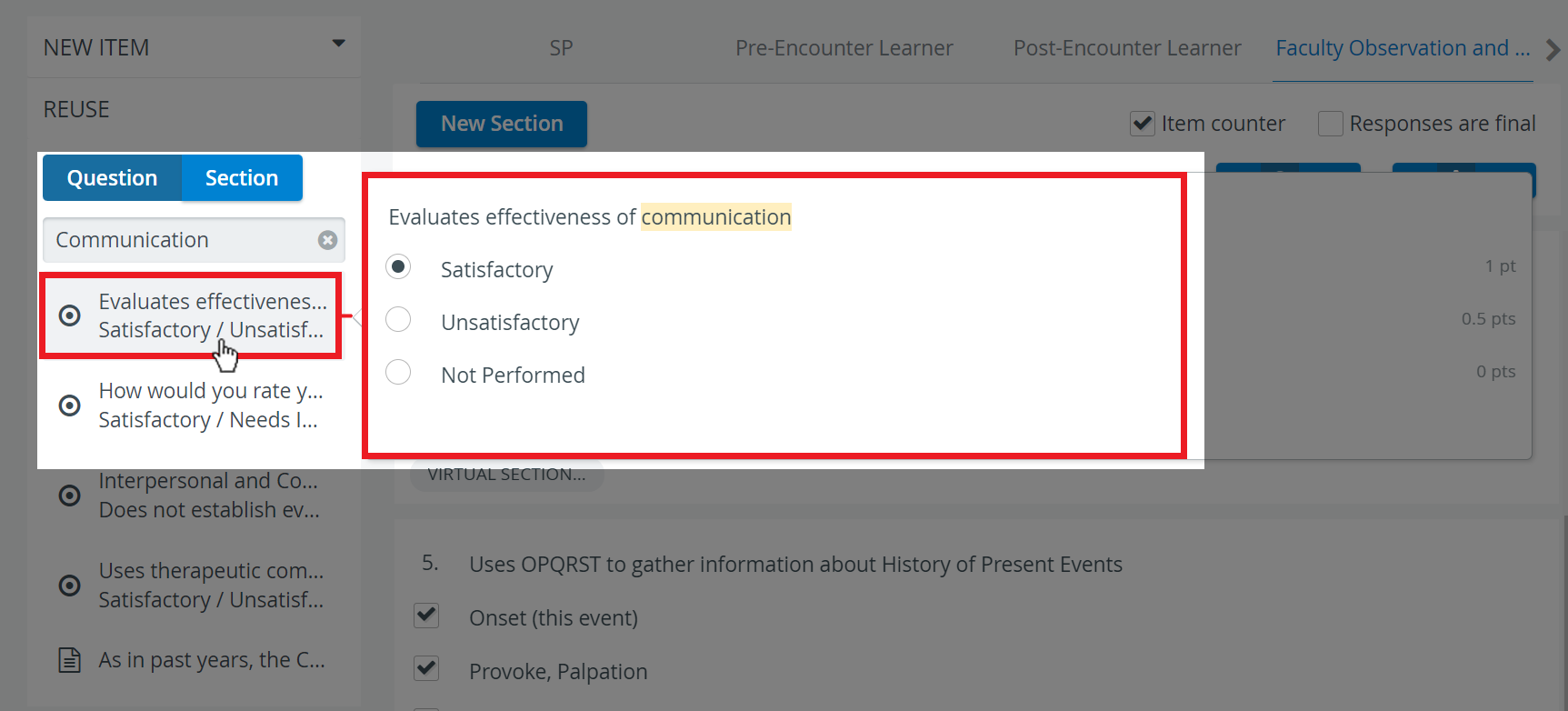
Drag and drop the desired item to the intended location.
When the search results are listed, scroll to the desired part of the section to shorten the drag-and-drop.

Joint Evaluation - REUSE / COPY
Question reuse/copy: If only a joint evaluation question is reused (copied), it will be set to not-scored by default (which can be manually modified if necessary).
Section reuse/copy:
If sections with joint evaluation groups are reused within case parts that allow joint evaluation, the main-joint question relation remains.
If sections with joint evaluation groups are reused within case parts that do not allow joint evaluation, the joint question will be set as not scored.
Case copy: After a case copy, the joint evaluation connections are kept.
For further information, visit our Case Manager and Cases - How to pages, or watch our Case Manager Training Videos.