How to Record from the Center Overview Screen
Important Note for Enterprise Lite Users
This feature is for use with in-campus audiovisual (AV) inputs. Hence, it is not available for LearningSpace Enterprise Lite, which is only used for web-conferencing-based virtual simulation encounters. To unlock this feature, please upgrade to the LearningSpace Enterprise solution.
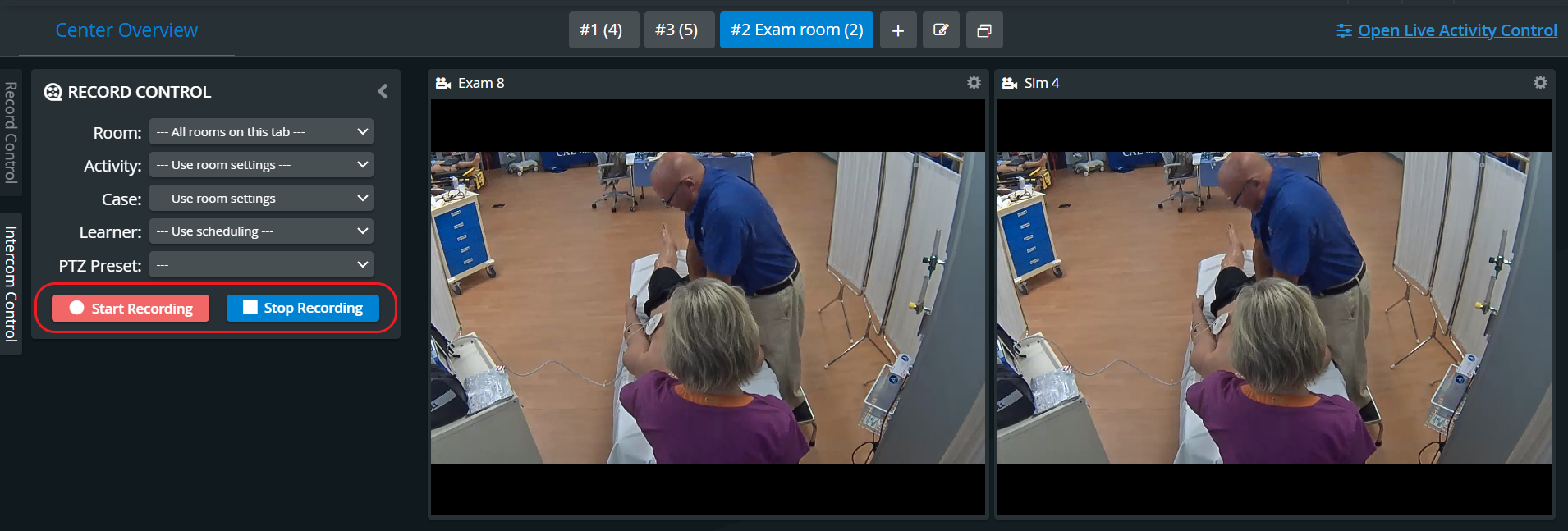
Access the Center Overview screen.
Click the Record Control tab on the screen's left side to view the Record Control panel.
The Record Control panel appears.Select the room you want to record in from the Room drop-down.
All rooms on the actual tab or all rooms on all tabs can also be selected.
4. Select Activity, Case, and Learner from the drop-downs.
The Use Room settings option uses the relevant setting as specified in the Activity Scheduler. If there is no scheduled Activity, the RNSA - as set on the Rooms tab of the System module - will be applied.
5. Select a PTZ Preset position to set all the cameras with that preset.
See more at Pan-Tilt-Zoom - PTZ - functionalities.
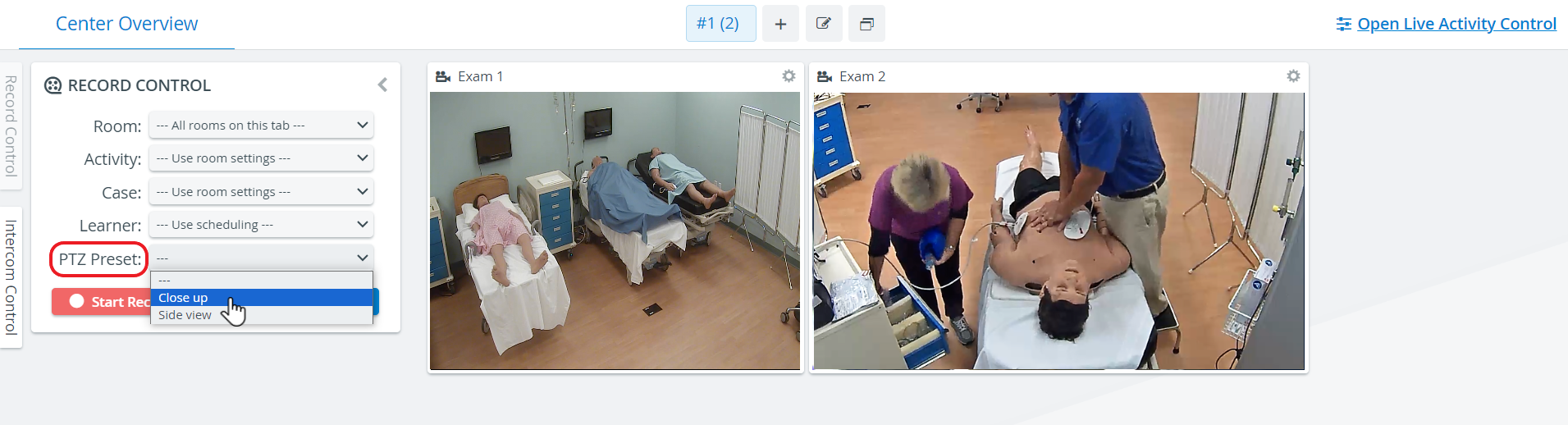
6. Click Start Recording to start recording.
A red dot appears on any room panel preceding the room name to indicate that the room is actively recording.
7. Click Stop Recording to stop recording.
Close the Record Control panel by clicking the Hide arrow.
For more information, visit our Recording Module and Recording Module Training Video pages.