How to Print Video Report about Selected Recordings
Display the details of one or more recordings on a printable Video Report datasheet using

The Video Report contains the following information:
Video Record Information
Enumerates all provided details about the recording, such as Activity, Case, learner group, room of recording, learner(s), SP(s), and patient feature on the video footage, along with the start and duration of the recordingList of Annotations, Event Logs: listed by the exact time, with the learner(s) to whom the references were made, by whom they were made
Print to PDF
An example of a Video Report:
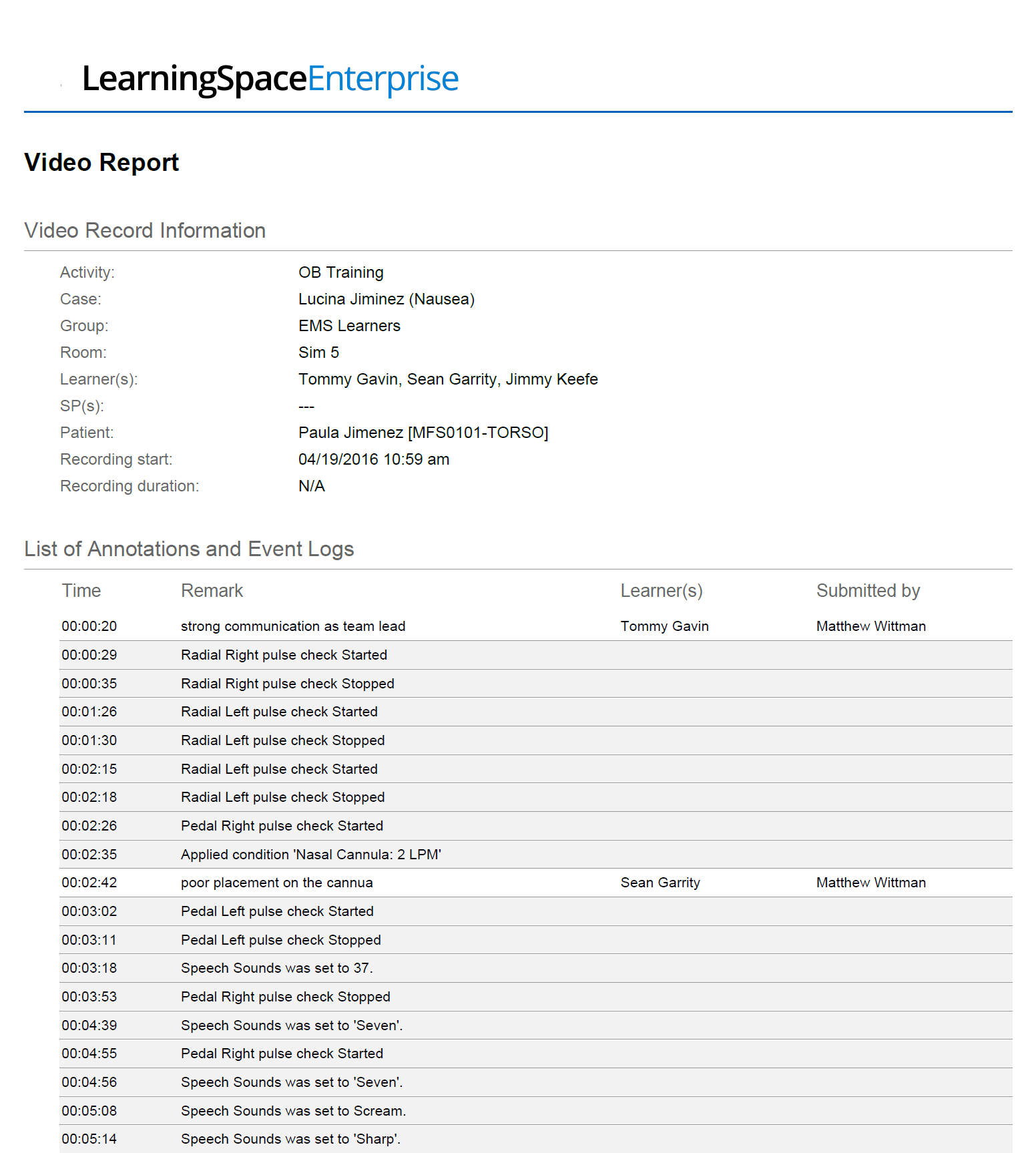
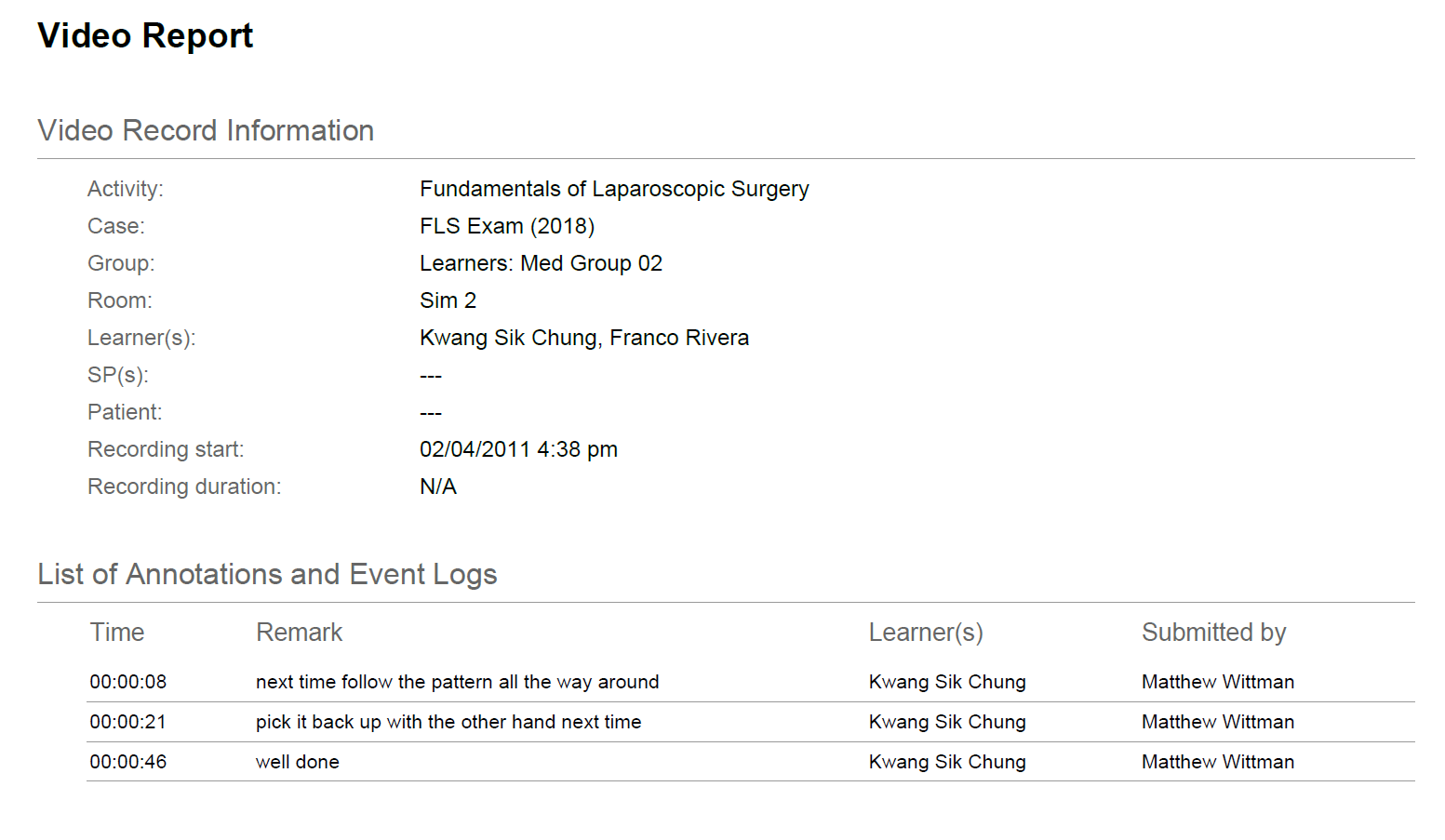
Once the desired recording is selected, the Print button at the bottom left of the screen prompts the creation of a PDF format report, which can be saved or printed.
The report can include multiple recordings, as many are selected by ticking their checkbox.
A latest enhancement allows Reports of LearningSpace to support Chinese, Korean, and Cyrillic characters.

Video Report
Export to Excel
The video report can be printed (exported)


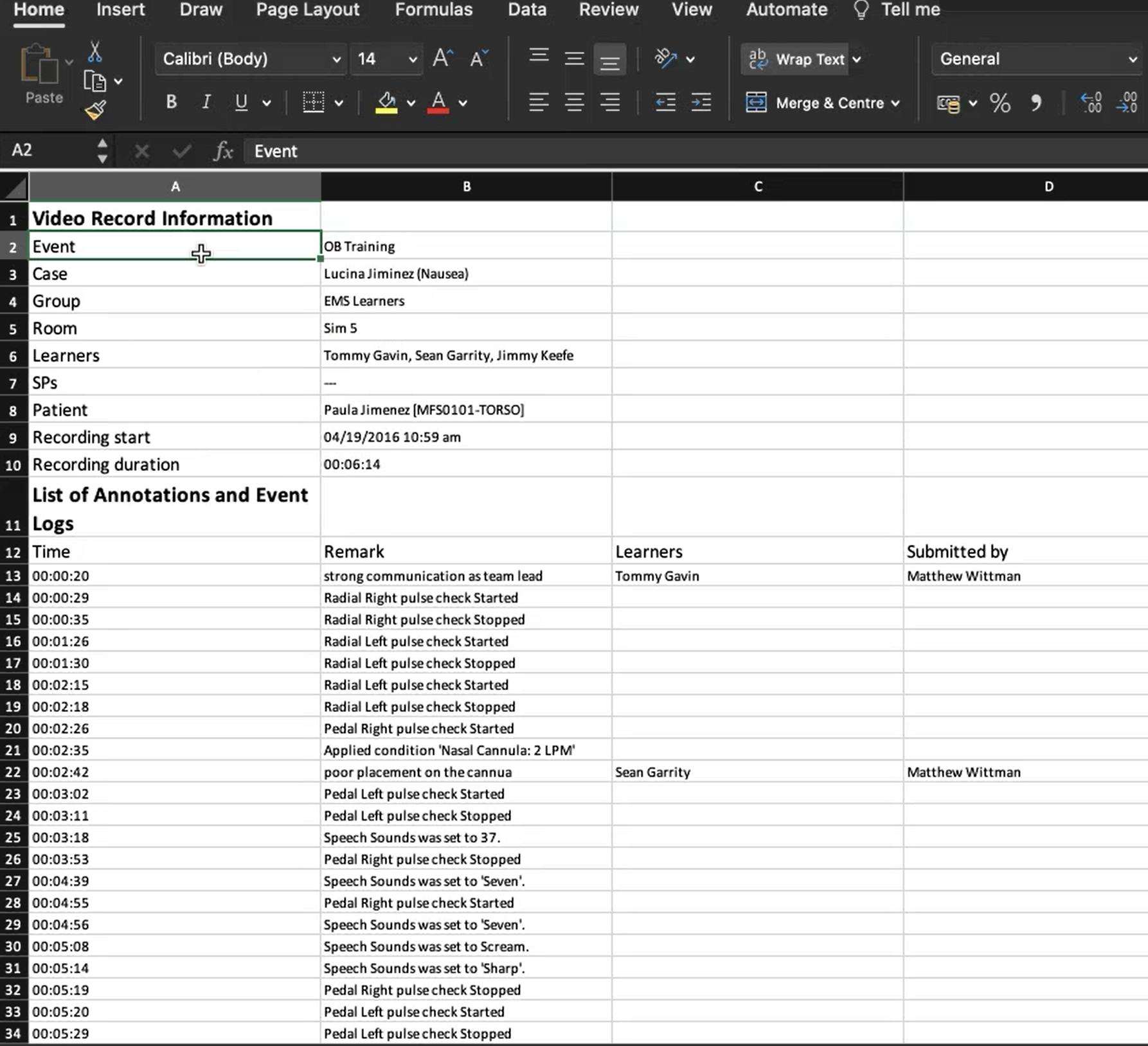
More about printing in LearningSpace
For more information, visit our Video Review pages.