How to Print a Case
Print this Case option
Printing the Case and all learner-related checklists created for the Case is possible by clicking the Print this Case link in the top-right corner of the Case Manager screen.

Print this Case option - Case Manager
Before printing, you can further narrow the parts to be printed by selecting or deselecting the checkbox next to the Case part(s) you do or do not want included.
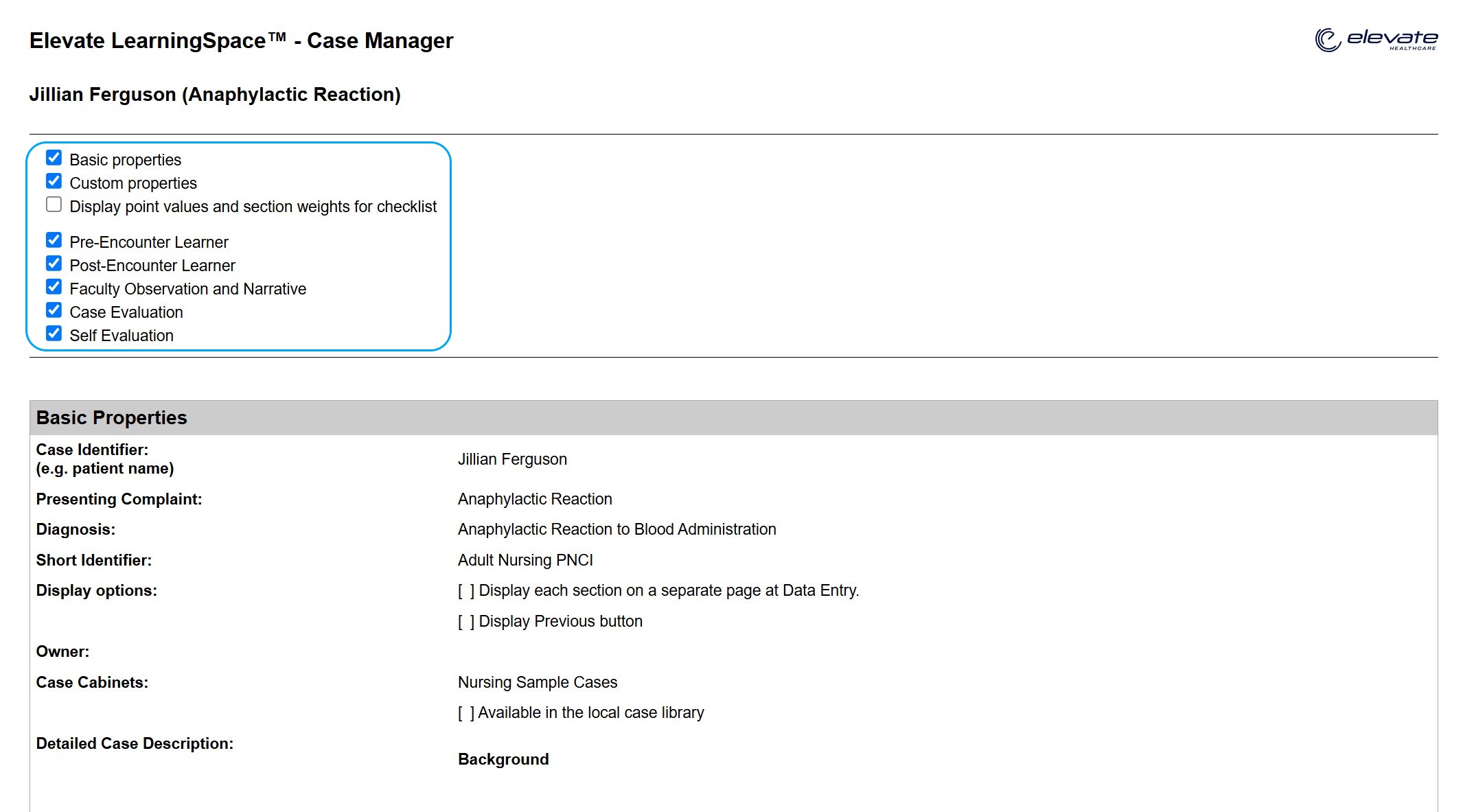
Case Print Options
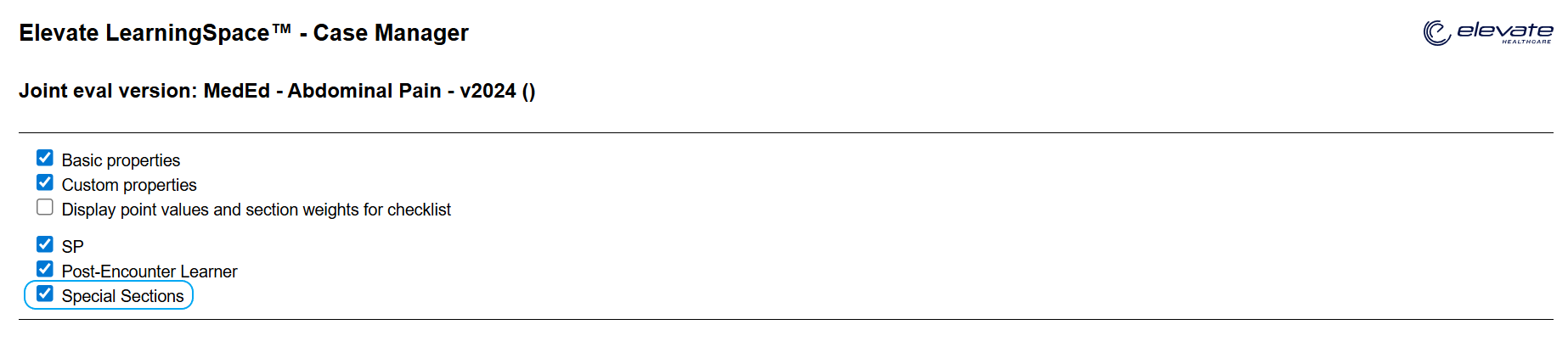
Print Special Sections

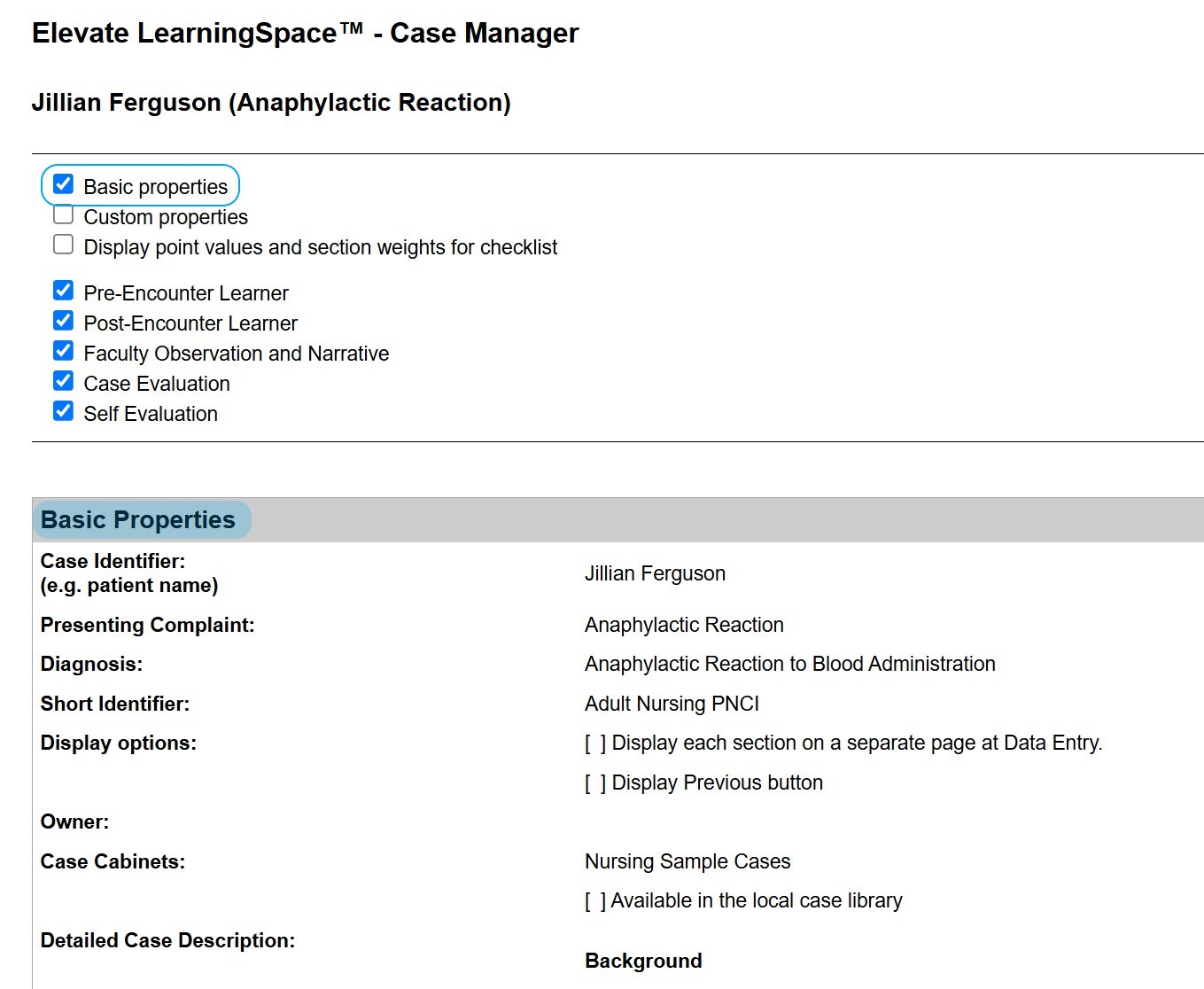
Basic Properties
If this option is enabled, the Case printout will include the Header data and the contents of the Details tab in the Edit Case pop-up for the affected Case.
Custom Properties
If this option is enabled, the Case printout will include the contents of the Custom fields tab in the Edit Case pop-up for the affected Case.


Custom Fields Tab in the Case Manager's Edit Case pop-up
Display Point Values and Section Weights for Checklist
When the Display point values and section weights for checklist option is enabled:
Each answer item displays its point value;
Each question shows its total max point value;
Each section shows:
Its weight,
Its total max point value;
The overall checklist total point value is shown at the top and bottom.

Print this Case option
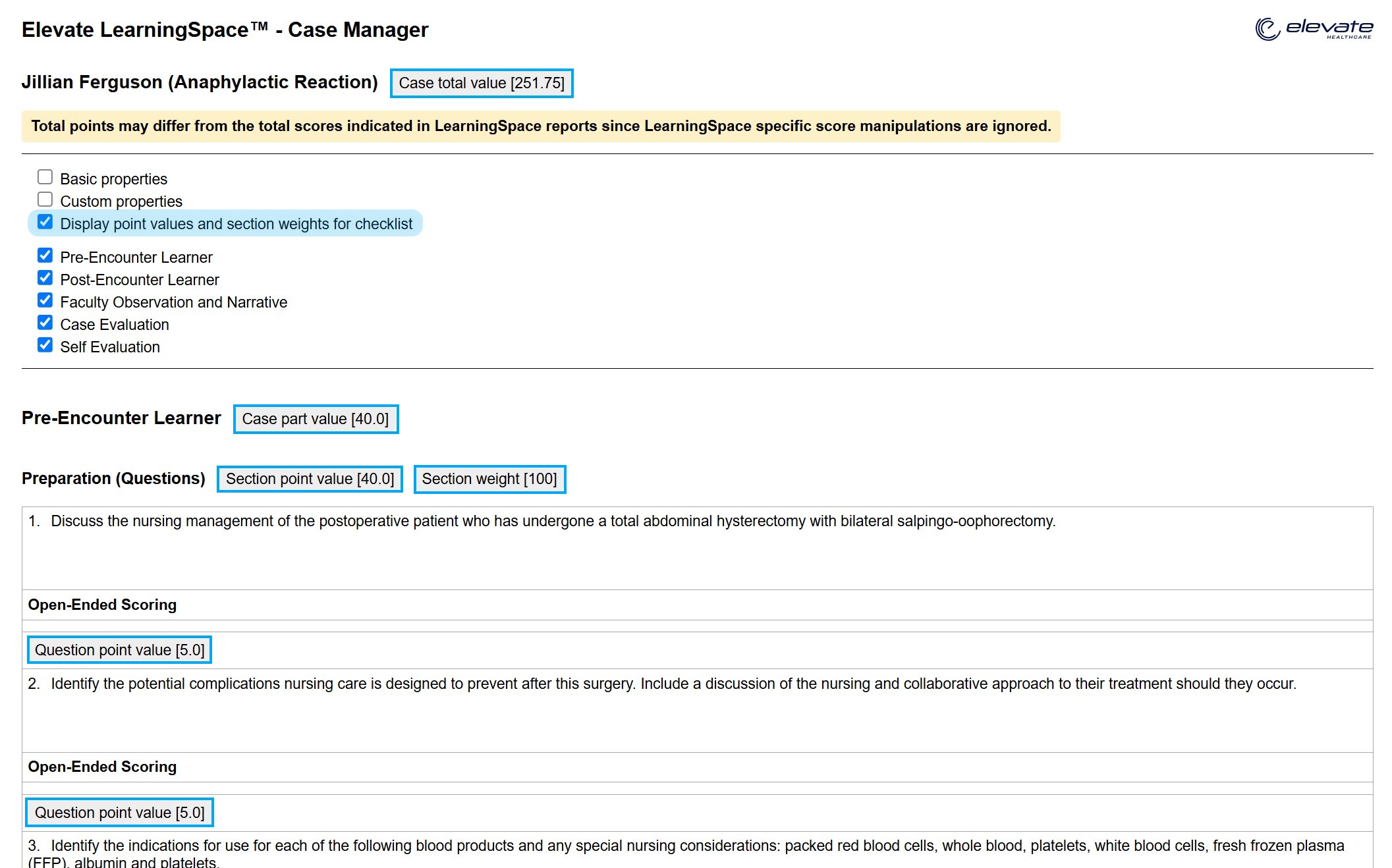
Case Print View
This option is disabled by default.
More about printing in LearningSpace
For further information, visit our Case Manager and Cases - How to pages or watch our Case Manager Training Videos.