How to Play a Specific Recording - Legacy version
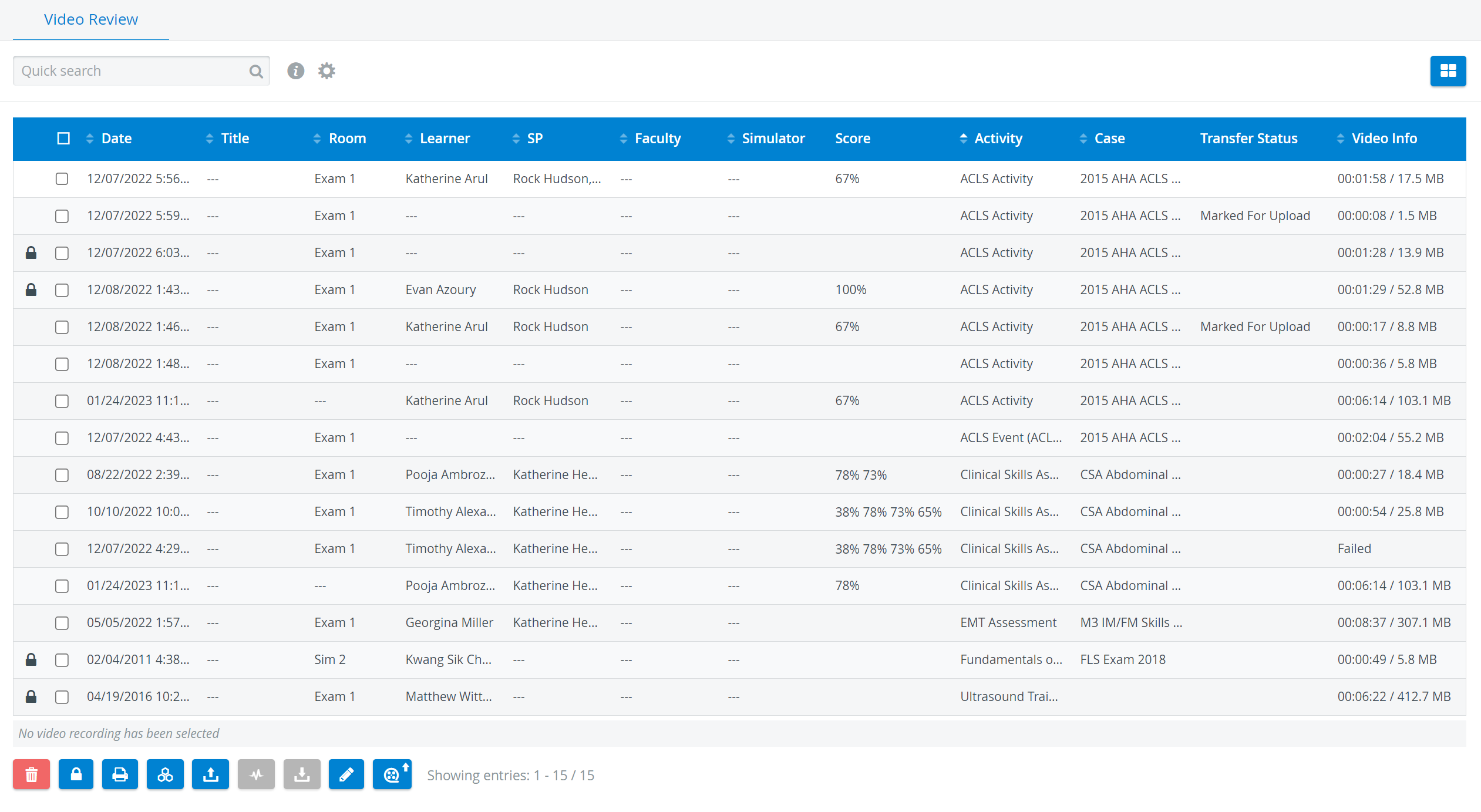
Click anywhere on a row from the Video Review list to play a recording.
The recording opens and plays automatically.Click the Pause button to pause the video.
Click the Play button to resume play.
The Pause and Play buttons toggle back and forth,, and depending on the video's status, only one is visible at a time.
4. To add participants to the recording, use the Learner and SP drop-down menus on the Record Control panel.
If the panel is not visible, click the Record Control tab on the left side of the screen. (Click the tab again to hide the panel.)
The added names are color-coded: learners are indicated with blue, while SPs are distinguished with green.
5. Click the X in their name field to remove any added participants.
NOTE: The X becomes red when hovering over the name field.
6. Click anywhere on the timeline to jump to that point in the recording.
Hover the cursor over "Video Review" at the beginning of the timeline to see the time and date bubble when the recording occurred.
The upper-right side of the recording timeline displays the elapsed time.
7. Click and hold on the endpoint of the progress indicator (seeker) to move back and forward in the recording.
You can jump to a specific point in the recording by clicking on an annotation marker or the time indicator in an annotation.
12. Use the Annotations panel to add or delete annotations and change the annotation color coding.
See How to Use the Annotations Panel for more information.
If the Annotations panel is not visible, click the Annotations tab on the left side of the screen. (Click the tab again to hide the panel.)
For more information, visit our Video Review pages.