How to Open a Group Performance Review
Access the Preset Reports tab of the Reports module.
Select the desired Activity from the Activity drop-down.
The Group Performance Review button will be activated, that is, the report becomes available.

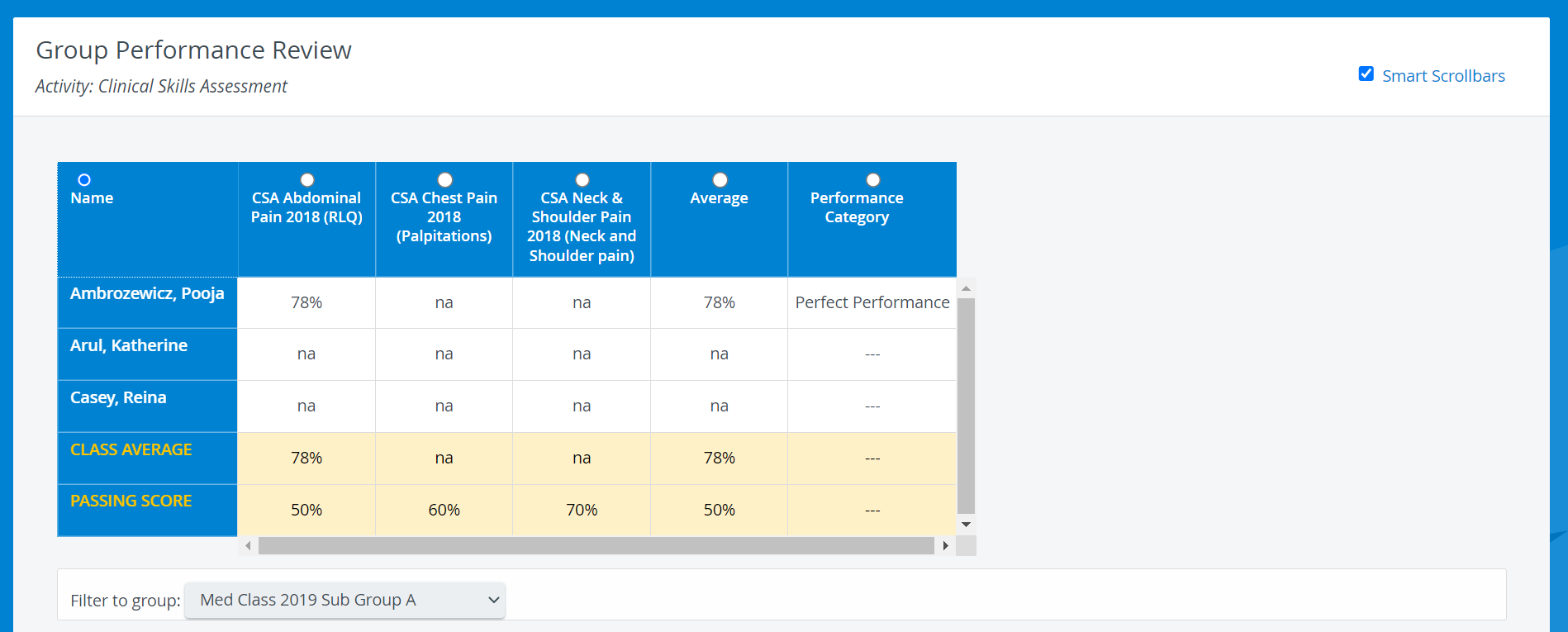
The Group Performance Review displays the
individual performance by Case,
average achieved through all the Cases
and the Performance Category.
Group Performance Review page
Class average is included at the bottom of the list (when alphabetical order is applied).
Individual averages (achieved through all the Cases) are displayed on the right-hand side of the list.
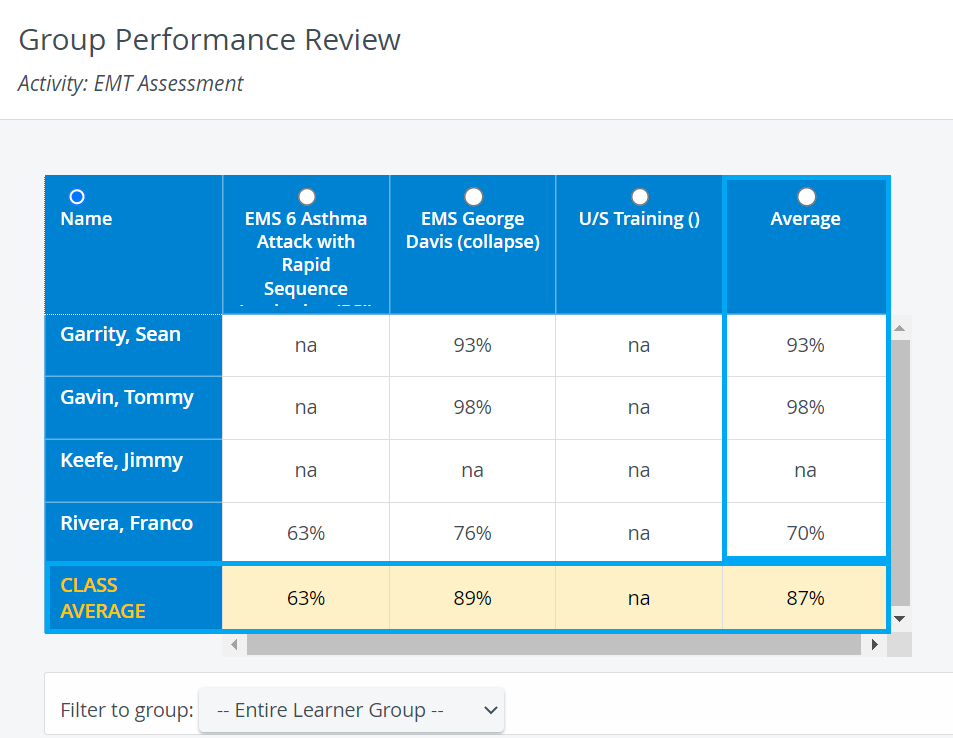
By default, the learners are listed by name in alphabetical order.
To list the learners in decreasing order according to their scores, select the radio button of the Case you want to have as a basis.
Listing by Average score or Performance Category is also possible by selecting the corresponding radio buttons.
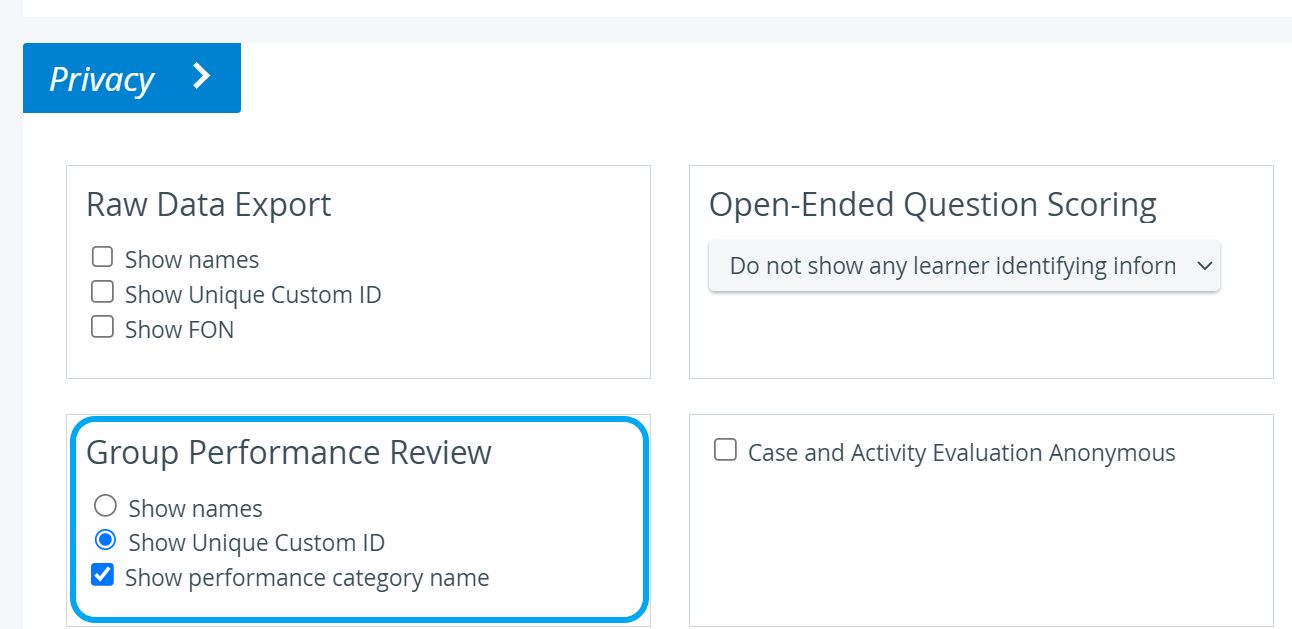
Performance category is displayed in the report if the respective box is checked on the Activity Reporting Setup page under Privacy and if Performance categories are set up in the system for the related Activity.
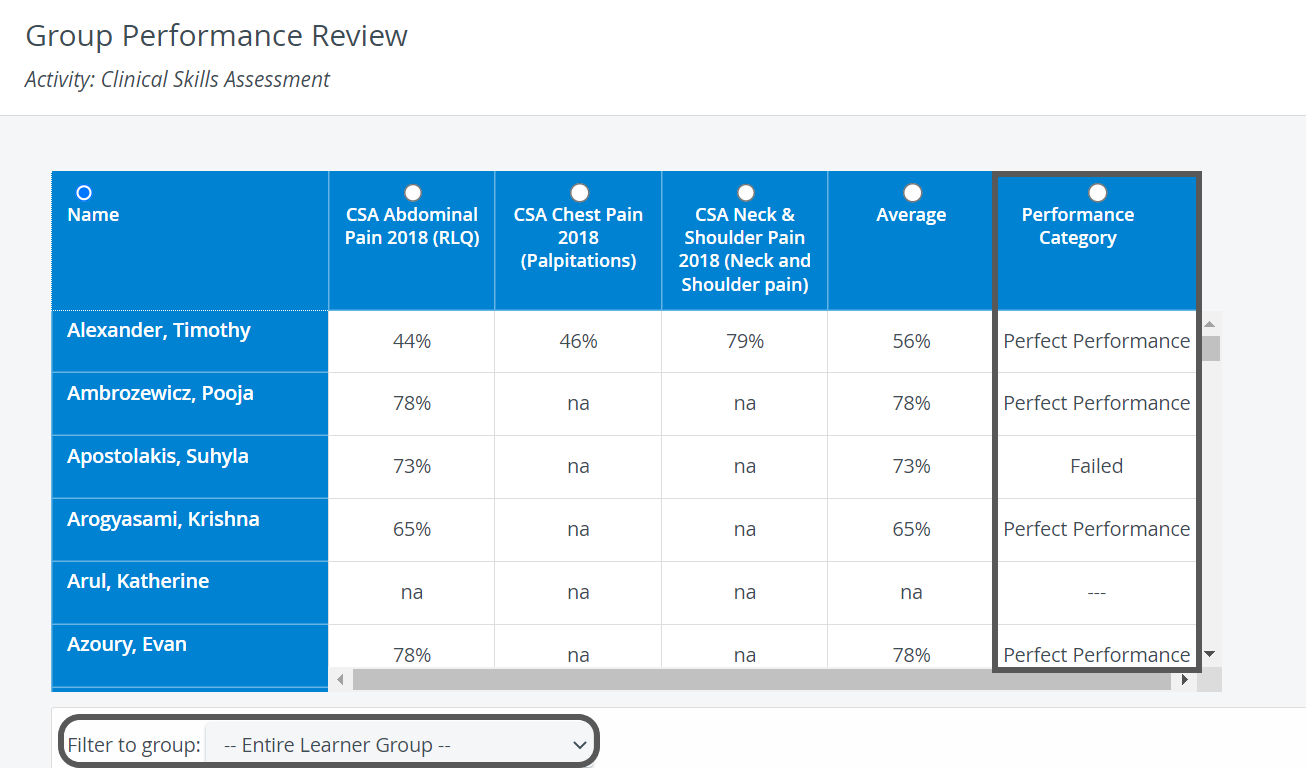
Use the Filter to group drop-down to see the results of a specific subgroup.
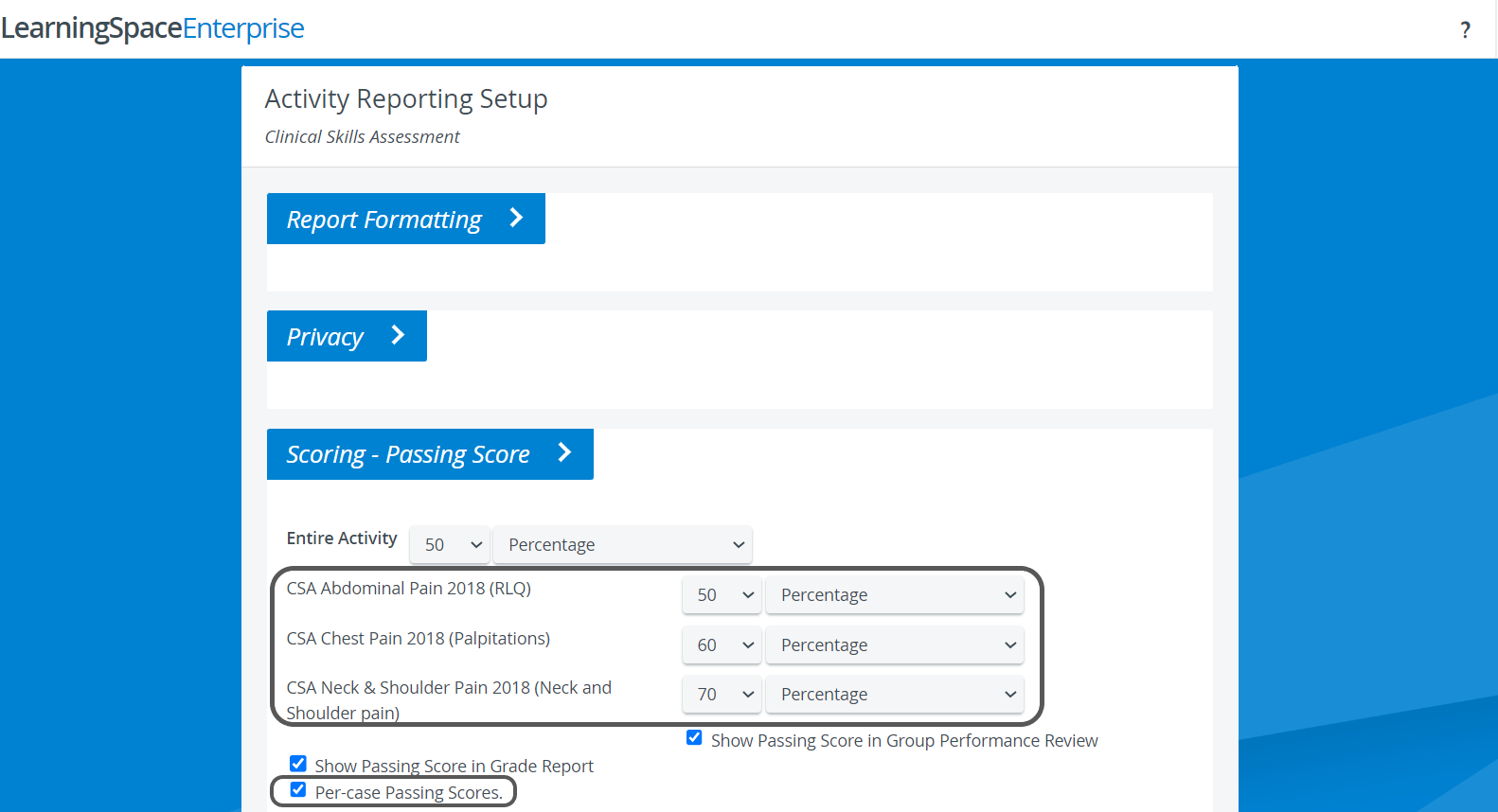
Passing Score line is included in the report if Passing Score is determined in the Activity Reporting Setup and the checkbox is ticked for displaying it in the Group Performance Review reports.
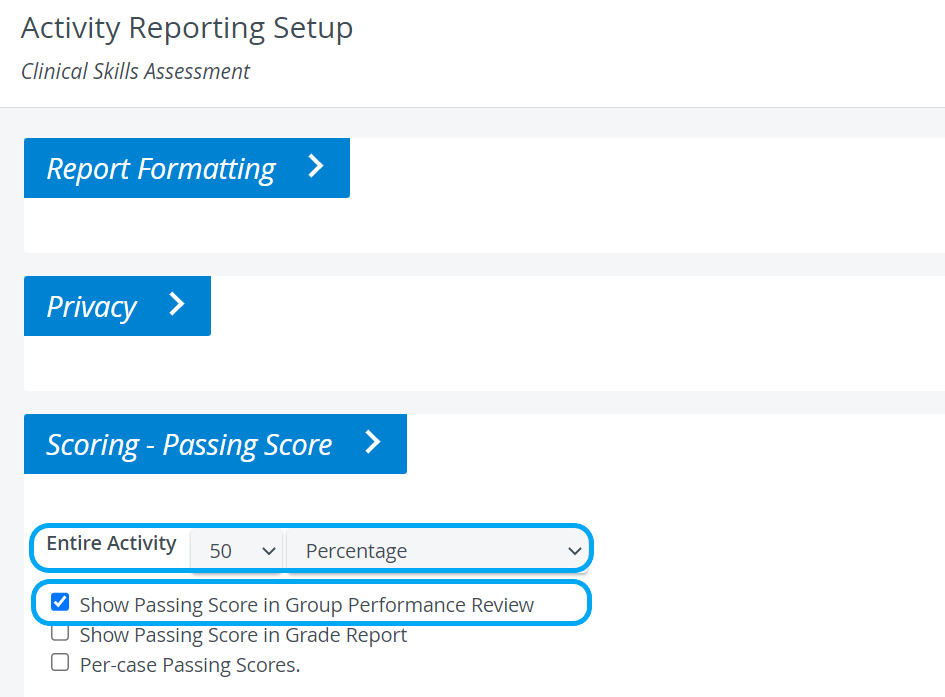
Per-case Passing Scores are displayed for each Case in the report if set so at the same place:
For more information, visit our Reports Module pages and watch the Reports Module Training Videos.