How to Move Room Panels
Important Note for Enterprise Lite Users
This feature is for use with in-campus audiovisual (AV) inputs. Hence, it is not available for LearningSpace Enterprise Lite, which is only used for web-conferencing-based virtual simulation encounters. To unlock this feature, please upgrade to the LearningSpace Enterprise solution.
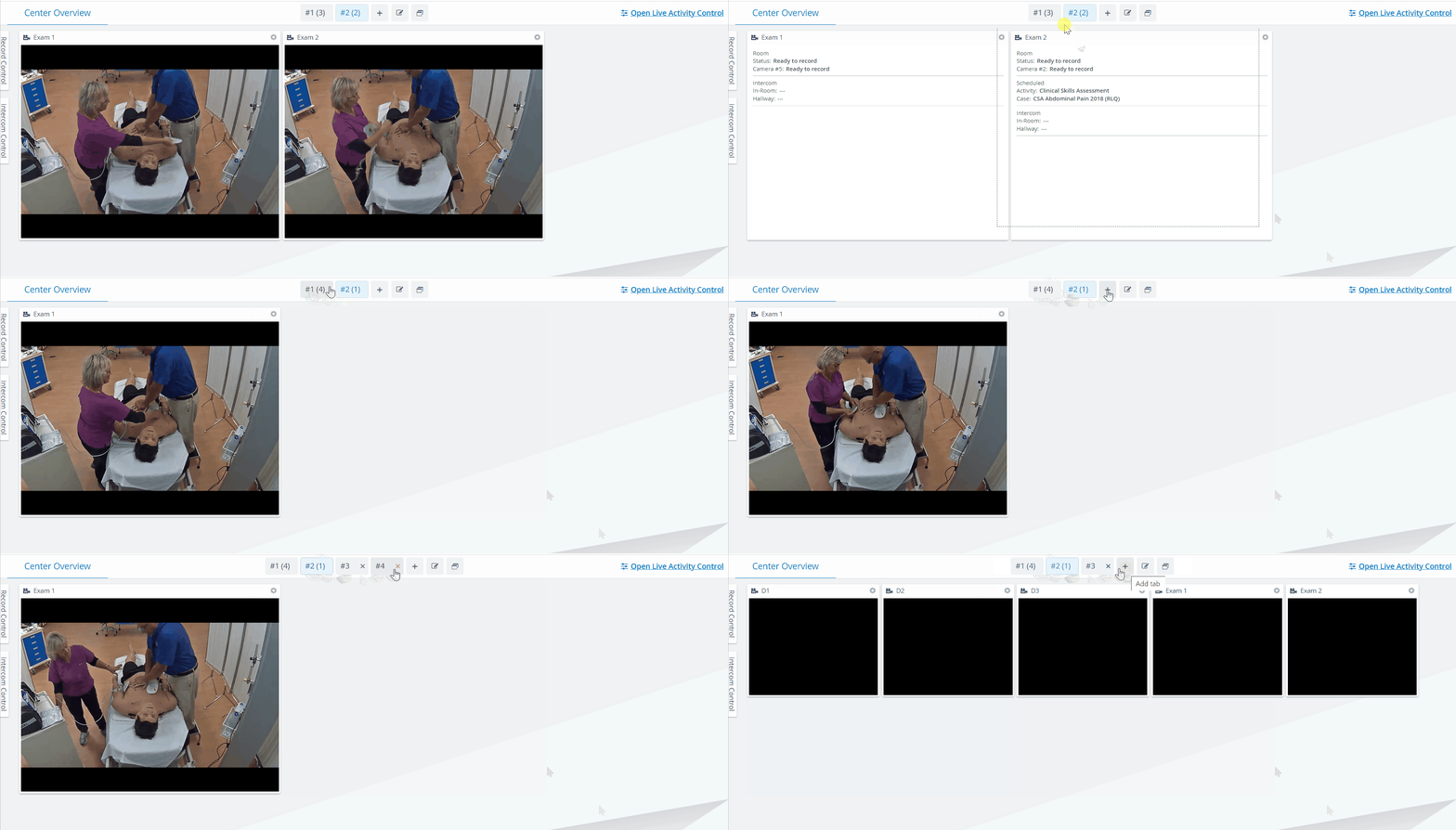
To move a room panel to a different tab on the Recording Center Overview screen:
Click and hold on to the room name.
Drag the panel onto the desired tab and release.
To change the order of Room panels within a tab:
Click on the desired room panel tab.
Click and hold onto the room name and drag the panel to a desired location.
Release panel to place it in any location.
The downward arrow indicates the place where the panel will be dropped.

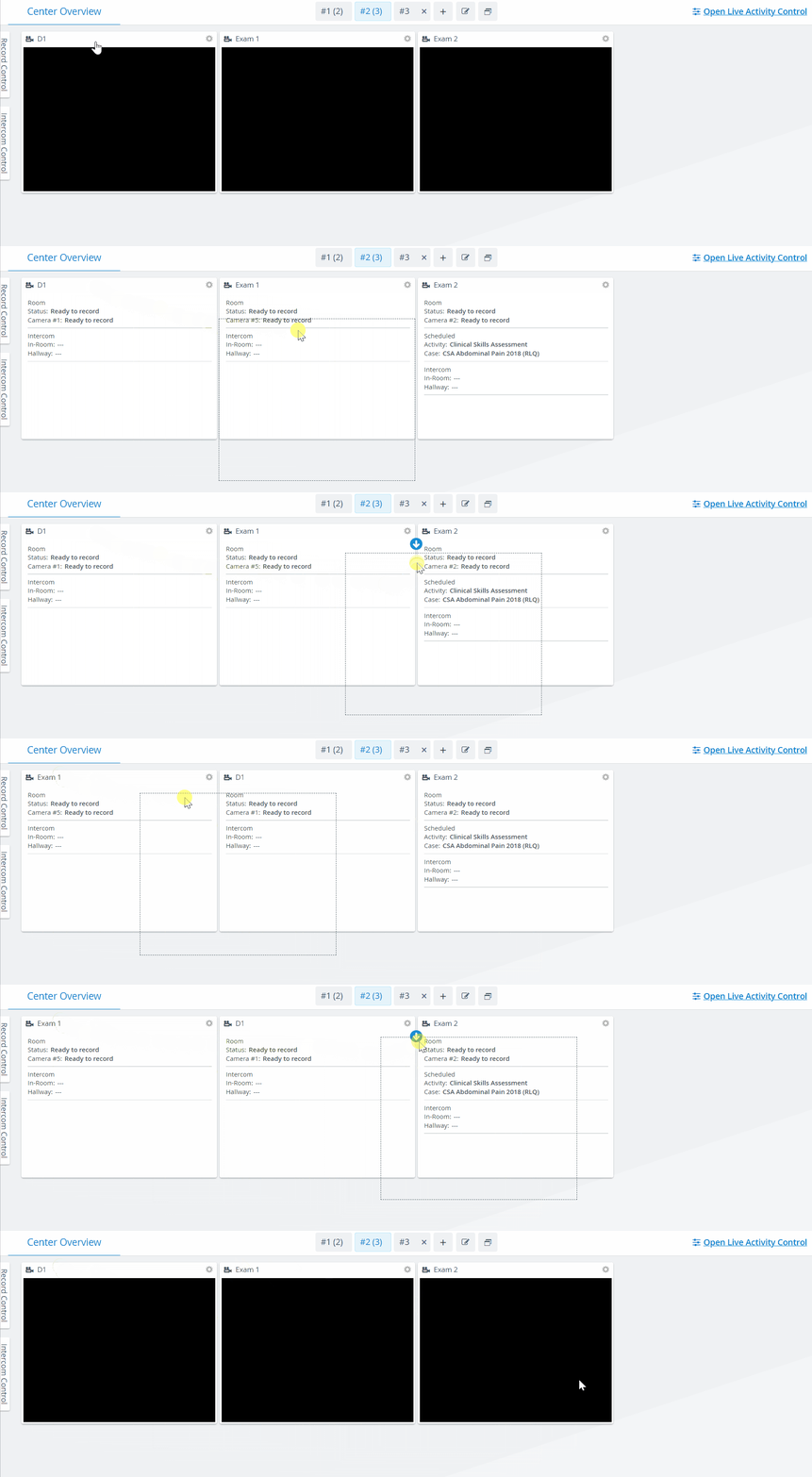
The room panel will display as a dotted outline while being moved.
Room panel order is not saved after manual re-ordering. After changing tabs, the default order will be displayed again.
For more information, visit our Recording Module and Recording Module Training Video pages.