How to Manage Your Confirmed Appointments
After accepting Appointment Requests for Sessions, SP coordinators review the applicants for scenarios and notify the SPs selected to perform via the SP Administration Mobile application.
View Your Confirmed Appointments
Your Pending appointment will be moved to the Confirmed tab once an SP coordinator accepts your application:
Once confirmed for an appointment, you must arrive and portray the patient scenario at the time and date provided.
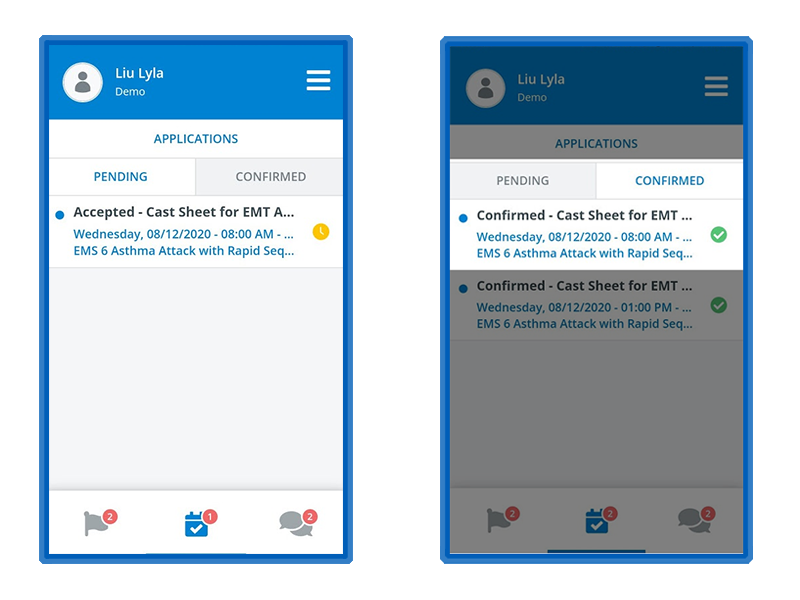
Tap on the appointment to view its details:
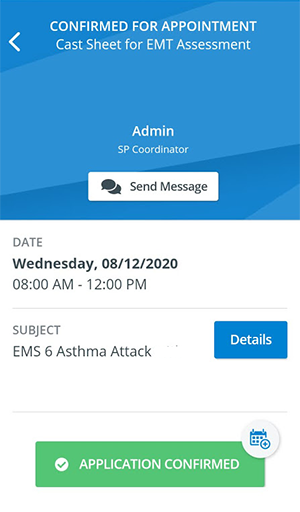
Add Your Confirmed Appointment to Your Calendar
Inside the confirmed appointment, tap on the calendar icon on the right of your appointment status:
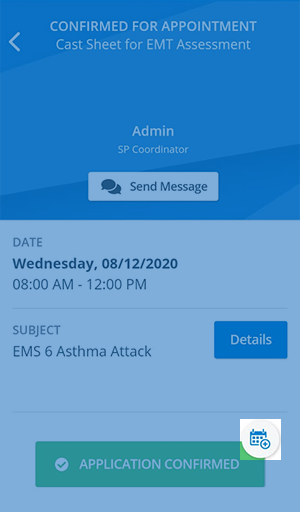
Confirm adding your appointment to your personal calendar of choice.

Cancel Your Confirmed Appointment
If you cannot make the appointment, you can let your SP coordinator know by declining your confirmed appointment.
Tap I CAN'T GO at the bottom of the appointment:
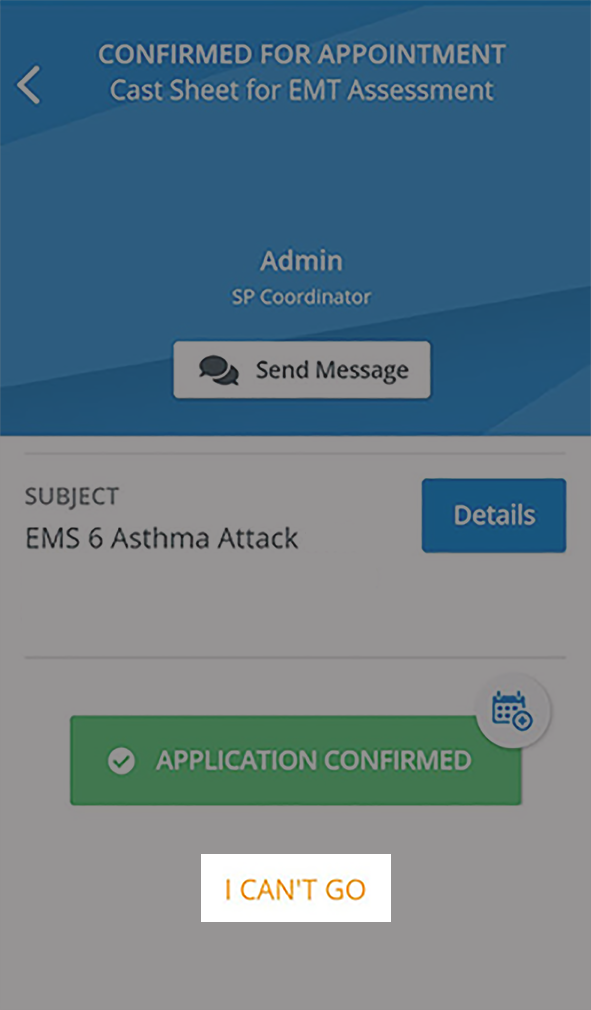
A confirmation popup opens where you need to tap Decline to proceed:
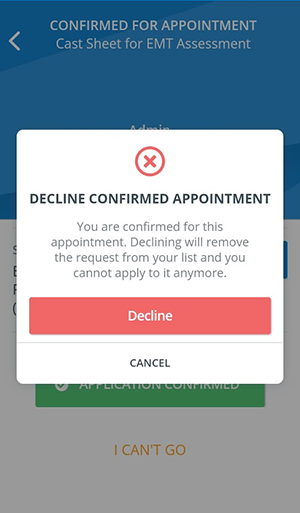
Upon canceling your confirmation, your appointment will be removed from your list inside the SP Administration Mobile application. Also, you will appear with Declined status for SP coordinators at the appointment.
In the current version of the SPA Mobile Application, SPs can decline their confirmed appointments right until the starting time of an appointment. Since this could lead to difficulties finding a new SP and/or rescheduling the appointment, please consult your SP coordinator before declining the appointment at such short notice.
Canceled Confirmed Appointments
Note
Some appointments you have been confirmed for might be canceled.
You will be informed inside your confirmed request in case the appointment has been canceled:
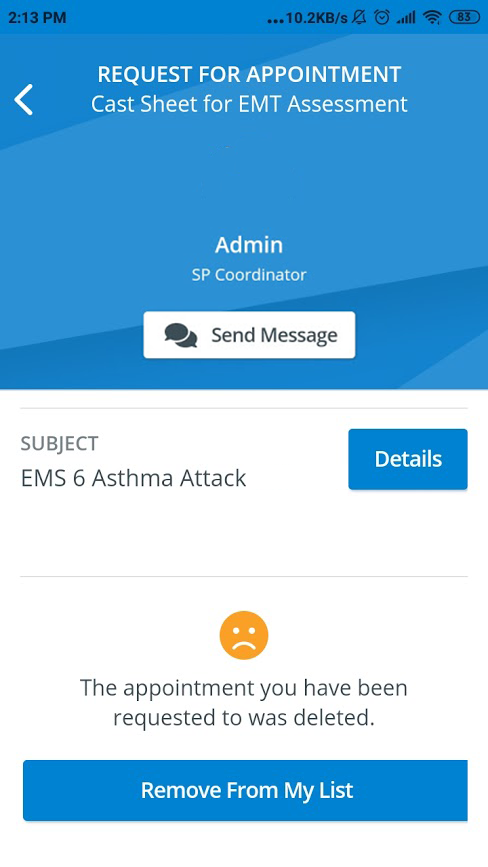
Your Confirmed requests, which belong to canceled appointments, are not removed without your permission. After viewing your pending request, tap Remove from My List at the bottom of the request to delete it permanently from your Confirmed tab.