How to Manage Rooms
To create videos about your clinical encounters with LearningSpace, you need to access the Recording module, which presents you with all the rooms ready for recording.
But how are these simulation rooms set up in your central system that appear on Center Overview (CO) or Single Room View (SRV)?
To make the rooms where you want to record your simulated clinical encounters available in LearningSpace, they must be added to the system.
You can register and configure your training center's simulation rooms in the System Manager Rooms tab.
The number of integrable rooms depends on the hardware configuration. For example, a LearningSpace ONE Box system can only integrate one room.
To set up a room in the system, you will need to
name it and
assign at least one up-and-running camera
All other settings are optional, such as connecting a simulator, adding a Digital Audio Kit (DAK) or other A/V devices.
Important
Room setup should be completed after all devices are physically present and connected in the simulation room and configured on the corresponding tab(s) of the System (e.g., cameras added on the Cameras tab).
Adding Rooms
On the Rooms tab, click the Add New Room button.
The Room Settings window appears.Enter the room number and room description, then click the Add button.
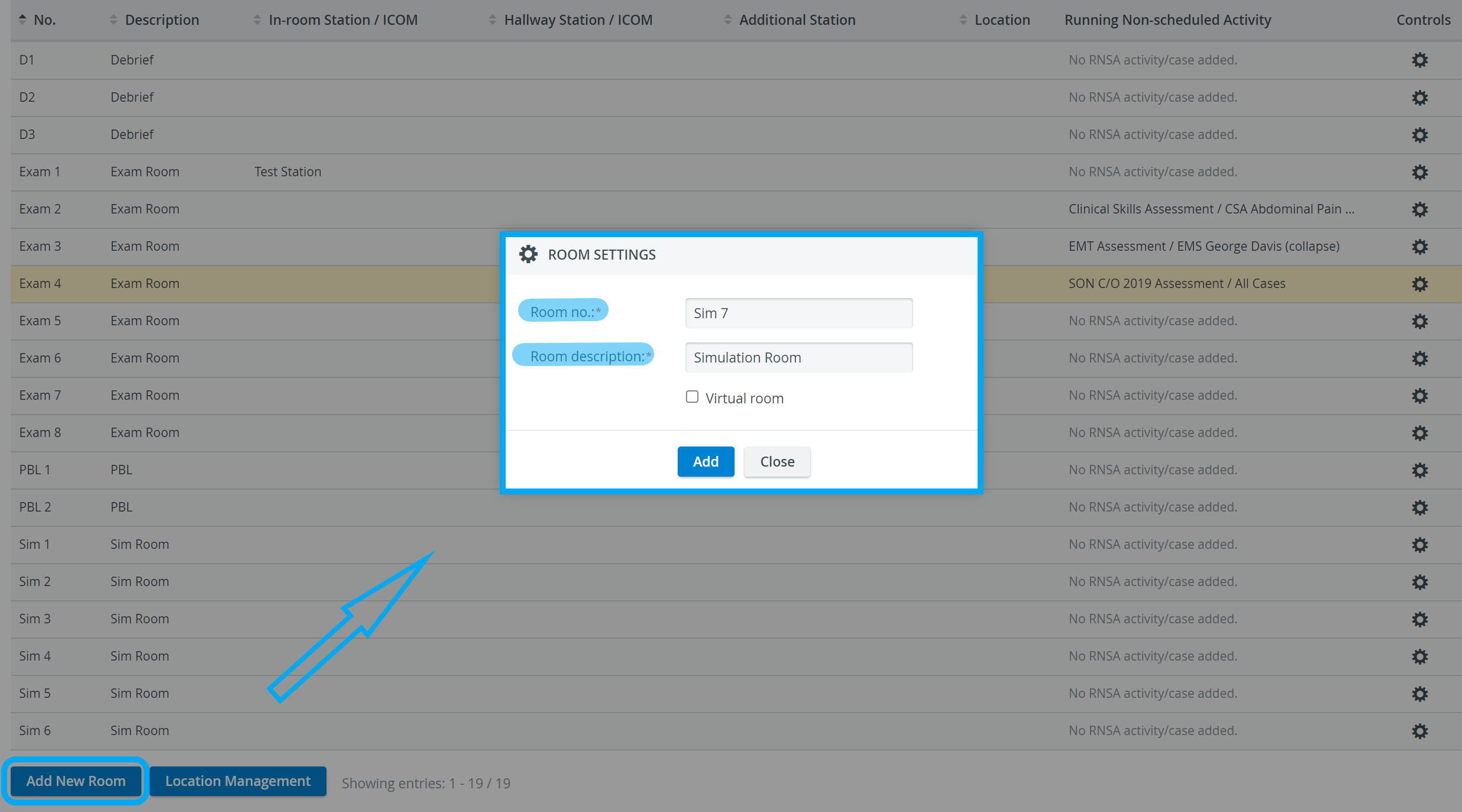
The Room Settings additional information window appears.
NOTE: LearningSpace allows separate Intercom devices to be assigned independently of the Station assignment.
3. Enter additional information as desired.
NOTE: You can add or modify additional room setting information at any time by clicking the cogwheel for a desired room.

4. Click Save to save the new room.
The room list appears with the new room added.
9-camera feed in Single Room View
In the latest versions of LearningSpace, #6 #7 #8 #9 optional camera selector dropdowns have been added to the Room editor of the System manager.
It allows the Single Room View's (SRV) 3x3 layout to be used with camera feeds only.
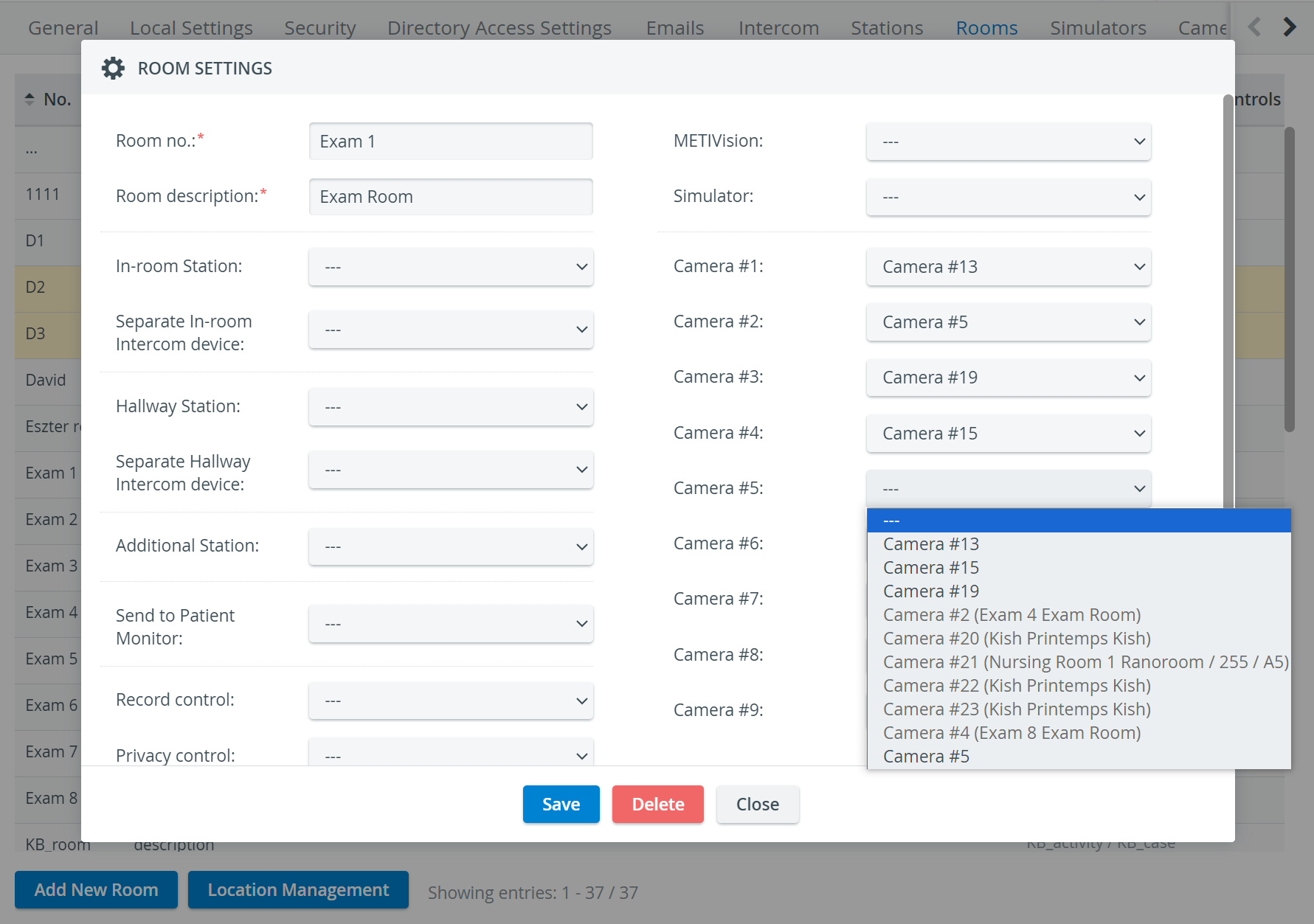
The feature needs to be enabled on the backend and can be configured for a maximum of 9 cameras.
Please turn to your IT team to have the feature enabled and configured according to your needs!
Modifying Room Information
On the Rooms tab, click the cogwheel for the desired room.
The Room Settings window appears.Add or edit the information to associate with the room as desired.
Click Save to save and close the window, or Close to close without saving.

Deleting Rooms
On the Rooms tab, click the cogwheel for the desired room.
The Room Settings window appears.Select Delete to remove the room.
Click OK when the confirmation pop-up appears.

Learn more on the Rooms Tab page and our System Manager pages.