How to Manage Resources Assigned to a Case
To view resources assigned to a particular Case, access the Resource usage tab of the Case Manager.
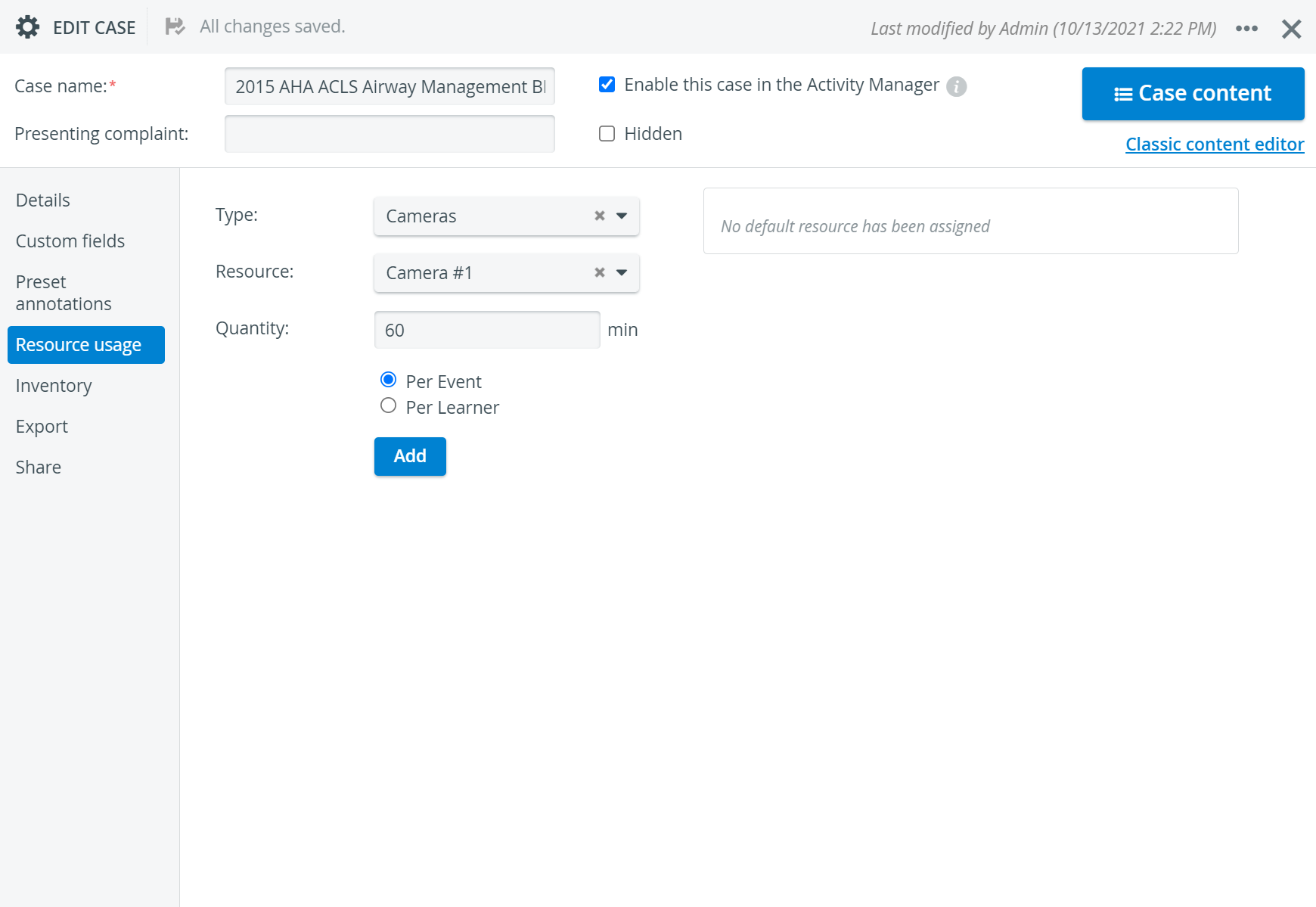
The resources assigned to the Case are listed in the right panel.
Per Learner resources: displays any currently assigned resources to the learners participating in the Case.
If a video recording is assigned to a non-scheduled event, the system accumulates all resource usage set in the ’Per Learner Resources’ table in Case Manager.
Per Event resources: displays any currently assigned resources to the Case.
Per Event display can be used if scheduled events for the Activity are in concern.
Event items are automatically measured only during scheduled activities.
2. Click the X icon in its field to delete an individual resource.
3. To delete all resources, click the trash bin icon in the bottom right corner of the added resources panel.
4. To add a resource, use the drop-down menus for the Type and specific Resource, enter the Quantity in the corresponding field, and then select the Per Event or Per Learner radio button. When done, click Add.
The added resources panel on the right will list the specified resource.
For more information, visit our Case Manager, Resource Manager, and Resources - How to pages.