How to Manage Resource Reports
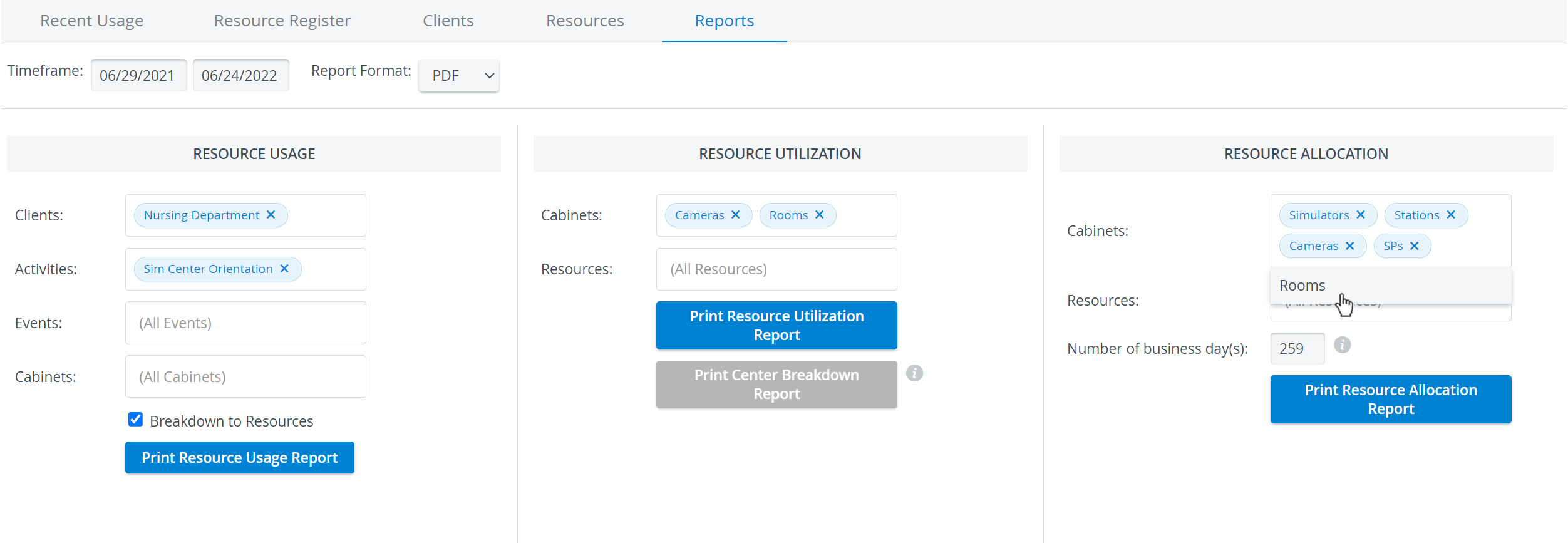
On the Reports tab, click in the Timeframe fields to access the calendar and select a timeframe.
The Timeframe must be specified. Otherwise, some of the print options remain inactive (grayed out).
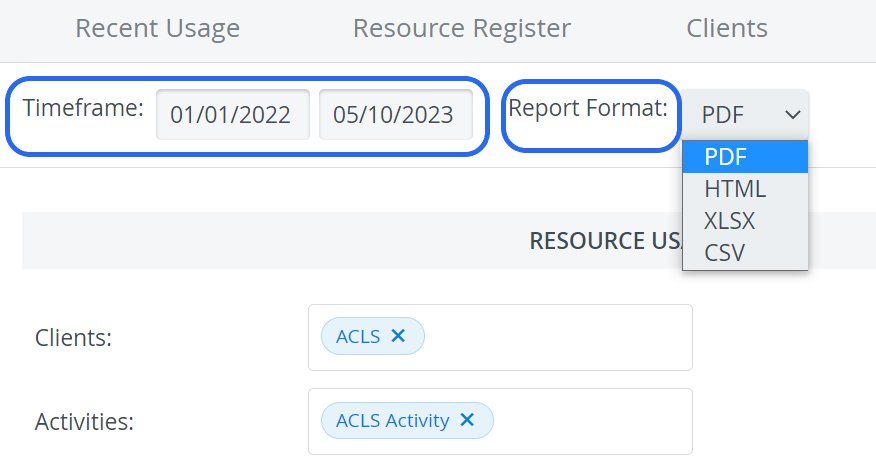
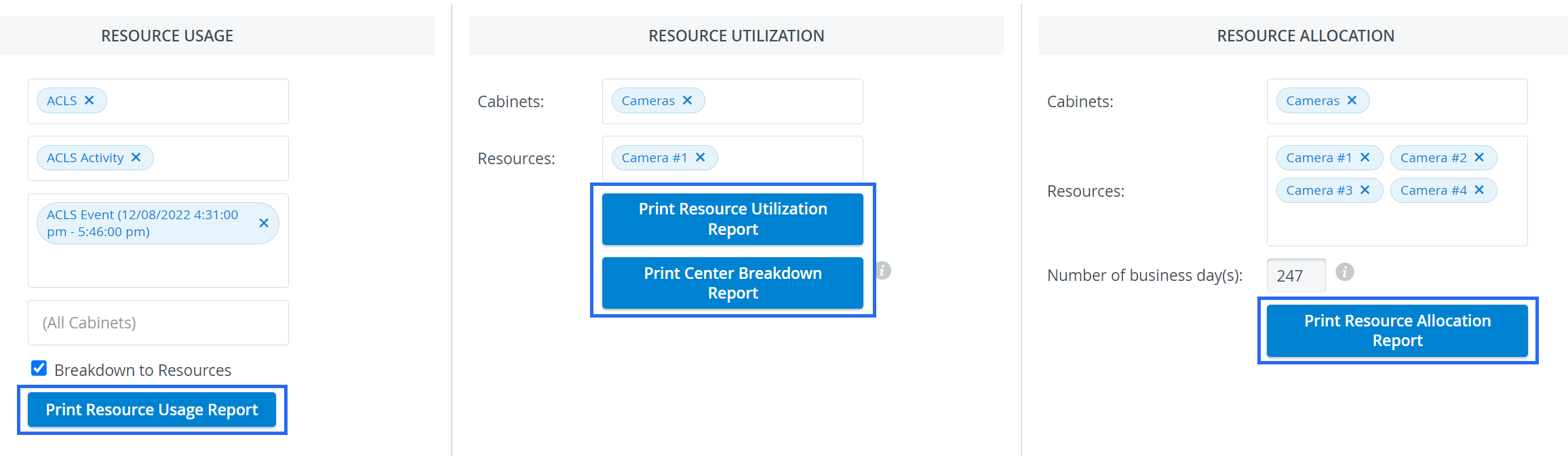
2. From the Report Format drop-down menu, select the output format.
3. Use the fields in all three columns to set the parameters of the required report.
When clicking in either field, a drop-down menu opens where multiple choices can be selected by clicking the highlighted units individually.
4. When selected, click anywhere outside the drop-down menu to continue.
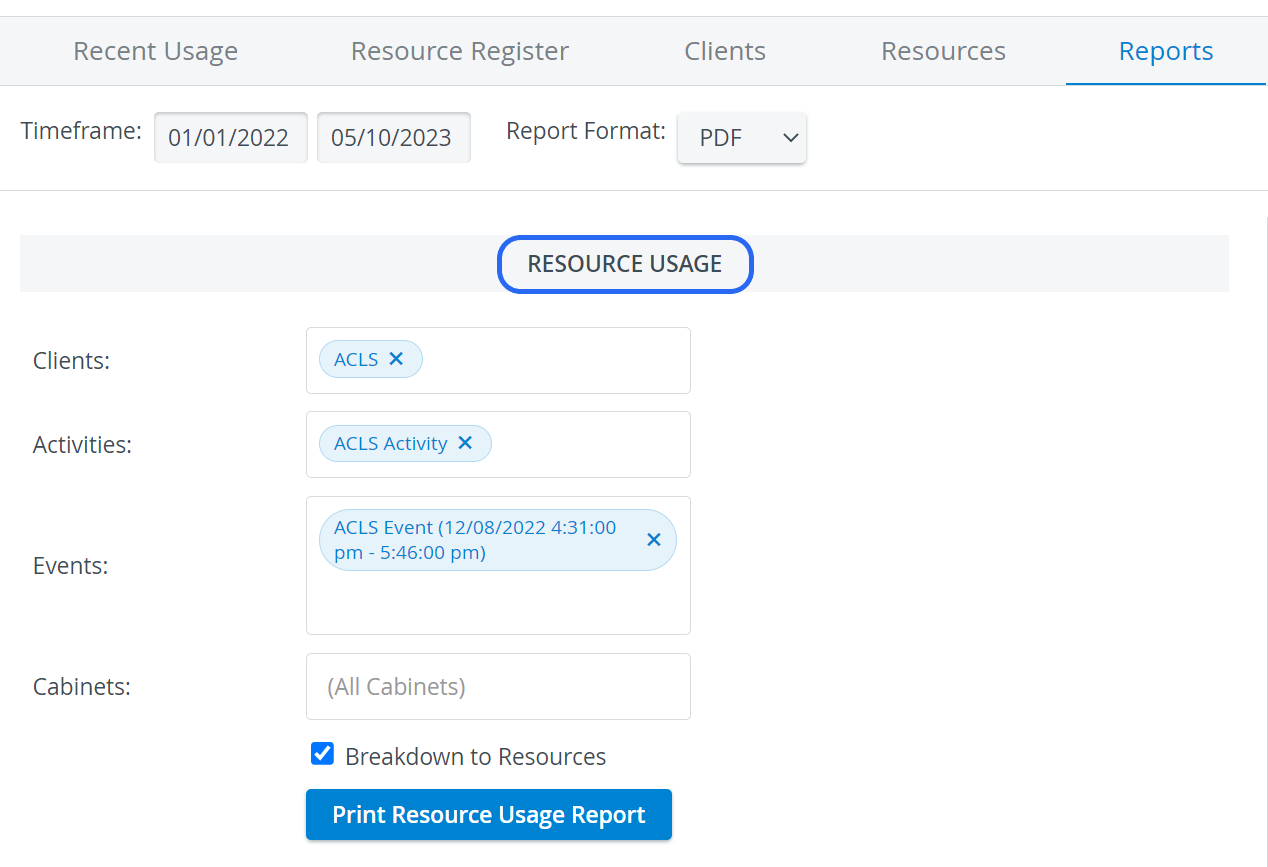
5. In the Resource Usage column, select the Breakdown to Resources checkbox to display the client(s), the Activity(ies), the event(s) of an Activity, the cabinets (containing the used resources by items), and all used resources and related quantity units.
The Events drop-down menu will only activate when used in conjunction with the Activities drop-down menu, resulting in a more specific list of resources.
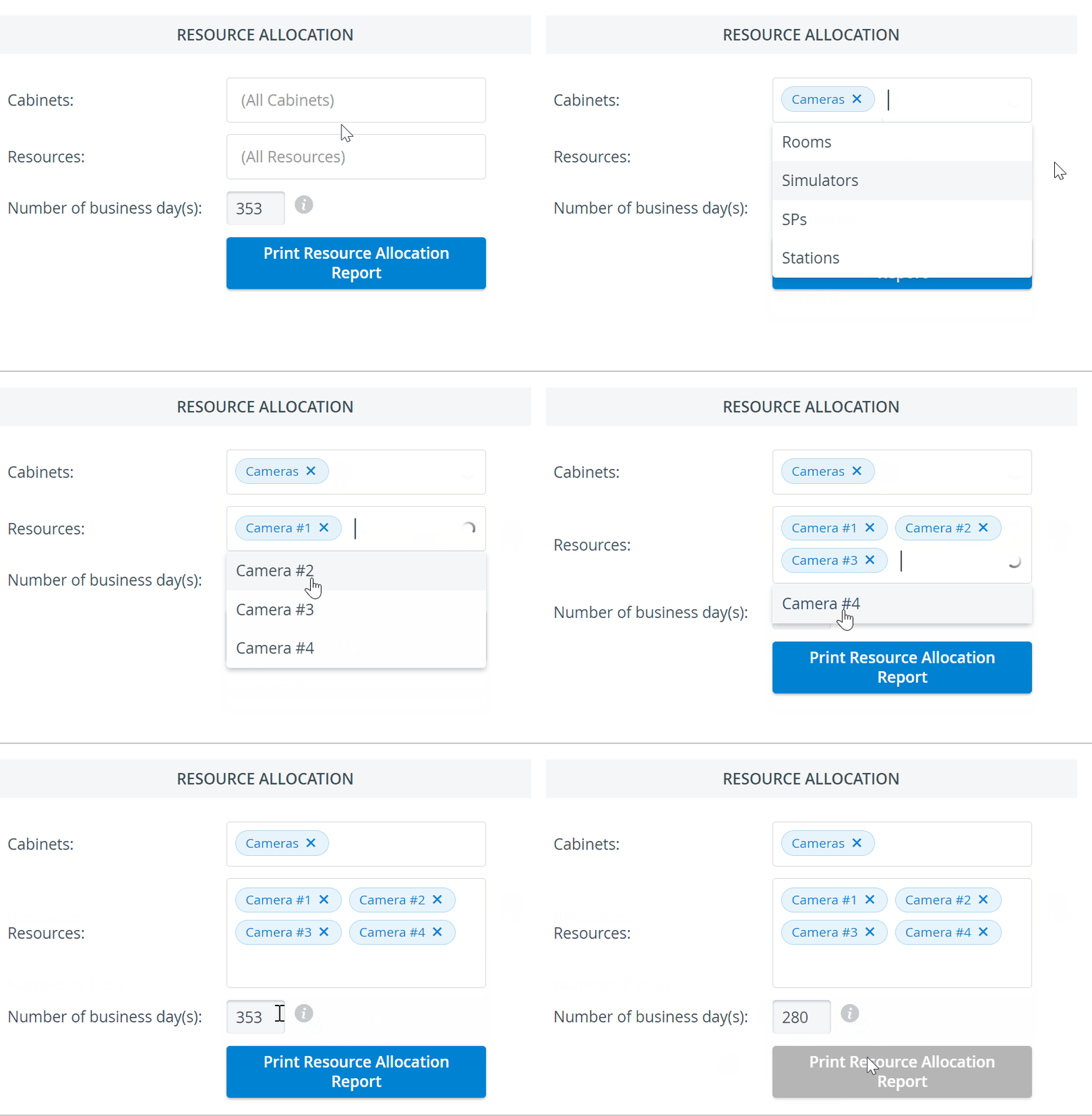
6. In the Resource Allocation column, edit the Number of business day(s) if different from the automatically calculated number.
The pre-calculated number of days represents the number of weekdays within the selected timeframe (excluding holidays). If a resource is used on a weekend or a holiday, manually adjust the number of days.
7. Click Print Resource Usage/ Utilization/ Allocation Report to run and display the selected report.
The report appears in the selected report format and is ready to be printed or saved. The report displays in full-screen mode and can be sized for presentation purposes.
For more information, visit our Resource Manager and Resources - How to pages.