How to manage repeated (recurring) Events in the Calendar
Events can be set to be repeated by using the respective functionality in the Edit Event pop-up.
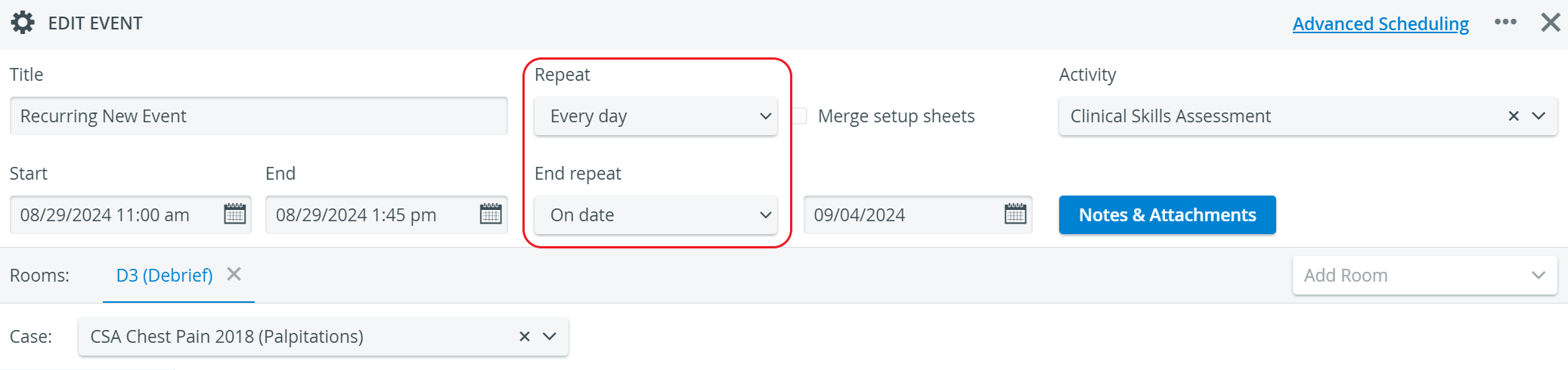
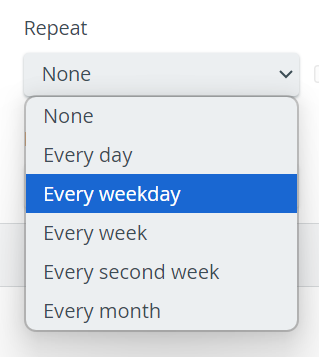
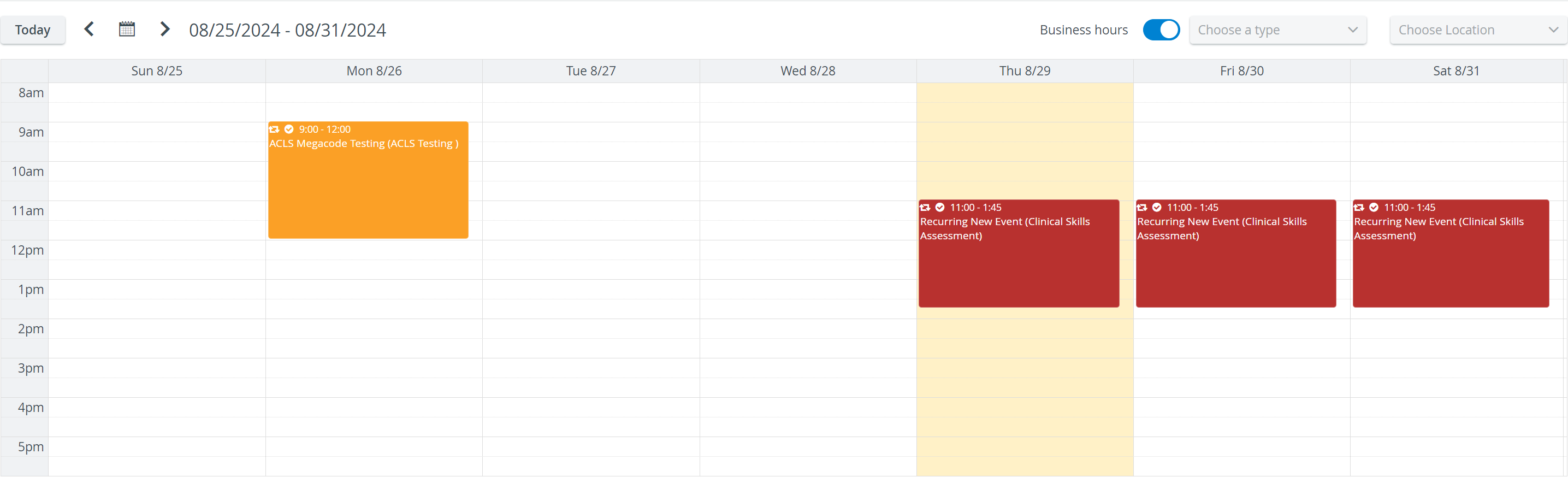
Once repeat frequency and end have been set, all sequence instances of the recurring event will appear in the Calendar. Each such will have the same Title, Activity, Case, Rooms, and Time and Duration settings.
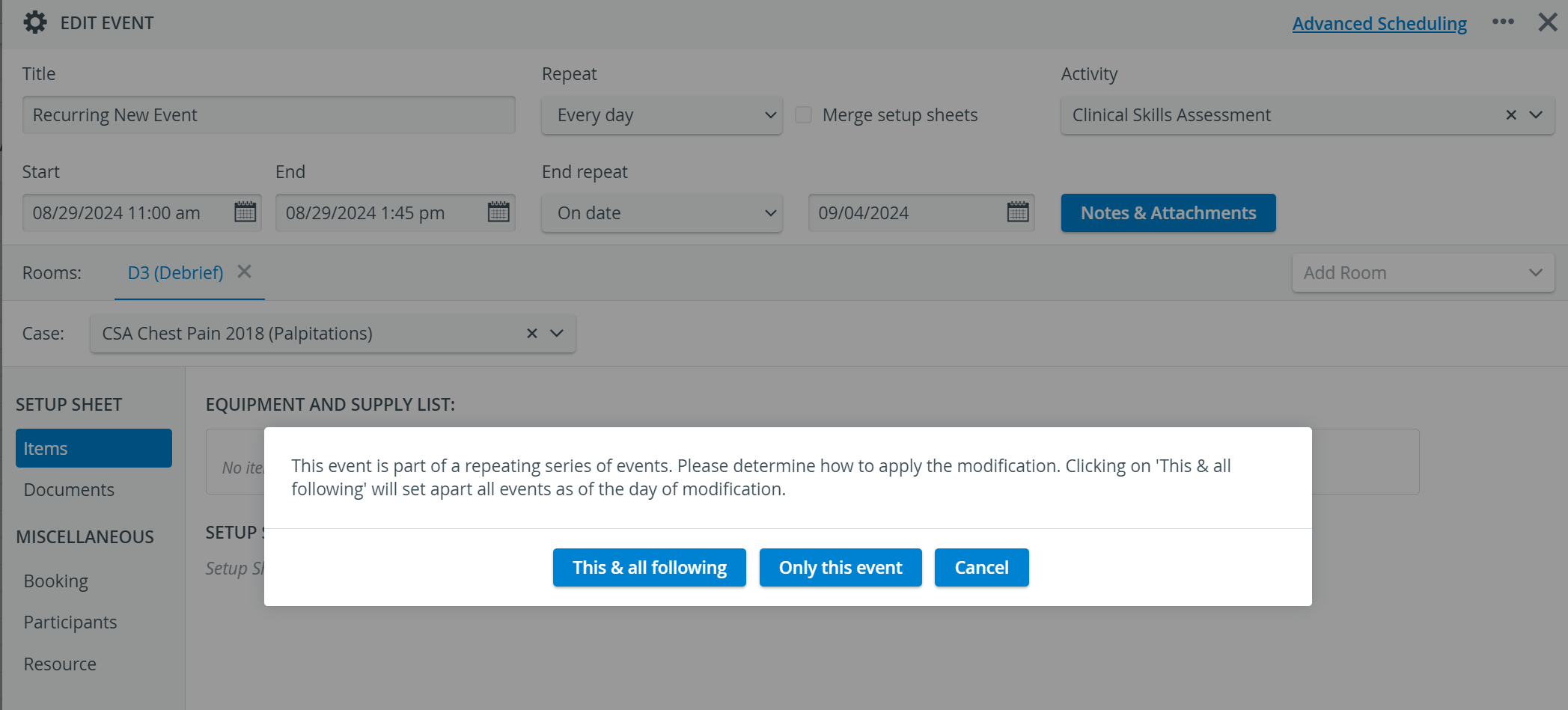
When editing the recurring event, the system requests confirmation as to whether or not to edit all the following events.
 Recurring events are marked with the respective icon in the Advanced Scheduling as well. A drop-down below the original event lists all the repeated instances.
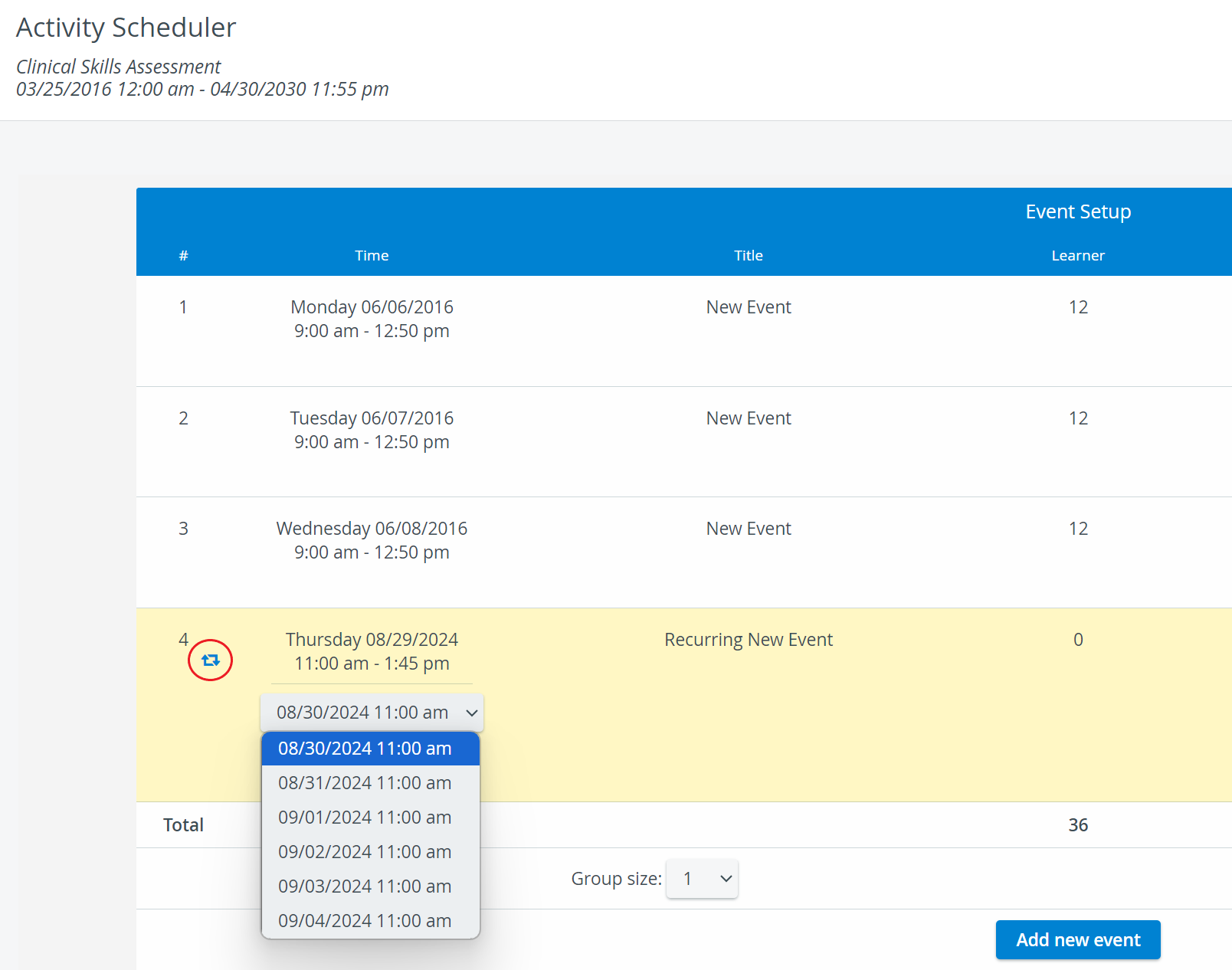
IMPORTANT: Scheduling does not get synced along with the event repetition. Timeslots and learner assignments must be manually set separately for each event.
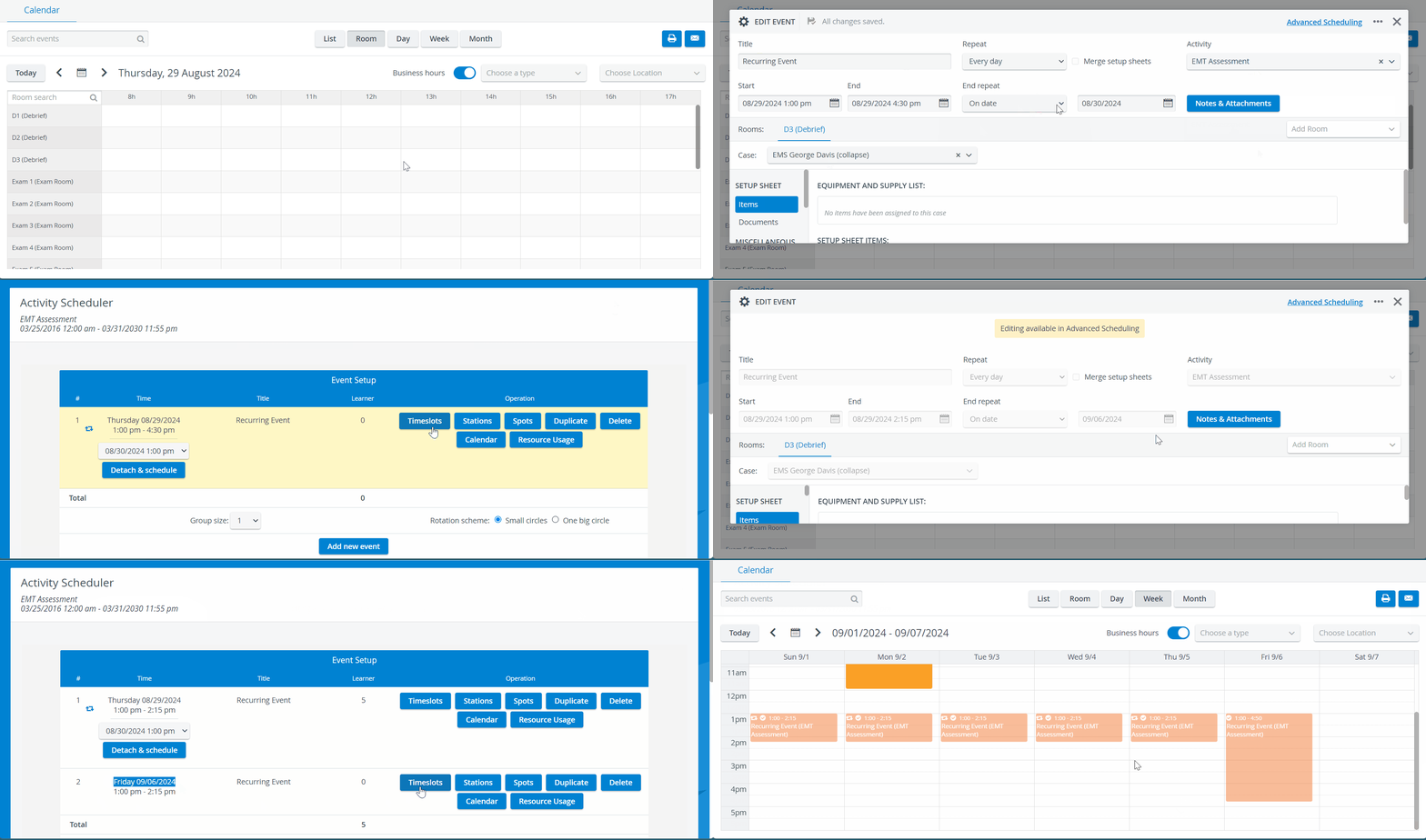
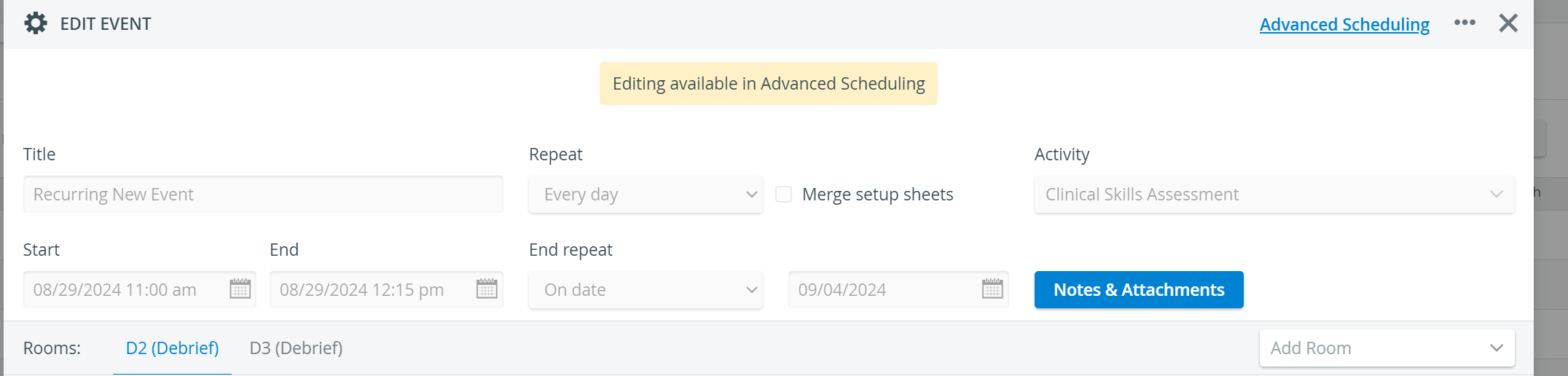
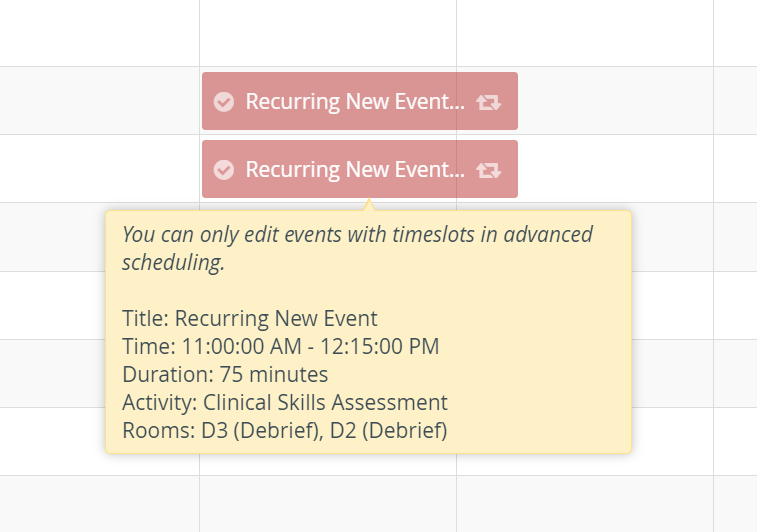
Once timeslots have been set, events created in the Calendar can only be edited within Advanced Scheduling.
For further information, visit How to manage repeated (recurring) Events in Advanced Scheduling.