How to Manage Privacy Mode for SP Users
Privacy Mode is available on authorized In-room workstations for users with SP or FON privileges.
The Privacy Mode feature is automatically enabled, and the SP toolbar is displayed when
setting up a client computer as an In-room station, and
Only 'privacy capable' cameras are assigned to the room.
If at least one camera in the room does not support Privacy Mode, the SP toolbar will not be accessible.
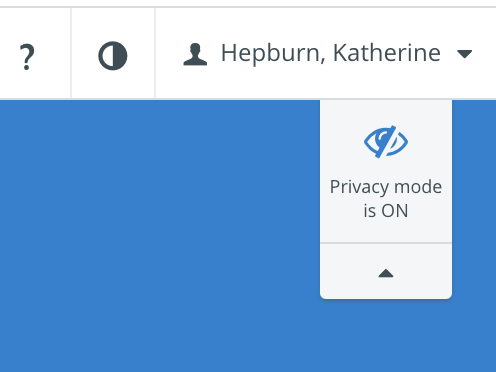
The SP toolbar located on the Dashboard allows SP or FON users to enable Privacy Mode by blocking live camera feeds in the room to prevent others from seeing them:
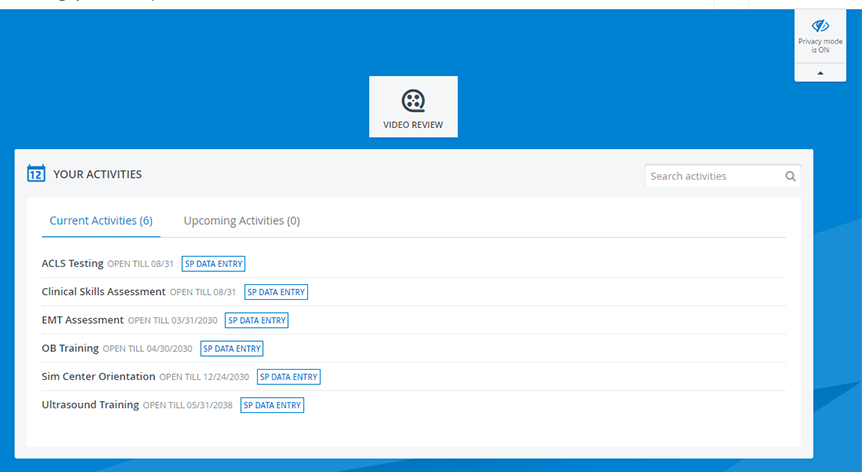
In-room Station: A workstation located inside the simulation room that SPs can use to submit their checklists.
How to Set Up an In-Room Station
Follow the steps to configure an In-room workstation:
Go to System.
Go to Stations.
Click Add This Computer at the bottom.
The Station Manager pop-up will open: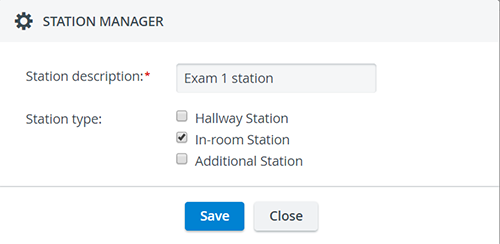
Enter the name of the workstation.
Select In-room Station as the workstation functionality.
Save your settings.
The client computer will be added to the system as an authorized workstation.
Authorized workstations can then be assigned to a room in the Rooms tab.
Assign an In-Room Station to a Room
Go to the Rooms tab in the System Manager.
Select a room, then click the room's cogwheel.
The Room Settings will open: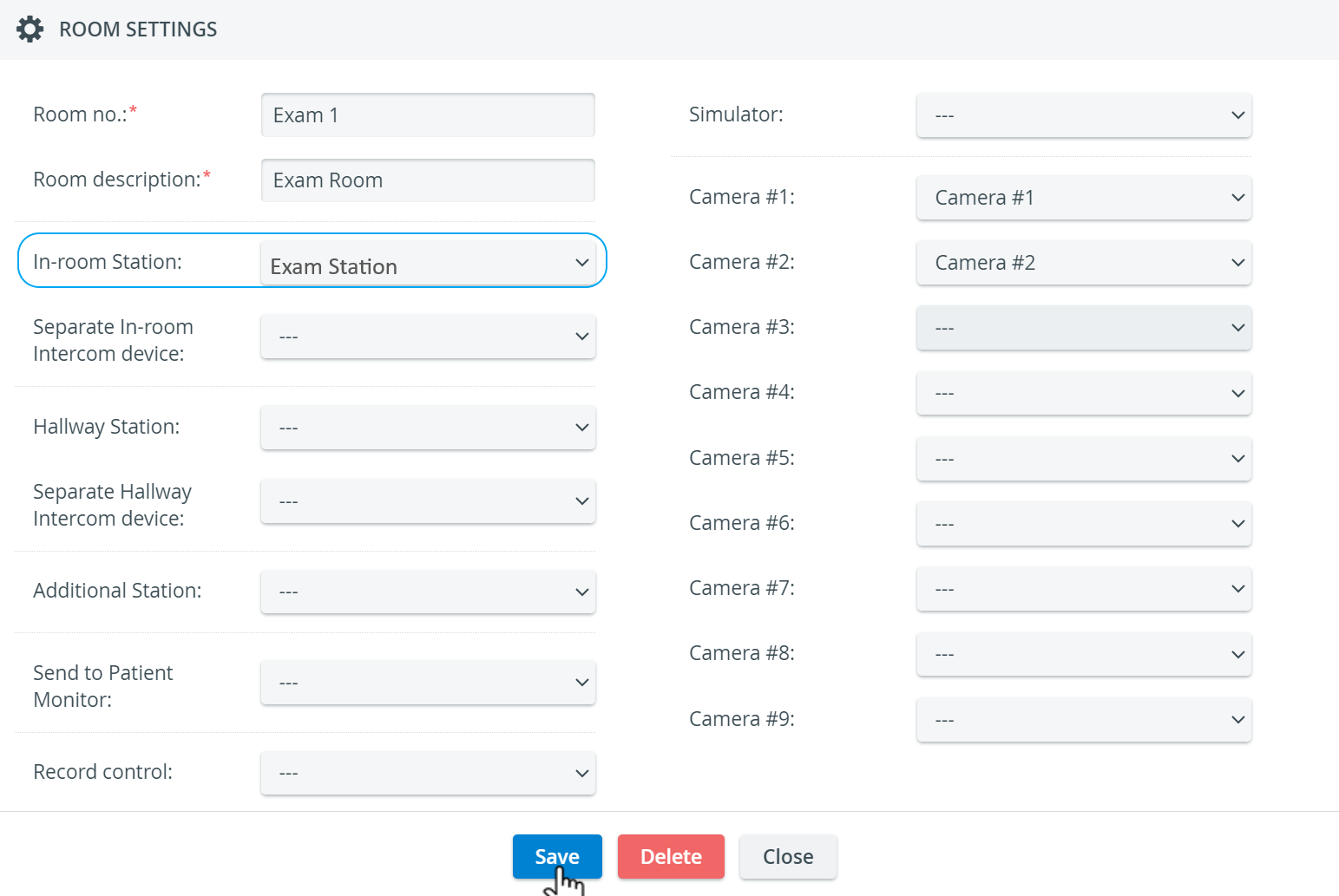
Open the In-room Station drop-down on the left.
Select the workstation you want to assign as an In-room Station to the room.
Click Save to apply the setup.
Important Notes about Privacy Mode
Auto-Mute Setup
By default, when turned ON, Privacy Mode automatically mutes the microphones in the exam room. This means that not only are the active camera feeds blocked, but no sound is picked up from the room.
To disable (or enable) this option:
Go to System Manager
and scroll down to the miscellaneous settings at the bottom of the General tab.
De-select (or select) the “Mute audio when Privacy Mode is on” checkbox.
Your setup is automatically saved.
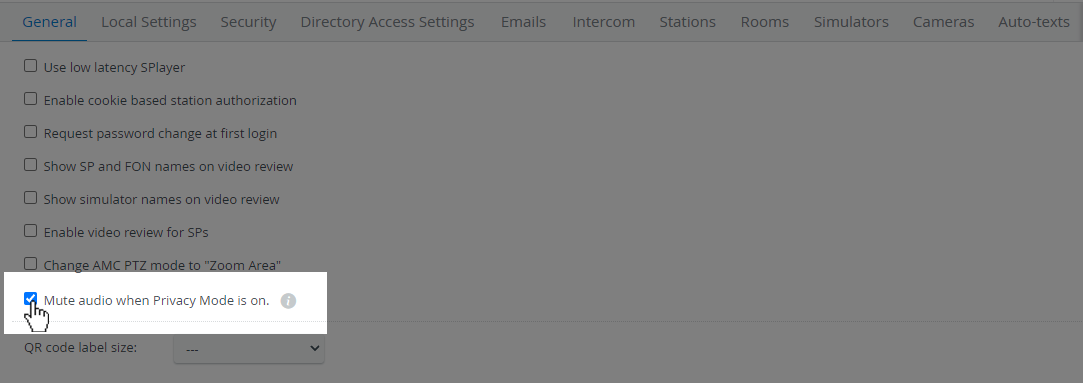
Privacy Mode's auto-mute setting can only be applied system-wide; it cannot be adjusted for each room separately.
Push-button activation of the Privacy Mode
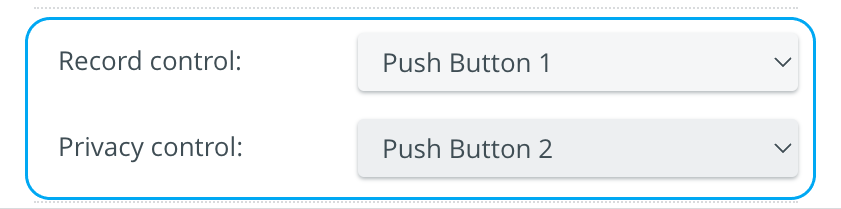
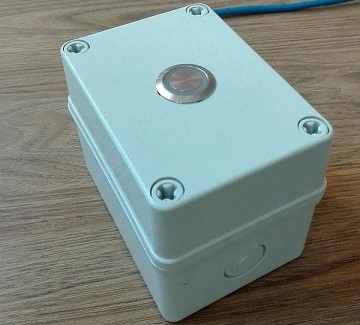
Privacy mode can be controlled using a push button in the physical rooms. Once a Push-button has been connected to a DAK (Digital Audio Kit) physically, and the DAK is configured on the Cameras tab, it can be selected as a
Record control device
Privacy control device
from the following two drop-downs of the Room Settings pop-up:

Push-button hardware can only be assigned to a room once. Once assigned, it cannot be selected from the other drop-down any longer - otherwise, the following error message comes up:

⚠️ One push button can be added to only one room within the system.
If two DAKs are being used with two Push buttons (one DAK/one Push button) →, record control and privacy control can be used simultaneously.
By utilizing only one DAK device and one Push button → either record or privacy control can be managed by the Push button.
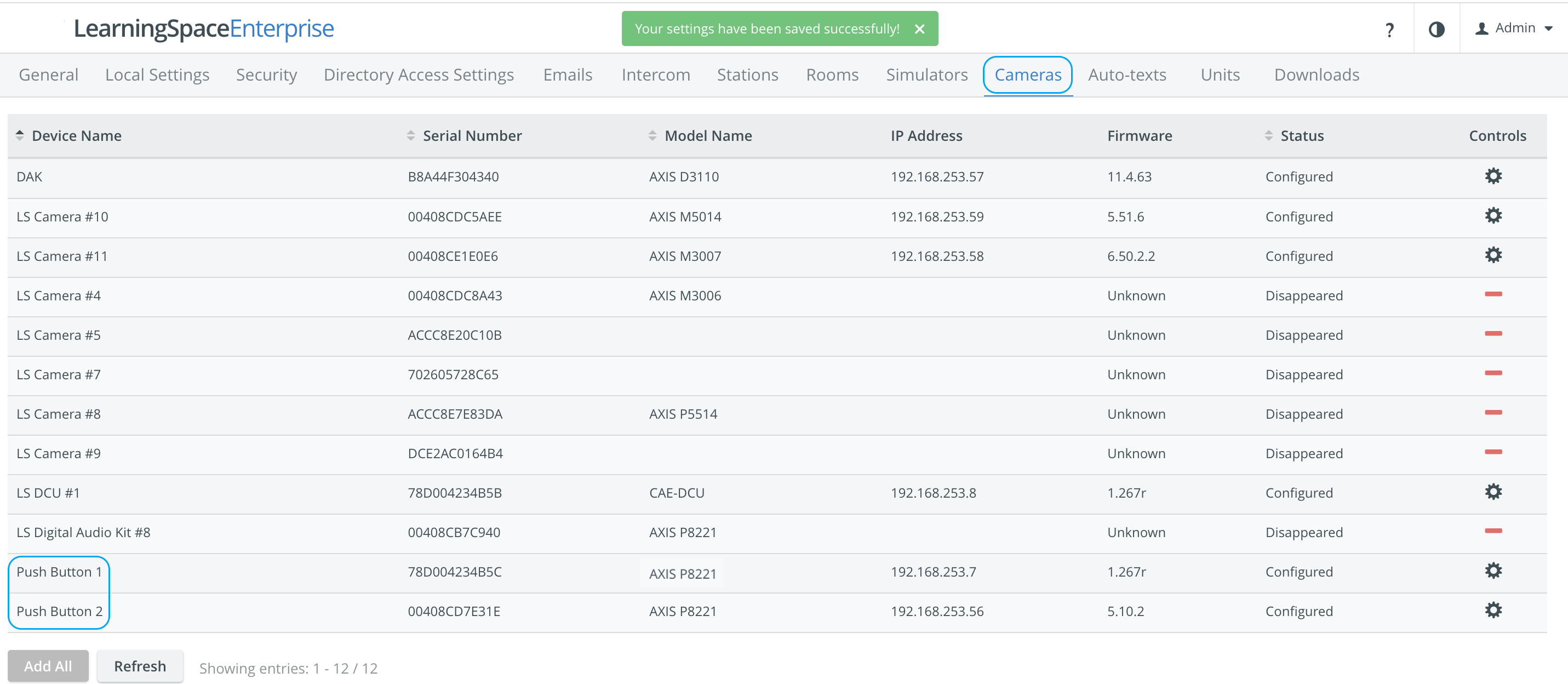
Once the above conditions are met, Privacy mode can be activated by pushing the Push-button in the room.
Privacy Mode and DCU/ Encoder
Privacy Mode is accessible even when a DCU or a JTech encoder is present. (Earlier, adding a DCU or JTech encoder to a Room with Cameras disabled would disable Privacy Mode. This limitation has been removed to ensure that Privacy Mode can always be enabled.)
NOTE: If there is a DCU/encoder in the room along with cameras on which privacy mode can be enabled, users can activate privacy mode in the room using the SP toolbar or push button, but privacy mode will only be enabled on the cameras and NOT ON THE DCU/encoder.
When pressing the 'Privacy Mode On' button on the SP toolbar, a header message will appear with the following text: “Please note that a connected capture device may continue to operate and record during Privacy Mode.”

NOTE: Privacy mode does not affect the device(s) connected to the DCU or encoder.
Privacy Mode is available under the following conditions:
The audio source is set to: ‘use without audio.’
The audio source is connected to another Elevate-handled device that is mutable.
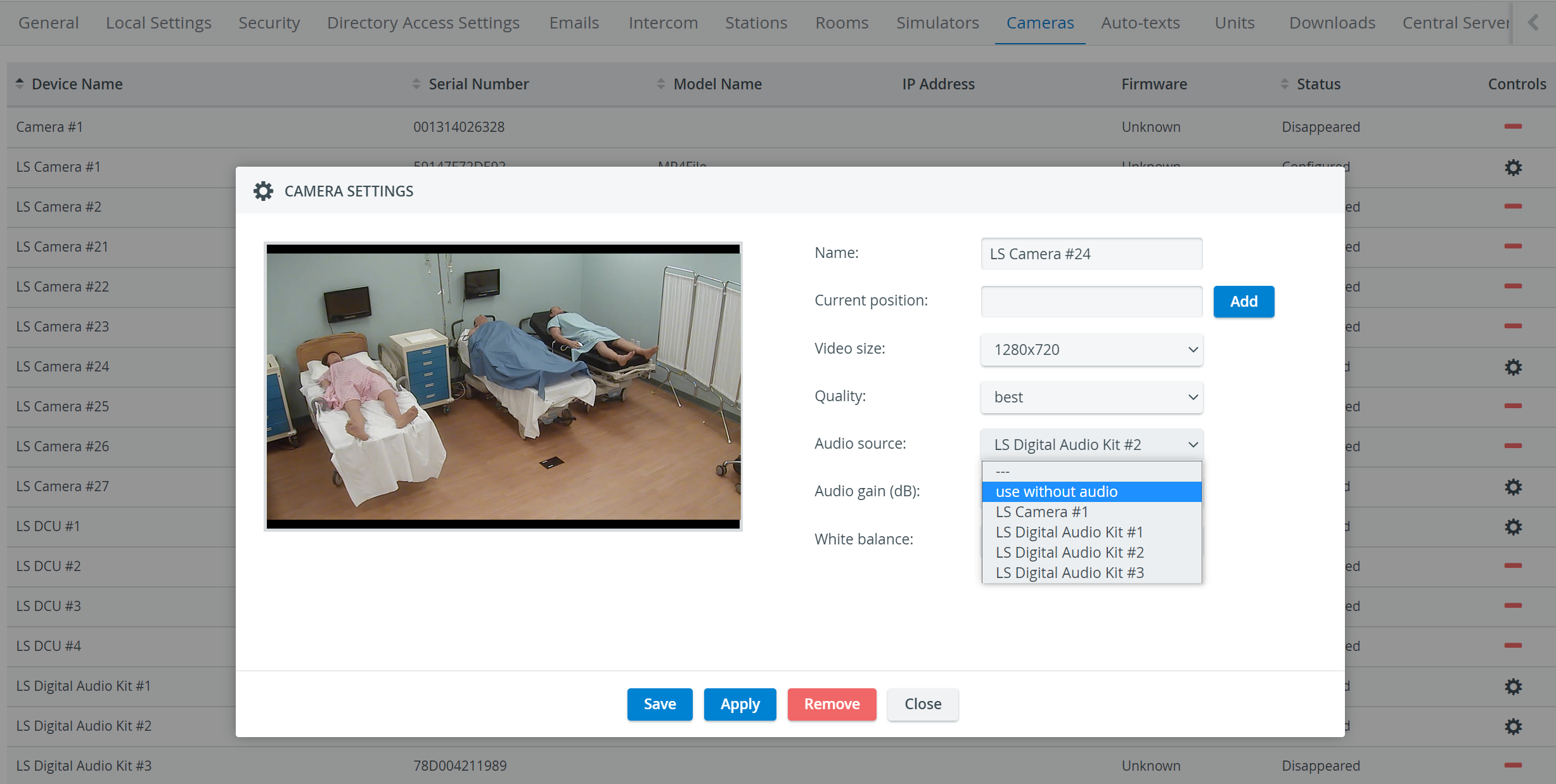
The mute icon is disabled if no audio is available on the assigned device (i.e., if the camera or its audio source cannot be muted).
Colors of Privacy button function
Light indication colors of the Push-button functioning as a Privacy control button change according to the following statuses:
⚪ White: NO PRIVACY - Button is ready to use, idle
🔵 Blue: LOADING - Request is sent, waiting for a response
🍥 Pink: PRIVACY ON - Privacy mode is active
⚫ Black: No camera in the room
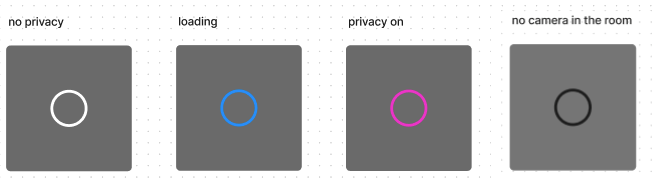
The SPs' Privacy mode, managed via the LearningSpace user interface, also influences the light indication colors, as described above.
Light indication colors of the Push-Button functioning as a Record control button have the following statuses:
No light - No room associated with the button, or no camera in the room
Green light - Ready to record
Blue light - Request to start or stop recording received (transient state)
Red light - Room recording
Orange light - Room is recording, but not on all cameras (incomplete state)
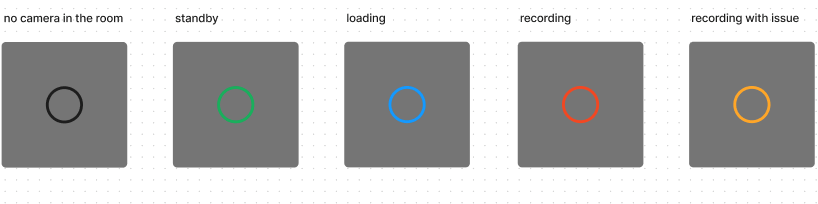
NOTE: The Push-Button has a 5-second throttling protection; any pushes within 5 seconds of the last push will be ignored.
⚠️ In case any of the Cameras within the room do not support Privacy Mode, the following warning message appears on the top of the Rooms settings tab:

Learn more in the 2023 September New Features - Release Notes.
Privacy Mode Visual Indicator
When Privacy Mode is enabled, a visual Privacy Mode indicator appears in the
Center Overview (CO) of the Recording module;
Single Room View (SRV) of the Recording module;
Camera Settings window of the System Manager.
Admins can toggle privacy mode directly on the Center Overview page (if the ‘Allow centralised control of Privacy Mode’ option is enabled in the System Manager, General tab).
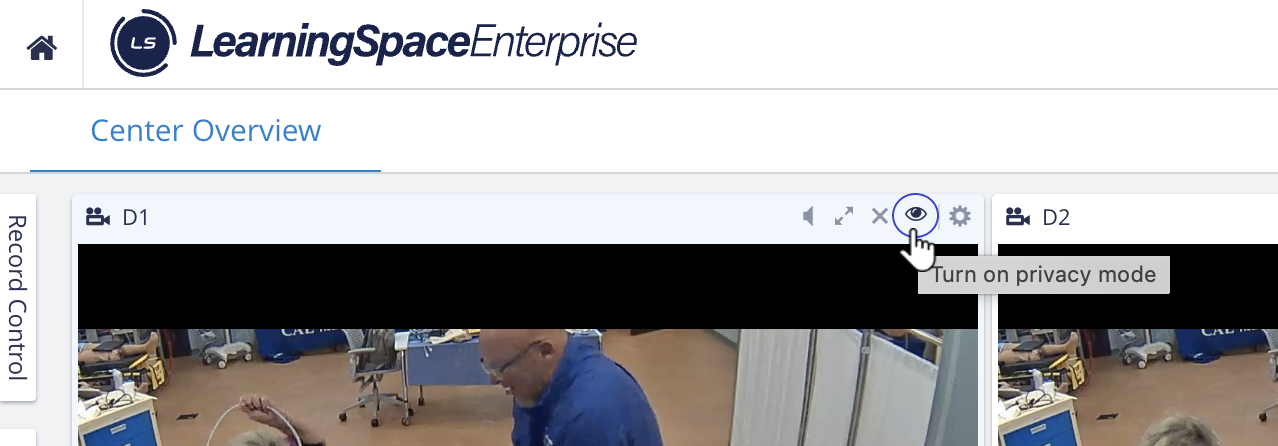
Click the privacy control: the room goes to privacy on.
Click again: it returns to privacy off.
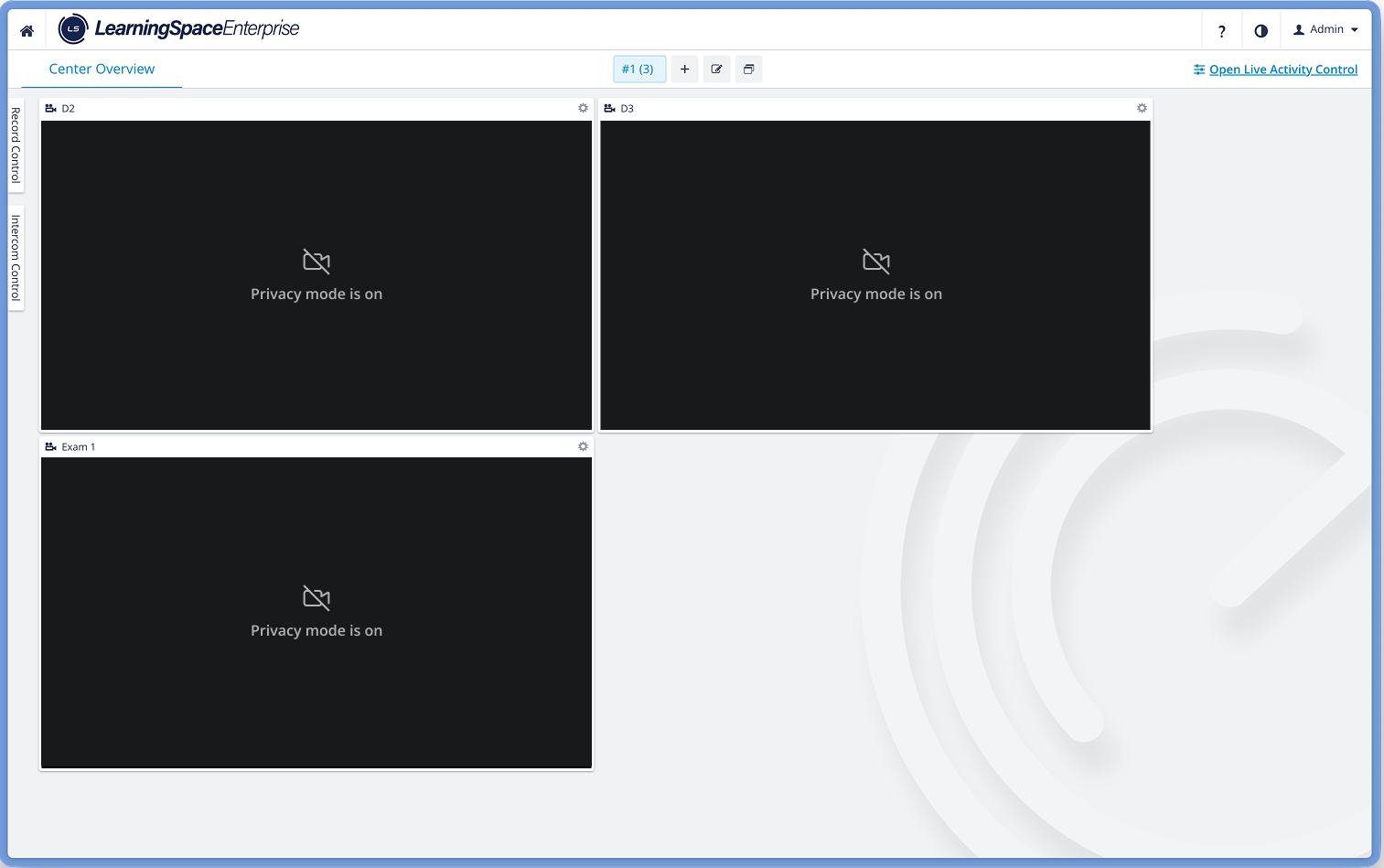
Privacy mode ON - Center Overview

Privacy Mode - Single room view
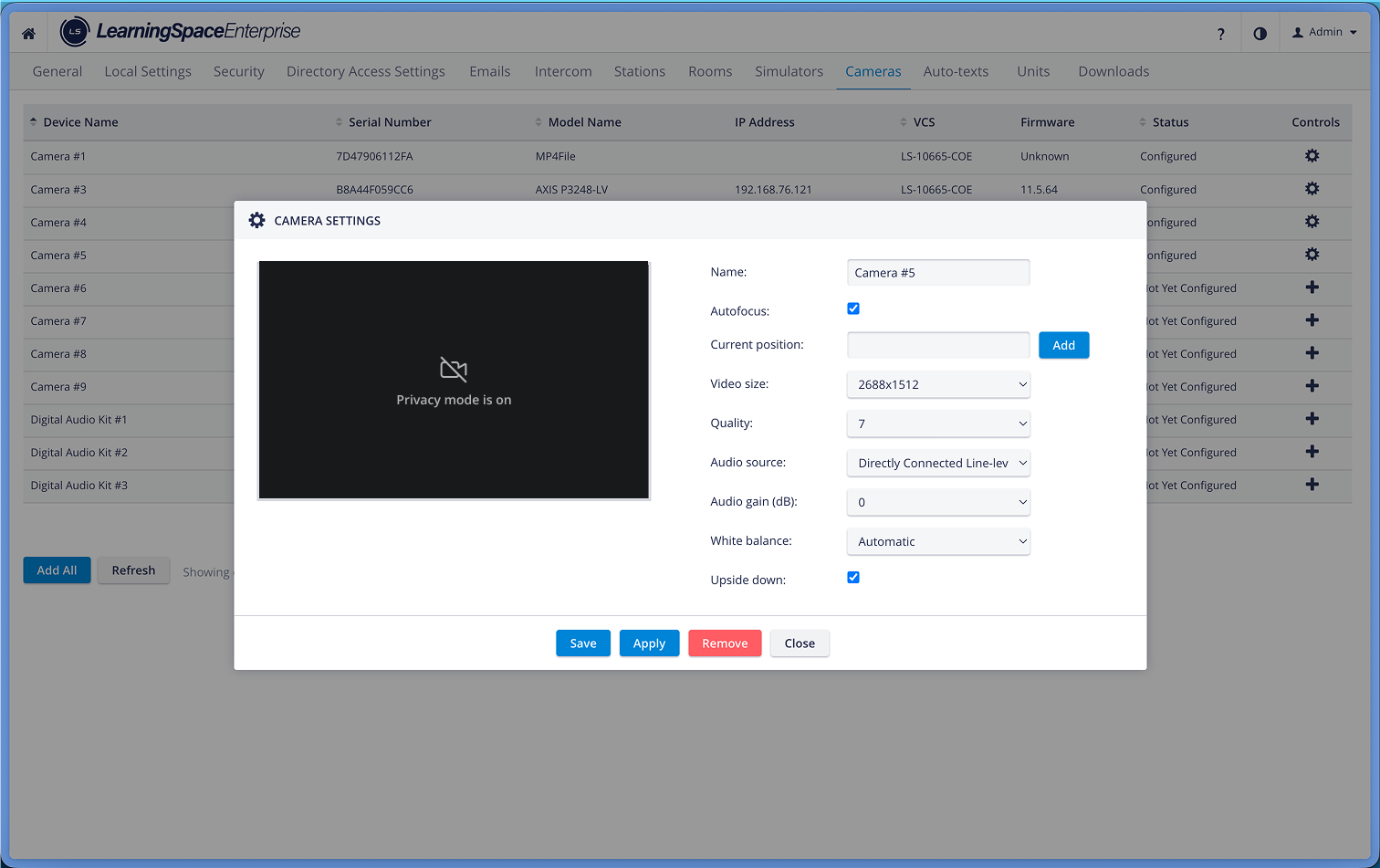
Privacy mode - Camera Settings
Privacy mode is currently not supported for mobile cameras. See Mobile Recording Feature
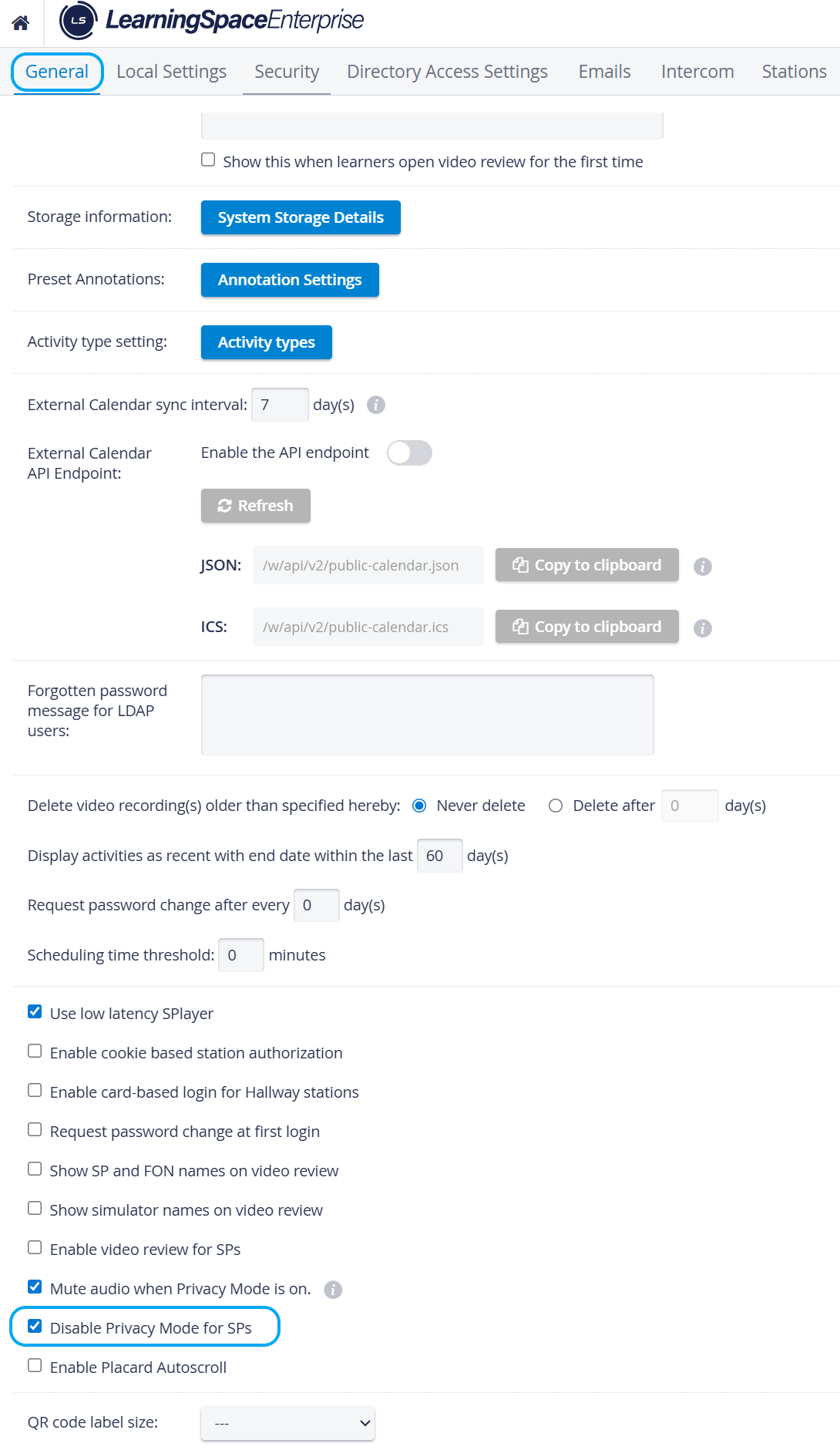
Disable Privacy Mode
Privacy mode for SPs can be centrally disabled on the General tab of the System Manager.
When the respective checkbox is not selected, Privacy mode is available for SPs.
Troubleshooting Disconnected In-Room Stations
An In-room workstation might be disconnected because it has been assigned a new IP address.
Solution
Add the device manually to the system in the Stations tab, then assign it again to the room.
To avoid this problem in the future, apply our cookie-based station authorization solution.
For further information, visit our System Manager pages.